Note
Access to this page requires authorization. You can try signing in or changing directories.
Access to this page requires authorization. You can try changing directories.
[This article is prerelease documentation and is subject to change.]
To connect a Dataverse environment or solution to GitHub, create a GitHub app, store the app private key in Azure Key Vault, create a Power Platform GitHub connection, and then connect from the source control experience in your solution.
You can connect to GitHub integration preview from the solutions experience at https://make.preview.powerapps.com, https://make.preview.powerautomate.com, https://copilotstudio.preview.microsoft.com, or https://make.preview.powerpages.microsoft.com.
Important
- This is a preview feature.
- Preview features aren't meant for production use and may have restricted functionality. These features are available before an official release so that customers can get early access and provide feedback.
Prerequisites
- Dataverse Git integration is a feature of managed environments. Development and target environments must be enabled as managed environments.
- A GitHub account with organization admin access.
- An Azure subscription with permission to create Key Vault resources. The Key Vault must be in the same Microsoft Entra tenant as the Dataverse environment.
- You need a Dataverse environment where you have the System Administrator security role.
- A custom unmanaged solution that you want to connect to source control. Create one if you don't have one yet.
Create a GitHub app
Open GitHub in your browser. Select your profile picture in the upper-right corner, and then go to Settings > Developer settings.
Select New GitHub App.
You can also go directly to the GitHub app registration page to create a new GitHub App.
On the Create GitHub App page, enter a unique name for your GitHub app in the GitHub App name field. For example, enter
MyOrgGitHubIntegrationApp.Fill in the Homepage URL field. You can use your organization's website or the GitHub repository URL.
If you don't need webhook notifications, clear the Active checkbox in the Webhook section.
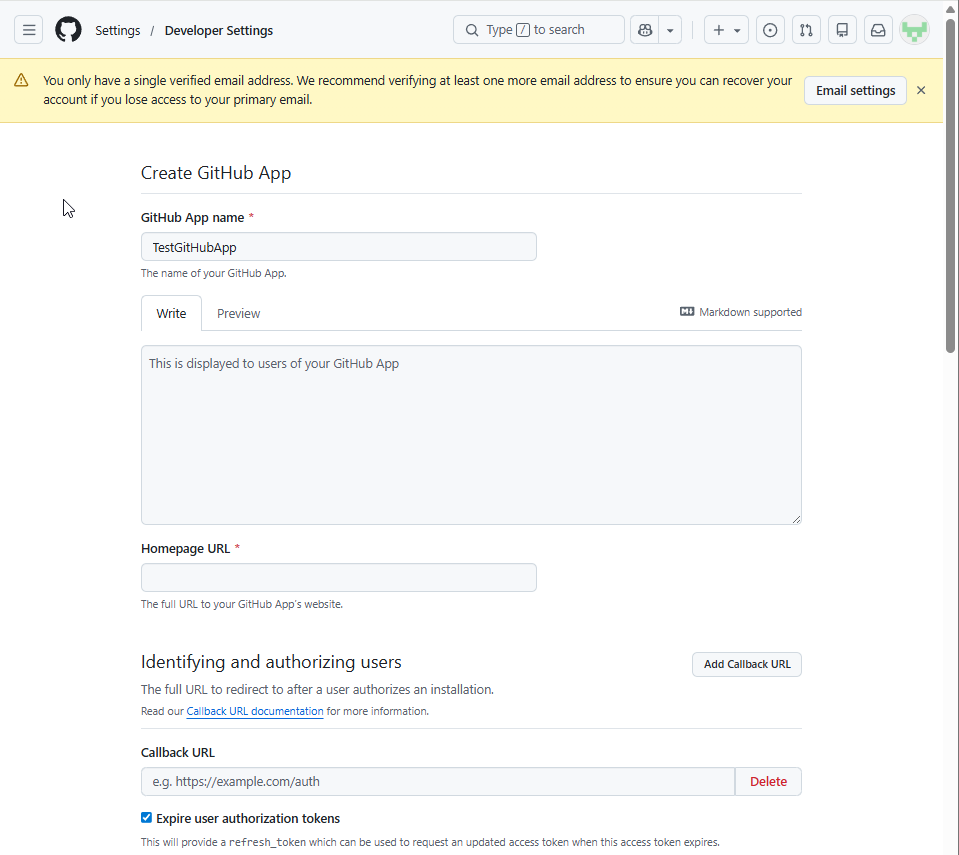
Configure repository permissions
Scroll down to the Permissions section.
Expand Repository permissions, and then set Contents to Read and write. This permission allows the app to read and write repository content for source control integration.
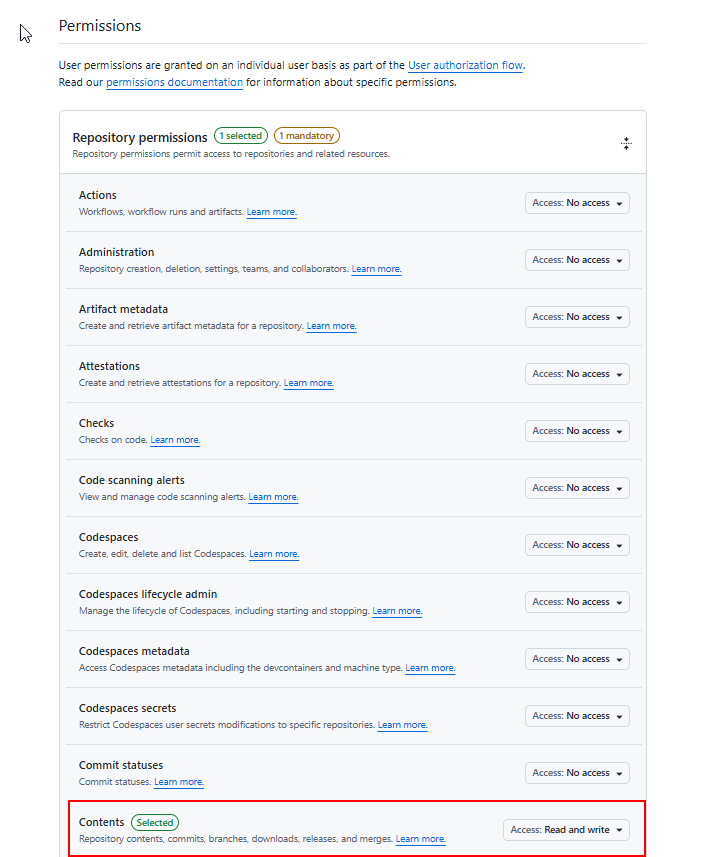
Scroll down and select Create GitHub App.
On the GitHub App settings page, copy the Client ID. You need this value when you register the app configuration in Dataverse. The Client ID uses a format such as
Iv23liBWoH6sf7xGrRe9.Generate and download a private key from the GitHub app settings page. Store the private key in Azure Key Vault in a later step.
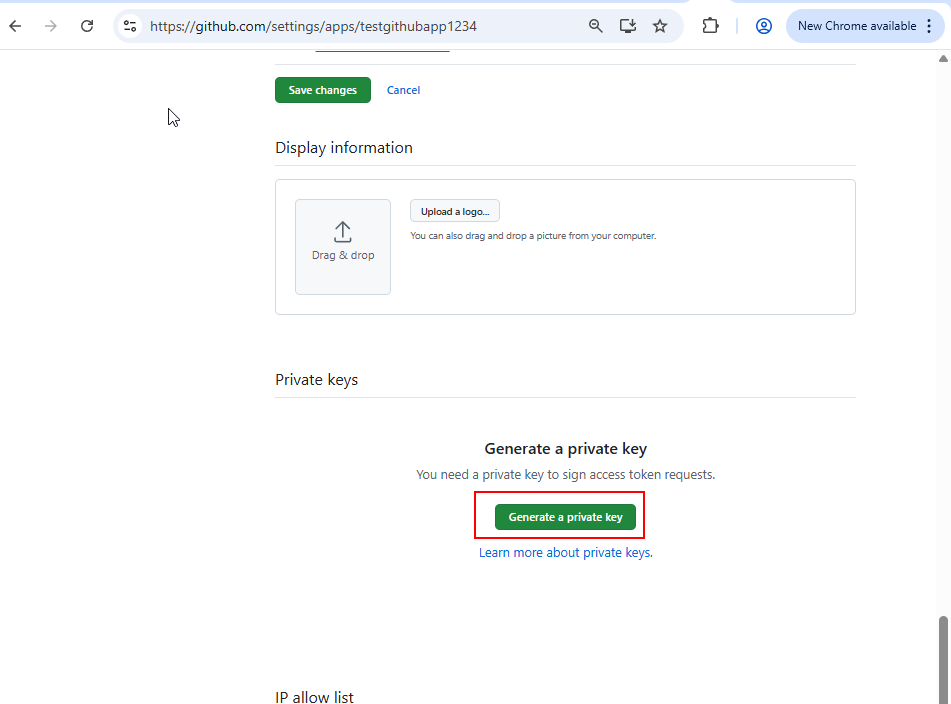
Install the GitHub App on the target repository
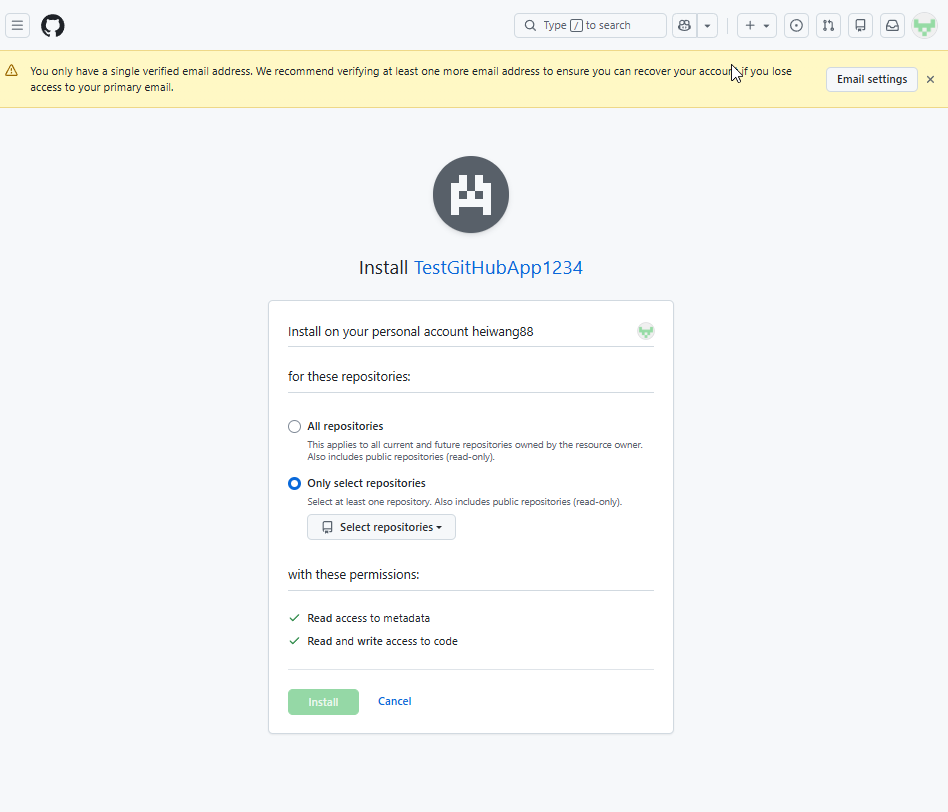
From the GitHub app settings page, select Install App in the left pane.
Select Install next to the account or organization that owns the target repository.
If the target repository belongs to a GitHub organization, the organization administrator might need to approve the app installation. The admin receives a notification to review and approve the request.
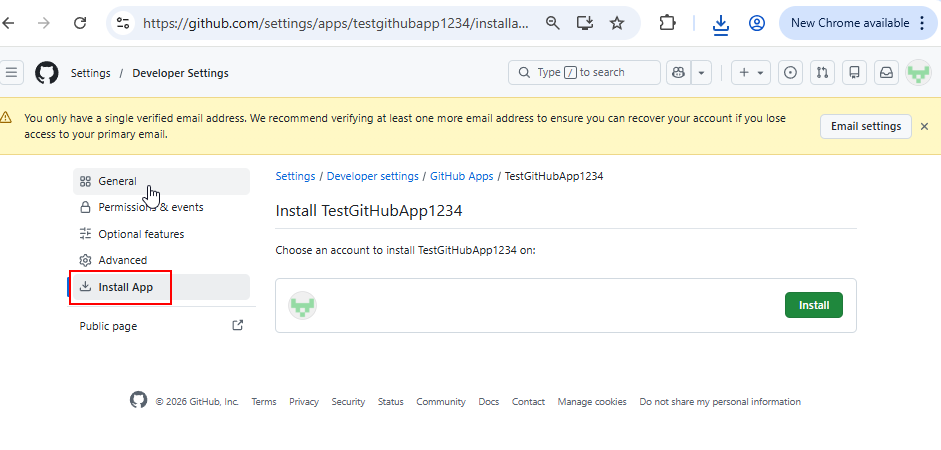
Choose whether to give the app access to All repositories or Only select repositories. For security best practices, select only the specific repositories needed for source control integration.
Select Install to complete the installation.
Configure Azure Key Vault
Open the Azure portal and go to your key vault resource. If you don't have one, create a new key vault first.
In the Key Vault pane, select Keys in the left navigation.
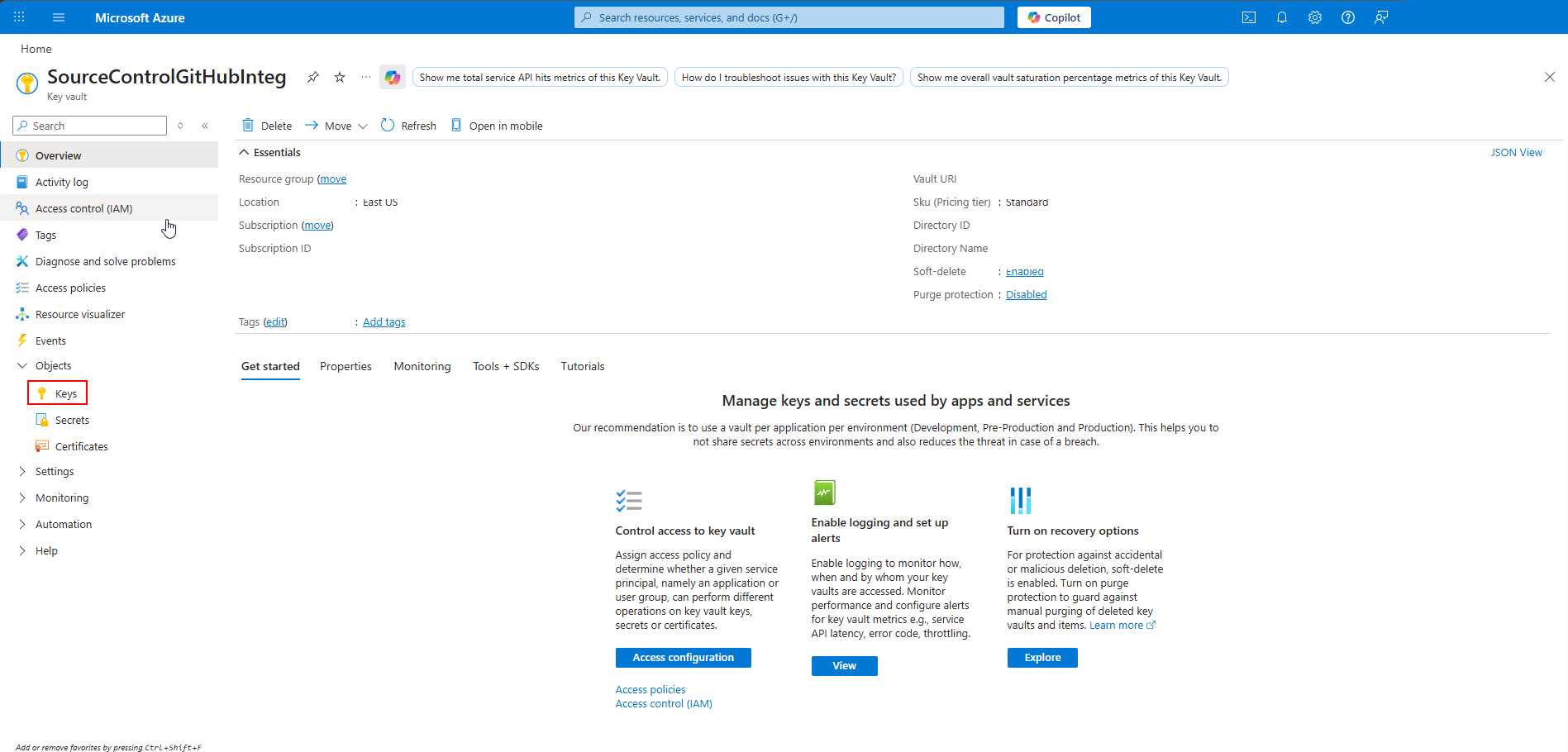
Select Generate/Import.
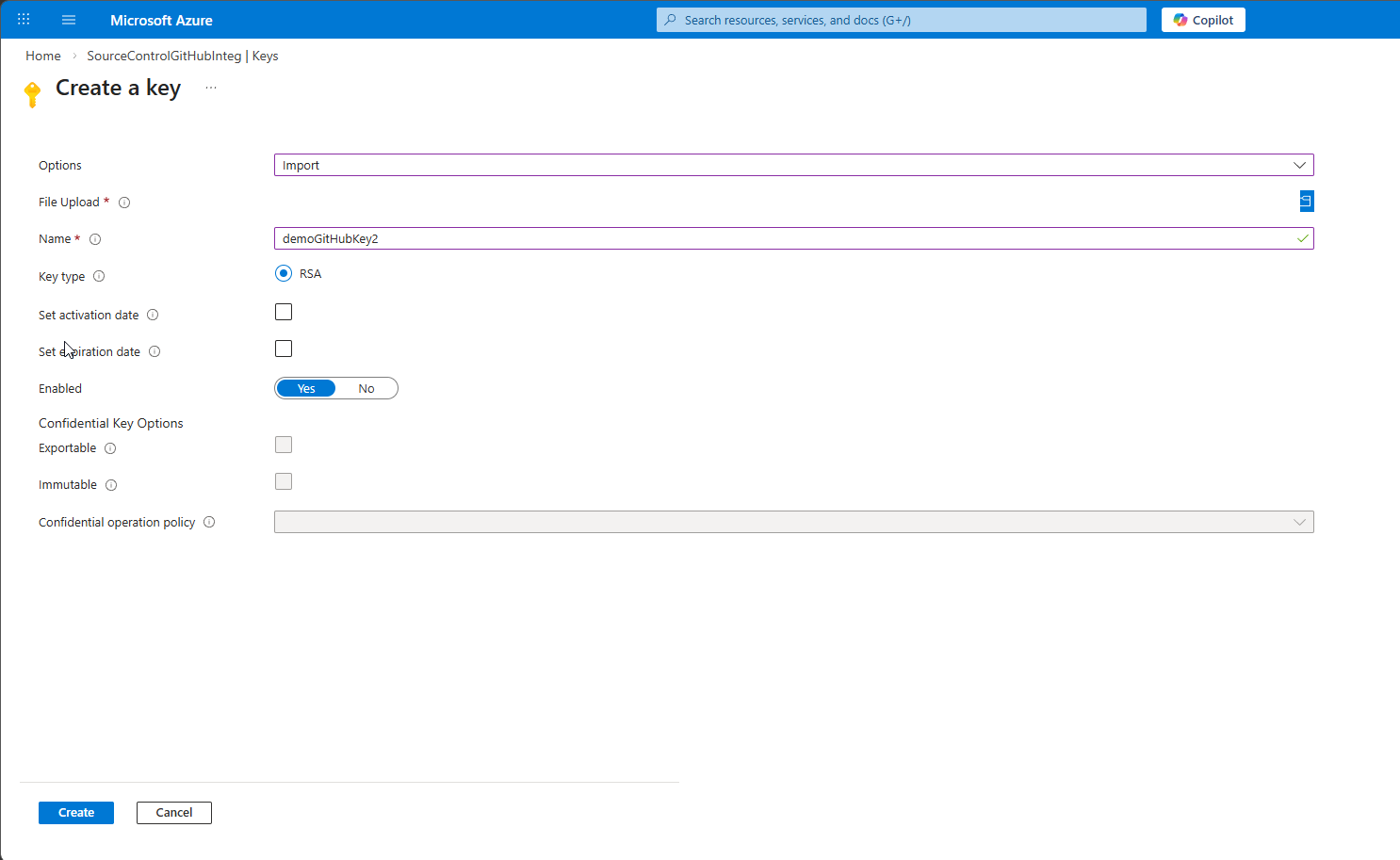
In the Options dropdown, select Import.
Enter a name for the key, such as
demoGitHubKey, and then upload the.pemfile you downloaded from GitHub.Select Create to import the key.
Note
When you connect subsequent Dataverse environments to GitHub, you don't need to repeat the preceding GitHub app and Azure Key Vault setup steps. You can reuse the same GitHub app across multiple repositories and the same Azure Key Vault configuration across multiple environments.
Create a GitHub connection
Create an OAuth connection by using your personal GitHub account. This connection verifies that you have admin access to the target repository during setup. At runtime, the GitHub app handles communication with GitHub, so individual users don't need to create GitHub connections.
Note
Alternatively, you can use a GitHub personal access token (PAT) instead of a GitHub connection. Use a PAT when virtual network (VNET) support is enabled for the Dataverse environment or when GitHub connections can't be created.
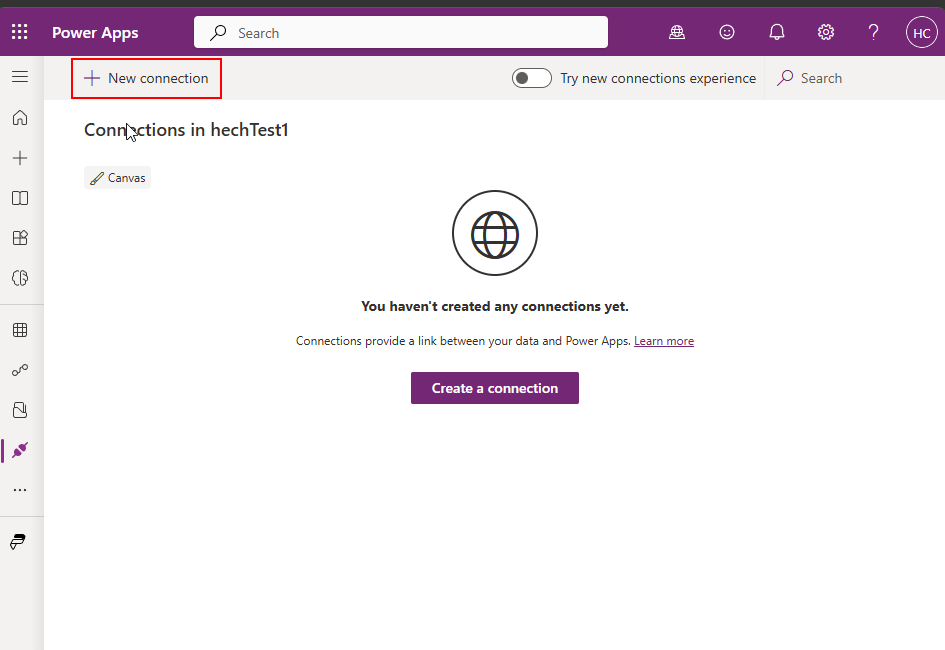
Go to Power Apps preview, and then select Connections.
Select New connection.
Search for and select the GitHub standard connector.
Sign in by using your GitHub account and grant the requested access.
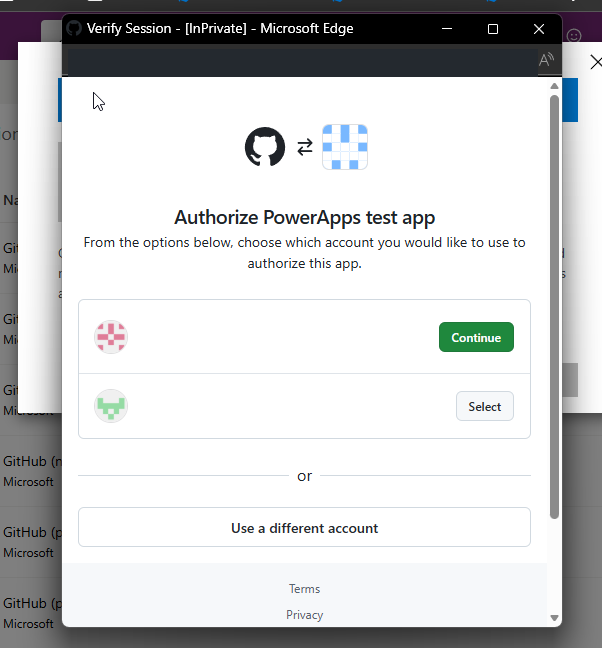
The GitHub account you sign in with must have admin access to the target repository. The OAuth connection verifies your permissions.
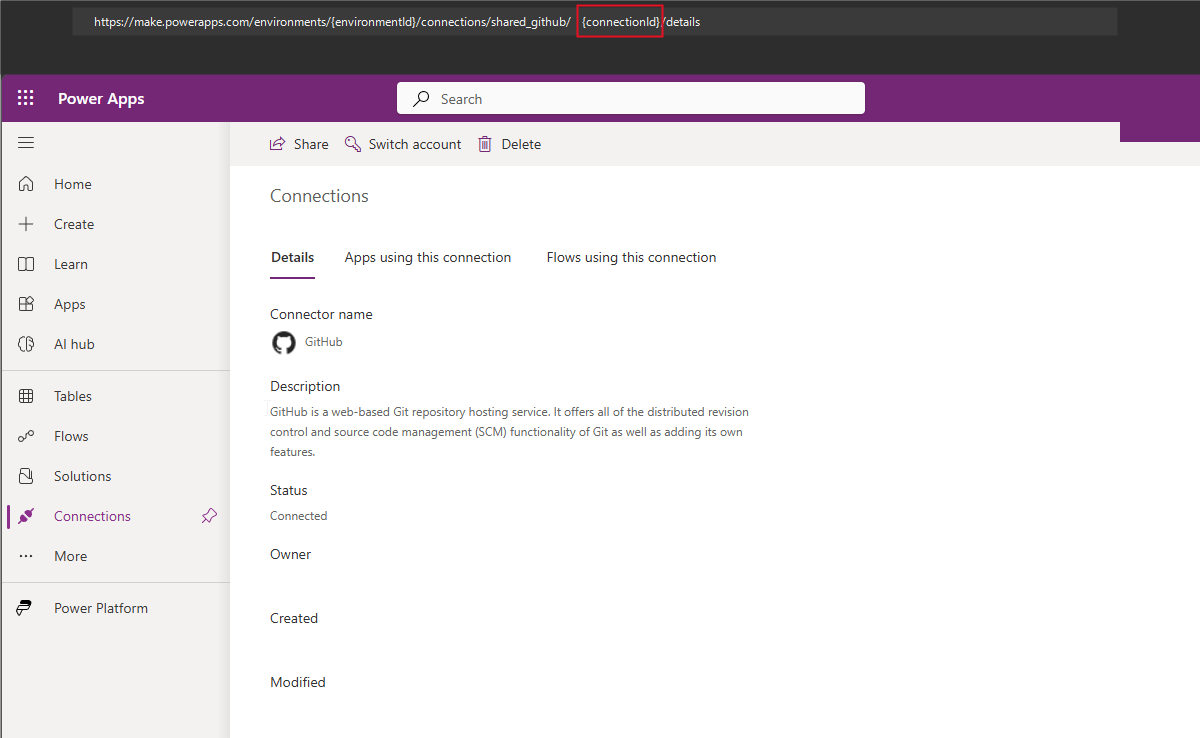
After you create the connection, open it. Note the connection ID from the URL in your browser address bar. You need this value when you configure the Git connection.
The connection ID appears in the URL when you view the connection details, as shown in the following example:
https://make.preview.powerapps.com/.../connections/shared_github/{connectionId}/details
Approve OAuth app access for your organization
If your GitHub organization has non-Microsoft application access restrictions enabled, an organization administrator must approve the OAuth app used by the Power Apps GitHub connector. Check your organization's settings at Organization Settings > Third-party access.
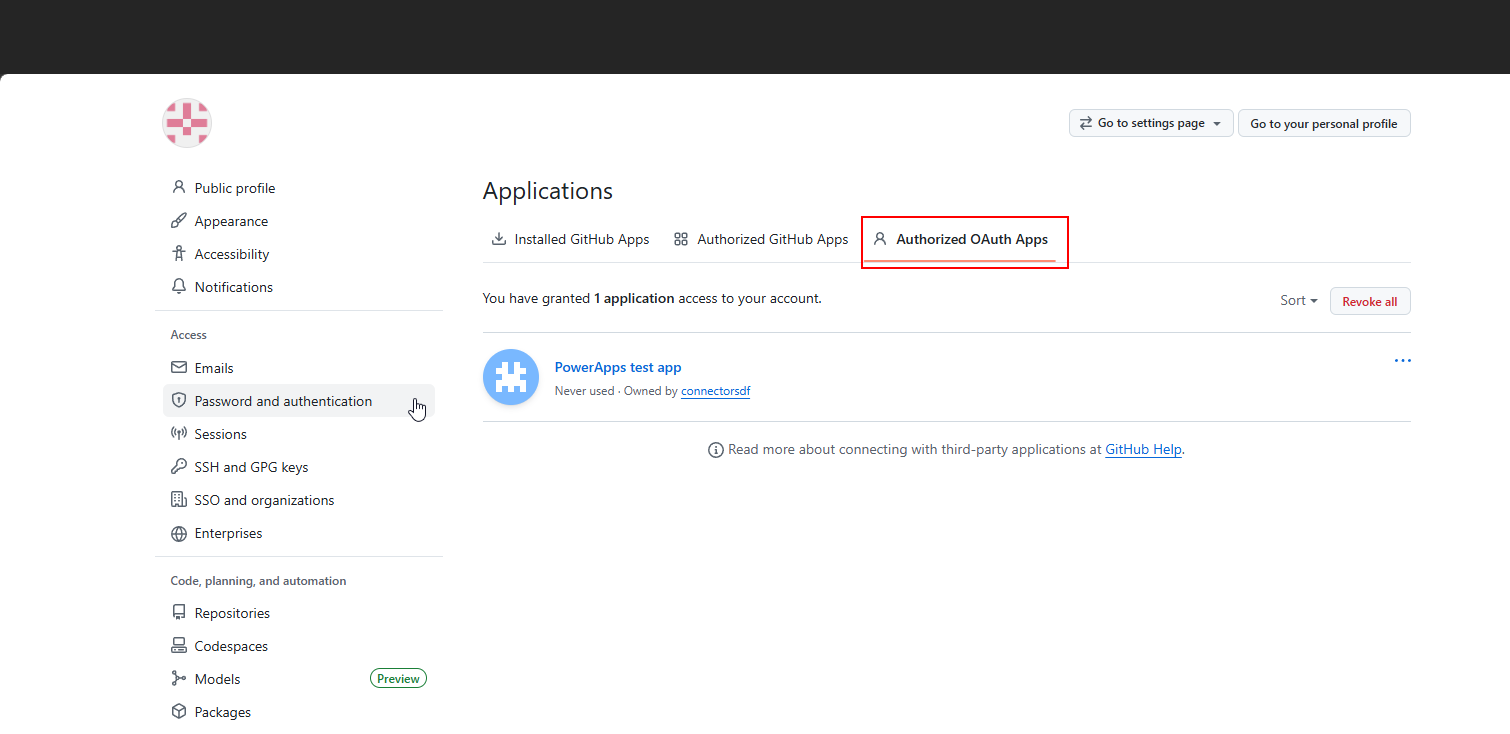
For more information, see Enabling OAuth app access restrictions and Approving OAuth apps for your organization.
Connect to GitHub from a solution
Go to Power Apps preview, then create a new unmanaged solution or select an existing custom unmanaged solution.
On the Source control page, select Connect.
In the Connect to Git pane, select GitHub.
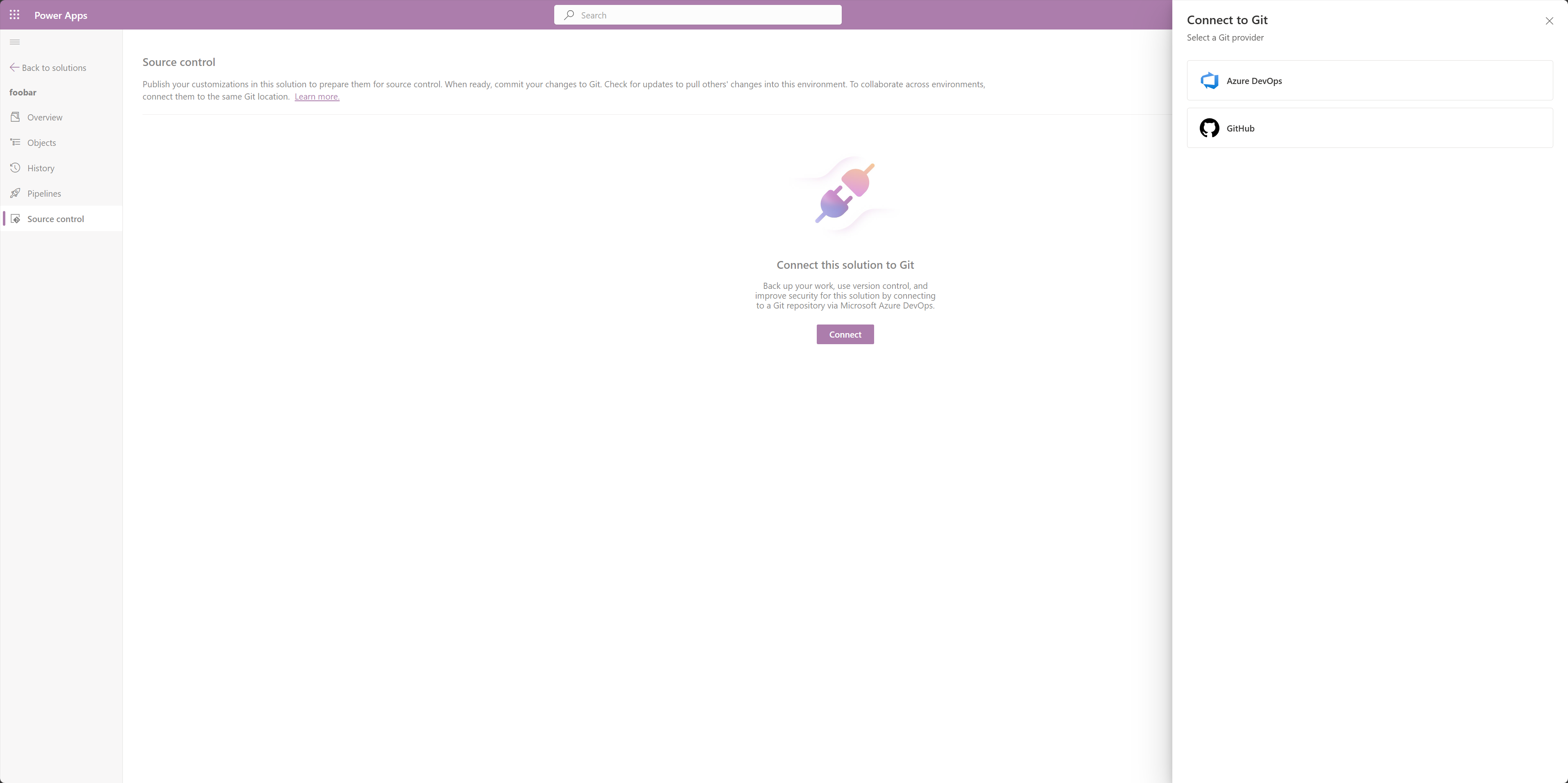
Enter the GitHub organization, repository, branch, Git folder, and connection information from the previous setup steps.
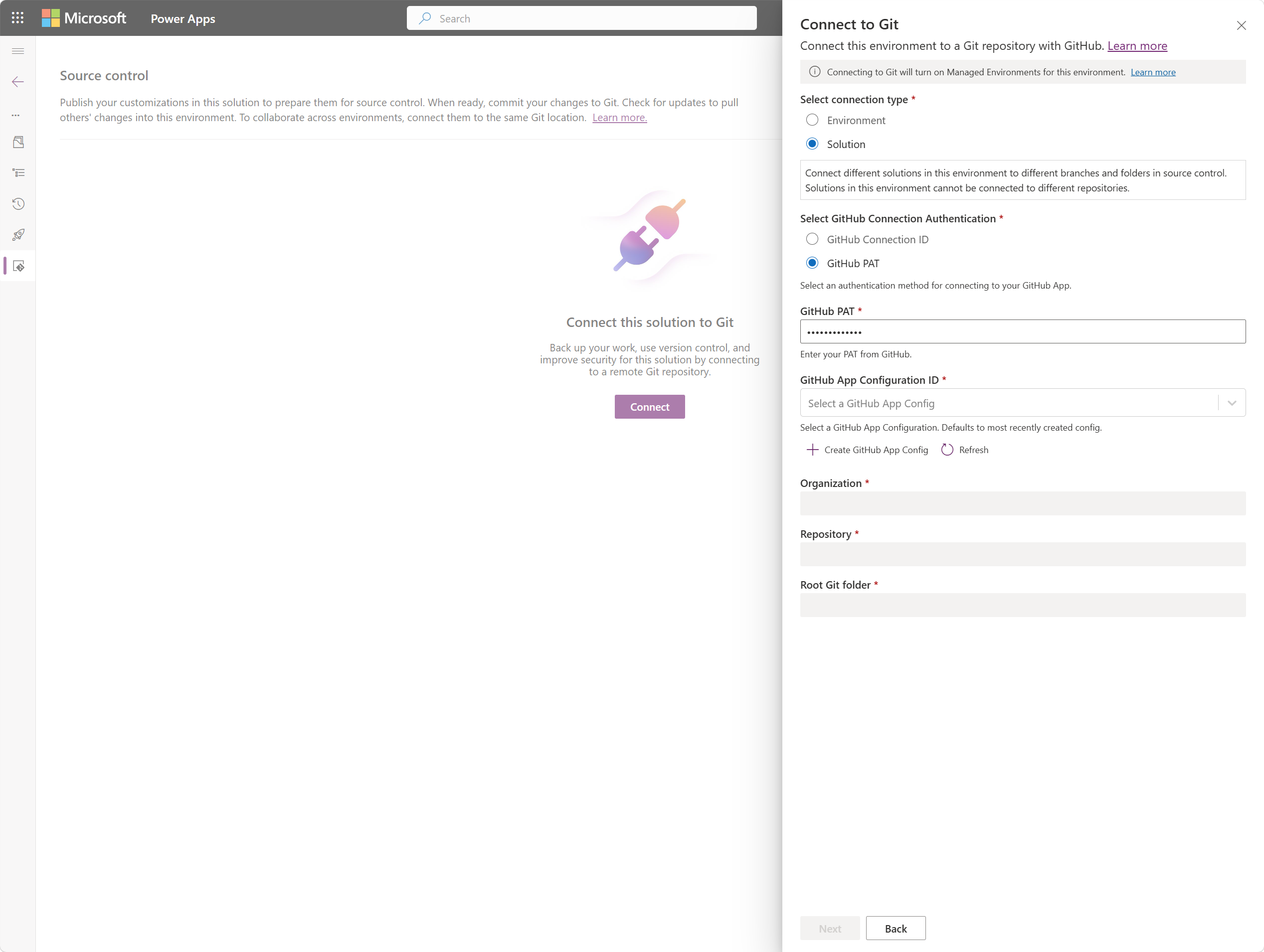
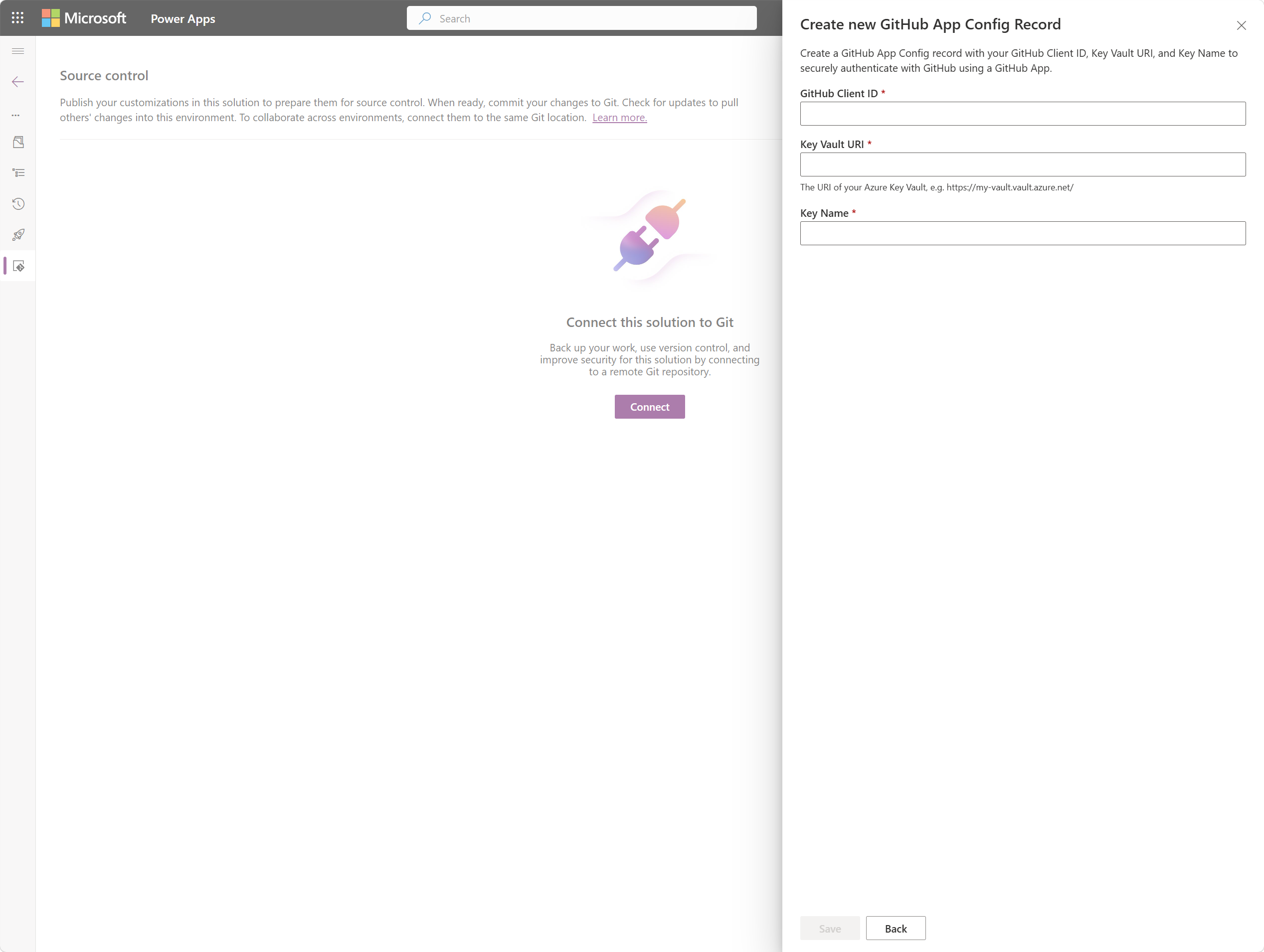
Create a GitHub app configuration and enter the GitHub app client ID, Key Vault URI, and key name from the previous setup steps.
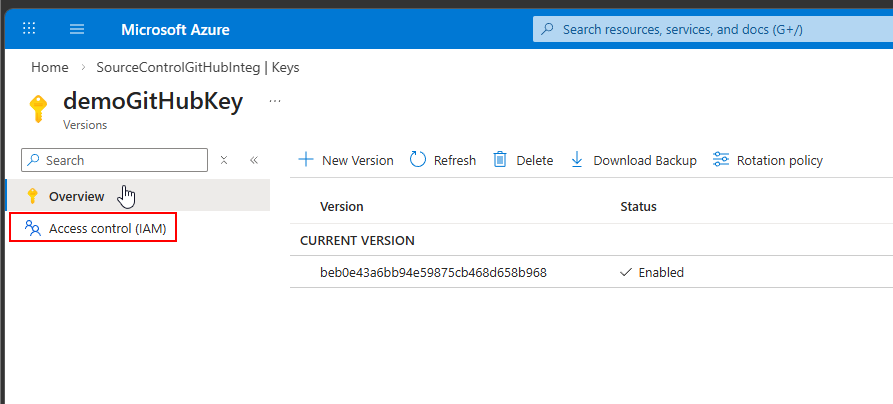
Configure Key Vault role-based access control (RBAC)
In the Azure portal, go to your Key Vault resource.
Select Access control (IAM), select Add, and then select Add role assignment.
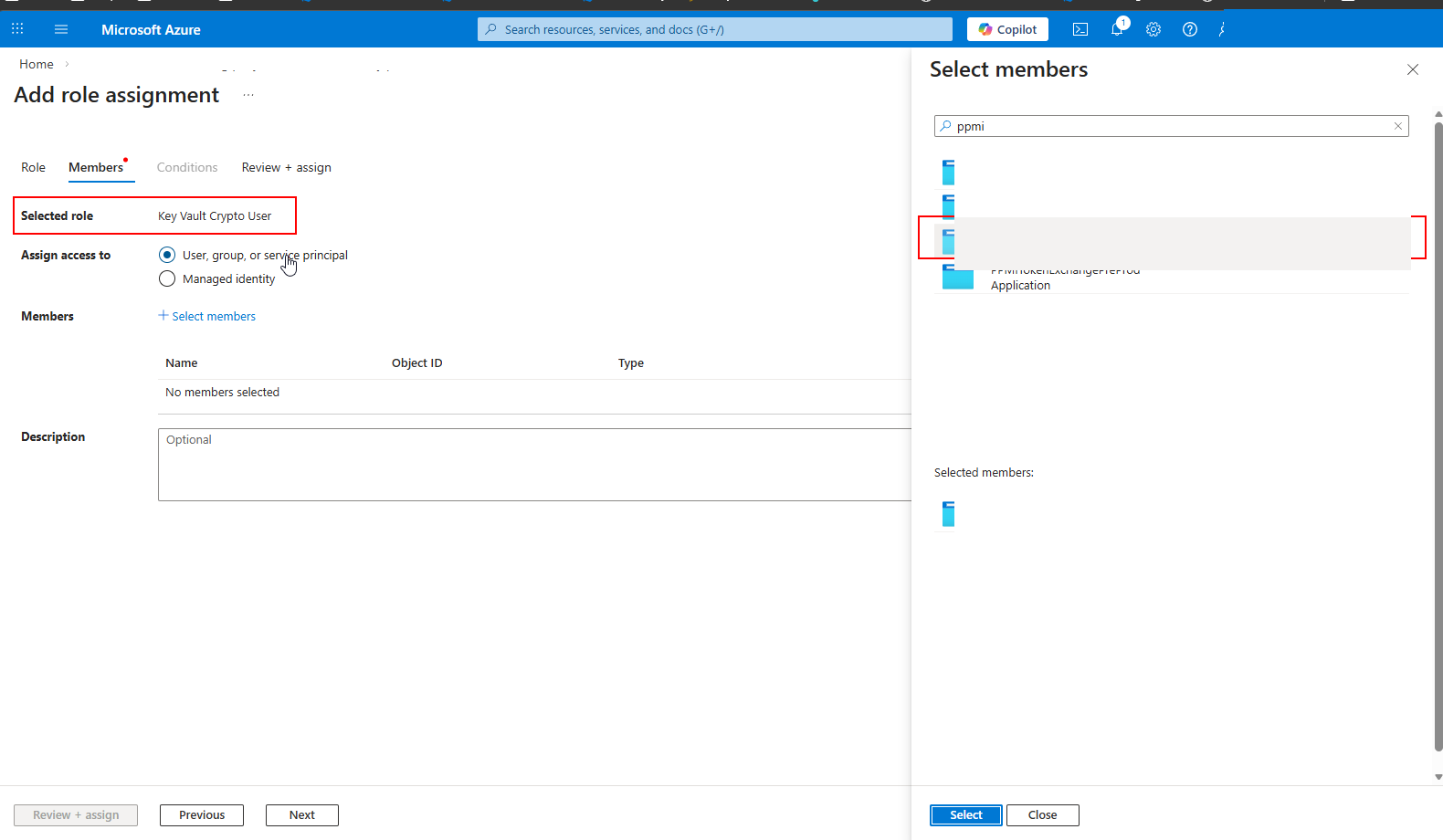
Search for and select the Key Vault Crypto User role.
Select Select members, and then search for the Dataverse managed identity associated with your GitHub app configuration. The managed identity name uses the following format:
PPMI-githubappconfigmanagedidentity-{GUID}Select the managed identity, and then select Review + assign.
If the managed identity doesn't appear, go to the Dataverse environment Settings > System Jobs and check for errors related to GitHub app configuration creation. The registration is created asynchronously and might take a moment to appear.
After the role assignment is complete, the Dataverse managed identity has permission to use the GitHub key in this Key Vault.
Verify the connection and test a commit
Open an unmanaged solution from the Solutions area. If you don't have one yet, create a new solution first. Source control integration only works with unmanaged solutions.
Go to the Source control page and select Git connection. Verify that the connection shows GitHub as the provider and that the organization, repository, branch, and folder details are correct.
To verify the end-to-end flow, select Commit to push your solution to the connected GitHub repository.
If the commit succeeds, the integration is operational.
Connect by using code
You can use the Dataverse Web API or PowerShell to connect to GitHub programmatically instead of using the user interface. For more information, see Connect to a GitHub repository.