Note
Access to this page requires authorization. You can try signing in or changing directories.
Access to this page requires authorization. You can try changing directories.
As Power Platform and Dynamics 365 implementations grow in size and complexity, organizations need an application lifecycle management (ALM) strategy that supports multiple developers, controlled releases, deployment automation, and governance across environments.
This reference architecture combines Microsoft Package Deployer, Git, Azure DevOps, and Power Platform CLI for scalable ALM. It integrates source control, peer review, automated deployments, hotfix management, and deployment traceability.
Tip
This article provides an example scenario and a generalized reference architecture. The approach can be adapted to organizations of different sizes and across many industries to support scalable development, deployment, and release management practices.
Architecture diagram
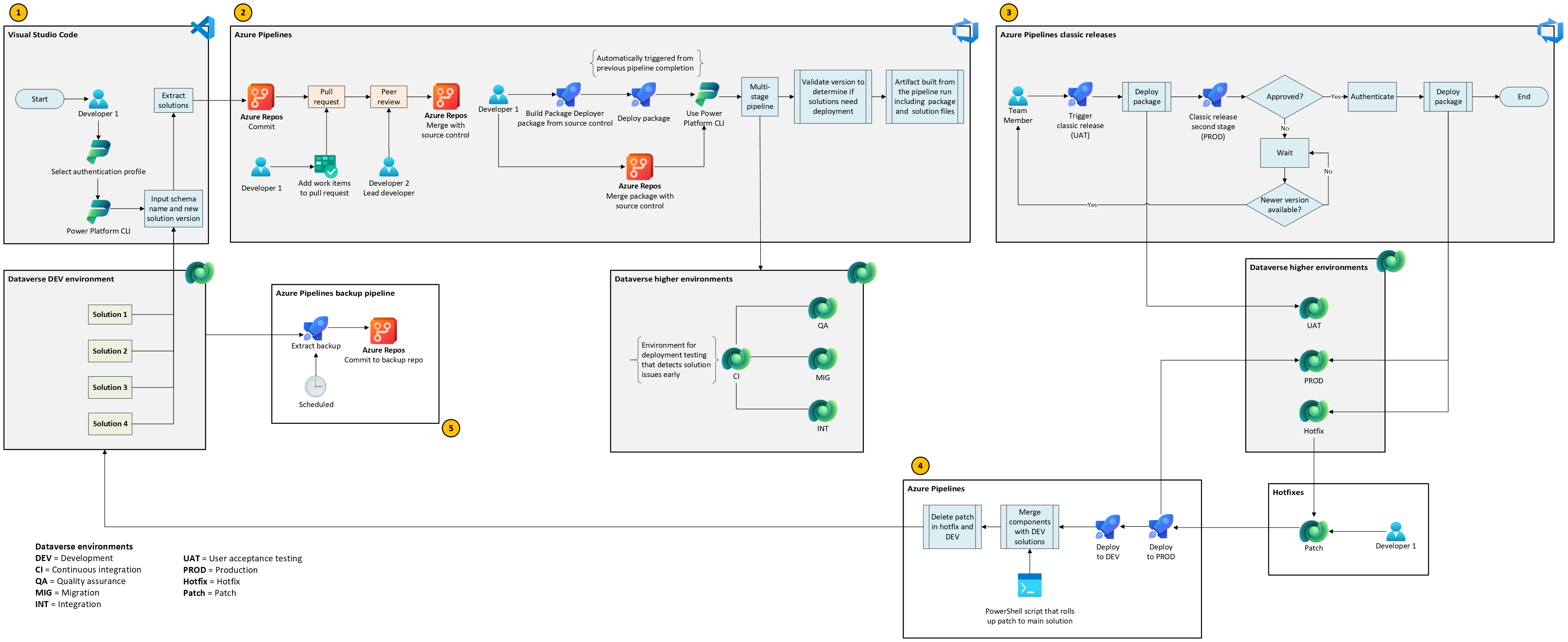
Workflow
The following workflow corresponds to the stages illustrated in the architecture diagram.
Stage 1: Develop and submit changes
Developers use Visual Studio Code, together with Power Platform CLI, to prepare changes for peer review.
Developers use Visual Studio Code to manage environment connections through the Power Platform Tools Visual Studio Code extension. The extension provides functionality to manage authentication profiles that store developers' connections to environments across different tenants.
Developers create branches in Visual Studio Code for their individual work.
Developers extract solutions from Dataverse and set solution versions by using Power Platform CLI tasks defined in Visual Studio Code. The process includes unpacking solution .zip files and placing the extracted files in dedicated folders.
Developers then select ("cherry-pick") the changes associated with their completed work, helping ensure that incomplete changes from other developers in the shared development environment aren't committed.
Developers then push their cherry-picked changes to Git as pull requests for peer review.
Stage 2: Build and validate deployment packages
Git repositories, Package Deployer, and Azure Pipelines are used to build and deploy packages.
Git repositories
The repositories contain the source-controlled components from Dataverse.
Cherry-picked changes from the previous stage are merged into source control only after a pull request is approved. For traceability, link all relevant backlog work items associated with the changes to the pull request.
Work items linked to pull requests have a history of pipeline executions and classic releases that contain the changes covered by the work item. Review this history in the work item to track where its changes are deployed.
Package Deployer
Microsoft Package Deployer creates packages containing the solutions and data needed for deployment to downstream environments, such as testing and production. It also allows for extendable features through C# code to perform additional logic before, during, or after deployment.
Place the Package Deployer project in the same repository as the unpacked solutions. It contains the following folders and files:
PkgAssets contains all solution .zip and data files to deploy as part of the package.
ImportConfig.xml defines the order in which solutions are deployed. This file also contains the deployment settings for each solution, such as whether unmanaged customizations are overwritten during deployment.
Build pipeline
An Azure Pipeline builds the Package Deployer solution:
The pipeline packs the solutions' components in source control into .zip files and places them in the PkgAssets folder.
The pipeline then commits the updated package dynamic-link library (DLL) to source control.
Deployment pipeline
The build pipeline triggers this Azure Pipeline when it completes.
The deployment pipeline is a multi-stage pipeline:
First stage: Build the deployable pipeline artifact containing the package from the Package Deployer project.
Second stage: Deploy the package from the artifact to a CI (continuous integration) environment.
The CI environment is dedicated to deployment validation. You don't sign in to this environment. If a deployment fails, teams can resolve issues before the deployment affects other testing, integration, or production environments.
Deploy to QA (quality assurance), MIG (migration), and INT (integration) environments in parallel or sequentially. The number of deployment stages depends on the environments in use and the deployment flow.
Stage 3: Approve and release
This stage supports continuous delivery through controlled releases.
Classic releases use the artifacts produced by the previous pipeline and can be configured to enforce authorization before deployment. Use them for the most controlled environments, such as UAT and production.
Use pre-deployment gates when deploying to production environments to ensure that deployments are properly authorized. To help prevent accidental production deployments, require approval from a predefined number of users and reauthentication before deployment can proceed.
In this scenario, use pre-deployment gates for CD (continuous delivery) to ensure that only fully developed and tested features are deployed through staged releases with approval gates. The previous stage supports CI/CD (continuous integration and continuous deployment), where changes are automatically promoted through the environments.
Stage 4: Deploy and synchronize hotfixes
This stage supports hotfix deployments to production and development environments.
A developer manually triggers this Azure Pipeline and provides the patch solution logical name. The pipeline:
Extracts the patch as both unmanaged and managed from a hotfix environment.
Deploys the managed patch to the production environment.
Deploys the unmanaged patch to the development environment.
Runs a PowerShell script that uses the AddSolutionComponent Dataverse action and merges patch components into the parent solution. As the final step, the script deletes the patch from the development environment.
The next time the solutions are extracted, the fix is pushed to source control through the main process, as it's now part of the main solution structure that is deployed. This process also happens on the scheduled backup. You can run this pipeline on demand so teams don't need to wait for the timer.
When the solutions are deployed to production with a higher version than the patches, the upgrade removes the patches.
Stage 5: Back up development solutions
This Azure Pipeline runs on a schedule to back up development solutions to a separate Git repository.
The pipeline:
Extracts both unmanaged and managed solutions.
Unpacks the solutions.
Commits changes to the backup repositories.
Keeps the main repository up to date with finished features that the team commits, while the backup repository holds the latest version at the time of the scheduled trigger. This approach gives you more control over the mainline deployment.
Components
This reference architecture uses the following components:
Visual Studio Code for:
- Local branch management.
- Authorization profile management with Power Platform Extension.
- Solution extraction with Power Platform CLI.
- Selective inclusion of changes in Git commits.
Git repositories for:
- Source control.
- Peer review of pull requests.
Azure Boards for:
- Backlog management.
- Traceability of the work item deployment pipeline and releases.
Azure DevOps pipelines to implement CI/CD for solution deployment.
Azure releases for controlled deployment of tested artifacts to the top environments.
Scenario details
This solution combines Azure DevOps pipelines and Git-based repository management with Power Platform and Dynamics 365 implementations. The result is a scalable ALM approach that supports multi-developer teams, deployments across multiple environments, and peer reviews. It scales with the size of the implementation and the number of Dataverse solutions while addressing governance, change tracking, and parallel development.
You can apply this approach to many industries with complex, large-scale Power Platform and Dynamics 365 solutions that use Dataverse. Examples include retail, finance, manufacturing, healthcare, government, energy, telecommunications, education, automotive, nonprofit, gaming, media and entertainment, travel and hospitality, facilities and real estate, aerospace, agriculture, and sports. Use this approach to establish a deployment and review process that scales with your development team and workload.
This approach focuses on change control through Git branching and peer review stages for Dynamics 365 and Dataverse, from customizations to code-based development. It allows for parametrization of data inside a single package containing Dataverse solutions, providing the ability for teams to customize their deployment approach through extendable in-package code, such as pre-deployment or post-deployment activities.
Consider this approach when defining an environment strategy during the discovery phase of a project.
This solution is most applicable to:
- Large, multi-developer Dataverse implementations across various industries.
- Organizations that require strong change control, traceability, and support for parallel development.
Primary stakeholders include:
- IT teams
- Technical teams
- Project managers
You can use this solution to:
- Avoid deploying unfinished features.
- Facilitate parallel development.
- Improve traceability of changes.
- Implement a peer review process before deployment.
- Maintain a single action job by managing a single deployable package.
- Store artifacts with more granular changes and deploy them frequently to reduce the risk of deployment failures.
Considerations
These considerations implement the pillars of Power Platform Well-Architected, a set of guiding tenets that improve the quality of a workload. Learn more in Microsoft Power Platform Well-Architected.
Reliability
This architecture enables predictable deployments, supports controlled releases, and reduces downtime by shifting risk to earlier automated stages.
Multi-stage pipelines: Reduce deployment risk by validating at each stage.
Dedicated CI environment: Ensure early failure detection without impacting other environments.
Package deployer: Guarantee consistent deployment and solution ordering through ImportConfig.xml.
Hotfix pipeline: Provide a structured path to apply urgent fixes to both production and development environments.
Backup pipeline: Keep scheduled snapshots of DEV solutions, ensuring restoration options.
Security
Enforce strong separation of duties, audited approvals, and secure automated interactions, reducing the risk of unauthorized or accidental deployments.
Service connections with service principals: Protect by role-based access and with controlled Dataverse security.
Authentication gate: Force re-authentication and approvals before deployments to production.
Branch policies: Require peer review before merging changes into protected branches.
ADO permissions: Restrict access to pipelines and releases to authorized users.
Operational Excellence
Supports optimized operations through automated pipelines, traceable changes, and governance-friendly processes that scale with team and solution complexity.
Azure Boards integration: Provides full traceability from work item to pull request, build, and release.
Peer review and branching strategy: Improves code quality and reduces regression risks.
Staged deployment with approval gates: Ensures controlled deployment of new features.
Automation for backups, hotfixes, and mainline deployments: Reduces manual errors and improves consistency.
Performance Efficiency
Delivers updates faster, processes higher volumes of changes, and efficiently scales development and deployment capacity across multiple environments.
Parallel deployments: Increases deployment throughput and reduces waiting times.
Power Platform CLI and cherry-picking of changes: Optimizes solution extraction and control over changes committed.
Dedicated pipeline YAML templates: Support reusability and reduced administration.
CI environment: Accelerates validations independent of human checks.
Experience Optimization
Teams have a more streamlined, transparent, and consistent experience through development and deployment cycles.
Visual Studio Code and the Power Platform Tools Visual Studio Code extension: Use modern tooling and allow for a seamless experience between IDE and Dataverse.
Pull requests: Enhance collaboration and knowledge sharing.
Package Deployer extensibility (pre or post steps): Add extra deployment steps, such as data import, record updates, and deployment validations.
Work item linked to deployment history: Provides a narrative of changes.
Next steps
After you implement the ALM approach, set up a structured process to generate release notes that clearly communicate changes and updates.
For example, you might use:
- Scripting to read linked work items and build a summary.
- A Microsoft Copilot Studio agent to retrieve details from the Azure DevOps API through a Model Context Protocol (MCP) server and automatically generate release notes.
Contributors
Microsoft maintains this article. The following contributors wrote this article.
Principal authors:
- Gonçalo Fernandes, Power Platform/Dynamics 365 Solution Architect
Related resources
- Introduction to Microsoft Dataverse solutions
- Create patches to simplify solution updates
- Create packages for the Package Deployer tool
- What is Microsoft Power Platform CLI?
- Install the Power Platform Tools Visual Studio Code extension
- Create a new project in Visual Studio
- YAML schema reference for Azure Pipelines
- Classic release pipelines
- Source control in VS Code
- Getting started with PowerShell