Note
Access to this page requires authorization. You can try signing in or changing directories.
Access to this page requires authorization. You can try changing directories.
Many organizations work with external users who represent multiple accounts, organizations, or business entities. These users need access to information and services across accounts. Organizations must maintain strict data isolation so users can access only the data associated with their current account context.
This reference architecture shows how to implement secure multi-account access in Power Pages for business-to-customer scenarios. It uses Azure Active Directory B2C (Azure AD B2C), Dataverse, Power Automate, Power Apps, and Power Pages security capabilities. Authenticated users can switch between authorized accounts while maintaining least-privilege access and account isolation.
Tip
This article provides an example scenario and a generalized example architecture for enabling secure multi-account access in Power Pages by using Microsoft Power Platform and Azure services. The architecture example can be modified for different scenarios and industries.
Architecture diagram
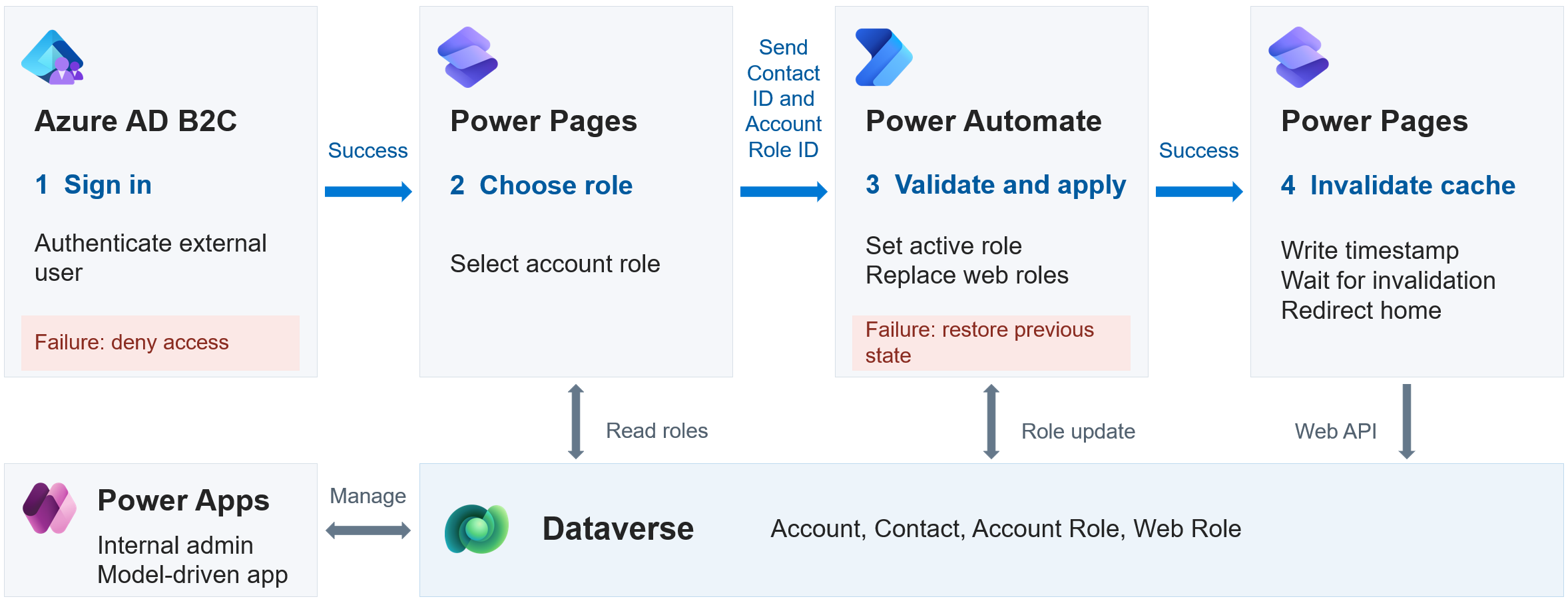
Workflow
An external user signs in to a Power Pages portal. Azure AD B2C authenticates the user through its integration with the portal. If authentication succeeds, the user continues to step 2. If authentication fails, the portal denies access.
After the user signs in, Power Pages prompts the user to select an account role.
- The account role maps to one or more Power Pages web roles.
- The web roles determine the user's permissions in Power Pages. Table permissions restrict access to the Dataverse records associated with the selected account.
When the user confirms their account role selection, the solution triggers a Power Automate cloud flow and passes the Contact ID and selected Account Role ID as input parameters. The cloud flow uses the Dataverse connector to:
- Retrieve the web roles mapped to the selected account role.
- Set the selected account role as the active account role for the contact.
- Assign the retrieved web roles to the contact.
- Remove the contact's other assigned web roles.
The portal receives a success response from the cloud flow, confirming that the contact's web roles have been updated.
- The portal uses the Web API to write a new timestamp to a dedicated column on the user's contact record.
- This update triggers change tracking on the contact table and invalidates the cached data so that subsequent requests use the updated web roles.
- After this call completes, the portal redirects the user to the portal's home page.
- The user begins to view content filtered by their assigned web roles.
Note
Switching accounts affects all sessions for the user because web roles are assigned to the contact record, not an individual browser session. After the switch completes, all active sessions—including other tabs, browsers, and devices—use the newly selected account role. The user can't use two different authorization contexts at the same time.
A Power Apps model-driven app allows internal administrators to create and update external user permission mappings.
Components
The following components work together to authenticate external users, manage account roles, and restrict data access to the selected account. Administrators use a model-driven app to maintain the contacts, account roles, and permission mappings that govern access.
Data model and access control
Microsoft Dataverse: Provides the data layer and stores accounts, contacts, account roles, and permission-mapping information. The data model includes the following key tables:
Account: Represents the accounts that external users can access.
Contact: Represents external users. The Contact table includes an Active Account Role lookup that identifies the account role currently selected by the user.
Account Role: Custom table that associates a contact with an account and role mappings used to determine the Power Pages web roles for that account context. A contact can have multiple account roles, but only one can be active at a time.
Invitation: Supports the invitation of contacts to the Power Pages site.
The solution uses Power Pages table permissions to restrict access to Dataverse records associated with the selected account. Table permissions are associated with Power Pages web roles and use table relationships to determine which records a user can access.
In this architecture, the table permission hierarchy is:
Contact – Active Account Role: Grants access only to the Account Role record referenced by the Active Account Role lookup on the Contact table.
Account Role – Account: Grants access to the Account record associated with the active Account Role.
Account – child tables: Child permissions grant access to related records, such as invoices, assets, and requests, through their relationship with the selected account.
The permission hierarchy starts from the Active Account Role and limits access to records associated with the selected account. This relationship lets two accounts use the same Power Pages web role while keeping their data isolated through the Active Account Role relationship.
Authentication and role management
Power Automate cloud flows: Update the user's web role assignments based on the selected account role.
Azure AD B2C: Authenticates external users through its integration with Power Pages and associates the authenticated user with a Power Pages contact.
Contact and role administration
Power Apps model-driven apps: Support data and processes management within Dataverse:
- Contact and account role management.
- Mapping between Power Pages web roles and account roles.
Scenario details
This reference architecture shows how to implement secure, governed role-switching for external users in Power Pages. It enables users to switch between different roles or accounts while maintaining security and data integrity.
The architecture originates from an organization that needed external users to manage multiple roles across different accounts. In the original implementation, the organization also exchanged customer and case data with an external service as part of its service management processes. The selected account context determined service requester ownership, ticket visibility, and downstream workflow execution, making correct account switching particularly important.
Business challenge
Many organizations work with external users who hold multiple roles or represent multiple organizations or legal entities on the same digital platform. Examples include:
- Individuals or contractors who hold different roles across companies or organizations.
- Vendors who act as both suppliers and auditors.
Solution
This architecture introduces a governed and flexible role-selection model that allows a single authenticated external user to securely switch operating contexts within the same portal. It also addresses the following key challenges:
Avoids creating duplicate user accounts while maintaining strict data boundaries.
Enforces least-privilege access by dynamically assigning only the permissions required for that role.
Business value
Simplifies administration while maintaining security and data isolation.
Allows users to access and interact only with data relevant to their selected role and account context.
Supports more complex security requirements, including multilevel account hierarchies.
Reduces administrative overhead because permissions are data-driven and centrally managed through a model-driven app.
Considerations
These considerations implement the pillars of Power Platform Well-Architected, a set of guiding tenets that improve the quality of a workload. Learn more in Microsoft Power Platform Well-Architected.
Reliability
Delegate authentication to Azure AD B2C to separate authentication from account role selection and authorization. This separation allows you to handle authentication and authorization failures independently.
Development and support teams monitor the solution by using the following capabilities:
- Azure AD B2C records user sign-in audit logs.
- Dataverse maintains an audit history for updates to contacts and account roles.
- Power Automate cloud flows provide a graphical, step-by-step run history that helps teams identify failures.
Using Dataverse as the system of record for contacts, account roles, and web roles ensures transactional consistency and reliable state management. The Power Automate cloud flow acts as an orchestration layer that calculates and reapplies web role assignments based on the user's active account context. This approach prevents role drift. You manage administrative role mappings through a model-driven app, ensuring configuration changes are controlled, auditable, and don't impact runtime availability.
The solution is built for simplicity:
- Uses the native integration between Azure AD B2C and Power Pages.
- Employs Dataverse relationship mapping and Power Pages table permissions.
- Features an easy-to-maintain, robust Power Automate flow.
- Uses a model-driven application to deliver administrative capabilities.
This approach addresses two key challenges:
Overlapping switches: Concurrency control on the Power Pages flow trigger ensures that only one account switch processes at a time. The system queues additional switch requests until the current run completes. This design prevents overlapping operations from leaving the contact with inconsistent web-role assignments.
Failed switches: Before making changes, the flow records the contact's current web roles and Active Account Role. If a step fails, the flow stops applying changes and restores the recorded state. It returns an error to Power Pages, which displays an account-switch failure page instead of redirecting the user to content under an unconfirmed account context.
Security
Enforce least-privilege access so that users can perform only the actions permitted by the Power Pages web roles associated with the selected account role. Use Power Pages web roles, page permissions, and table permissions to restrict access to the appropriate site content and Dataverse data while reducing custom security logic.
The Power Automate cloud flow responsible for role assignment can only be triggered by an authenticated portal user context via Power Pages, ensuring that no privileged operations or data access are exposed through client-side scripts or APIs. This design minimizes the attack surface, protects privacy and internal information, and avoids inadvertent disclosure of server-side logic. The flow is exposed to Power Pages only for authenticated web roles, so anonymous visitors can't invoke it.
Caller validation
The contact ID passed to the flow is resolved from the authenticated Power Pages session by using User ID. A user can't request an account switch on behalf of another contact.
Account role validation
The flow treats the account and Account Role inputs as untrusted. It retrieves the specified Account Role record and verifies that:
- The Contact lookup matches the authenticated contact.
- The Account lookup matches the selected account.
- The Account Role record is active.
The flow uses the verified Account Role record to determine the account and web roles rather than relying on input values. If validation fails, the flow stops and returns an error to Power Pages without making changes.
Permission updates and security hardening
The Power Automate cloud flow recalculates and applies permissions for each account role selection, helping ensure that permissions reflect the selected account context. The solution uses Azure AD B2C, Power Platform access control, auditing, and platform security controls to help protect information throughout the workload lifecycle. This approach enables ongoing security hardening through configuration rather than code changes, allowing the system to evolve and remain resilient against emerging threats.
Operational Excellence
Establish a standardized development, testing, and deployment approach that promotes consistency, predictability, and controlled change across the solution lifecycle.
Build standards
Use Power Platform solutions to encapsulate solution components. Use unmanaged solutions in development and test environments and promote managed solutions to production.
Host all solution components within isolated Power Platform and Azure ALM environments, reducing cross-environment dependencies and minimizing operational risk.
Protect sensitive configuration values such as credentials and endpoints by using Azure Key Vault to ensure no secrets are exposed in plain text at any layer.
To improve maintainability and operational clarity, name all Power Automate flow actions meaningfully to clearly convey intent.
Apply environment variables consistently for configuration elements such as connection references, Power Pages portal URLs, and notification recipients, to enable safe configuration changes without redeployment.
Testing standards
Perform end-to-end tests to check that interactions between Power Pages, Dataverse, and Power Automate follow the designed process.
Test all execution paths, including non-happy paths.
Conduct user access validation by using role-based test accounts, rather than elevated system administrator accounts, to ensure security and operational behavior accurately reflect real-world usage.
Validate data handling to confirm correct processing of missing or malformed data and to ensure sensitive information remains protected throughout execution.
Deployment and release management
Enforce a formal solution review and release process by introducing quality gates and peer review prior to promotion across environments. Execute deployments through a fully automated CI/CD pipeline to eliminate repetitive manual tasks, reduce human error, and improve deployment consistency. Automate validation steps and approval checkpoints to provide guardrails that help detect issues early and support reliable, repeatable deployments that reach the intended state.
Together, these practices optimize developer productivity, provide operational visibility through controlled change processes, and ensure the solution can be deployed, operated, and evolved with confidence and minimal risk.
Learn more in Overview of Power Pages ALM.
Performance Efficiency
Establish performance targets early and validate the implementation against benchmarks to ensure alignment with business requirements. Use built-in Power Pages table permissions, web roles, and Dataverse relationships. Limit customization of the account role selection form to help maintain performance as usage increases and to boost overall system efficiency for long-term value.
Experience Optimization
The solution is designed with the user at the center of the experience, with the goal of ensuring that security, performance, and operational controls operate transparently. External users authenticate once through Azure AD B2C and are guided through a simple, intuitive account role selection experience that reflects their permitted user roles, reducing the risk of unauthorized actions. Role switching executes seamlessly in the background, with permissions recalculated and applied automatically. Users continue their tasks without signing in again.
The workload is easy to use and easy to understand. It uses built-in capabilities such as Dataverse security, web roles, and table permissions to minimize access-control complexity. Keep customization of the role selection interface to a minimum to reduce cognitive load and ensure a consistent user experience. Optimize performance so that the role-switch operation completes in under 10 seconds for a responsive experience that aligns with both user expectations and business requirements.
Standardize development and deployment practices to help maintain solution quality and reduce system errors. Fewer errors help users complete their tasks with fewer interruptions, contributing to a reliable user experience.
Contributors
Microsoft maintains this article. The following contributors wrote this article.
Principal authors:
- Thomas Xu, Team Lead – Power Platform | D365/Power Platform Principal Consultant