Note
Access to this page requires authorization. You can try signing in or changing directories.
Access to this page requires authorization. You can try changing directories.
This reference architecture describes a layered approach for scanning files uploaded through Power Pages forms. The files are submitted by external users and scanned for viruses, malware, and sensitive content. The approach addresses a common security gap in citizen-facing portal implementations: Power Pages doesn't provide native malware scanning for files uploaded to Azure Blob Storage.
This pattern provides a proven, production-ready approach that uses Microsoft Defender for Storage, Azure Event Grid, and Power Automate. The solution was primarily designed to address Australian Government Protective Security Policy Framework (PSPF) and Information Security Manual (ISM) controls and is applicable to any regulated industry deployment globally. Different organizations might have their own unique requirements. Consider your organization's specific requirements when you design the solution.
Tip
This article provides an example scenario and reference architecture for securing Power Pages file uploads with Microsoft Defender for Storage. Adapt the architecture to meet the security, compliance, and operational requirements of your organization.
Architecture diagram
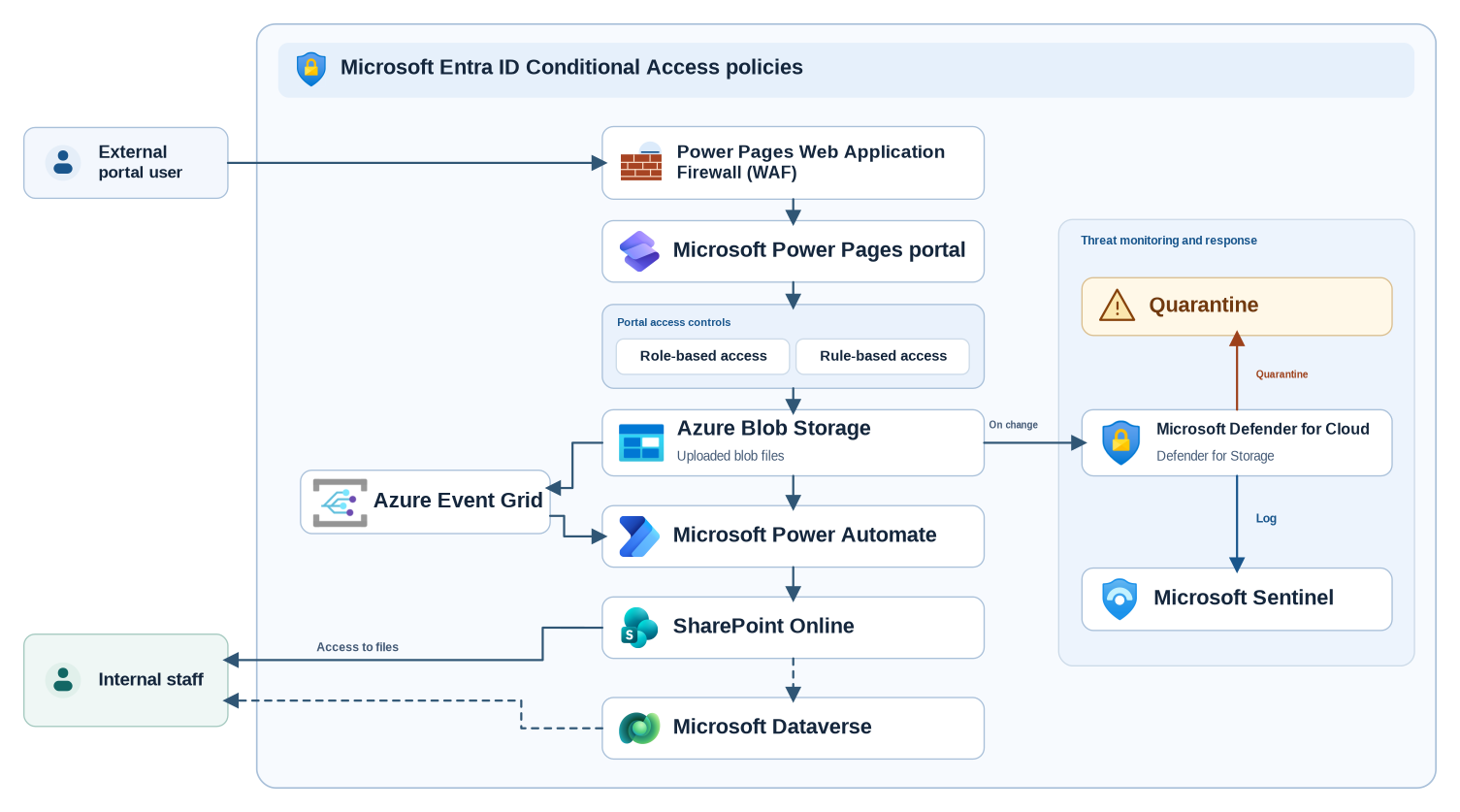
Workflow
The following steps describe the end-to-end file upload and scanning workflow.
File upload path
External user submits a form via Power Pages. The form includes one or more file attachment fields. Power Pages is configured to use Azure Blob Storage as the file destination, bypassing Dataverse native file storage. Files are uploaded directly to a designated quarantine container in the Azure Storage account.
Azure Blob Storage receives the uploaded file. The file arrives in the quarantine container. At this point, the file is inaccessible to all users. A Conditional Access Policy enforces a no access before scan rule by using blob index tags. Until Defender for Storage writes a clean scan result tag, no user can open or download the file.
Microsoft Defender for Storage triggers on-upload scanning. Defender for Storage is configured with on-upload malware scanning enabled on the storage account. The scan runs automatically within seconds to minutes of upload. The Microsoft Defender Antivirus (MDAV) engine performs virus and malware signature detection, file header and magic number validation (true file type detection), extension spoofing detection, and malformed file analysis.
Defender for Storage writes the scan result as a blob index tag. On completion, the scan result is written to the blob as an index tag, with the key Malware Scanning Scan Result and value No threats found or Malicious. A Defender for Cloud security alert is also raised for any malicious file.
Azure Event Grid publishes the scan result event. An Event Grid system topic, automatically created when Defender for Storage malware scanning is enabled, publishes a
BlobScanCompletedevent that includes the scan result.Power Automate cloud flow receives the Event Grid webhook. A Power Automate cloud flow subscribed to the Event Grid topic receives the event. The flow reads the scan result from the event payload.
Note
Don't implement a fixed delay in the Power Automate cloud flow to wait for scan results. Use the Event Grid event-driven pattern instead, which triggers only when the scan completes.
Clean file path
Move the file to its final destination (optional). If the scan result is No threats found, the Power Automate cloud flow copies the file from the quarantine blob container to the related case's designated SharePoint document library folder.
Update the Dataverse record. The Power Automate cloud flow updates the related Dataverse record, such as the form submission or case, to link to the SharePoint file and set the file status to Verified.
Delete the blob file. Assuming the file was moved from the original Blob storage to a different location, the Power Automate cloud flow deletes the original quarantine blob after successful transfer to SharePoint.
Malicious file path
Quarantine the file. If the scan result is Malicious, the Power Automate cloud flow moves the file into a quarantine container. The Conditional Access Policy continues to block all user access.
Alert the security team. Defender for Cloud raises a security alert. The security team reviews the quarantined file in Defender for Cloud Apps, where Conditional Access App Controls enforce read-only access for investigation.
Update the Dataverse record. The Power Automate flow updates the related Dataverse record to show that a file was uploaded but subsequently removed due to a virus.
Notify the submitter (optional). An automated notification informs the portal user that their file wasn't accepted. The form submission record is updated with a rejected file status.
Dispose of the file. After security team review, the quarantined file is deleted or retained based on the organization's incident response procedures.
Components
Microsoft Power Pages is the citizen-facing portal platform that hosts form submissions with file upload fields. Configure Power Pages to direct file uploads to Azure Blob Storage rather than Dataverse native file storage, enabling integration with the scanning pipeline.
Azure Blob Storage serves as the quarantine container for all uploaded files prior to scanning. Files arrive here on upload and remain inaccessible until a clean scan result is confirmed. The storage account is hosted in the same Azure region as the Power Platform environment to satisfy data residency requirements.
Microsoft Defender for Storage is the core scanning engine. On-upload malware scanning is enabled on the storage account and triggers automatically for every blob creation event. Defender for Storage uses the Microsoft Defender Antivirus (MDAV) engine and writes scan results as blob index tags. It also supports sensitive data discovery through integration with Microsoft Purview.
Azure Event Grid routes scan result events from the storage account to Power Automate. An Event Grid system topic is automatically provisioned when Defender for Storage malware scanning is enabled. Power Automate subscribes to this topic through a webhook to trigger post-scan automation.
Microsoft Power Automate orchestrates the post-scan workflow. It reads the scan result, moves clean files to SharePoint, updates Dataverse records, sends notifications, and triggers security alerts for malicious files. Power Automate provides native integration with Dataverse and SharePoint and supports low-code development.
SharePoint Online is the final destination for verified clean files. Store files in the SharePoint document library associated with the relevant case record to provide a single unified document management experience for internal users. The built-in Safe Attachments for SharePoint feature provides an additional antivirus layer for files already in SharePoint.
Microsoft Purview and Defender for Cloud Apps provide the sensitive data discovery and content inspection layer. Purview integration with Defender for Storage enables keyword scanning, metadata inspection, and protective marking detection to help address ISM controls beyond basic virus scanning.
Web Application Firewall (WAF) for Power Pages provides the first layer of protection against Open Worldwide Application Security Project (OWASP) web attacks including cross-site scripting, local and remote file inclusion, session fixation, and protocol enforcement. The WAF operates at the network layer before any file reaches the storage account.
Microsoft Entra External ID with Power Pages authenticates external portal users. When submissions require authentication, Entra External ID serves as the identity provider and identity broker for portal users and integrates natively with Power Pages web roles.
Scenario details
This scenario addresses the security challenges associated with accepting file uploads from external users through Power Pages.
Challenge
Citizen-facing portals built on Power Pages commonly accept file uploads as part of form submissions, such as complaints, grant applications, license requests, requests for information, and similar processes. Anonymous or lightly authenticated external users submit these files across the public internet, making them a high-risk ingestion point for malware.
Power Pages doesn't include built-in file scanning. SharePoint's built-in antivirus feature scans asynchronously with no service-level agreement (SLA). It doesn't provide full malware detection, complete ISM controls, or user-visible scan status. These limits make it insufficient as a standalone control for files received from untrusted external sources.
Solution
This architecture routes all portal file uploads through Azure Blob Storage and uses Microsoft Defender for Storage on-upload scanning as the primary scanning layer. The Conditional Access Policy pattern ensures users can't access any file, clean or otherwise, until a verified scan result exists. Clean files are automatically transferred to their final SharePoint, Dataverse, or other destination, providing a seamless experience for internal users who interact only with verified files in their case management interface.
This solution is especially relevant to Australian Government agencies subject to the ISM. These agencies must address up to nine controls related to file scanning and content inspection. The architecture maps each control to a specific Microsoft service, providing a documented compliance posture without requiring custom-built scanning infrastructure.
This solution uses Microsoft Defender for Storage as an example, but you can adapt the pattern to use other antivirus tools. Some modification to the scan result trigger might be required.
Considerations
These considerations implement the pillars of Power Platform Well-Architected, a set of guiding tenets that improve the quality of a workload. Learn more in Microsoft Power Platform Well-Architected.
Security
Security is the primary driver for this architecture. The design implements a defense-in-depth model across four layers:
Network: The native Power Pages web application firewall (WAF) blocks OWASP-class attacks at the edge before any file is received. Enable this feature in the Power Platform admin center. Learn more in Configure Web Application Firewall for Power Pages.
Upload validation: Power Pages and Dataverse enforce a file extension allow list and reject disallowed file types before they reach Azure Blob Storage.
Scan and quarantine: Defender for Storage scans every uploaded file and blocks user access via Conditional Access Policy until a clean result is confirmed. No user can access a file in the quarantine container, regardless of their role.
Sensitive content inspection: Microsoft Purview integration detects sensitive data, protective markings, and custom keyword patterns in clean files, supporting data loss prevention (DLP) requirements beyond virus scanning.
The Conditional Access Policy pattern is critical to the security posture. Without it, a race condition exists between the time a file is uploaded and the time scanning completes. During this window, an internal user could theoretically access an unscanned file. The Conditional Access Policy closes this window by enforcing blob index tag conditions on all access.
For Australian Government deployments, the following table maps this architecture to the key ISM controls commonly required for file scanning in regulated systems.
| ISM Control | Description | Implementation |
|---|---|---|
| Antivirus scans | Scans files for viruses and other malicious code | Microsoft Defender for Storage on-upload scanning using Microsoft Defender Antivirus (MDAV) |
| File extension checks | Checks file extensions to determine purported file types | Power Pages and Dataverse allow list validation on upload; Defender extension spoofing detection post-upload |
| File format checks | Checks files conform to defined format specifications | Deep content analysis via MDAV including malformed file detection |
| File type checks | Checks file headers to determine actual file types | Magic number validation and file header analysis via MDAV; obfuscation and mismatch detection |
| Keyword checks | Checks files for keywords indicating undesirable content | Sensitive data discovery via Microsoft Purview Data Classification Service; more than 200 built-in sensitive information types; custom regular expression patterns |
| Metadata checks | Checks files for metadata that should be removed | Defender blob metadata and file properties inspection; configured as part of sensitive data discovery |
| Protective marking checks | Checks files for protective markings indicating undesirable content | Microsoft Purview integration: MIP label detection, embedded sensitivity label detection, custom classification label support |
| Manual inspections | Manual inspection of files for suspicious content | Security team access to quarantined files through Conditional Access App Controls; Defender for Cloud alerts for flagged files |
| Automated dynamic analysis | Analyzes executables in a sandbox for suspicious behavior | Not addressed in this reference architecture; can be extended by using Microsoft Defender for Endpoint or Logic Apps with third-party sandbox services |
Reliability
The scanning pipeline uses an event-driven model (Event Grid to Power Automate webhook), which is inherently resilient. Event Grid provides at-least-once delivery with configurable retry policies. Power Automate cloud flows support built-in retry logic for failed actions.
Consider the following reliability design decisions:
Configure Event Grid subscription retry policies to handle transient Power Automate webhook failures.
Implement a time-based fallback flow that checks the quarantine container for blobs without a scan result that are older than a threshold, such as 30 minutes, and alerts the security team. This process handles edge cases where the Defender scan doesn't complete.
Enable Azure Blob Storage soft delete on the quarantine container. This feature allows recovery of files in cases of false positives or premature deletion.
Defender for Storage malware scanning has a monthly limit, measured in gigabytes (GB), per storage account to help control costs. Monitor scan volume, set an appropriate cap, and configure alerting so you can act before the cap is reached.
Operational Excellence
Scan results are recorded in blob index tags and Defender for Cloud security alerts. You can optionally record them in a Log Analytics workspace for centralized logging.
This approach provides a full audit trail of every file scanned, its result, and any actions taken.
Key operational considerations:
Enable Log Analytics integration for Defender for Storage to centralize scan result logging. This feature supports security information and event management (SIEM) integration, such as Microsoft Sentinel, for security operations teams.
Create a Power Automate cloud flow that generates a Dataverse record for each scan event so case officers can view file scan history directly in the case management interface.
Define a quarantine review SLA for the security team. Review and dispose of malicious files within a defined timeframe to manage storage costs and maintain a clean quarantine container.
Document the file extension allow list as a configurable setting, such as an environment variable or Dataverse configuration record, so you can update it without code changes.
Performance Efficiency
Defender for Storage on-upload scanning typically finishes within seconds for common file types, such as Microsoft 365 documents, PDFs, and images. Scan duration varies with file size, type, and service load. Applications that depend on scan results shouldn't assume a fixed completion time.
Design guidance:
Don't implement a fixed delay in the Power Automate cloud flow to wait for scan results. Use the Event Grid event-driven pattern instead, which triggers only when the scan finishes.
For file uploads larger than 100 MB, communicate expected processing times to the portal user through the form confirmation message. The portal should clearly state that file verification might take several minutes.
Set the Defender for Storage monthly GB scanning cap based on expected file upload volumes with a buffer. Monitor cap consumption and adjust it as volumes grow.
The quarantine container is a temporary store. Implement lifecycle management policies to automatically delete blobs older than a defined retention period, such as seven days, regardless of scan status, to prevent unbounded storage growth.
Experience Optimization
The scanning pipeline is asynchronous and invisible to the external portal user. Depending on your organization's security controls, you can design the form submission experience to give the user immediate feedback, such as scanning in progress, complete, or rejected.
Next steps
Use the following resources to implement this architecture:
- Enable Azure Storage for Power Pages file uploads
- Deploy Microsoft Defender for Storage
- Configure on-upload malware scanning
- Understand malware scanning results and blob index tags
Contributors
Microsoft maintains this article. The following contributors wrote this article.
Principal authors: