Note
Access to this page requires authorization. You can try signing in or changing directories.
Access to this page requires authorization. You can try changing directories.
This solution collects app launches after they are configured, but it isn't set up to collect historic app launches. Depending on your Microsoft 365 license, historic data is available for up to one year through the audit log in Microsoft Purview.
You can use one of the flows in the solution to manually load historic data into the Center of Excellence (CoE) Starter Kit tables.
Note
The user who retrieves audit logs needs permission to access them. Learn more in Before you search the audit log.
Search for the launched app activity in the date range that is available to you.
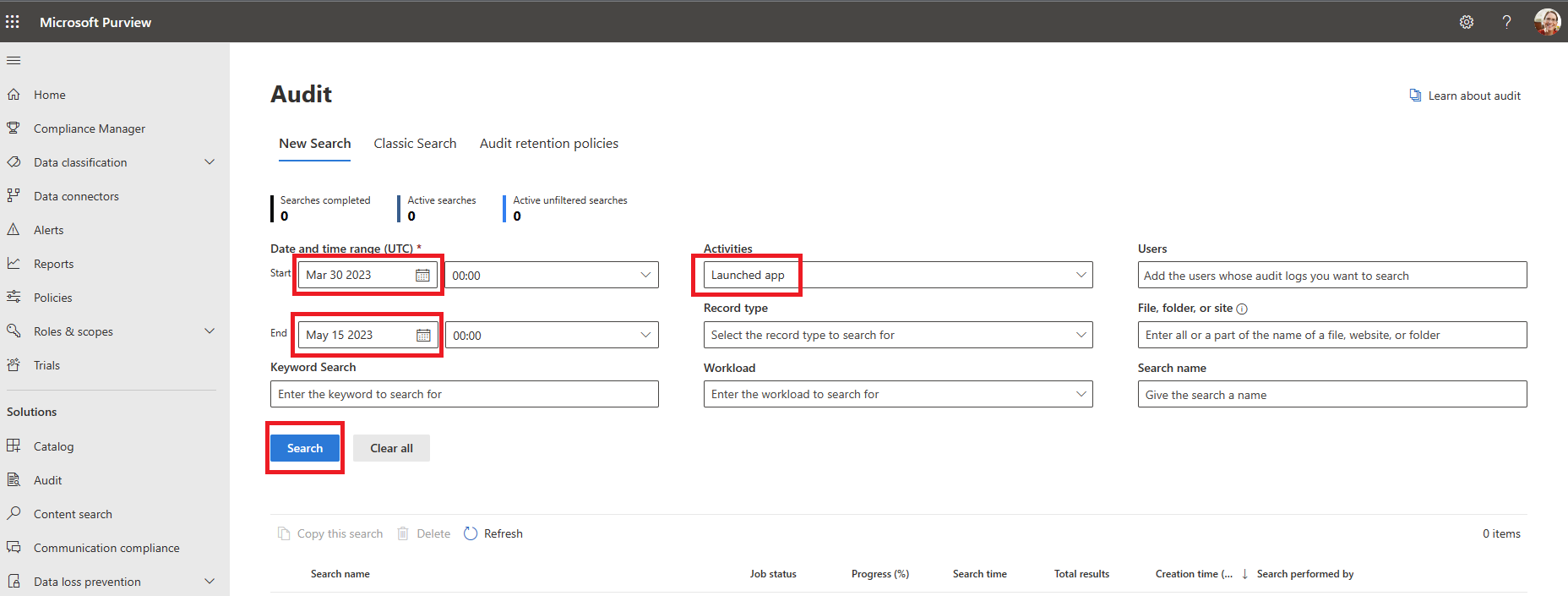
After the search runs, select Export to download the results.
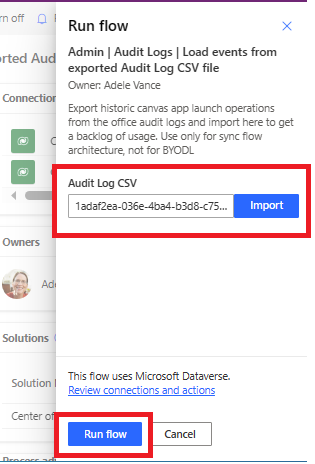
Browse to the following flow in the core solution: Admin | Audit Logs | Load events from exported Audit Log CSV file.
Turn on the flow, and run it. In the Run flow pane, select the downloaded file for the Audit Log CSV parameter.
Note
If the file isn't loaded after you select Import, it might exceed the allowed content size for this trigger. Try to break the file into smaller files, each of which contains a maximum of 50,000 rows. Then run the flow once per file. The flow can be run for multiple files simultaneously.
After the flow runs, the logs are included in your telemetry. If more recent launches are found, the last launched list for the apps is updated.
Provide feedback
If you find a bug with the CoE Starter Kit, file a bug against the solution at aka.ms/coe-starter-kit-issues.