Note
Access to this page requires authorization. You can try signing in or changing directories.
Access to this page requires authorization. You can try changing directories.
Use theming components to create, manage, and share themes for canvas apps. A theme is a collection of styles that define multiple design properties for controls and components, such as colors, fonts, and borders. When makers use the themed template app to create a new app, these styles automatically apply to controls and components.
The theming components solution contains assets that are relevant to makers in addition to designers.
Important
The theming components solution doesn't depend on other components of the CoE Starter Kit. You can use it independently.
Before you begin, review the prerequisites for using the starter kit solution.
- If you aren't already using the CoE Starter Kit, we recommend creating a new environment for CoE solutions.
- If you're already using other CoE Starter Kit components, use the environment that you created as part of setting up the core components for this solution.
Prerequisites
The Power Apps theming solution contains Power Apps component framework elements. You must enable publishing of canvas apps with code components for the environment:
Sign in to the Power Platform admin center.
In the navigation pane, select Manage.
From the Manage pane, select Environments.
Choose the environment where your CoE solution is installed, or the environment where you plan to import the solution.
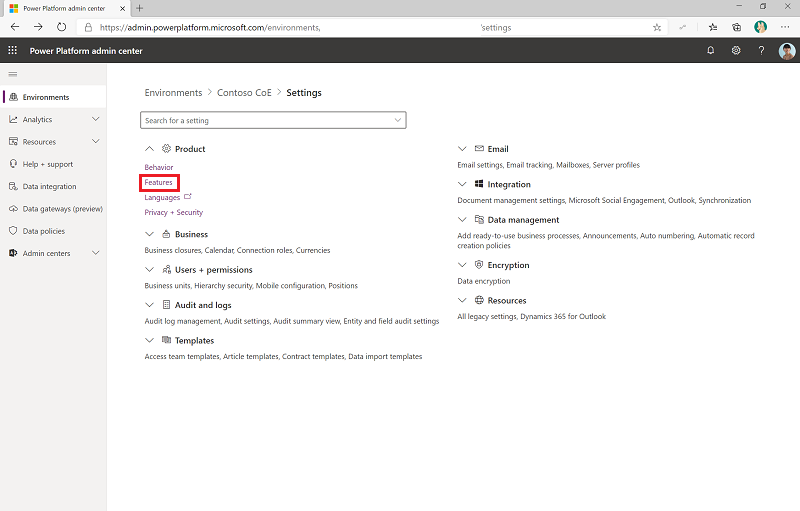
Select Settings.
Select Product > Features.
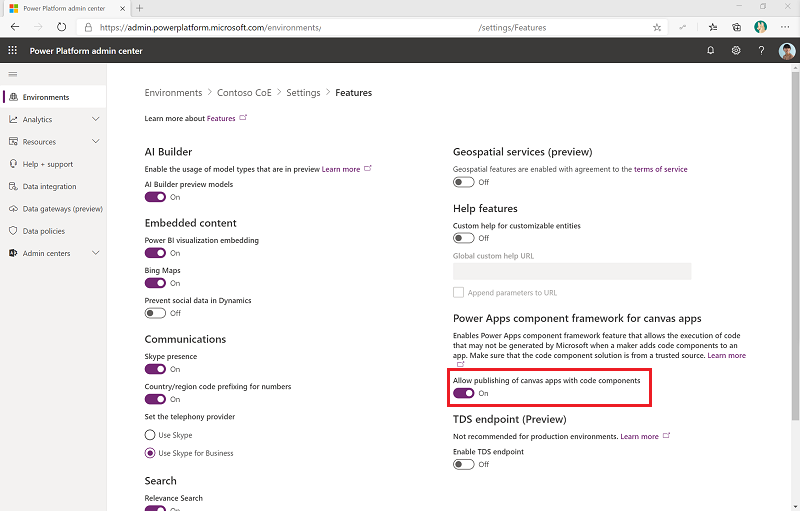
Make sure Allow publishing of canvas apps with code components is enabled.
Import the solution
Go to the CoE Starter Kit repository, and download the Theming_x.x_managed.zip file from under Assets.
Extract the zip file.
Go to make.powerapps.com.
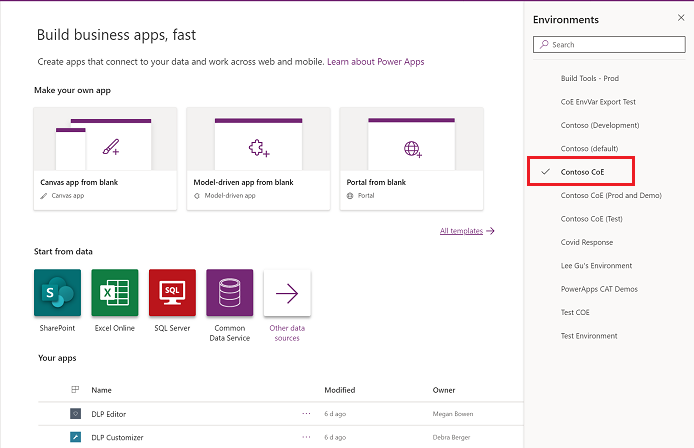
Go to your CoE environment. In the example in the following image, you're importing to the environment named Contoso CoE.
On the left pane, select Solutions.
Select Import. A pop-up window appears. (If the window doesn't appear, make sure your browser's pop-up blocker is disabled and try again.)
In the pop-up window, select Choose File.
Select the Center Of Excellence theming solution from File Explorer (Theming_x_x_managed.zip).
When the compressed (.zip) file has been loaded, select Next.
Select Next, and then select Import. (This process might take some time.)
When the import succeeds, you see the list of components that were imported.
Select Close.
You can now use the theming components.