Note
Access to this page requires authorization. You can try signing in or changing directories.
Access to this page requires authorization. You can try changing directories.
Note
Starburst owns and provides this connector.
Summary
| Item | Description |
|---|---|
| Release state | General availability |
| Products | Power BI (semantic models) Power BI (dataflows) Fabric (Dataflow Gen2) |
| Authentication types supported | Anonymous Basic (password) Windows (Kerberos) Web API (JWT) Organizational account (OAuth 2.0) Microsoft Entra ID (preview, Starburst secured by Entra ID connector only) |
Note
Some capabilities might be present in one product but not others, due to deployment schedules and host-specific capabilities.
Prerequisites
- The most recent version of Power BI Desktop. The Starburst connector was added to Power BI Desktop in October 2023, so any release from that date onward includes it. Always use the latest Power BI Desktop release to get current connector updates.
- The Starburst ODBC driver, installed on the same computer as Power BI Desktop. The version 3 driver is recommended. If you use the version 2 driver, it must be 2.0.15.1021 or later.
- For Power Query Online or refresh in the Power BI service, an on-premises data gateway with the Starburst ODBC driver installed on the gateway computer.
Capabilities supported
- Import
- DirectQuery (Power BI semantic models)
- Microsoft Entra ID single sign-on (SSO) for DirectQuery (preview, Starburst secured by Entra ID connector only)
- Native (custom) SQL queries
- Advanced connection options:
- Role
- Catalog
- Use system proxy
- Connection string
- Native query
Choose which Starburst connector to use
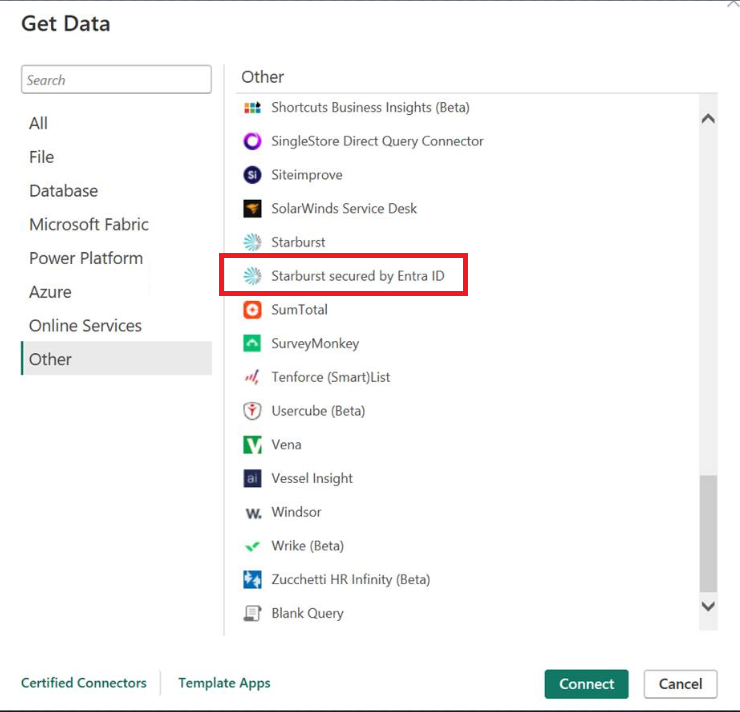
Two Starburst connectors appear in the Get Data dialog:
- Starburst. The original Starburst connector. Use this connector unless you need Entra ID SSO for DirectQuery.
- Starburst secured by Entra ID (preview). A separate connector that adds Microsoft Entra ID as an authentication option for DirectQuery SSO. Use this connector for new reports where you want each viewer's Entra ID identity to flow end-to-end to Starburst. To enable, see Enable Microsoft Entra ID single sign-on for DirectQuery
Tip
Existing reports that use the original Starburst connector don't need to migrate. Switch to Starburst secured by Entra ID only if you need Entra ID SSO.
Connect to Starburst from Power Query Desktop
From the Home ribbon, select Get Data. In the Database category, search for
Starburst, select Starburst or Starburst secured by Entra ID, and then select Connect. (See choose which Starburst connector to use for more information.In the connection dialog, enter your Starburst cluster Host. For Starburst Galaxy, append the OAuth reference string to the host name as documented by Starburst.
Optionally expand Advanced options and set any of Role, Catalog, Use system proxy, Connection string, or Native query.
Select DirectQuery or Import for the data connectivity mode, and then select OK.
Select an authentication type, enter your credentials, and select Connect.
In Navigator, select the catalogs and tables you want, and then select Load or Transform Data.
Connect to Starburst from Power Query Online
For Power Query Online, you connect through the on-premises data gateway.
From the Power BI service or Fabric, select Settings > Manage connections and gateways, then select + New.
Select On-premises and the gateway cluster that has the Starburst ODBC driver installed.
For Connection type, select Starburst or Starburst secured by Entra ID.
Enter the connection details and authentication credentials, then select Create.
Map your semantic model's data source to the new connection in the dataset settings.
Authentication
The Starburst connectors support several authentication types. Choose the type that matches how your Starburst cluster is configured:
Kerberos
Select Windows as the authentication type. The cluster must be configured for Kerberos authentication, and Power BI Desktop must run in a domain with a valid Kerberos ticket. Run kinit if you need to obtain a ticket interactively.
Password
Select Basic as the authentication type and enter your Starburst username and password. The cluster must be configured to accept password authentication.
Access token
Select Web API as the authentication type and paste a personal JSON Web Token (JWT) issued by your Starburst administrator. The cluster must be configured to accept JWT authentication.
OAuth 2.0
Select Organizational account as the authentication type, then select Sign in. Power Query opens the OAuth sign-in page configured on your Starburst cluster.
Starburst Enterprise Platform (SEP) and Starburst Galaxy require server-side OAuth 2.0 setup before this option works. For setup instructions, see the Starburst documentation.
Microsoft Entra ID (preview)
This authentication type is only available in the Starburst secured by Entra ID connector. For setup and prerequisites, see Enable Microsoft Entra ID single sign-on for DirectQuery (preview).
Enable Microsoft Entra ID single sign-on for DirectQuery (preview)
Microsoft Entra ID single sign-on (SSO) for the Starburst secured by Entra ID connector is in preview. When you turn it on, viewers of a DirectQuery semantic model authenticate to Starburst with their own Microsoft Entra ID identity. Starburst's data access policies, including row-level and column-level security, then apply to the actual report viewer rather than to a shared connection account.
When to use Entra ID SSO
Use Entra ID SSO when:
- You want Starburst's data access policies, row-level security, or column-level security to apply to the report viewer in DirectQuery mode.
- Audit or compliance rules prohibit a shared connection credential for all users.
- You want to remove the on-premises Active Directory and Kerberos constrained delegation dependencies that Kerberos SSO requires.
Entra ID SSO applies only to DirectQuery. Import models answer queries from imported data and don't relay user identities to Starburst.
How it works
When a viewer opens a DirectQuery report, the semantic model forwards the user's Entra ID token to the on-premises data gateway. The gateway passes the token to Starburst, and Starburst validates the token directly with Microsoft Entra ID. Starburst then applies its own authorization policies to the authenticated user.
Prerequisites
- The Starburst cluster is configured to accept OAuth 2.0 tokens issued by Microsoft Entra ID. For setup instructions, see the Entra ID section in the Starburst documentation.
- The on-premises data gateway is on a release that supports Entra ID SSO.
- A Power BI tenant admin enables the two tenant settings described in the next section.
Enable the tenant settings
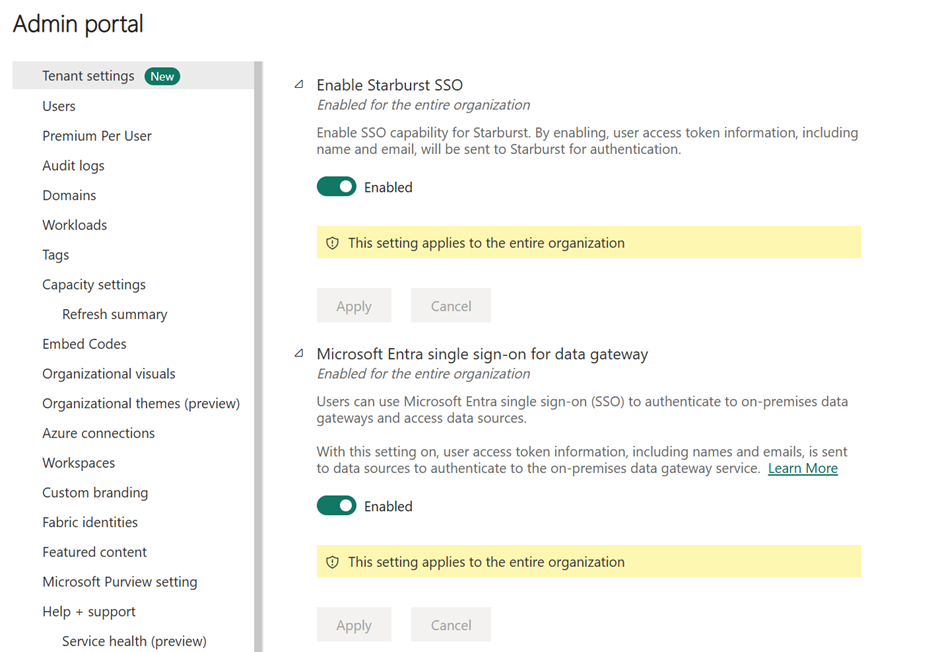
A Power BI tenant admin turns on two settings in the Power BI admin portal. Both settings are required.
Turn on Enable Starburst SSO. This setting controls whether the Use SSO via Azure AD for DirectQuery queries checkbox appears for Starburst secured by Entra ID data sources.
Turn on Microsoft Entra single sign-on for data gateway. This setting is a prerequisite for any Entra ID-based SSO through a data gateway. Without it, the Starburst SSO checkbox stays disabled.
Enable SSO on the data source
After the tenant settings are on, configure the per-connection setting:
In Manage connections and gateways, open the Starburst secured by Entra ID data source.
Under Single sign-on, select Use SSO via Azure AD for DirectQuery queries.
Save the data source.
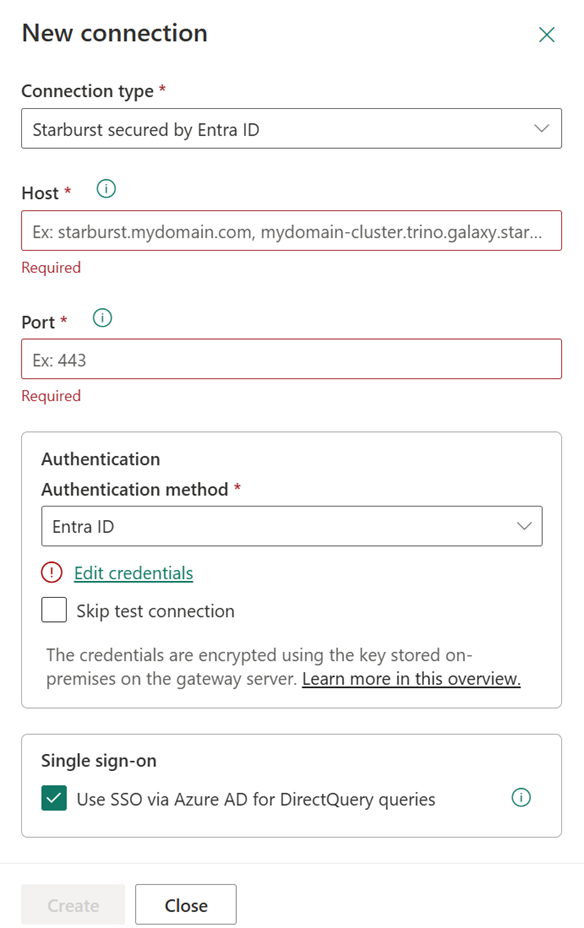
Any DirectQuery semantic model bound to this data connection now forwards each viewer's Entra ID token to Starburst.
Limitations and known issues
- Entra ID SSO applies only to DirectQuery. Import semantic models don't relay viewer identities to Starburst.
- Entra ID authentication is available only in the Starburst secured by Entra ID connector.
- Existing semantic models that use the original Starburst connector continue to work and don't need to migrate.