Note
Access to this page requires authorization. You can try signing in or changing directories.
Access to this page requires authorization. You can try changing directories.
This article explains some of the most common errors and issues you might get when you want to create a dataflow, and how to fix them.
I can't create a dataflow in My workspace
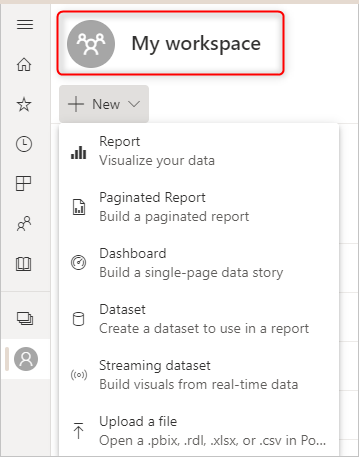
This problem happens when you try to create a dataflow in My workspace in Power BI.
Reason:
Creating dataflows in My workspace isn't supported.
Resolution:
Create your dataflows in organizational workspaces. To learn how to create an organizational workspace, go to Create the new workspaces in Power BI.
I can't create a dataflow in an organizational workspace where I have read-only rights
If you're a member of an organization workspace and you still can't create a dataflow, it might be because of your access rights in that workspace.
Reason:
You don't have edit rights in the workspace.
Resolution:
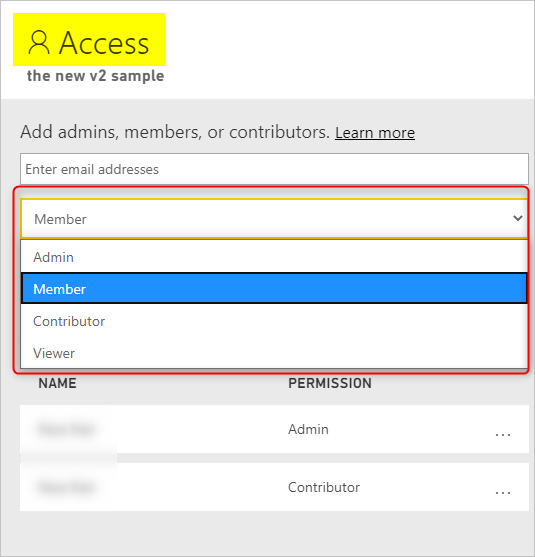
Ask the workspace administrators or members to give you an Admin, Member, or Contributor role.
I can't create a dataflow in a workspace where I have edit rights
This problem happens when you're in an organizational workspace that you created, or someone else created and you have Admin, Member, or Contributor access. You want to create a dataflow in this scenario, but you can't.
Reason:
The access to dataflow creation was disabled by the Power BI administrator.
Resolution:
Ask the Power BI tenant administrator to enable access for you by following these steps:
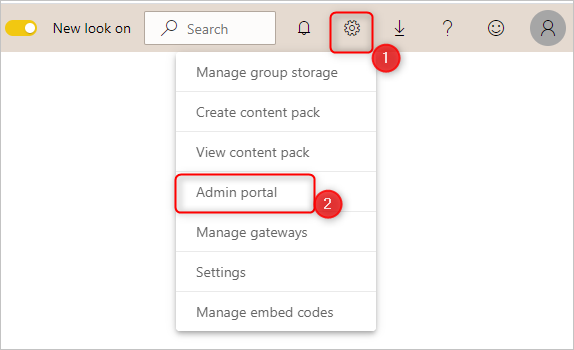
On the Settings menu in the Power BI service, select Admin portal.
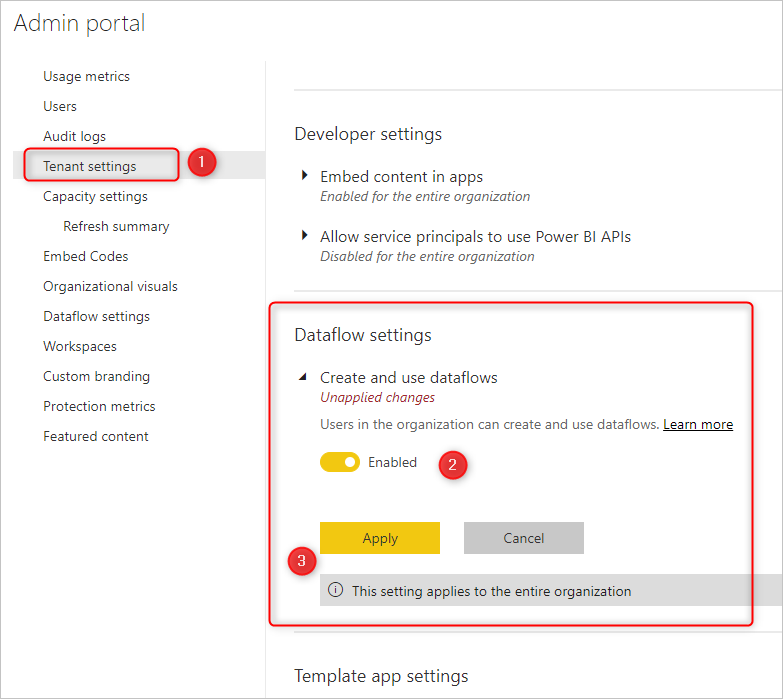
On the left pane, select Tenant settings, and in the Dataflow settings section, turn on the toggle for Enabled. Then select Apply.
I only see limited options when I create a dataflow
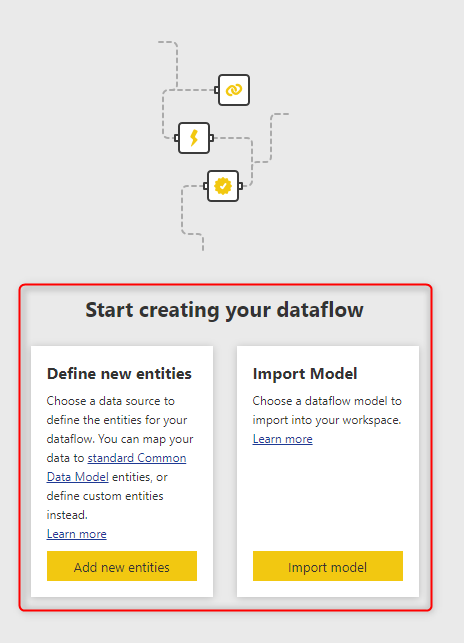
When creating a dataflow, sometimes you don't see all the options that are available. For example, you might see only the options shown in the following image.
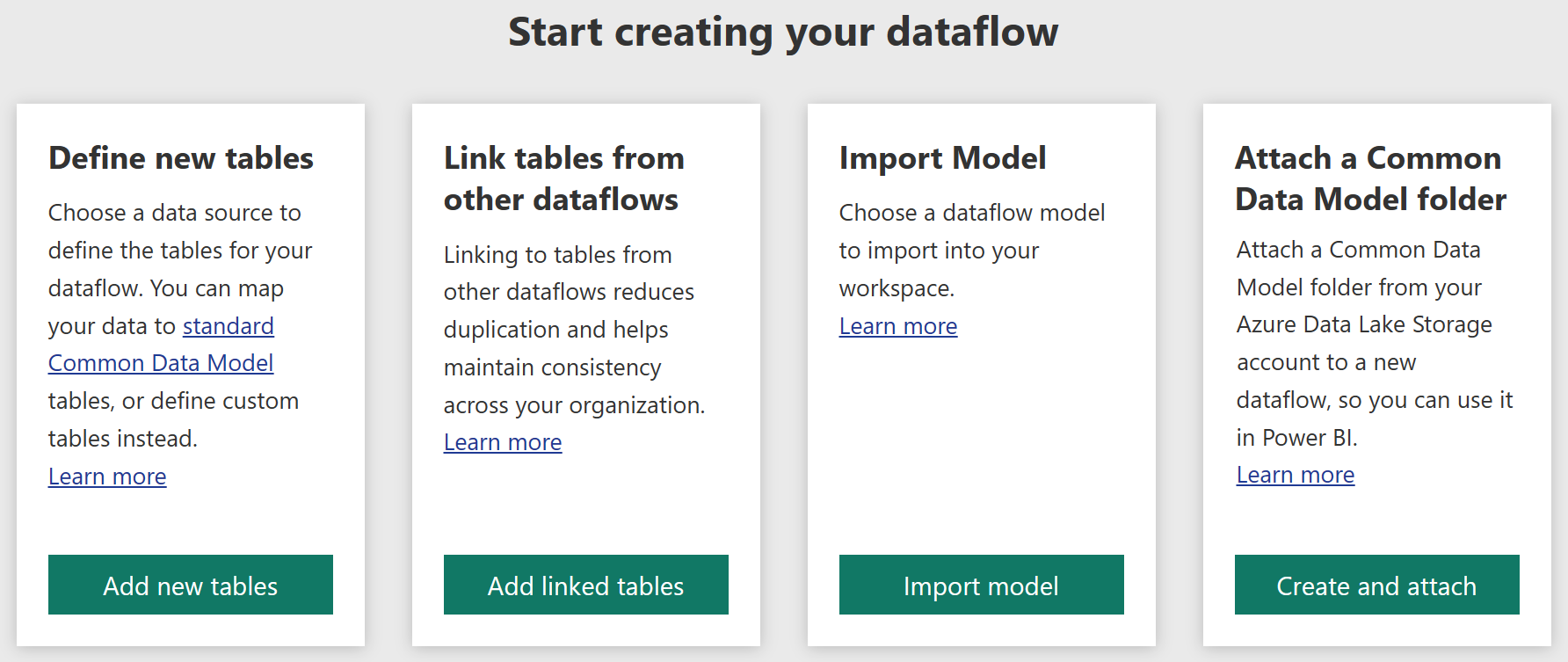
However, more options are actually available, as shown in the following image.
Reason:
You're creating the dataflow in an old version of the Power BI workspace, called V1.
Resolution:
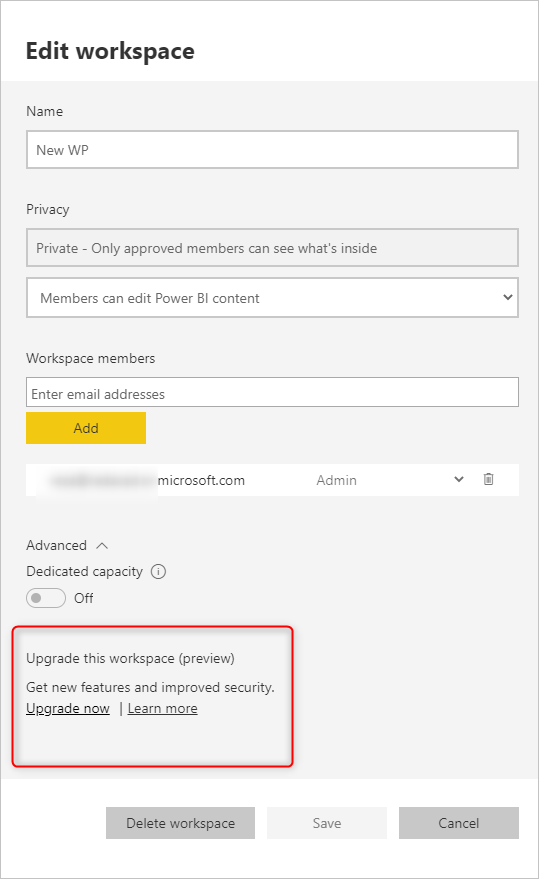
Upgrade your Power BI workspace to the new version (v2). For more information, go to Upgrade classic workspaces to the new workspaces in Power BI.
Dataflow name exists already, but I deleted the old one
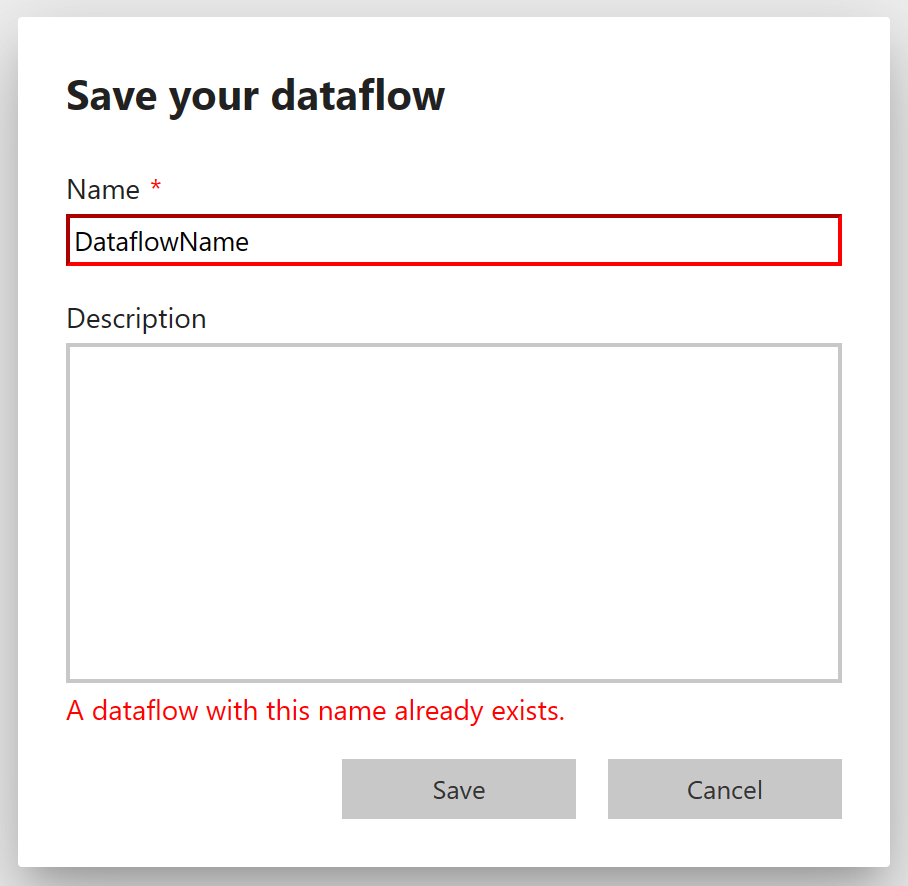
This problem happens when you try to create a dataflow with a name that already exists or use the name of a recently deleted dataflow.
Reason:
It can take up to 48 hours for the backend systems to delete all the files and references to the deleted dataflow.
Resolution:
You can either wait 48 hours before publishing the dataflow or create it now under a different name and rename it later on.
I can't publish a dataflow when Private Link is enabled
This problem happens when you try to publish a dataflow in a workspace that has a capacity assigned to it that isn't in the same region as the virtual network data gateway that the connector depends on with Private Link enabled and Public Access is blocked.
Reason:
The dataflow is unable to complete the publish process because it can't connect to the data source.
Resolution:
Create your dataflows in a workspace that is assigned to a capacity in the same region as your virtual network data gateway or create a new virtual network data gateway in the region you want to publish to.