Note
Access to this page requires authorization. You can try signing in or changing directories.
Access to this page requires authorization. You can try changing directories.
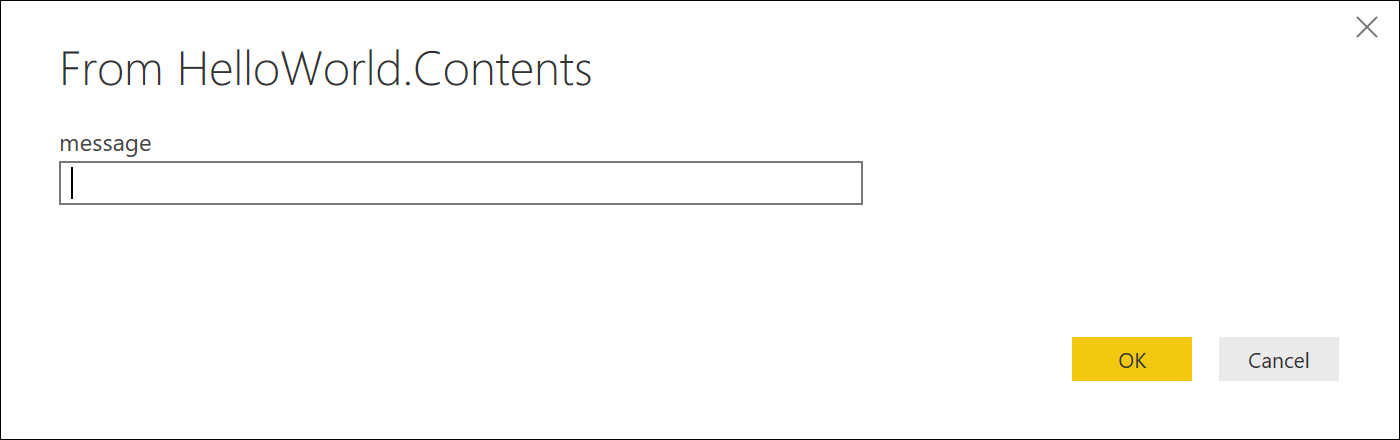
Power Query automatically generates an invocation UI based on the arguments for your function. By default, this UI contains the name of your function and an input for each of your parameters.
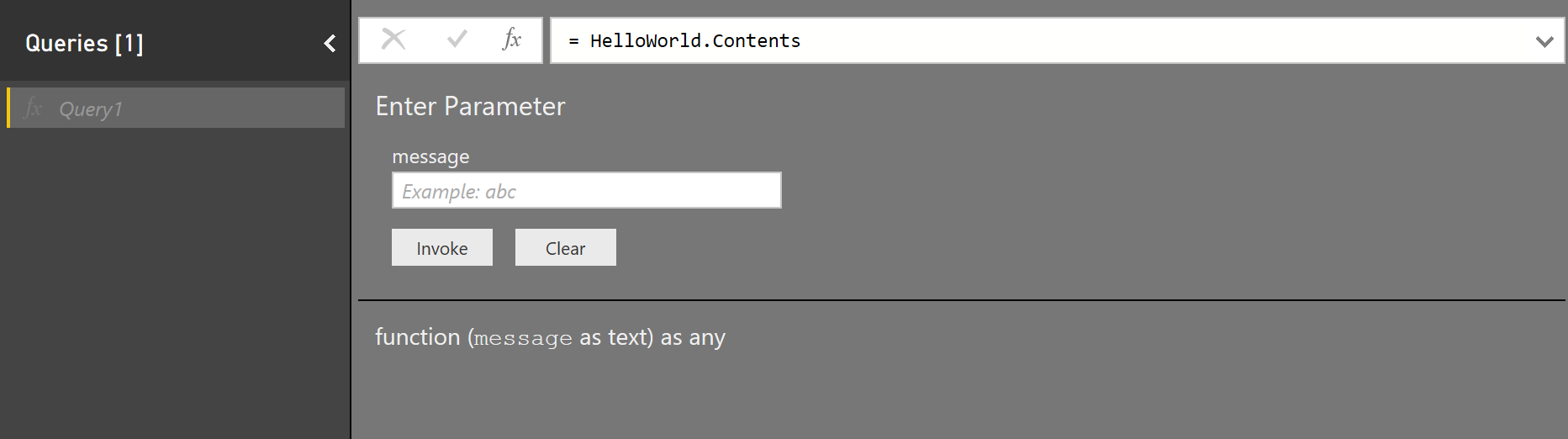
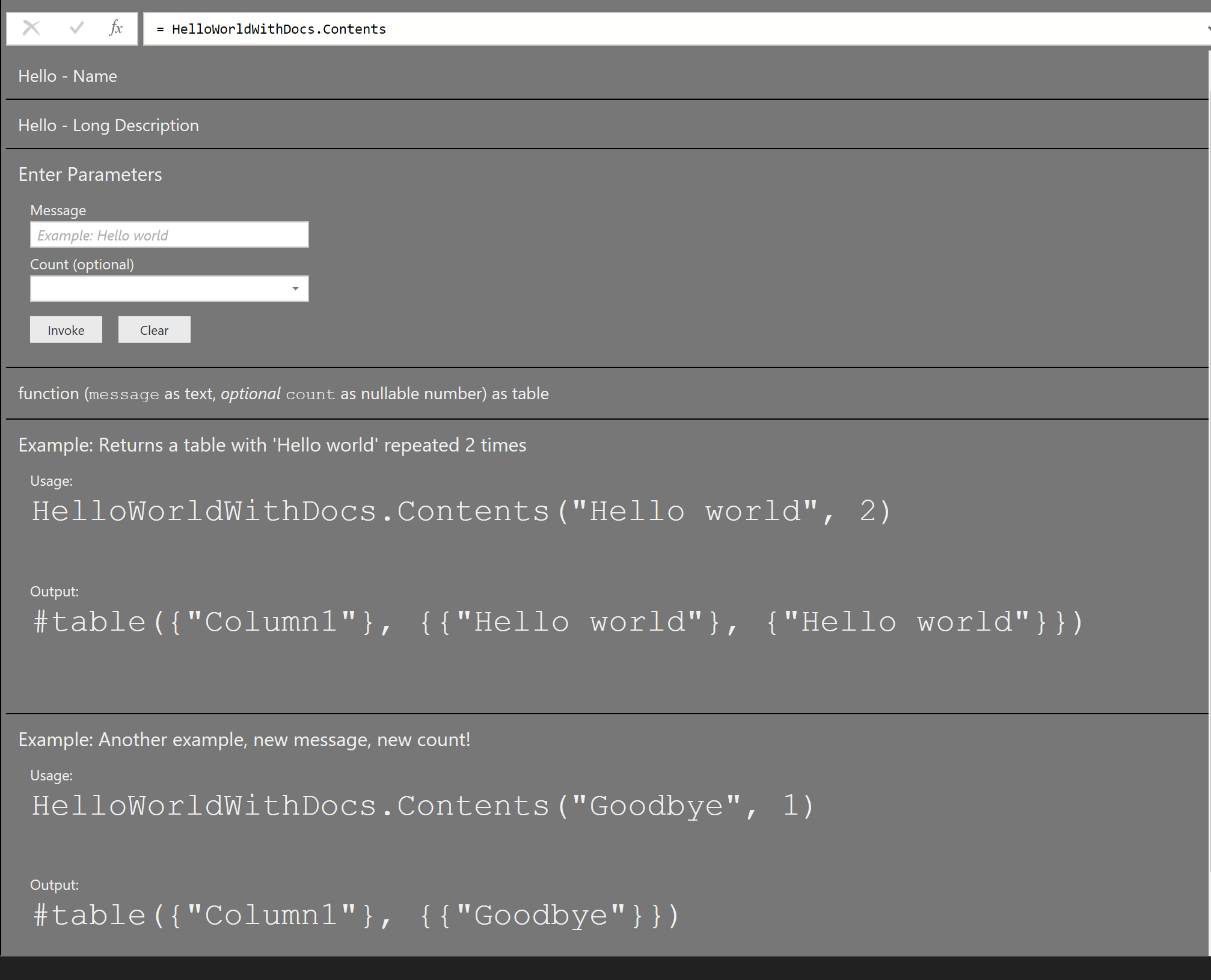
Similarly, evaluating the name of your function without specifying parameters displays information about it.
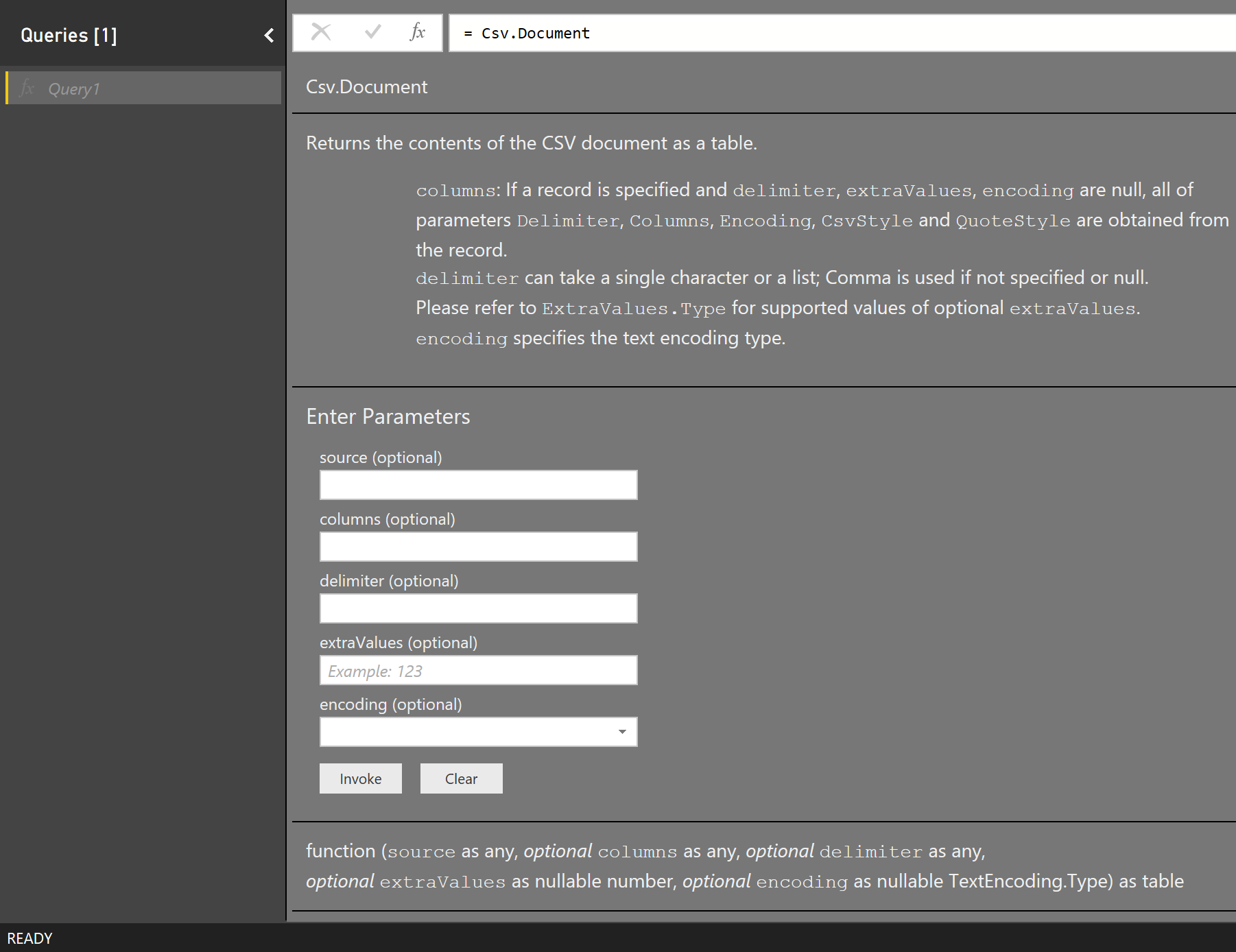
You might notice that built-in functions typically provide a better user experience, with descriptions, tooltips, and even sample values. You can take advantage of this same mechanism by defining specific meta values on your function type. This article describes the meta fields that Power Query uses and how you can make use of them in your extensions.
Function types
You can provide documentation for your function by defining custom type values. The process looks like this:
- Define a type for each parameter.
- Define a type for your function.
- Add various
Documentation.*fields to your type's metadata record. - Call Value.ReplaceType to ascribe the type to your shared function.
For more information about types and metadata values, see the M Language Specification.
By using this approach, you can supply descriptions and display names for your function and individual parameters. You can also supply sample values for parameters and define a preset list of values (turning the default text box control into a drop down).
The Power Query experience retrieves documentation from meta values on the type of your function by using a combination of calls to Value.Type, Type.FunctionParameters, and Value.Metadata.
Function documentation
The following table lists the documentation fields that you can set in the metadata for your function. All fields are optional.
| Field | Type | Details |
|---|---|---|
| Documentation.Examples | list | List of record objects with example usage of the function. Only displayed as part of the function info. Each record should contain the following optional text fields: Description, Code, and Result. |
| Documentation.LongDescription | text | Full description of what the function does, displayed in the function info. |
| Documentation.Name | text | Text to display across the top of the function invocation dialog. |
Parameter documentation
The following table lists the documentation fields that you can set in the metadata for your function parameters. All fields are optional.
| Field | Type | Details |
|---|---|---|
| Documentation.AllowedValues | list | List of valid values for this parameter. Providing this field changes the input from a textbox to a drop down list. Note, this change doesn't prevent a user from manually editing the query to supply alternative values. |
| Documentation.FieldCaption | text | Friendly display name to use for the parameter. |
| Documentation.FieldDescription | text | Description to show next to the display name. |
| Documentation.SampleValues | list | List of sample values to display (as faded text) inside of the text box. |
| Formatting.IsMultiLine | boolean | Allows you to create a multi-line input, for example for pasting in native queries. |
| Formatting.IsCode | boolean | Formats the input field for code, commonly with multi-line inputs. Uses a code-like font rather than the standard font. |
Basic example
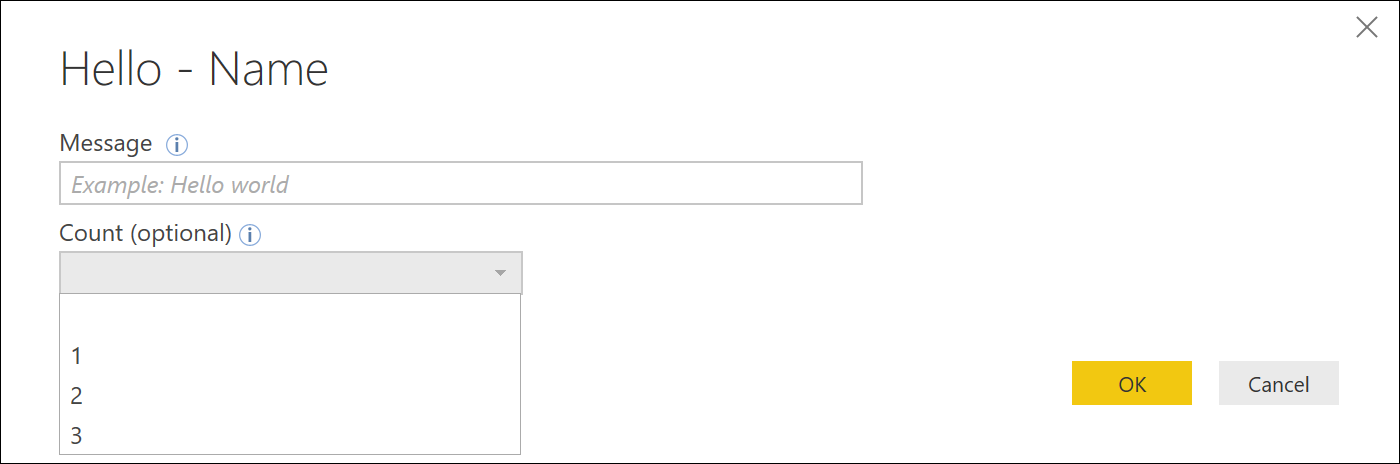
The following code snippet and resulting dialogs come from the HelloWorldWithDocs sample.
[DataSource.Kind="HelloWorldWithDocs", Publish="HelloWorldWithDocs.Publish"]
shared HelloWorldWithDocs.Contents = Value.ReplaceType(HelloWorldImpl, HelloWorldType);

HelloWorldType = type function (
    message as (type text meta [
        Documentation.FieldCaption = "Message",
        Documentation.FieldDescription = "Text to display",
        Documentation.SampleValues = {"Hello world", "Hola mundo"}
    ]),
    optional count as (type number meta [
        Documentation.FieldCaption = "Count",
        Documentation.FieldDescription = "Number of times to repeat the message",
        Documentation.AllowedValues = { 1, 2, 3 }
    ]))
    as table meta [
        Documentation.Name = "Hello - Name",
        Documentation.LongDescription = "Hello - Long Description",
        Documentation.Examples = {[
            Description = "Returns a table with 'Hello world' repeated 2 times",
            Code = "HelloWorldWithDocs.Contents(""Hello world"", 2)",
            Result = "#table({""Column1""}, {{""Hello world""}, {""Hello world""}})"
        ],[
            Description = "Another example, new message, new count!",
            Code = "HelloWorldWithDocs.Contents(""Goodbye"", 1)",
            Result = "#table({""Column1""}, {{""Goodbye""}})"
        ]}
    ];

HelloWorldImpl = (message as text, optional count as number) as table =>
    let
        _count = if (count <> null) then count else 5,
        listOfMessages = List.Repeat({message}, _count),
        table = Table.FromList(listOfMessages, Splitter.SplitByNothing())
    in
        table;
This code creates the following dialogs in Power BI.
Function invocation
Function info
Multi-line example
[DataSource.Kind="HelloWorld", Publish="HelloWorld.Publish"]
shared HelloWorld.Contents =
    let
        HelloWorldType = type function (
            message1 as (type text meta [
                Documentation.FieldCaption = "Message 1",
                Documentation.FieldDescription = "Text to display for message 1",
                Documentation.SampleValues = {"Hello world"},
                Formatting.IsMultiLine = true,
                Formatting.IsCode = true
            ]),
            message2 as (type text meta [
                Documentation.FieldCaption = "Message 2",
                Documentation.FieldDescription = "Text to display for message 2",
                Documentation.SampleValues = {"Hola mundo"},
                Formatting.IsMultiLine = true,
                Formatting.IsCode = false
            ])) as text,
        HelloWorldFunction = (message1 as text, message2 as text) as text => message1 & message2
    in
        Value.ReplaceType(HelloWorldFunction, HelloWorldType);
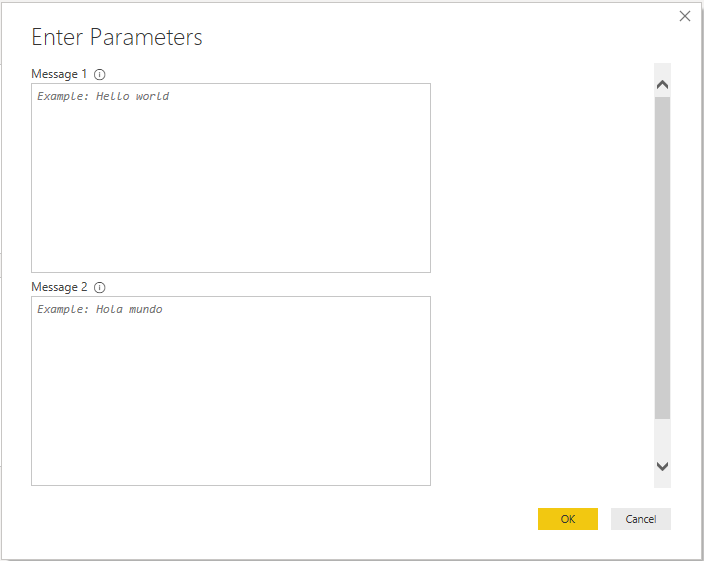
This code (with associated publish information, and so on) creates the following dialog in Power BI. New lines appear in text as #(lf), or line feed.