Note
Access to this page requires authorization. You can try signing in or changing directories.
Access to this page requires authorization. You can try changing directories.
In Power Query, you can split a column through different methods. If your data contains CamelCased text or a similar pattern, this article examines how you can split the selected column or columns at every point where a lowercase letter is followed by an uppercase letter.
Where to find Split Columns > By Lowercase to Uppercase
You can find the Split Columns: By Lowercase to Uppercase option in three places:
Home tab—under the Split Column dropdown menu inside the Transform group.

Transform tab—under the Split Column dropdown menu inside the Text Column group.

Right-click a column—inside the Split Column option.
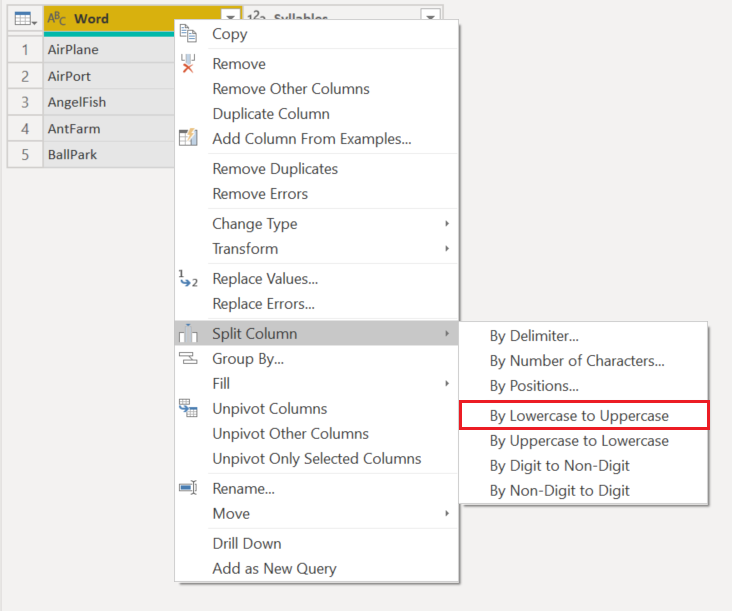
Split columns by lowercase to uppercase into columns
The initial table in this example is the one shown in the following image, with one column for Word and an extra column named Syllables. You only focus on the first column.
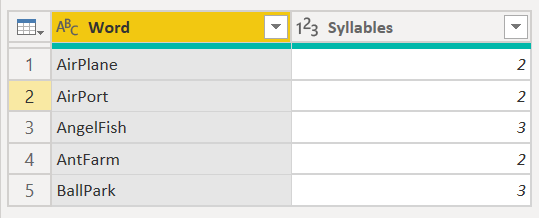
This column holds two values in each row:
- FirstWord—The first half of the compound word.
- SecondWord—The second half of the compound word.
In this example, you want to split this column into the two columns described in the previous list. Select the column and then select the split column by lowercase to uppercase option.
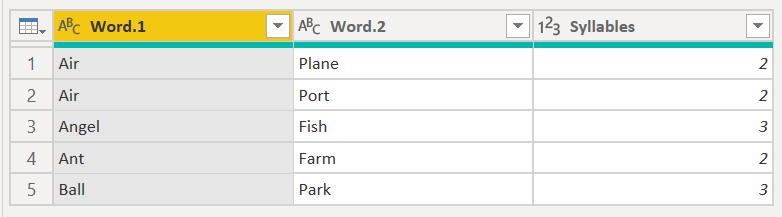
This single column splits into multiple columns, given every instance of the last lowercase letter to the next uppercase letter. In this case, it only splits into two columns.
Your final table looks like the following image.