Note
Access to this page requires authorization. You can try signing in or changing directories.
Access to this page requires authorization. You can try changing directories.
This article describes how to scan Active Directory in Movere.
Movere can collect object information from Active Directory domains, including computers, users, and trusts. This data forms the foundation of your data inventory.
Note
If you have large domains, or domains with lots of stale object, it's useful to do an Active Directory scan, and then download a rescan file to perform targetted "rescan" of Windows devices. This shortens scanning time by identifying active Windows devices for the rescan.
Before you begin
- Learn about scanning in Movere.
- Check the permissions needed to scan Windows and Linux devices.
- Make sure you have a Windows account with permission to query the Global Catalog, for each domain you want to scan.
Run a scan in the Console
Scan Active Directory in the Movere Console, as follows:
In the Movere console > Getting Started, select First scan. Select Active Directory, and then click Next.
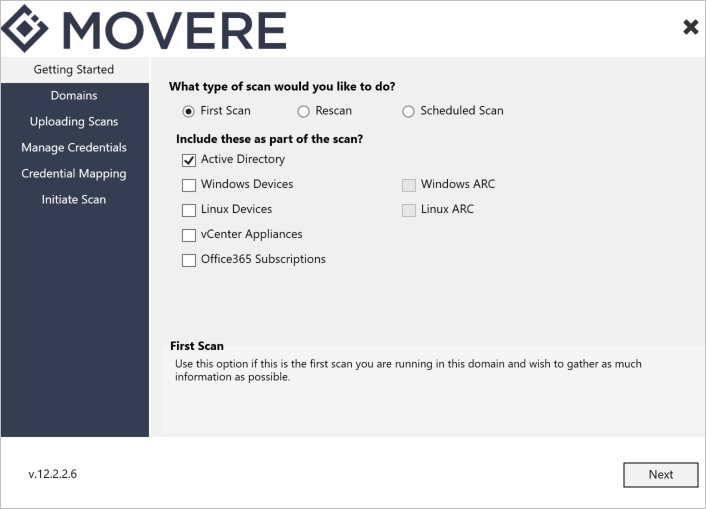
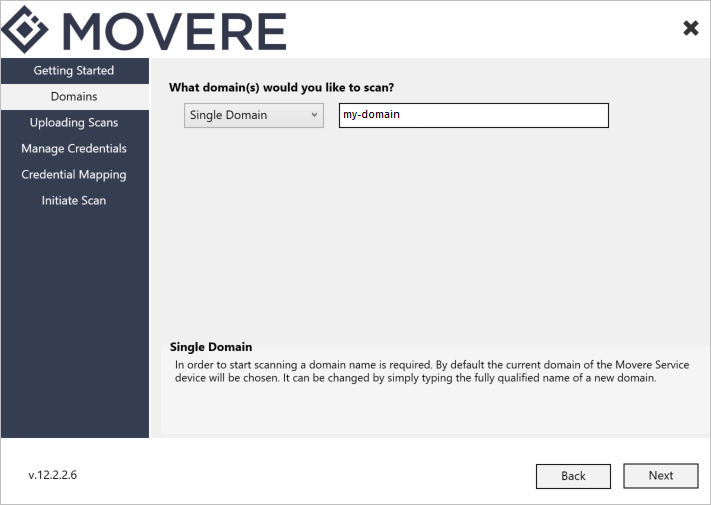
In Domains, select which domains you want to scan.
- By default the Console shows the domain in which the Console machine is located.
- You can specify a different domain in FQDN format (corp.company.com), by typing into the domain-text box provided.
- You can scan a single domain, or select multiple domains for a forest-wide scan.
- For multiple domains, Movere shows all of the domains and trusts that are visible from the domain you specify.
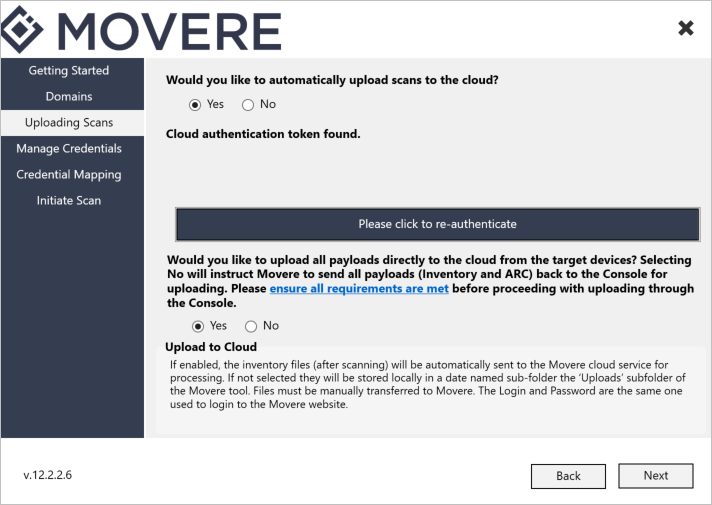
In Uploading Scans, select whether you want to automatically upload scans to the Movere portal, and whether you want to upload scans directly from scanned devices. Learn more about data upload options.
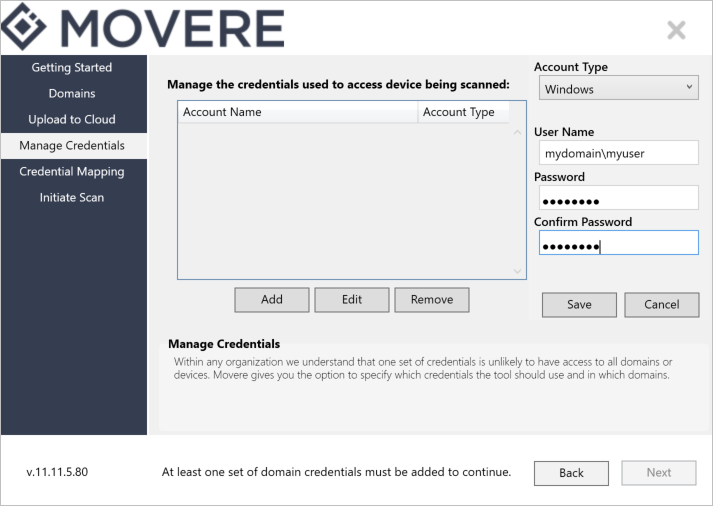
In Manage Credentials, click Add to specify the credentials that Movere uses to query the Active Directory domains.
- You must add at least one account to begin a scan. You can add more accounts as needed.
- Add Windows credentials in the format domain\username.
- The account isn't validated during this step.
- Credentials aren't stored in plain text, and aren't uploaded to the cloud.
In Credential Mapping, map the credentials you're using to the relevant domains. You can use one account across all targeted domains, or map multiple accounts. Learn more.
In Initiate Scan, click Scan to beginning scanning Active Directory.
Track progress in the progress window.
- Actions performed during the scan are logged in the Log.service files in the Movere Console/Logs folder.
- To stop the scan manually, click Stop.
- When the Windows scan completes, the Movere console will automatically refresh itself to initiate scan window.
Run a scan from the command line
Run an Active Directory scan from the command line. To do this, users need to configure the scan, add credentials using console UI and then run the scan from the command line, as follows:
In the Movere console > Getting Started, select First scan, and then select Active Directory > Next.
In Domains, select which domains you want to scan.
In Uploading Scans, select how you want to upload data to Movere.
In Manage Credentials, click Add to specify the credentials that Movere uses to query the Active Directory domains.
In Credential Mapping, map the credentials you're using to the relevant domains.
Close the Movere Console.
As an administrator, open an elevated command prompt, and navigate to the Movere Console folder.
Run a scan on the required devices. For example:
- To scan Active Directory for a single domain:
Movere.service.exe -ad -domain:domain.com -upload -startlistener - To scan Active Directory for multiple domains:
Movere.Service.exe -ad -domain:domain1.com,domain2.com -upload -startlistener - To disable automatic uploading, remove the
-uploadflag from the command line argument.
- To scan Active Directory for a single domain:
Run a scan without user data
If you want to run a scan without collecting user data, do the following:
Follow the instructions above to configure settings in the Movere Console.
From an elevated command prompt, run the following to scan without user data:
- To scan Active Directory for a single domain:
Movere.service.exe -ad -domain:DomainName -nouser -upload -startlistener - To scan Active Directory for multiple domains:
Movere.Service.exe -ad -domain:domain1.com,domain2.com -nouser -upload -startlistener - To disable automatic uploading, remove the
-uploadflag from the command line argument.
- To scan Active Directory for a single domain:
Note
If you've already run a scan and inadvertently collected user data, rerun the scan with the -nouser flag. The previous payload containing user data is removed from Movere, and replaced with the new payload without the user data.