Note
Access to this page requires authorization. You can try signing in or changing directories.
Access to this page requires authorization. You can try changing directories.
In this tutorial, you use Visual Studio to create a Visual Basic application. Visual Basic (VB) is an easy to learn type-safe programming language. This tutorial also explores some features of the Visual Studio integrated development environment (IDE), including source control in Git.
A console app takes input and displays output in a command-line window, also known as a console. The console app that you create asks the user for their name, and then displays it, along with the current time.
In this tutorial, you learn how to:
- Create a Visual Studio project
- Run the default application
- Add code to ask for user input
- Extra credit: Add two numbers
- Add Git source control
- Clean up resources
Prerequisites
- If you don't have Visual Studio, go to Visual Studio downloads to install it for free.
Create a project
First, you create a Visual Basic app project. The default project template includes all the files you need for a runnable app.
Run the app
After you select your Visual Basic project template and name your project, Visual Studio creates a Program.vb file. The default code calls the WriteLine method to display the literal string "Hello World!" in the console window.
There are two ways to run this code, inside Visual Studio in debug mode, and from your computer as a regular standalone app.
Run the app in debug mode
Run the app as a standalone
To see the output outside of Visual Studio, in a system console window, build and run the executable (.exe file).
Add code to ask for user input
Next, you add Visual Basic code that prompts you for your name and then displays it along with the current date and time. In addition, you add code that pauses the console window until the user presses a key.
Now that your new code is in the app, build and run the executable (.exe file) in a system console window, as described previously in Run the app as a standalone. Now when you press a key, the app exits, which closes the console window.
Extra credit: Add two numbers
This example shows how to read in numbers, rather than a string, and do some arithmetic. Try changing your code from:
Module Program
    Sub Main(args As String())
        Console.Write("Please enter your name: ")
        Dim name = Console.ReadLine()
        Dim currentDate = DateTime.Now
        Console.WriteLine($"Hello, {name}, on {currentDate:d} at {currentDate:t}")
        Console.Write("Press any key to continue...")
        Console.ReadKey(True)
    End Sub
End Module
To:
Module Program
    Public num1 As Integer
    Public num2 As Integer
    Public answer As Integer
    Sub Main(args As String())
        Console.Write("Type a number and press Enter")
        num1 = Console.ReadLine()
        Console.Write("Type another number to add to it and press Enter")
        num2 = Console.ReadLine()
        answer = num1 + num2
        Console.WriteLine("The answer is " & answer)
        Console.Write("Press any key to continue...")
        Console.ReadKey(True)
    End Sub
End Module
And then run the updated app as described in the earlier section, Run the app.
Add Git source control
Now that you have an application, you might want to add it to a Git repository. Visual Studio makes that process easy with Git tools you can use directly from the IDE.
Tip
Git is the most widely used modern version control system. Whether you're a professional developer or you're learning how to code, Git can be very useful. If you're new to Git, the https://git-scm.com/ website is a good place to start. You can find cheat sheets, a popular online book, and Git Basics videos.
To associate your code with Git, start by creating a new Git repository where your code is located:
In the status bar at the bottom-right of Visual Studio, select Add to Source Control, and then select Git.

In the Create a Git repository dialog box, sign in to GitHub:
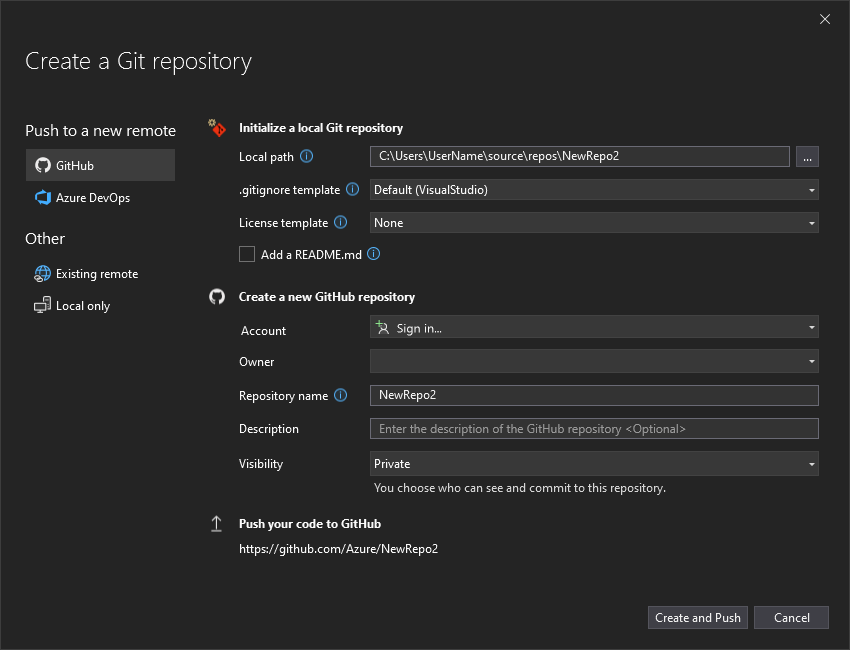
The repository name autopopulates based on your folder location. Your new repository is private by default, which means you're the only one who can access it.
Tip
Whether your repository is public or private, it's best to have a remote backup of your code stored securely on GitHub. Even if you aren't working with a team, a remote repository makes your code available to you from any computer.
Select Create and Push. After you create your repository, you see status details in the status bar:

Use Git actions in Visual Studio
Here's a brief summary of Git actions available in the Visual Studio status bar:
The Up/Down arrows show how many outgoing/incoming commits are in your current branch. You can use this icon to pull any incoming commits or push any outgoing commits.
To view a specific commit, select the Up/Down arrow, and then select View Outgoing/Incoming.
The Pencil shows the number of uncommitted changes to your code. You can select this icon to view those changes in the Git Changes window.
The Git menu provides tools for repository actions on your files. You can use git fetch, pull, push, and sync for version control in Visual Studio.
For more information about how to use Git with your app, see About Git in Visual Studio.
Clean up resources
If you're not going to continue to use this app, delete the project.
In Solution Explorer, right-click on WhatIsYourName to open the context menu for your project. Then, select Open Folder in File Explorer.
Close Visual Studio.
In the File Explorer dialog box, go up two levels of folders.
Right-click on the WhatIsYourName folder and select Delete.
Related content
- Visual Basic language walkthroughs
- Visual Basic language reference
- IntelliSense for Visual Basic code files
Next step
Congratulations on completing this tutorial! To learn more, see the following tutorial.