Note
Access to this page requires authorization. You can try signing in or changing directories.
Access to this page requires authorization. You can try changing directories.
Data quality measures the integrity of data in an organization. You assess data quality by using data quality scores. Microsoft Purview Unified Catalog generates scores based on the assessment of the data against rules that you define.
Data quality rules are essential guidelines that organizations establish to ensure the accuracy, consistency, and completeness of their data. These rules help maintain data integrity and reliability.
Here are some key aspects of data quality rules:
Accuracy: Data should accurately represent real-world entities. Context matters! For example, if you’re storing customer addresses, ensure they match the actual locations.
Completeness: This rule identifies empty, null, or missing data. It validates that all values are present, though not necessarily correct.
Conformity: This rule ensures that the data follows data formatting standards such as representation of dates, addresses, and allowed values.
Consistency: This rule checks that different values of the same record conform to a given rule and that there are no contradictions. Data consistency ensures that the same information is represented uniformly across different records. For instance, if you have a product catalog, consistent product names and descriptions are crucial.
Timeliness: This rule aims to ensure that the data is accessible in as short a time as possible. It ensures that the data is up to date.
Uniqueness: This rule checks that values aren't duplicated. For example, if there's supposed to be only one record per customer, then there aren't multiple records for the same customer. Each customer, product, or transaction should have a unique identifier.
Data quality life cycle
Creating data quality rules is the sixth step in the data quality lifecycle. The previous steps are:
- Assign users data quality steward permissions in Unified Catalog to use all data quality features.
- Register and scan a data source in Microsoft Purview Data Map.
- Add your data asset to a data product.
- Set up a data source connection to prepare your source for data quality assessment.
- Configure and run data profiling for an asset in your data source.
Required roles
- To create and manage data quality rules, users need the data quality steward role.
- To view existing quality rules, users need the data quality reader role.
Note
When you create a rule through the API, first create the associated asset metadata. Rule creation depends on this metadata. If the asset metadata doesn't exist, the rule creation request fails. For a successful workflow:
- Create the asset metadata.
- Verify that the asset is successfully registered.
- Create the data quality rule and associate it with the asset.
View existing data quality rules
In Unified Catalog, select Health Management, then select Data quality.
Select a governance domain, then select a data product.
Select a data asset from the Data assets list.
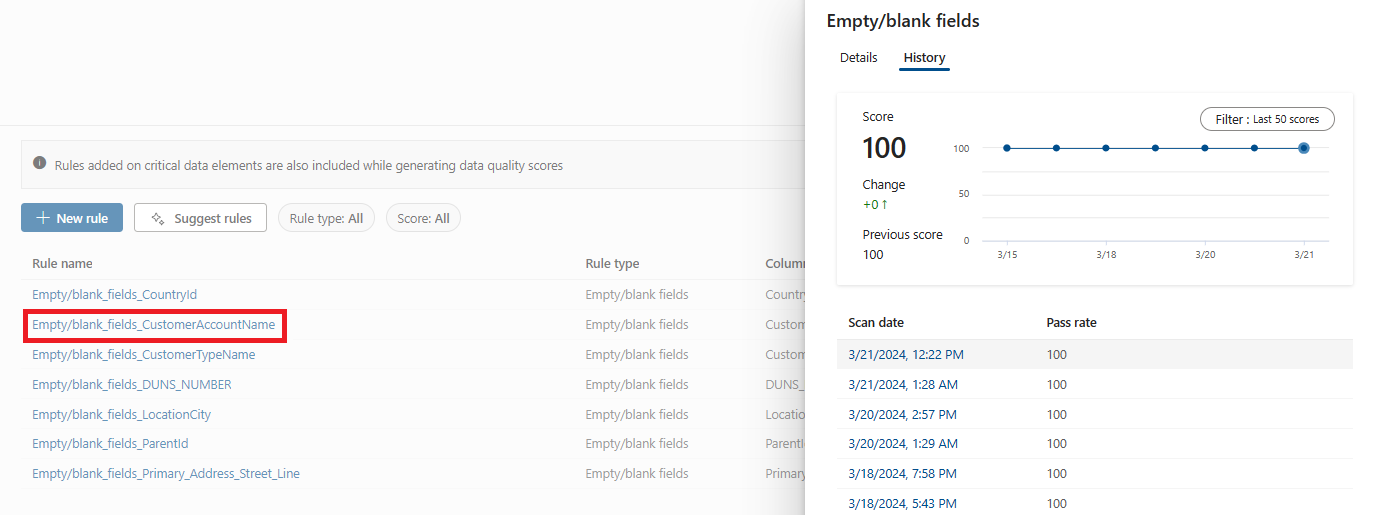
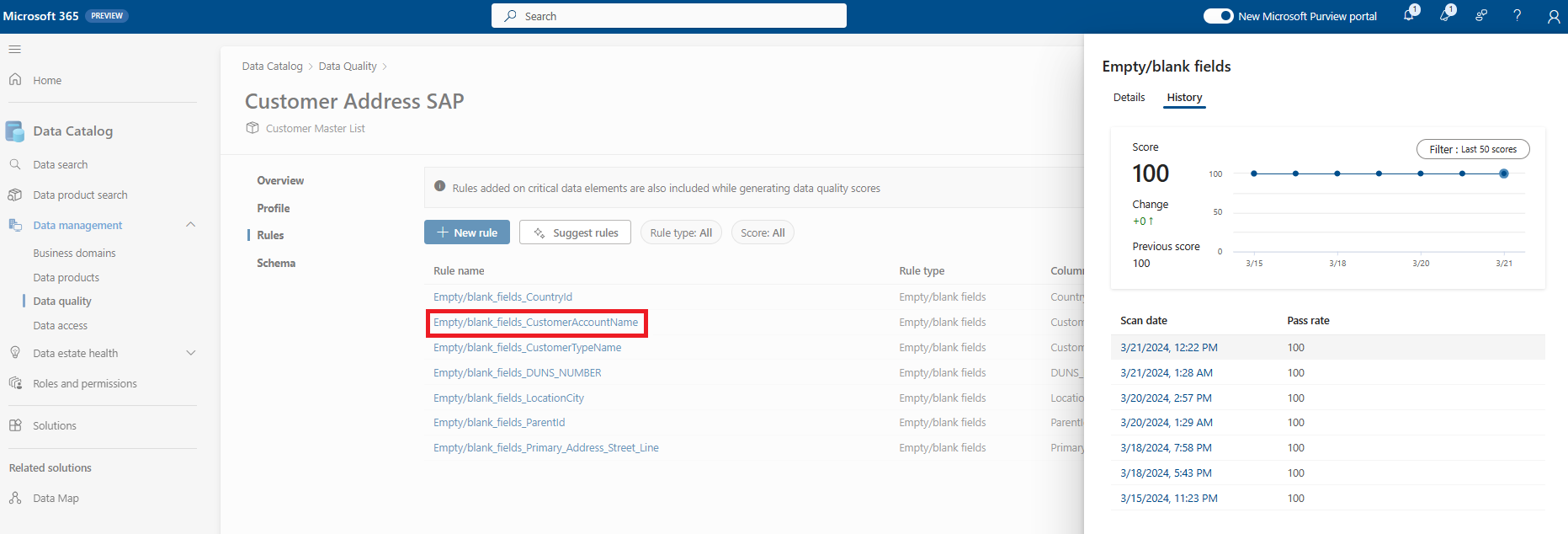
Select the Rules tab to see the existing rules applied to the asset.
Select a rule to browse the performance history of the applied rule to the selected data asset.
Available data quality rules
Microsoft Purview Data Quality enables configuration of the following rules. These rules are available out of the box and offer a low-code to no-code way to measure the quality of your data.
| Rule | Definition |
|---|---|
| Freshness | Confirms that all values are up to date. |
| Unique values | Confirms that the values in a column are unique. |
| String format match | Confirms that the values in a column match a specific format or other criteria. |
| Data type match | Confirms that the values in a column match their data type requirements. |
| Duplicate rows | Checks for duplicate rows with the same values across two or more columns. |
| Empty/blank fields | Looks for blank and empty fields in a column where there should be values. |
| Table lookup | Confirms that a value in one table can be found in the specific column of another table. |
| Custom | Create a custom rule with the visual expression builder. |
Freshness
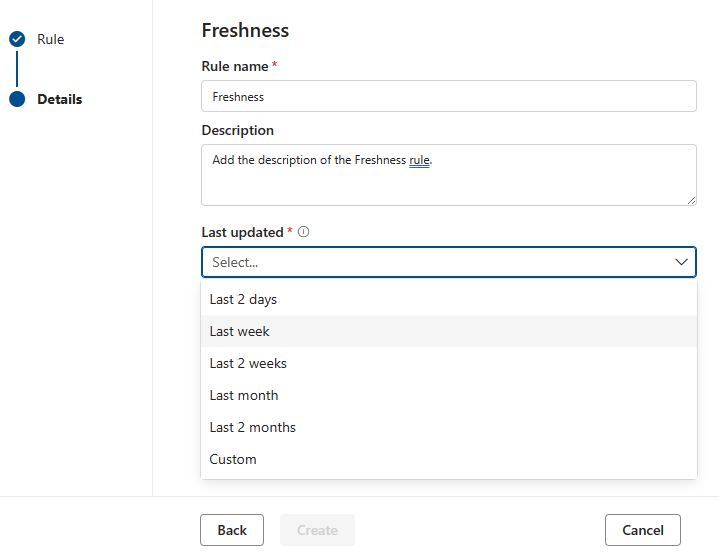
The freshness rule checks if the asset is updated within the expected time. Freshness is determined by the selection of last modified dates.
Note
The freshness rule score is either 100 (pass) or 0 (fail). The freshness rule isn't supported for Snowflake, Azure Databricks Unity Catalog, Google BigQuery, Synapse, and Microsoft Azure SQL.
Unique values
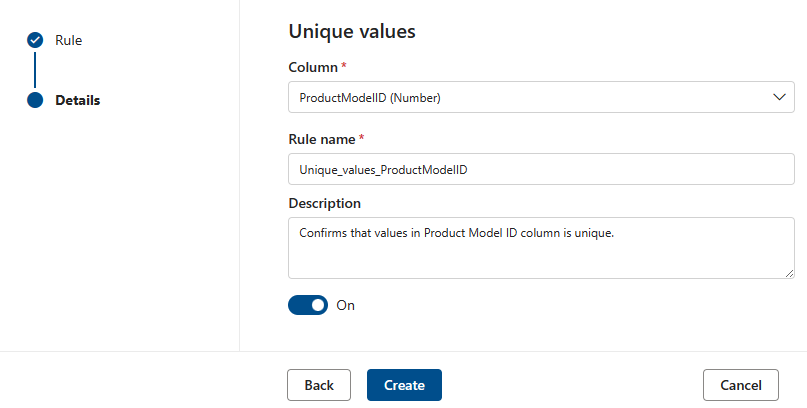
The Unique values rule states that all the values in the specified column must be unique. All values that are unique are treated as pass, and values that aren't unique are treated as fail. If the Empty/blank fields rule isn't defined on the column, then null or empty values are ignored for the purposes of this rule.
String format match
The Format match rule checks if all the values in the column are valid. If you don't define the Empty/blank fields rule on a column, the rule ignores null or empty values.
This rule can validate each value in the column by using three different approaches:
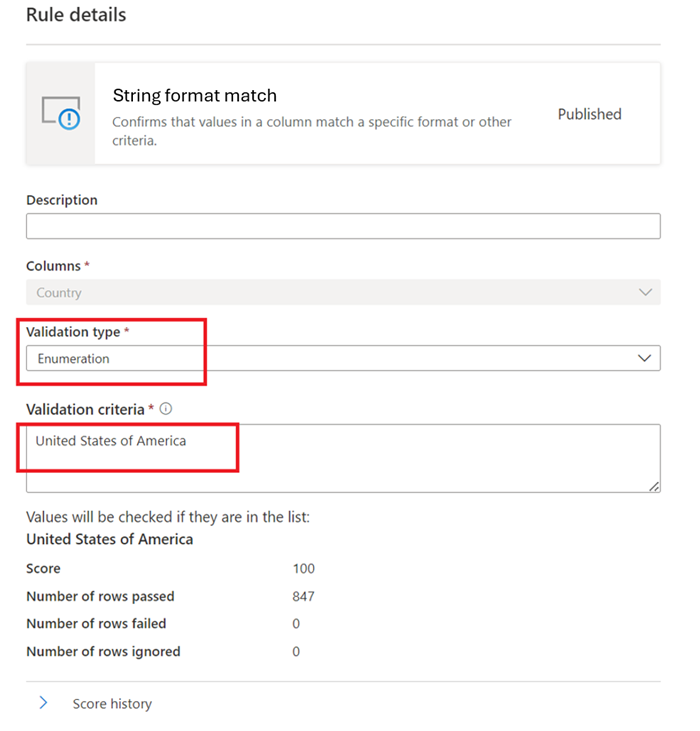
- Enumeration: This approach uses a comma-separated list of values. If the value you evaluate doesn't match one of the listed values, it fails the check. You can escape commas and backslashes by using a backslash (
\). So,a \, b, ccontains two values: the first isa , band the second isc.
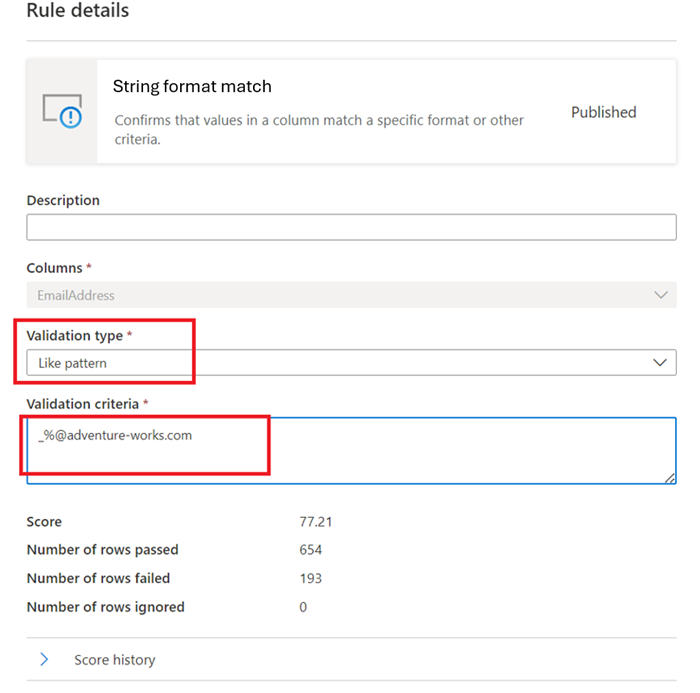
Like Pattern:
like(<i><string></i> : string, <i><pattern match></i> : string) => booleanThe pattern is a string that the rule matches literally. The exceptions are the following special symbols: _ matches any one character in the input (similar to.inposixregular expressions) % matches zero or more characters in the input (similar to.inposixregular expressions). The escape character is.If an escape character precedes a special symbol or another escape character, the following character is matched literally. It's invalid to escape any other character.like('icecream', 'ice%') -> true
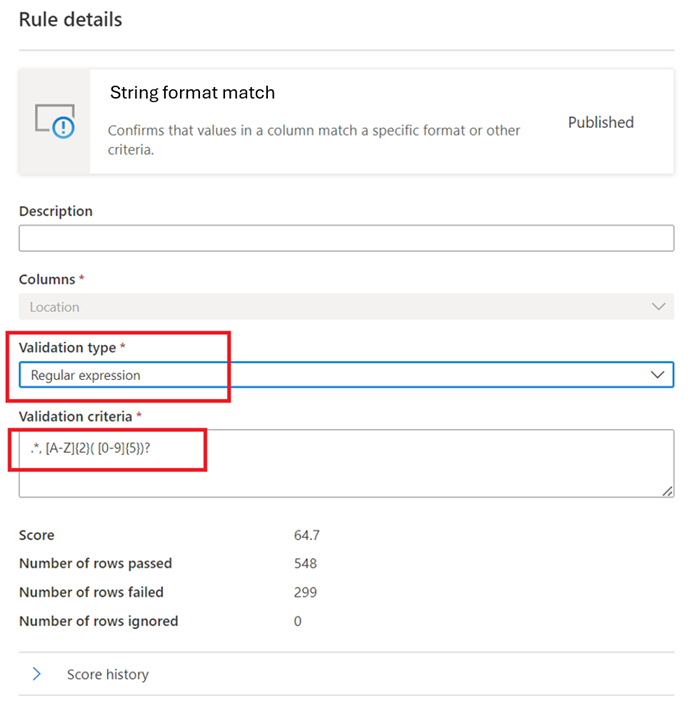
Regular Expression:
regexMatch(<i><string></i> : string, <i><regex to match></i> : string) => booleanChecks if the string matches the given regex pattern. Use
<regex>(back quote) to match a string without escaping.regexMatch('200.50', '(\\d+).(\\d+)') -> trueregexMatch('200.50', `(\d+).(\d+)`) -> true
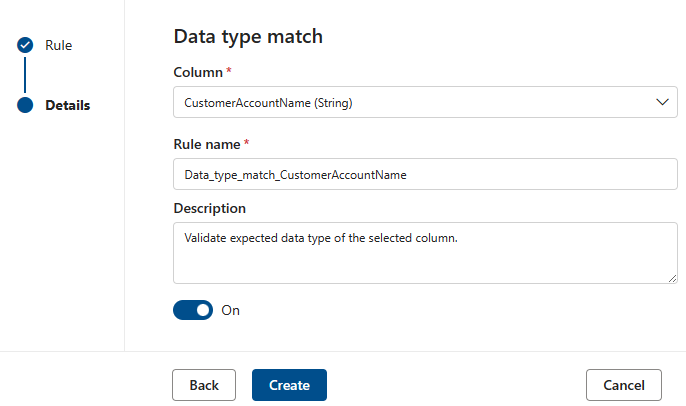
Data type match
The Data type match rule specifies the expected data type for the associated column. Since the rule engine runs across many different data sources, it can't use native types like BIGINT or VARCHAR. Instead, it uses its own type system and translates native types into this system. This rule tells the quality scan engine which of its built-in types to use for the native type. The data type system comes from the Microsoft Azure Data Flow type system used in Azure Data Factory.
During a quality scan, the engine tests all native types against the data type match type. If it can't translate the native type into the data type match type, it treats that row as an error.
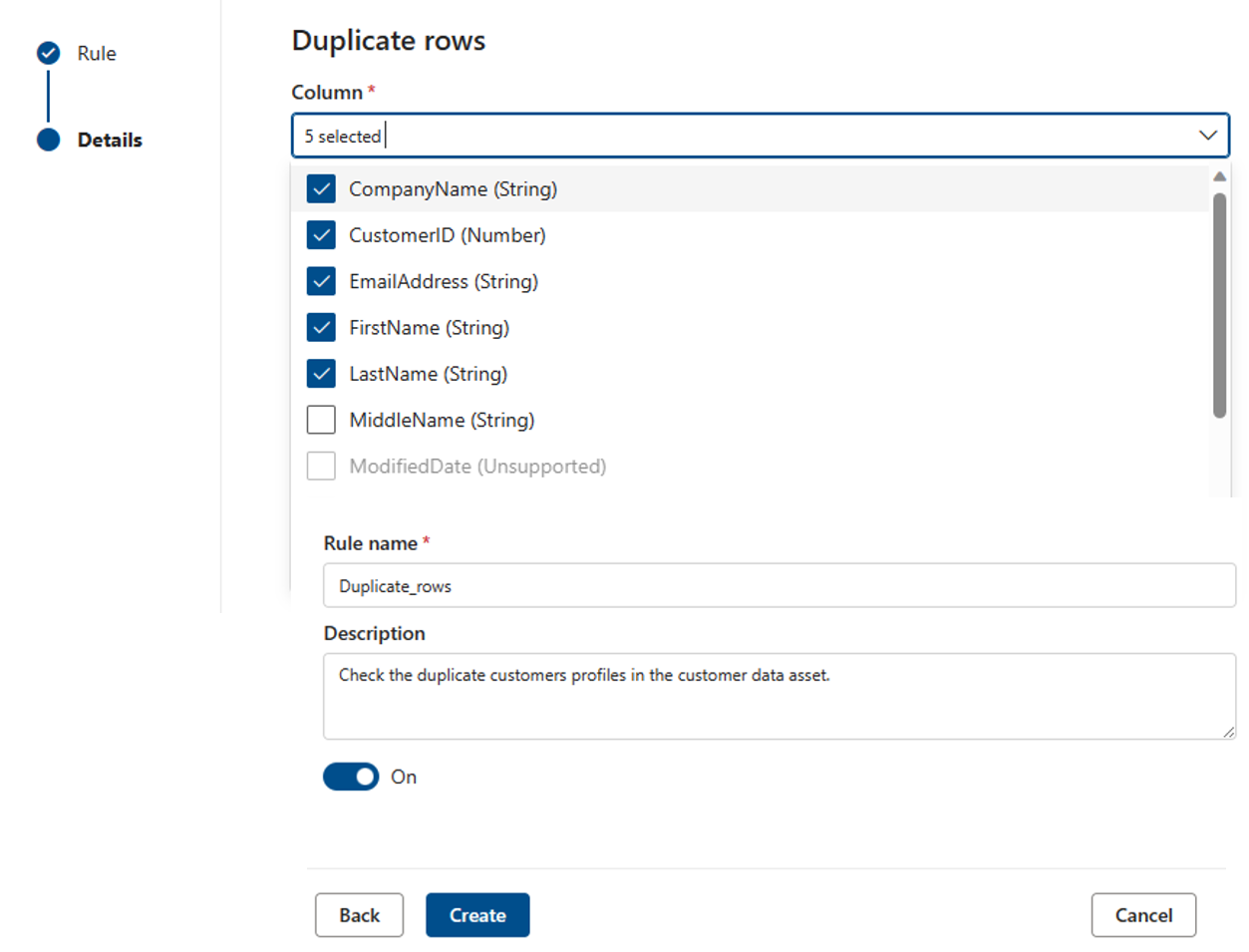
Duplicate rows
The Duplicate rows rule checks if the combination of the values in the column is unique for every row in the table.
In the following example, the expectation is that the concatenation of CompanyName, CustomerID, EmailAddress, FirstName, and LastName produces a value that's unique for all the rows in the table.
Each asset can have zero or one instance of this rule.
Empty/blank fields
The Empty/blank fields rule asserts that the identified columns shouldn't contain any null values. For strings, the rule also disallows empty or whitespace-only values. During a data quality scan, the engine treats any value in this column that isn't null as correct. This rule affects other rules such as the Unique values or Format match rules. If you don't define this rule on a column, those rules automatically ignore any null values when they run on that column. If you define this rule on a column, those rules examine null or empty values on that column and consider them for score purposes.
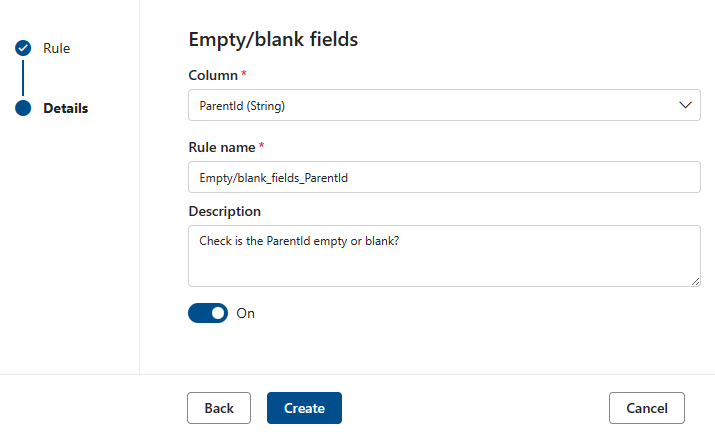
Table lookup
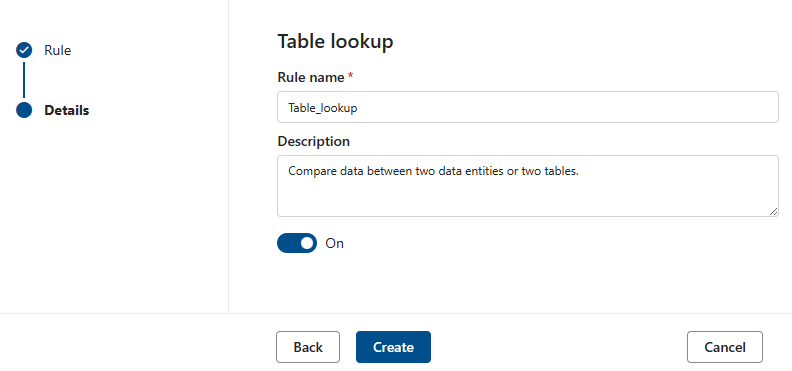
The Table lookup rule examines each value in the column where you define the rule and compares it to a reference table. For example, a primary table has a column called "location" that contains cities, states, and zip codes in the form "city, state zip". A reference table called "citystate" contains all the legal combinations of cities, states, and zip codes supported in the United States. The goal is to compare all the locations in the current column against that reference list to make sure that only legal combinations are used.
To set up this rule, enter the "citystatezip" name into the search assets dialog. Then select the desired asset and the column you want to compare against.
Note
The reference table or data asset must belong to the same governance domain. You can't compare a data asset across different governance domains.
Custom rules
The Custom rule enables you to specify rules that validate rows based on one or more values in that row. You can use regular expression language, Azure Data Factory expression, and SQL expression language to create custom rules.
A custom rule has three parts:
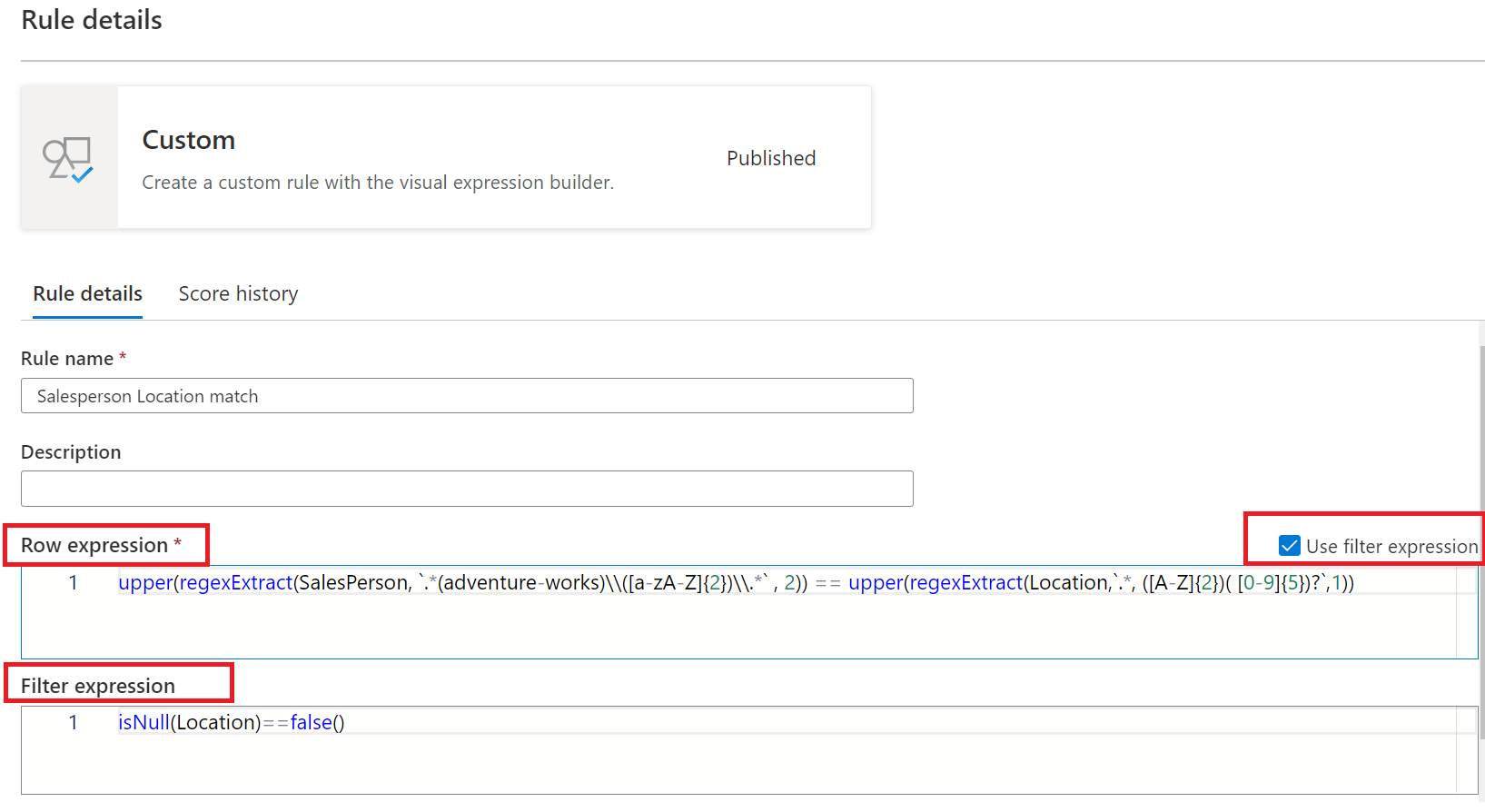
Row expression: This Boolean expression applies to each row that the filter expression approves. If this expression returns true, the row passes. If it returns false, the row fails.
Filter expression: This optional condition narrows down the dataset on which the row condition is evaluated. You activate it by selecting the Use filter expression checkbox. This expression returns a Boolean value. The filter expression applies to a row and if it returns true, then that row is considered for the rule. If the filter expression returns false for that row, then it means that row is ignored for the purposes of this rule. The default behavior of the filter expression is to pass all rows, so if you don't specify a filter expression, all rows are considered.
Null expression: Checks how NULL values should be handled. This expression returns a Boolean that handles cases where data is missing. If the expression returns true, the row expression isn't applied.
Each part of the rule works similarly to existing Microsoft Purview Data Quality conditions. A rule only passes if the row expression evaluates to TRUE for the dataset that matches the filter expression and handles missing values as specified in the null expression.
Example: A rule to ensure "fareAmount" is positive and "tripDistance" is valid:
- Row expression: tripDistance > 0 AND fareAmount > 0
- Filter expression: paymentType = 'CRD'
- Null expression: tripDistance IS NULL
Create a custom rule
- In Unified Catalog, go to Health management > Data quality.
- Select a governance domain, select a data product, then select a data asset.
- On the Rules tab, select New rule.
Create a custom rule using Azure Data Factory (ADF) expression
To create the rule by using regular expression or ADF expression, select Custom from the rule list of options, then select Next.
Add Rule name and Description, then select Create.
Examples of custom rules
| Scenario | Expressions |
|---|---|
| Validate if state_id is equal to California, and aba_Routing_Number matches a certain regex pattern, and date of birth falls in a certain range | state_id=='California' && regexMatch(toString(aba_Routing_Number), '^((0[0-9])|(1[0-2])|(2[1-9])|(3[0-2])|(6[1-9])|(7[0-2])|80)([0-9]{7})$') && between(dateOfBirth,toDate('1968-12-13'),toDate('2020-12-13'))==true() |
| Verify if VendorID is equal to 124 | {VendorID}=='124' |
| Check if fare_amount is equal or greater than 100 | {fare_amount} >= "100" |
| Validate if fare_amount is greater than 100 and tolls_amount isn't equal to 100 | {fare_amount} >= "100"||{tolls_amount} != "400" |
| Check if Rating is less than 5 | Rating < 5 |
| Verify if number of digits in year is 4 | length(toString(year)) == 4 |
| Compare two columns bbToLoanRatio and bankBalance to check if their values are equal | compare(variance(toLong(bbToLoanRatio)),variance(toLong(bankBalance)))<0 |
| Check if trimmed and concatenated number of characters in firstName, lastName, LoanID, uuid is greater than 20 | length(trim(concat(firstName,lastName,LoanID,uuid())))>20 |
| Verify if aba_Routing_Number matches certain regex pattern, and initial transaction date is greater than 2022-11-12, and Disallow-Listed is false, and average bankBalance is greater than 50000, and state_id is equal to 'Massachusetts', 'Tennessee', 'North Dakota' or 'Alabama' | regexMatch(toString(aba_Routing_Number), '^((0[0-9])|(1[0-2])|(2[1-9])|(3[0-2])|(6[1-9])|(7[0-2])|80)([0-9]{7})$') && toDate(addDays(toTimestamp(initialTransaction, 'yyyy-MM-dd\'T\'HH:mm:ss'),15))>toDate('2022-11-12') && ({Disallow-Listed}=='false') && avg(toLong(bankBalance))>50000 && (state_id=='Massachusetts' || state_id=='Tennessee ' || state_id=='North Dakota' || state_id=='Alabama') |
| Validate if aba_Routing_Number matches certain regex pattern, and dateOfBirth is between 1968-12-13 and 2020-12-13 | regexMatch(toString(aba_Routing_Number), '^((0[0-9])|(1[0-2])|(2[1-9])|(3[0-2])|(6[1-9])|(7[0-2])|80)([0-9]{7})$') && between(dateOfBirth,toDate('1968-12-13'),toDate('2020-12-13'))==true() |
| Check if number of unique values in aba_Routing_Number is equal to 1,000,000, and number of unique values in EMAIL_ADDR is equal to 1,000,000 | approxDistinctCount({aba_Routing_Number})==1000000 && approxDistinctCount({EMAIL_ADDR})==1000000 |
Both the filter expression and row expression are defined using the Azure Data Factory expression language, with the language defined here. However, not all the functions defined for the generic ADF expression language are available. The full list of available functions is in the Functions list available in the expression dialog. The following functions defined in here aren't supported: isDelete, isError, isIgnore, isInsert, isMatch, isUpdate, isUpsert, partitionId, cached lookup, and Window functions.
Note
<regex> (back quote) can be used in regular expressions included in custom rules to match string without escaping special characters. The regular expression language is based on Java. Learn about regular expressions and Java and understand the characters that need to be escaped.
Create a custom rule using SQL expression
Custom SQL rules in Microsoft Purview Data Quality provide a flexible way to define data quality checks using Spark SQL predicates. This feature allows users to author rules directly in Spark SQL for advanced validation scenarios. Only a row expression is required; filter and null expressions are optional for further customization. Use Custom SQL rules to address complex business requirements and enhance data quality, using the full capabilities of Spark SQL. Custom SQL rules enable complex data validation that might not be possible with ADF expressions alone. By writing Spark SQL predicates, you can meet unique business needs and maintain high data quality standards.
To create the rule by using SQL expression language, select Custom (SQL) from the rule list of options, then select Next.
Add Rule name and Description, then select Create.
Scenario Expressions Validates correct string patterns (for example, rateCodeId starting with '1' and numeric) and filters by valid payment types. Row: rateCodeId RLIKE '^1[0-9]+$'Filter: paymentType IN ('CRD', 'CSH')Null: rateCodeId IS NULLEnsures correct column comparisons between puLocationId and doLocationId, and fare compared to trip distance. Row: puLocationId > doLocationId AND fareAmount > tripDistance * 10'Filter: paymentType <> 'CSH''Null: tripDistance IS NULLChecks if the paymentType is in a given list (Card, Cash), filtering rows based on fare amounts. Row: paymentType IN ('CRD', 'CSH')'Filter: fareAmount >= 50Null: paymentType IS NULLEnsures distance is within an inclusive range (5-10 miles) while handling NULL and filtering for valid payment types. Row: tripDistance BETWEEN 5 AND 10Filter: paymentType <> 'CRD'Null: tripDistance IS NULLEnsures that the dataset doesn't exceed a 20% NULL value for fareAmount. Row: (SELECT avg(CASE WHEN fareAmount IS NULL THEN 1 ELSE 0 END) FROM nycyellowtaxidelta1BillionPartitioned) < 0.20'Filter: vendorID IN ('VTS', 'CMT')Verifies that there are at least 2 distinct paymentType values in the dataset. Row: (SELECT count(DISTINCT paymentType) FROM nycyellowtaxidelta1BillionPartitioned) >= 2Filter: vendorID IN ('1', '2')Ensures that the dataset's average fare amount falls within a specified range (80 <= avg <= 140). Row: (SELECT avg(fareAmount) FROM nycyellowtaxidelta1BillionPartitioned) BETWEEN 80 AND 140 'Filter: paymentType IN ('CRD', 'CSH')Ensures the maximum tripDistance in the dataset is <= 10 miles. Row: (SELECT max(tripDistance) FROM nycyellowtaxidelta1BillionPartitioned) <= 10.0Filter: vendorID IN ('VTS', 'CMT')Ensures that the standard deviation of fareAmount is below a certain threshold (< 30). Row: (SELECT stddev_samp(fareAmount) FROM nycyellowtaxidelta1BillionPartitioned) < 30.0Filter: vendorID IN ('VTS', 'CMT')Ensures that the dataset's median fare amount is within the specified threshold (<= 15). Row: (SELECT percentile_approx(fareAmount, 0.5) FROM nycyellowtaxidelta1BillionPartitioned) <= 15.0Filter: vendorID IN ('VTS', 'CMT')Ensures that vendorId is unique in the dataset within specific paymentType. Row: COUNT(1) OVER (PARTITION BY vendorID) = 1Filter: paymentType IN ('CRD', 'CSH','1', '2')Null: vendorID IS NULLEnsures that the combination of puLocationId and doLocationId is unique within the dataset. Row: COUNT(1) OVER (PARTITION BY puLocationId, doLocationId) = 1Filter: paymentType IN ('CRD', 'CSH')Null: puLocationId IS NULL OR doLocationId IS NULLEnsures that vendorId is unique per paymentType. Row: COUNT(1) OVER (PARTITION BY paymentType, vendorID) = 1 ,Filter: rateCodeId < 25, Null: vendorID IS NULLEnsures that the row's tpepPickupDateTime is greater than a given cutoff timestamp. Row: tpepPickupDateTime >= TIMESTAMP '2014-01-03 00:00:00'Filter: paymentType IN ('CRD', 'CSG', '1', '2')Null: tpepPickupDateTime IS NULLEach trip must be completed within 1 hour Row: (unix_timestamp(tpepDropoffDateTime) - unix_timestamp(tpepPickupDateTime)) <= 3600Filter: paymentType IN ('CRD', 'CSH', '1', '2')Null: tpepPickupDateTime IS NULL OR tpepDropoffDateTime IS NULLKeeps only highest fare trip per pickup location. Row: row_number() OVER (PARTITION BY puLocationId ORDER BY fareAmount DESC) = 1, Filter: paymentType IN ('CRD', 'CSH','1','2') AND tripDistance > 0, Null: fareAmount IS NULL OR puLocationId IS NULLAll tied highest fares per pickup location pass (not just first by row_number). Row: rank() OVER (PARTITION BY puLocationId ORDER BY fareAmount DESC) = 1Filter: paymentType IN ('CRD', 'CSH','1','2') AND tripDistance > 0Null: fareAmount IS NULL OR puLocationId IS NULLFare must not decrease over time for each payment type. Row: fareAmount >= lag(fareAmount) OVER (PARTITION BY paymentType ORDER BY tpepPickupDateTime)Null: tpepPickupDateTime IS NULL OR fareAmount IS NULLEach row’s fare within 10 of group average by payment type. Row: abs(fareAmount - avg(fareAmount) OVER (PARTITION BY paymentType)) <= 10Filter: paymentType IN ('CRD', 'CSH','1','2')Null: fareAmount IS NULLRunning total of trip distances must not exceed 20 miles. Row: sum(tripDistance) OVER (ORDER BY tpepPickupDateTime ROWS BETWEEN UNBOUNDED PRECEDING AND CURRENT ROW) <= 20Filter: paymentType = '1'Null: tripDistance IS NULLChecks if each trip’s fare is above the global average for eligible vendors. Row: fareAmount > (SELECT avg(fareAmount) FROM nycyellowtaxidelta1BillionPartitioned)Filter: vendorID IN ('VTS', 'CMT')Null: fareAmount IS NULLChecks if each row’s tripDistance is greater than the minimum for its paymentType (Card/Cash). Row: tripDistance > (SELECT min(u.tripDistance) FROM (SELECT tripDistance, paymentType AS pt FROM nycyellowtaxidelta1BillionPartitioned) u WHERE u.pt = paymentType)Filter: paymentType IN ('CRD', 'CSH')Null: tripDistance IS NULLFor each trip, checks if the fare is above the average for its payment type Row: fareAmount > (SELECT avg(u.fareAmount) FROM (SELECT fareAmount, paymentType AS pt FROM nycyellowtaxidelta1BillionPartitioned) u WHERE u.pt = paymentType)Filter: paymentType IN ('CRD','CSH','1','2') AND vendorID IN ('VTS','CMT')Null: fareAmount IS NULLValidates if the fareAmount column (numeric) can be correctly represented as a string matching the numeric pattern (positive numbers with optional decimal). This uses casting as fareAmount is a numeric column. Row: CAST(fareAmount AS STRING) RLIKE '^[0-9]+(\.[0-9]+)?$'Filter: paymentType IN ('CRD', 'CSH')Null: fareAmount IS NULLEnsures that the tpepPickupDateTime is a valid timestamp in yyyy-MM-dd HH:mm:ss format. This column is already in DATETIME format Row: to_timestamp(tpepPickupDateTime, 'yyyy-MM-dd HH:mm:ss') IS NOT NULLFilter: paymentType IN ('CRD','CSH')Null: tpepPickupDateTime IS NULLEnsures that paymentType values are normalized to lowercase and have no leading or trailing spaces. Row: lower(trim(paymentType)) IN ('card','cash') AND length(trim(paymentType)) > 0Null: paymentType IS NULL OR trim(paymentType) = ''Safely calculates the ratio of fareAmount to tripDistance, ensuring that division by zero doesn't occur by first checking if tripDistance > 0. Row: CASE WHEN tripDistance > 0 THEN fareAmount / tripDistance ELSE NULL END >= 10Filter: tripDistance > 0 AND vendorID IN ('VTS', 'CMT')Demonstrates how coalesce can replace null values with default values (for example, 0.0), and ensures only valid rows are returned. Row: coalesce(fareAmount, 0.0) >= 5Filter: paymentType IN ('CRD','CSH')
Best practices for writing custom SQL rules
- Keep expressions simple. Aim to write clear, straightforward expressions that are easy to maintain.
- Use built-in Spark SQL functions. Use Spark SQL’s rich library of functions for string manipulation, date handling, and numeric operations to minimize errors and improve performance.
- Test with a small dataset first. Validate rules on a small dataset before applying them at scale to identify potential issues early.
Known limitations and considerations for SQL expressions rules
Ambiguous column references and column shadowing
Problem: When a column appears in both the outer query and subquery (or across different parts of the query) with the same name, Spark SQL might not be able to resolve which column to use. This issue results in logical errors or incorrect query execution. This problem can arise in nested queries, subqueries, or joins, leading to ambiguity or shadowing.
Ambiguity: Occurs when a column name is present in both the outer query and the subquery without clear qualification, causing Spark SQL to be uncertain about which column to reference.
Shadowing: Refers to when a column in the outer query is "overridden" or "shadowed" by the same column in the subquery, causing the outer reference to be ignored.
Example Expression:
distance_km >
(
SELECT min(distance_km)
FROM Tripdata t
WHERE t.payment_type = payment_type -- ambiguous outer reference
)
Issue: Unqualified payment_type is resolved to the nearest scope that has a column of that name, that is, the inner t.payment_type - not the outer row’s payment_type. That turns the predicate into t.payment_type = t.payment_type (always TRUE), so your subquery becomes a global min instead of a group min.
Solution: To resolve this ambiguity and avoid column shadowing, rename the inner column in the subquery, ensuring that the outer query’s payment_type remains unambiguous.
Corrected Expression:
  distance_km >
  (
  SELECT min(u.distance_km)
  FROM (
  SELECT distance_km, payment_type AS pt
  FROM Tripdata
  ) u
   WHERE u.pt = payment_type   -- this `payment_type` now binds to OUTER row
  )
- In the subquery, the column payment_type is aliased as pt (that is, payment_type AS pt), and u.pt is used in the condition.
- In the outer query, the original payment_type can now be clearly referenced, and Spark SQL correctly resolves it as the outer payment_type.
Window operations (performance consideration)
- Window operations such as ROW_NUMBER() and RANK() can be expensive, especially for large datasets. Use them judiciously and test performance on smaller datasets before applying them at scale. Consider using PARTITION BY to reduce the data scope.
Column name escaping in Spark SQL
- If column names contain special characters (such as spaces, hyphens, or other non-alphanumeric characters), they must be escaped using backticks.
- Example if the column name is order-id and the rule needs to be that it should be greater than 10.
- Incorrect expression: order-id > 10
- Correct expression:
`order-id`> 10
Data asset name referencing in expressions
When referencing your data asset in SQL expressions, you need to follow specific sanitization rules. The original data asset name doesn't need to be updated, but the data asset name referenced in SQL expressions must be sanitized to meet the following criteria:
| Rule | Description | Example- Original Name | Example- Sanitized Name |
|---|---|---|---|
| Allowable Characters | Only letters (A-Z, a-z), numbers (0-9), and underscores (_) are allowed. Special characters (spaces, hyphens, periods, etc.) must be removed. | my-dataset_v1+2023 | mydataset_v12023 |
| Trim Underscores | Underscores at the beginning or end of the name must be removed. | my_dataset_ | my_dataset |
| Character Limit | The final, sanitized name must not exceed 64 characters. | [A long name exceeding 64 characters] | [The first 64 characters of the sanitized name] |
If your data asset name already follows these guidelines (that is, it doesn't contain any special characters, leading/trailing underscores, and is within the 64-character limit), it can be used as-is in your SQL expressions without any modification.
How to sanitize a dataset name
Follow these steps to ensure your dataset name is valid for SQL expressions:
- Remove special characters: Strip out all characters except letters, numbers, and underscores.
- Trim underscores: Remove any leading or trailing underscores.
- Truncate: If the resulting name exceeds 64 characters, truncate it to fit within the 64-character limit.
Example: Data asset name f07d724d-82c9-4c75-97c4-c5baf2cd12a4.parquet
- Remove special characters: f07d724d82c94c7597c4c5baf2cd12a4parquet
- Trim underscores: (N/A in this case, as there are no leading or trailing underscores.)
- Truncate: The resulting name is 54 characters long, which is under the 64-character limit.
Final SQL reference name: f07d724d82c94c7597c4c5baf2cd12a4parquet
Note
The original data asset name remains unchanged. Only the data asset name used in the SQL expressions needs to follow these rules. For column names that contain special characters, such as spaces or hyphens, you can escape them using back quotes in SQL expressions.
Joins aren't supported
Custom SQL rules in Microsoft Purview Data Quality don't support joins. The rules must operate on a single dataset. You can't join multiple tables or datasets when writing these custom rules.
Unsupported SQL operations (DML, DCL, and harmful SQL)
Custom SQL rules don't support Data Manipulation Language (DML) or Data Control Language (DCL) operations such as INSERT, UPDATE, DELETE, GRANT, and other harmful SQL operations like TRUNCATE, DROP, and ALTER. These operations aren't supported because they modify the data or the database's state.
AI-assisted autogenerated rules
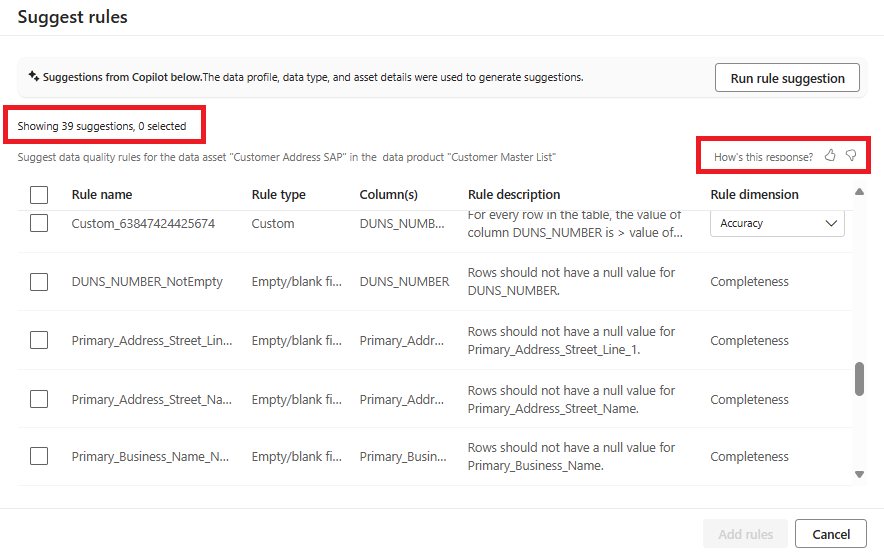
AI-assisted automated rule generation for data quality measurement uses artificial intelligence (AI) techniques to automatically create rules for assessing and improving the quality of data. Autogenerated rules are content specific. Most of the common rules are generated automatically so that you don't need to put much effort into creating custom rules.
To browse and apply autogenerated rules:
On the Rules tab of a data asset, select Suggest rules.
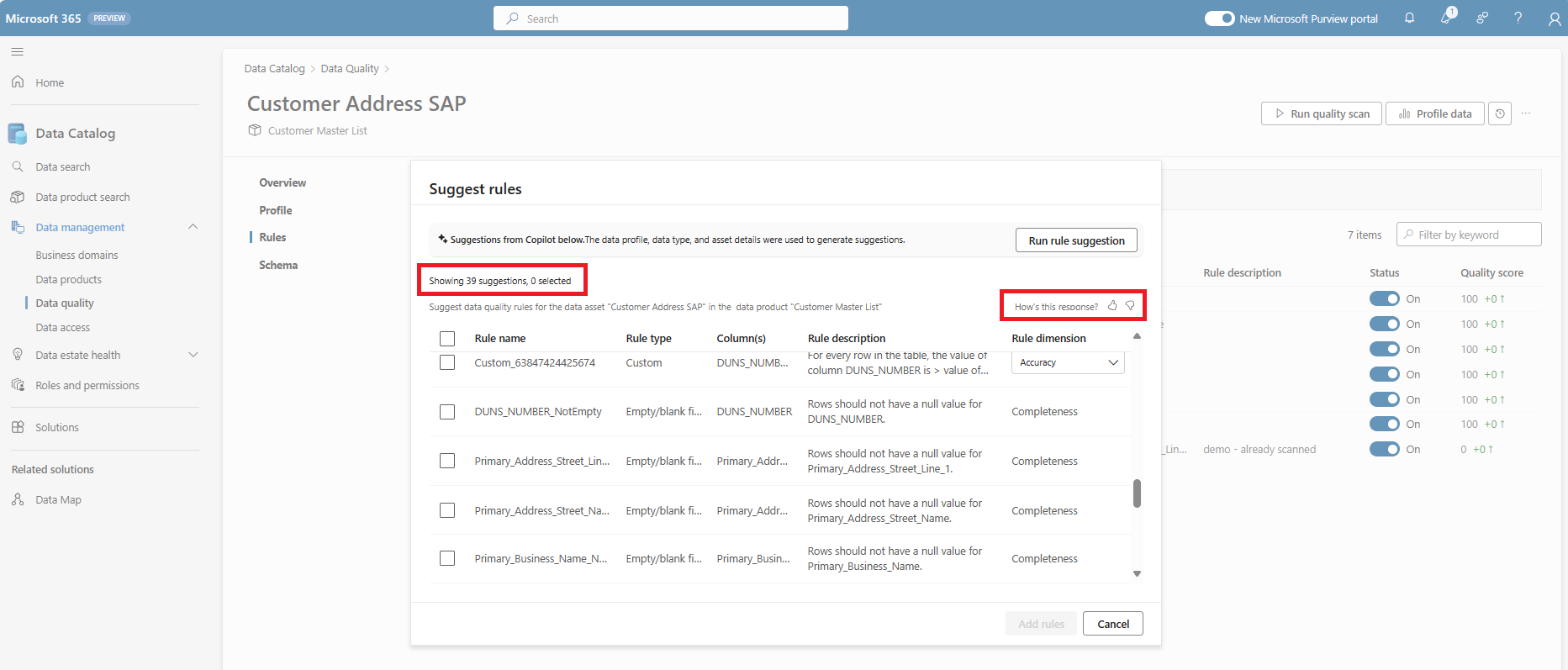
Browse the list of suggested rules.
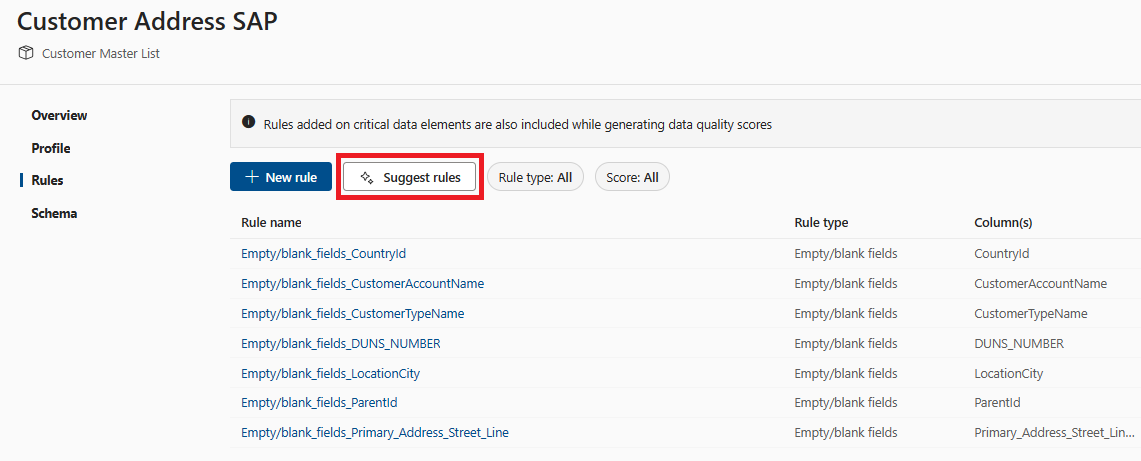
Select rules from the suggested rule list to apply to the data asset.

Limitation
You can apply a maximum of 200 data quality rules per data asset for a data quality scan. The scan fails if more than 200 rules are active for a single asset. If you need to define more than 200 rules for a data asset, they can do so, but only up to 200 rules can be in an active (ON) state at any given time.
To work around this limit:
- Add the same data asset to multiple data products to distribute rules across them.
- Activate and deactivate rules as needed to ensure no more than 200 rules are active at once.
Next steps
- Configure and run a data quality scan on a data product to assess the quality of all supported assets in the data product.
- Review your scan results to evaluate your data product's current data quality.