Note
Access to this page requires authorization. You can try signing in or changing directories.
Access to this page requires authorization. You can try changing directories.
New Outlook now supports data loss prevention (DLP) policy tips with commonly used predicates and exceptions, advanced classifiers, and override capabilities.
Licensing requirements
For information on licensing, see
Note
Features are enabled based on Licenses and connected experience settings. Review license requirements in. For any of the following conditions to work, connected experience must be turned on.
| License | These conditions apply |
|---|---|
| E3 and equivalent licenses | - Content contains Microsoft built-in or custom sensitive information types - Content is shared from Microsoft 365 |
| E5 and equivalent licenses | - Content contains built-in or custom sensitive information types - Content is shared - Content contains sensitivity labels (works for email and Office and PDF file types) - Sender is - Sender is member of (Only Distribution lists, Azure-based Dynamic Distribution groups, and email-enabled Security groups are supported) - Sender domain is - Recipient is - Recipient is a member of (Only Distribution lists, Azure-based Dynamic Distribution groups, and email-enabled Security groups are supported) - Recipient domain is - Subject contains words - Content isn't labeled - Message isn't labeled - Attachment isn't labeled - File extension is |
Note
Conditions related to attachments are supported, except for messages (.msg) and emails (.eml), and encrypted attachments, which can't be scanned for content. See the new Outlook roadmap for details on future updates.
Actions that support policy tips
Refer to the Exchange actions support policy tips for details on actions that support policy tips.
Note
Offline evaluation for data loss prevention isn't available for new Outlook.
Sensitive information types that support policy tips
Refer to the Sensitive information types for details on sensitive information types that support policy tips for Outlook perpetual users and Microsoft 365 users.
Oversharing dialog for New Outlook for Windows
The oversharing dialog is available in DLP for new Outlook for E5 users. When enabled in a DLP rule, this feature displays popups for warning, override, or block actions to end users who are sharing labeled or sensitive emails in Outlook desktop.
For information about legacy AIP Add-in, see admin guide for the AIP client.
Default Oversharing Dialog
This dialog uses the exact same text as the policy tip (default or custom) and when applicable, a noncustomizable set of justification options to override the policy.
Customized Oversharing Dialog
You can choose to tailor your oversharing dialog with a customized title, body, and dynamic variables like %%MatchedRecipientsList%%, and justification options.
For customized dialog, create a JSON file like this and ensure the following:
The file is UTF-8 encoded.
The content is plain text.
No comments are included.
{
    "LocalizationData": [
        {
            "Language": "en-us",
            "Title": "WARNING: A Sensitivity Label Not for External Use was Detected.",
            "Body": "The following classification(s) have been detected on this email or its attachments. <LineBreak /><LineBreak /><Bold>%%MatchedLabelName%%</Bold><LineBreak /><LineBreak />The email cannot be sent until either the following issues are corrected or a justification is provided. <LineBreak /><LineBreak />Attachment(s) needing attention (if applicable): <LineBreak />%%MatchedAttachmentName%% <LineBreak /><LineBreak />List of external recipients: <LineBreak />%%MatchedRecipientsList%% <LineBreak /><LineBreak />",
            "Options": [
                "The recipients have signed an NDA",
                "Manager has approved this email",
                "Organization required this content to be shared"
            ]
        },
{
            "Language": "es-es",
            "Title": "ADVERTENCIA: Etiqueta de sensibilidad no para uso externo detectada.",
            "Body": "Se ha detectado la(s) siguiente(s) clasificación(es) en este correo electrónico o sus archivos adjuntos. <LineBreak /><LineBreak /><Bold>%%MatchedLabelName%%</Bold><LineBreak /><LineBreak />El correo electrónico no se puede enviar hasta que se corrijan los siguientes problemas o se proporcione una justificación. <LineBreak /><LineBreak />Archivos adjuntos que necesitan atención (si corresponde): <LineBreak />%%MatchedAttachmentName%% <LineBreak /><LineBreak />Lista de destinatarios externos: <LineBreak />%%MatchedRecipientsList%% <LineBreak /><LineBreak />",
            "Options": [
                "Los destinatarios han firmado un NDA",
                "El gerente ha aprobado este correo electrónico",
                "La organización requirió que se compartiera este contenido"
            ]
        }
    ],
    "DefaultLanguage": "en-us"
}
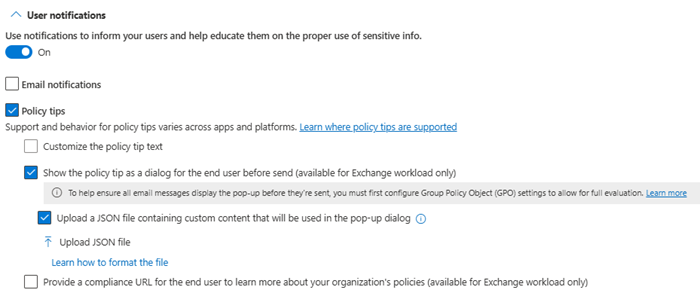
The above JSON content can be uploaded in a DLP rule using below options:
UX instructions
PowerShell
$content = Get-Content "path to the JSON file" -Encoding utf8| Out-String
New-DlpComplianceRule -Name "<Rule_name>" -Policy "<Policy_name>" `-<Any_Condition> <Condition_Value> `-NotifyPolicyTipCustomDialog $content ` -NotifyPolicyTipDisplayOption Dialog
Set-DlpComplianceRule -Identity "<Rule_name>" `-NotifyPolicyTipCustomDialog $content `-NotifyPolicyTipDisplayOption Dialog
When you run the cmdlet, validation checks are run on the content. The validation checks include, the JSON character limit, formatting and, mandatory presence of one default language validation. The administrator is notified of any errors so that they can be corrected
Features and limitations
The dialog title, body, and override justifications options can be customized using the JSON file. You can apply bold, underline, italic formatting, and line breaks. There can be up to three justifications options plus an option for free-text input.
The text for Acknowledgement and False positive overrides isn't customizable.
Here's the required structure of the JSON files. You use this to customize the dialog for matched rules. The keys are all case sensitive. Formatting and dynamic tokens for matched conditions can only be used in the Body key.
| Keys | Mandatory? | Rules/Notes |
|---|---|---|
| {} | Y | Container |
| LocalizationData | Y | Array that contains all the language options. |
| Language | Y | Specify language code, limited to 10 languages. |
| Title | Y | Specify the title for the dialog. Limited to 75 characters. |
| Body | Y | Specify the body for the dialog. Limited to 800 characters. Dynamic tokens for matched conditions can be added in the body. |
| HasFreeTextOption | N | This can be set to true or false. True will display a text box as a last option in the dialog. |
| DefaultLanguage | Y | One of the languages must be defined as DefaultLanguage within the LocalizationData key. |
Dynamic tokens and text formatting in custom Oversharing dialog
| Placeholder | Explanation |
|---|---|
| %%MatchedRecipientsList%% | Display the matched recipients for a given DLP rule for these conditions: - Recipient is - Recipient domain is - Recipient is a member of - Content is shared from Microsoft 365 |
| %%MatchedLabelName%% | Display the matched labels for a given DLP rule for this condition: - Content contains sensitivity label |
| %%MatchedAttachmentName%% | Display the matched attachments for a given DLP rule for these conditions: - Content contains sensitive information - Content contains sensitivity label - Attachment is not labeled - File extension is |
| <Bold>lorem ipsum</Bold> | Bold format |
| <Italic>lorem ipsum</Italic> | Italic format |
| <Underline>lorem ipsum</Underline> | Underline |
| <Linebreak /> or |
Introduce a line break |
Wait on send dialog support for oversharing
New Outlook now supports DLP Wait‑to‑Send through centrally managed Exchange Online mailbox settings. The new experience allows for multi-tasking and doesn't block the user to use New Outlook even when mail is in evaluation.
During evaluation, a toast briefly notifies the user that Outlook hasn't sent the email yet and is evaluating the content. The toast gets autodismissed while evaluation continues in the background.
The wait‑to‑send experience is controlled solely through the following Exchange mailbox parameters:
DLPWaitOnSendEnabled boolean: true or false.
Default: false When true, it enables evaluation of the mail for Data loss prevention before mail is sent.DLPWaitOnSendTimeout Integer: range 0–10,000 seconds.
Default:__ 9999 Specifies how long Outlook waits for DLP evaluation to complete before offering override. For Example – If the value is set to 25 seconds, Outlook waits to complete the evaluation for 25 seconds before it allows user to override and allow to send the mail without completing evaluation.
Note that this doesn't mean that evaluation is stopped after the set time, it just means that it allows for overriding the evaluation.
When DLPWaitOnSendTimeout = 0, user will immediately see “Send Anyway” in the infobar of mail.
When DLPWaitOnSendTimeout >= 9999, user will never be allowed to send the email without DLP evaluation getting completed.
Refer this page for Exchange mailbox parameters - Set-OrganizationConfig (ExchangePowerShell) | Microsoft Learn