Note
Access to this page requires authorization. You can try signing in or changing directories.
Access to this page requires authorization. You can try changing directories.
This PowerShell script lets eDiscovery administrators and eDiscovery managers generate a report that contains information about all holds that are associated with eDiscovery cases in the Microsoft Purview portal. The report contains information such as the name of the case a hold is associated with, the content locations that are placed on hold, and whether the hold is query-based. If there are cases that don't have any holds, the script creates an additional report with a list of cases without holds.
Tip
Get started with Microsoft Security Copilot to explore new ways to work smarter and faster using the power of AI. Learn more about Microsoft Security Copilot in Microsoft Purview.
What the hold report includes
The case holds report that the script in this article creates contains the following information about each hold:
- The name of the hold and the name of the eDiscovery case that the hold is associated with.
- Whether the hold is associated with an eDiscovery case.
- Whether the eDiscovery case is active or closed.
- Whether the hold is enabled or disabled.
- The members of the eDiscovery case that the hold is associated with. Case members can view or manage a case, depending on assigned eDiscovery permissions.
- The time and date the case was created.
- If a case is closed, the person who closed it and the time and date it was closed.
- The Exchange mailboxes and SharePoint sites locations that are on hold.
- If the hold is query-based, the query syntax.
- The time and date the hold was created and the person who created it.
- The time and date the hold was last changed and the person who changed it.
Admin requirements and script information
- To generate a report on all eDiscovery cases in your organization, you need to be an eDiscovery Administrator in your organization. If you're an eDiscovery Manager, the report only includes information about the cases that you can access. For more information about eDiscovery permissions, see Assign eDiscovery permissions.
- The CaseHoldsReport.ps1 script has minimal error handling. Its primary purpose is to quickly create a report about the holds that are associated with the eDiscovery cases in your organization.
Important
The sample scripts provided in this article aren't supported under any Microsoft standard support program or service. The sample scripts are provided AS IS without warranty of any kind. Microsoft further disclaims all implied warranties including, without limitation, any implied warranties of merchantability or of fitness for a particular purpose. The entire risk arising out of the use or performance of the sample scripts and documentation remains with you. In no event shall Microsoft, its authors, or anyone else involved in the creation, production, or delivery of the scripts be liable for any damages whatsoever (including, without limitation, damages for loss of business profits, business interruption, loss of business information, or other pecuniary loss) arising out of the use of or inability to use the sample scripts or documentation, even if Microsoft has been advised of the possibility of such damages.
Step 1: Connect to Security & Compliance PowerShell
First, connect to Security & Compliance PowerShell for your organization. For step-by-step instructions, see Connect to Security & Compliance PowerShell.
Step 2: Run the script to report on holds associated with eDiscovery cases
After you connect to Security & Compliance PowerShell, create and run the script that collects information about the eDiscovery cases in your organization.
Save the following text to a Windows PowerShell script file by using a filename suffix of
.ps1; for example,CaseHoldsReport.ps1.#script begin " " write-host "***********************************************" write-host "Security & Compliance Center " -foregroundColor yellow -backgroundcolor darkgreen write-host "eDiscovery cases - Holds report " -foregroundColor yellow -backgroundcolor darkgreen write-host "***********************************************" " " #prompt users to specify a path to store the output files $time = get-date -Format dd-MM-yyyy_hh.mm $Path = Read-Host 'Enter a folder path to save the report to a .csv file (filename is created automatically)' $outputpath = $Path + '\' + 'CaseHoldsReport' + ' ' + $time + '.csv' $noholdsfilepath = $Path + '\' + 'CaseswithNoHolds' + $time + '.csv' #add case details to the csv file function add-tocasereport { Param([string]$casename, [String]$casetype, [String]$casestatus, [datetime]$casecreatedtime, [string]$casemembers, [datetime]$caseClosedDateTime, [string]$caseclosedby, [string]$holdname, [String]$Holdenabled, [string]$holdcreatedby, [string]$holdlastmodifiedby, [string]$ExchangeLocation, [string]$sharePointlocation, [string]$ContentMatchQuery, [datetime]$holdcreatedtime, [datetime]$holdchangedtime, [string]$holdstatus, [string]$holderror ) $addRow = New-Object PSObject Add-Member -InputObject $addRow -MemberType NoteProperty -Name "Case name" -Value $casename Add-Member -InputObject $addRow -MemberType NoteProperty -Name "Case type" -Value $casetype Add-Member -InputObject $addRow -MemberType NoteProperty -Name "Case status" -Value $casestatus Add-Member -InputObject $addRow -MemberType NoteProperty -Name "Case members" -Value $casemembers Add-Member -InputObject $addRow -MemberType NoteProperty -Name "Case created time" -Value $casecreatedtime Add-Member -InputObject $addRow -MemberType NoteProperty -Name "Case closed time" -Value $caseClosedDateTime Add-Member -InputObject $addRow -MemberType NoteProperty -Name "Case closed by" -Value $caseclosedby Add-Member -InputObject $addRow -MemberType NoteProperty -Name "Hold name" -Value $holdname Add-Member -InputObject $addRow -MemberType NoteProperty -Name "Hold enabled" -Value $Holdenabled Add-Member -InputObject $addRow -MemberType NoteProperty -Name "Hold created by" -Value $holdcreatedby Add-Member -InputObject $addRow -MemberType NoteProperty -Name "Hold last changed by" -Value $holdlastmodifiedby Add-Member -InputObject $addRow -MemberType NoteProperty -Name "Exchange locations" -Value $ExchangeLocation Add-Member -InputObject $addRow -MemberType NoteProperty -Name "SharePoint locations" -Value $sharePointlocation Add-Member -InputObject $addRow -MemberType NoteProperty -Name "Hold query" -Value $ContentMatchQuery Add-Member -InputObject $addRow -MemberType NoteProperty -Name "Hold created time (UTC)" -Value $holdcreatedtime Add-Member -InputObject $addRow -MemberType NoteProperty -Name "Hold changed time (UTC)" -Value $holdchangedtime Add-Member -InputObject $addrow -MemberType NoteProperty -Name "Hold Status" -Value $holdstatus Add-Member -InputObject $addrow -MemberType NoteProperty -Name "Hold Error" -Value $holderror $allholdreport = $addRow | Select-Object "Case name", "Case type", "Case status", "Hold name", "Hold enabled", "Case members", "Case created time", "Case closed time", "Case closed by", "Exchange locations", "SharePoint locations", "Hold query", "Hold created by", "Hold created time (UTC)", "Hold last changed by", "Hold changed time (UTC)", "Hold Status", "Hold Error" $allholdreport | export-csv -path $outputPath -notypeinfo -append -Encoding ascii } #get information on the cases and pass values to the case report function " " write-host "Gathering a list of eDiscovery cases and holds..." " " $edc = Get-ComplianceCase -ErrorAction SilentlyContinue foreach ($cc in $edc) { write-host "Working on case :" $cc.name if ($cc.status -eq 'Closed') { $cmembers = ((Get-ComplianceCaseMember -Case $cc.name).windowsLiveID) -join ';' add-tocasereport -casename $cc.name -casetype $cc.casetype -casestatus $cc.Status -caseclosedby $cc.closedby -caseClosedDateTime $cc.ClosedDateTime -casemembers $cmembers } else { $cmembers = ((Get-ComplianceCaseMember -Case $cc.name).windowsLiveID) -join ';' $policies = Get-CaseHoldPolicy -Case $cc.Name | % { Get-CaseHoldPolicy $_.Name -Case $_.CaseId -DistributionDetail } if ($policies -ne $NULL) { foreach ($policy in $policies) { $rule = Get-CaseHoldRule -Policy $policy.name add-tocasereport -casename $cc.name -casetype $cc.casetype -casemembers $cmembers -casestatus $cc.Status -casecreatedtime $cc.CreatedDateTime -holdname $policy.name -holdenabled $policy.enabled -holdcreatedby $policy.CreatedBy -holdlastmodifiedby $policy.LastModifiedBy -ExchangeLocation (($policy.exchangelocation.name) -join ';') -SharePointLocation (($policy.sharePointlocation.name) -join ';') -ContentMatchQuery $rule.ContentMatchQuery -holdcreatedtime $policy.WhenCreatedUTC -holdchangedtime $policy.WhenChangedUTC -holdstatus $policy.DistributionStatus -holderror $policy.DistributionResults } } else { Write-Host "No hold policies found in case:" $cc.name -foregroundColor 'Yellow' " " [string]$cc.name | out-file -filepath $noholdsfilepath -append } } } #get information on the cases and pass values to the case report function " " write-host "Gathering a list of eDiscovery cases and holds..." " " $edc = Get-ComplianceCase -CaseType Advanced -ErrorAction SilentlyContinue foreach ($cc in $edc) { write-host "Working on case :" $cc.name if ($cc.status -eq 'Closed') { $cmembers = ((Get-ComplianceCaseMember -Case $cc.name).windowsLiveID) -join ';' add-tocasereport -casename $cc.name -casestatus $cc.Status -casetype $cc.casetype -caseclosedby $cc.closedby -caseClosedDateTime $cc.ClosedDateTime -casemembers $cmembers } else { $cmembers = ((Get-ComplianceCaseMember -Case $cc.name).windowsLiveID) -join ';' $policies = Get-CaseHoldPolicy -Case $cc.Name | % { Get-CaseHoldPolicy $_.Name -Case $_.CaseId -DistributionDetail } if ($policies -ne $NULL) { foreach ($policy in $policies) { $rule = Get-CaseHoldRule -Policy $policy.name add-tocasereport -casename $cc.name -casetype $cc.casetype -casemembers $cmembers -casestatus $cc.Status -casecreatedtime $cc.CreatedDateTime -holdname $policy.name -holdenabled $policy.enabled -holdcreatedby $policy.CreatedBy -holdlastmodifiedby $policy.LastModifiedBy -ExchangeLocation (($policy.exchangelocation.name) -join ';') -SharePointLocation (($policy.sharePointlocation.name) -join ';') -ContentMatchQuery $rule.ContentMatchQuery -holdcreatedtime $policy.WhenCreatedUTC -holdchangedtime $policy.WhenChangedUTC -holdstatus $policy.DistributionStatus -holderror $policy.DistributionResults } } else { write-host "No hold policies found in case:" $cc.name -foregroundColor 'Yellow' " " [string]$cc.name | out-file -filepath $noholdsfilepath -append } } } " " Write-host "Script complete! Report files saved to this folder: '$Path'" " " #script endIn the Windows PowerShell session that opened in Step 1, go to the folder where you saved the script.
Run the script; for example:
.\CaseHoldsReport.ps1The script prompts for a target folder to save the report to.
Type the full path name of the folder to save the report to, and then press Enter.
Tip
To save the report in the same folder that the script is located in, type a period (".") when prompted for a target folder. To save the report in a subfolder in the folder where the script is located, just type the name of the subfolder.
The script starts to collect information about all the eDiscovery cases in your organization. Don't access the report file while the script is running. After the script completes, a confirmation message is displayed in the Windows PowerShell session. After this message is displayed, you can access the report in the folder that you specified when prompted for a target folder. The file name for the report is
CaseHoldsReport<DateTimeStamp>.csv.Additionally, the script creates a report with a list of cases that don't have any holds. The file name for this report is
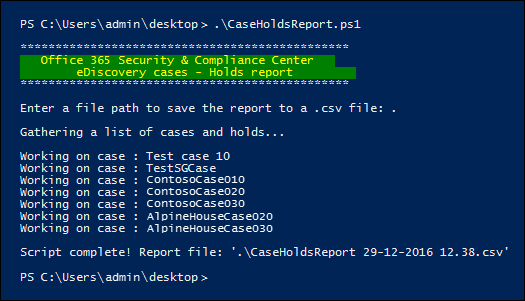
CaseswithNoHolds<DateTimeStamp>.csv.Here's an example of running the
CaseHoldsReport.ps1script.