Note
Access to this page requires authorization. You can try signing in or changing directories.
Access to this page requires authorization. You can try changing directories.
Endpoint data loss prevention (DLP) in Microsoft Purview can monitor and protect sensitive data transferred over FTP and SFTP from managed Windows devices. Endpoint DLP evaluates these transfers against your policy rules, just as it does other device activities such as copying to USB devices or network shares. You can review the resulting events in Activity explorer.
This protection isn’t turned on by default. This article explains how to add FTP and SFTP transfers to an Endpoint DLP policy rule and review the resulting events.
Before you begin, review the device onboarding and permissions requirements in Prerequisites.
Prerequisites
- Devices onboarded to Microsoft Purview.
- Permissions to create and deploy DLP policies and view Activity explorer. Use the least-privileged roles needed for these tasks.
Create the policy
We recommend starting with a small pilot group and setting the action to Audit only. Review Activity explorer to understand how users transfer files over FTP/SFTP before you deploy the policy broadly.
To create the policy:
- In the Microsoft Purview portal, go to Data loss prevention > Policies > Create policy.
- On the Locations page, select Devices, and then scope the policy to the users or device groups you want.
- Create a rule, and add the conditions you want to detect, such as sensitive information types or sensitivity labels.
- Under Actions, select Audit or restrict activities on devices.
- In File activities for all apps, select Apply restrictions to specific activity.
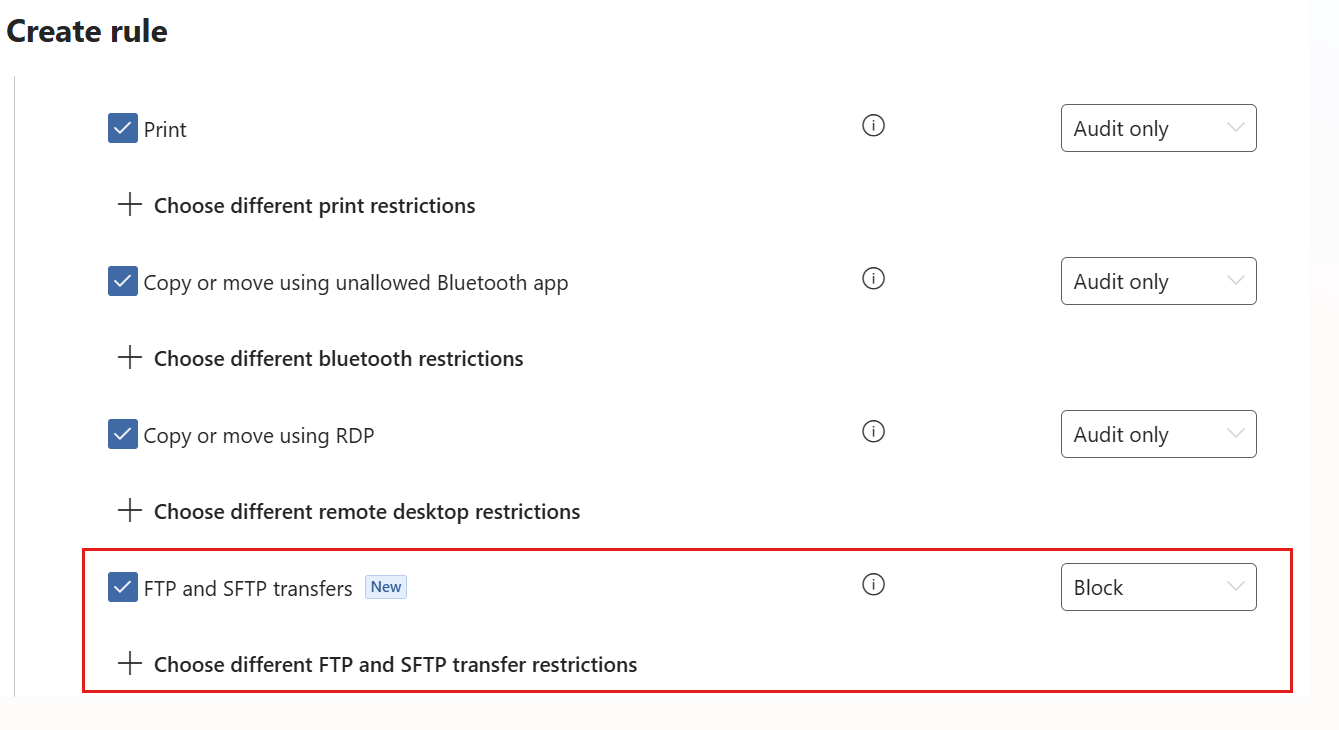
- Select the FTP and SFTP transfers checkbox, and then choose an action. Supported actions are Audit only, Block, Block with override, and Allow.
- (Optional) Turn on policy tips under User notifications.
- Review and publish the policy.
The Create rule page shows FTP and SFTP transfers selected with its action set to Block.
End-user notification
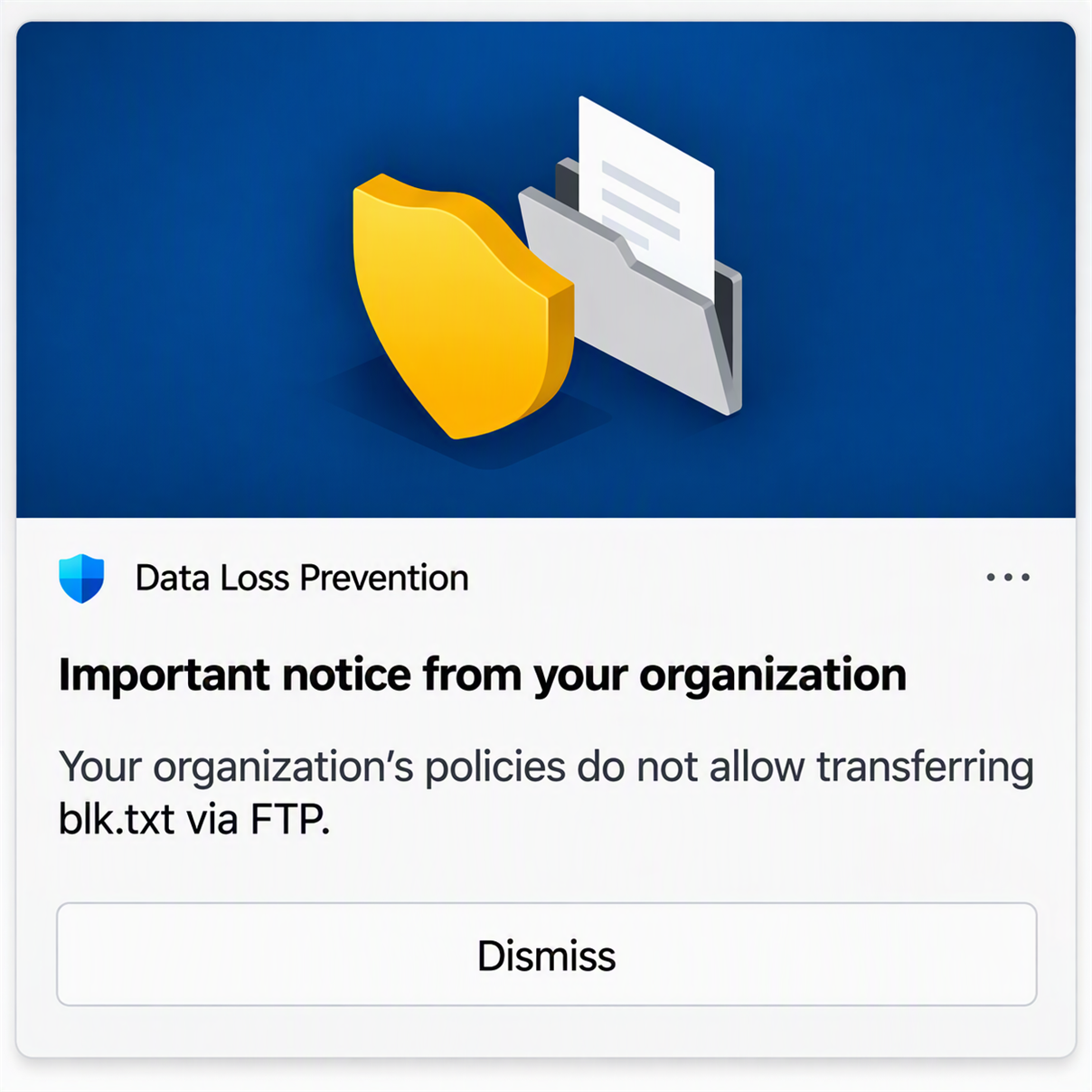
Example of an end-user notification for a blocked FTP transfer:
Review activity
Use Activity explorer to review the details of each transfer.
- Open Activity explorer.
- Filter Activity to File transfer by FTP/SFTP. Review the user, device, file, matched policy, and action for each transfer.
Collect full file evidence
FTP and SFTP transfers support full file evidence (FFE) collection. Enable evidence collection in Endpoint DLP settings and configure it in your DLP policy. When a user attempts to transfer a matched file, a complete copy can be saved.
For requirements and setup, see Get started with evidence collection for file activities on devices.