Note
Access to this page requires authorization. You can try signing in or changing directories.
Access to this page requires authorization. You can try changing directories.
Microsoft Purview Endpoint Data Loss Prevention (Endpoint DLP) uses a macOS permission to identify the websites, applications, files, and active content involved in user activities. In macOS 27 (Golden Gate), this permission moves from Accessibility to Device Control and Data Access. Users can also turn off the permission even when it's deployed through mobile device management (MDM).
These changes affect how Endpoint DLP gets browser and URL context. Administrators can configure protection modes for when the permission is unavailable, notify users to restore access, and monitor permission status from the Microsoft Purview portal.
Use Endpoint DLP client version 101.26072 or later with this macOS 27 guidance.
Prerequisites
- Endpoint DLP client version 101.26072 or later.
- Familiarity with onboarding macOS devices into Microsoft Purview.
Permission changes in macOS 27
On macOS 27, Endpoint DLP uses Device Control and Data Access permission to support browser visibility, activity monitoring, and policy enforcement. The permission lets Endpoint DLP identify the active browser, website, application, and file associated with user activity. This context supports policies for activities such as uploading sensitive files and pasting sensitive content into browsers.
In macOS 27, the permission is under Settings > Privacy & Security > Device Control and Data Access. In earlier macOS versions, the permission is under Settings > Privacy & Security > Accessibility.
In some macOS interfaces, management profiles, and diagnostic logs, Microsoft Endpoint DLP might appear as com.microsoft.dlp.daemon.app or com.microsoft.dlp.daemon. These identifiers refer to the Endpoint DLP application.
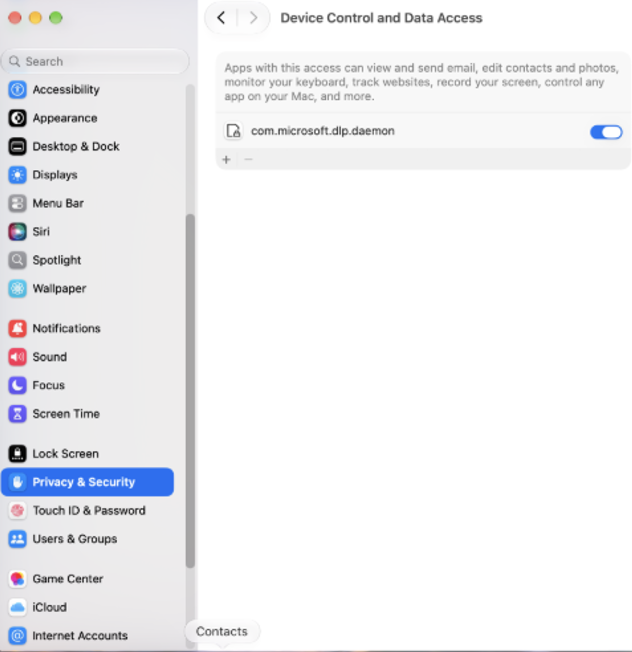
Behavior when permission is turned off
When Endpoint DLP detects that a user turned off Device Control and Data Access, Endpoint DLP can no longer get URL and browser context for Safari, Chrome, and Firefox. Endpoint DLP responds by:
- Displaying a notification that prompts the user to restore the permission.
- Applying the configured protection mode.
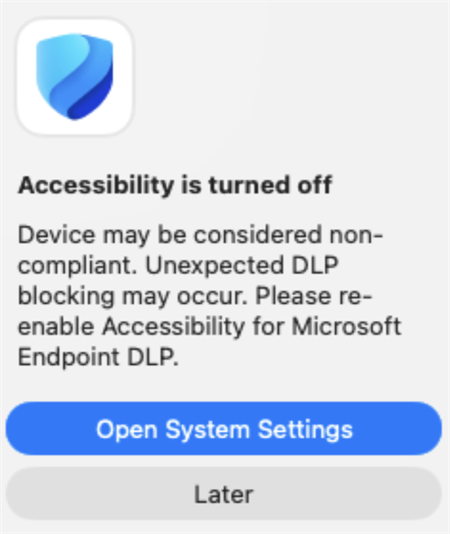
Administrators control the response separately for uploading sensitive files to websites and cloud services and for copying sensitive data to a browser.
Protection modes
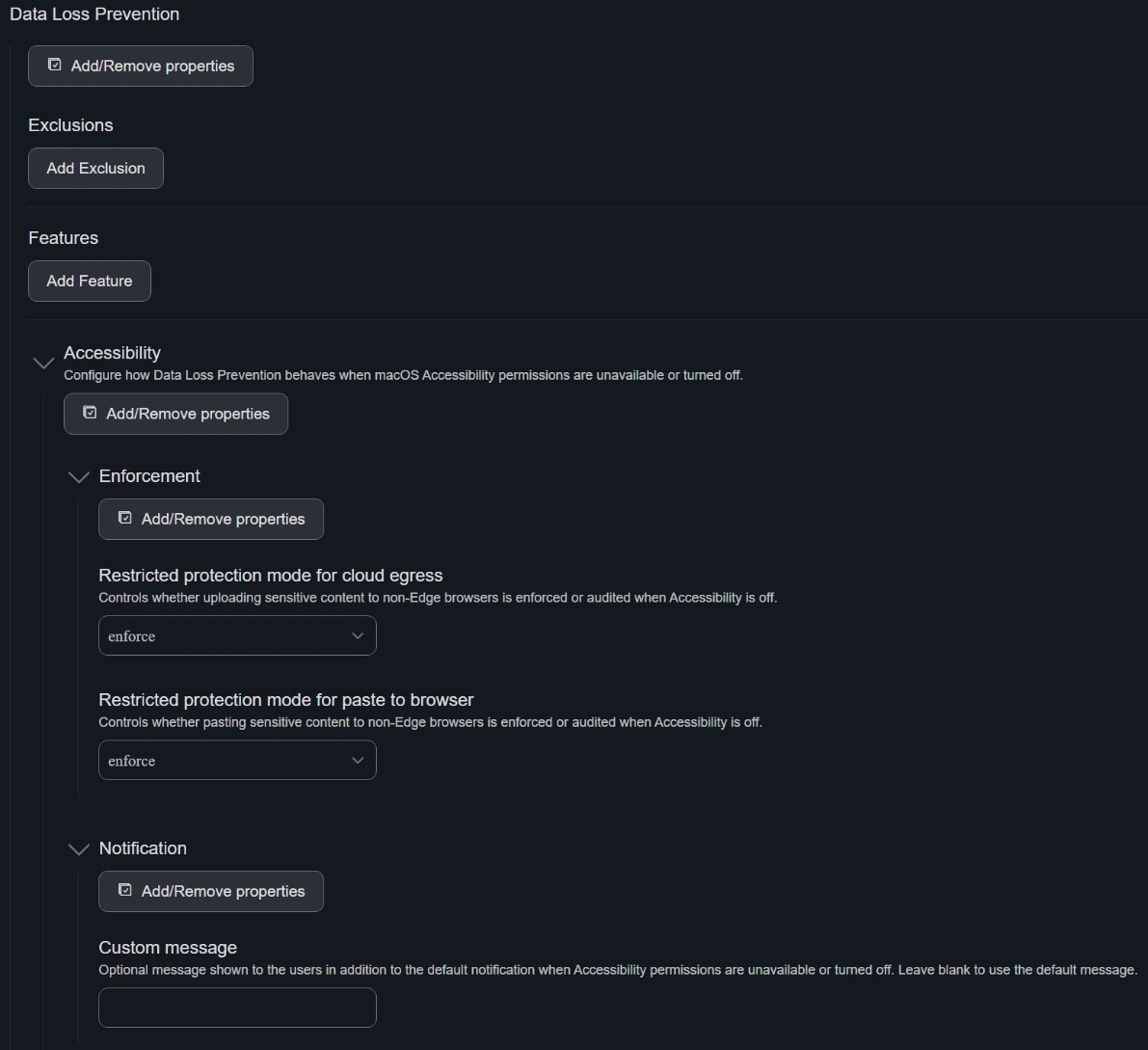
Endpoint DLP provides Enforce, Audit, and Off modes for cloud egress and paste-to-browser activities when the permission is unavailable. The default for both settings is Enforce.
Restricted protection mode for cloud egress
This setting controls how Endpoint DLP handles uploads of sensitive files to websites and cloud services when browser context is unavailable.
- Enforce: Applies upload protection. Endpoint DLP treats supported non-Edge browsers, such as Safari, Chrome, and Firefox, as restricted destinations and enforces the most restrictive applicable policy action.
- Audit: Logs and monitors the condition without enforcing upload restrictions.
- Off: Doesn't apply permission-related upload protection.
Restricted protection mode for paste to browser
This setting controls how Endpoint DLP handles paste-to-browser activities when browser and URL context are unavailable.
- Enforce: Applies policy actions such as block or warn.
- Audit: Records events without enforcing restrictions.
- Off: Doesn't apply permission-related paste-to-browser protection.
Permission notification
Endpoint DLP can notify users when the permission is turned off. The notification explains why the permission is required and prompts the user to restore access. Administrators can customize the notification message.
The profile settings map to the following configuration keys:
| Setting | Configuration key |
|---|---|
| Restricted protection mode for cloud egress | unallowedBrowserMode |
| Restricted protection mode for paste to browser | pasteToBrowserMode |
| Permission notification | notification |
The following source fragment sets both protection modes to Enforce:
 <key>accessibility</key>
                    <dict>
                        <key>enforcement</key>
                        <dict>
                            <key>unallowedBrowserMode</key>
                            <string>enforce</string>
                            <key>pasteToBrowserMode</key>
                            <string>enforce</string>
                        </dict>
                        <key>notification</key>
                        <dict>
                            <key>Please enable Accessibility permissions to comply with IT Policy</key>
                            <string/>
                        </dict>
                    </dict>
MDM configuration options
Microsoft provides configuration samples for Microsoft Intune and Jamf Pro. These options configure the protection modes and the message that prompts users to turn on the permission.
- Microsoft Intune: Use the sample
com.microsoft.wdav.mobileconfigconfiguration profile as the starting point for deployment. - Jamf Pro with
schema.json: Update the existing Microsoft Defender for Endpoint preferences configuration profile to use the latestschema.json. The configuration is under Data Loss Prevention > Accessibility. - Jamf Pro with a property list: Use the sample
com.microsoft.wdav.plist.
Audit mode
Audit mode lets administrators assess the effect of unavailable permissions before they enable enforcement. Endpoint DLP continues to detect when the permission is turned off and can notify users to restore access, but it doesn't apply the additional restricted protection behavior for cloud egress or paste-to-browser activities.
Audit mode can reduce user disruption while administrators identify affected devices. During this assessment, controls that would normally apply when browser context is unavailable aren't enforced. This condition can leave a temporary protection gap until the permission is restored or enforcement is enabled.
The following source fragment sets both protection modes to Audit:
<key>accessibility</key>
                    <dict>
                        <key>enforcement</key>
                        <dict>
                            <key>unallowedBrowserMode</key>
                            <string>audit</string>
                            <key>pasteToBrowserMode</key>
                            <string>audit</string>
                        </dict>
                        <key>notification</key>
                        <dict>
                            <key>Please enable Accessibility permissions to comply with IT Policy</key>
                            <string/>
                        </dict>
                    </dict>
Permission monitoring
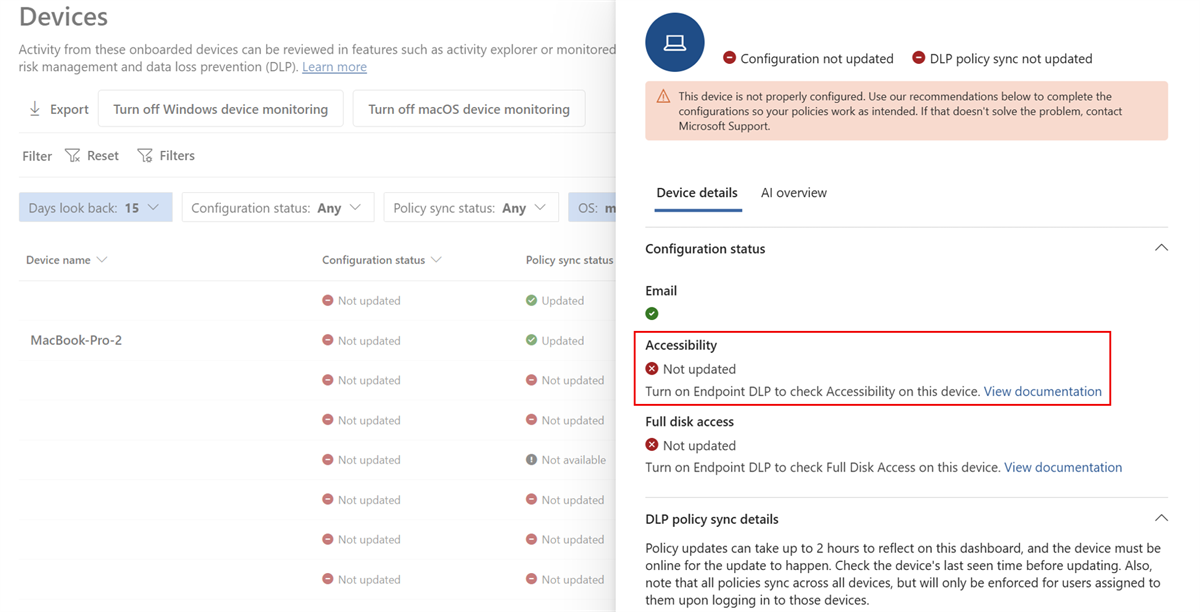
Administrators can view Endpoint DLP permission status for an onboarded device in the Microsoft Purview portal. Go to Settings > Device Onboarding > Devices, select the device, and review Accessibility under Configuration status in the device details pane.
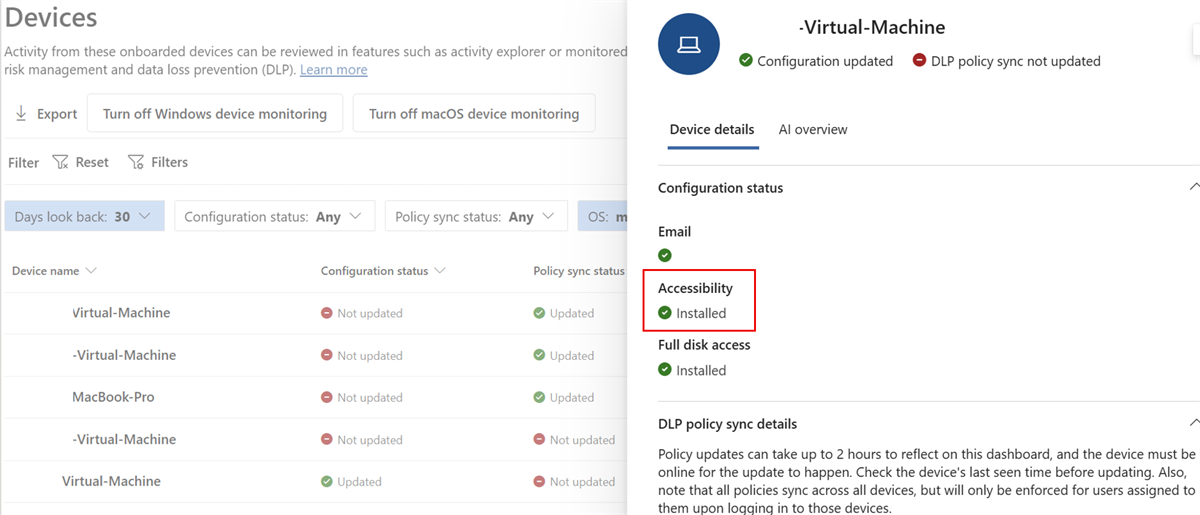
Administrator readiness
Preparing Endpoint DLP for macOS 27 includes the following activities:
- Review the updated macOS deployment guidance for Endpoint DLP.
- Deploy or validate the Device Control and Data Access permission configuration on managed macOS devices.
- Upgrade to Endpoint DLP client version 101.26072 or later.
- Monitor the Device Onboarding page for devices that report the permission as off.
- Configure user notifications and educate users to restore the permission if it's turned off.