FidelityFX Super Resolution (FSR 2 and FSR 1)


This sample is compatible with the Microsoft Game Development Kit (March 2024 - Update 1).
Description
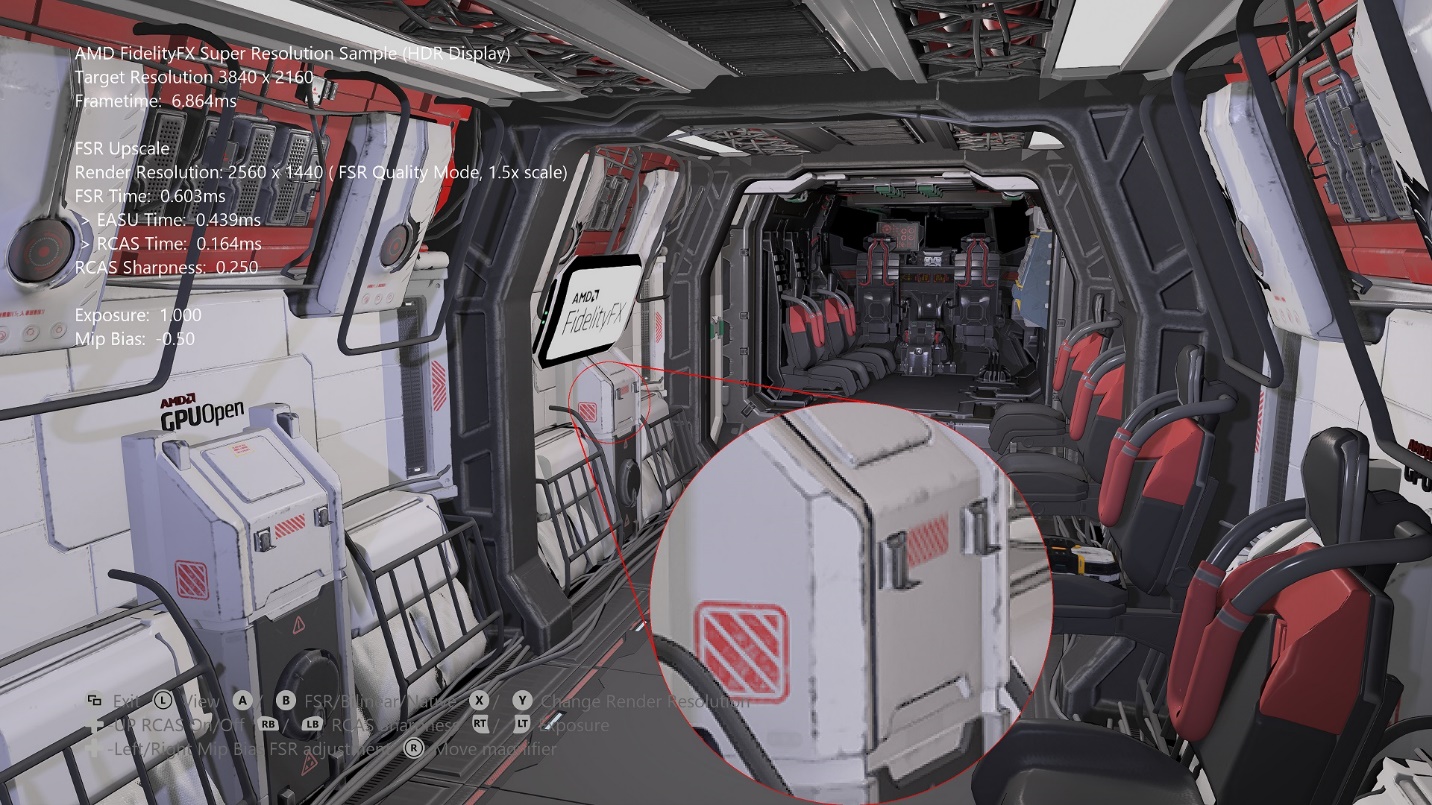
AMD FidelityFX Super Resolution (FSR) is an optimized, high-quality solution for producing higher resolution outputs from lower resolution inputs. FSR enables "practical performance" for costly render operations, such as hardware ray tracing.
This sample includes examples of using both FSR 2 and FSR 1 within a scene.
FSR 2 is a temporal solution and requires multiple inputs. It will replace TAA in any game pipeline, and as such requires perspective jitter be applied to the scene each frame. FSR 2 provides significantly higher image quality than FSR 1 at higher upscaling ratios, but the FSR 2 compute passes themselves have a higher cost.
FSR 1 is a spatial solution and requires a single anti-aliased image input. It uses a collection of cutting-edge algorithms with a particular emphasis on creating high-quality edges, giving large performance improvements compared to rendering at native resolution directly.
Both methods are included along with a bilinear upscale and native rendering mode for quality and performance inspection. There is a moveable magnifier to inspect image quality and do pixel-level comparisons.
The most up to date information on FidelityFX Super Resolution can be found on GPUOpen at https://gpuopen.com/fsr .
Building the sample
If using Windows Desktop, set the active solution platform to x64.
If using Xbox Series X|S, set the active solution platform to Gaming.Xbox.Scarlett.x64.
If using Xbox One, set the active solution platform to Gaming.Xbox.XboxOne.x64.
When running Windows Desktop, ensure you have the latest graphics drivers for your system installed.
For more information, see Running samples, in the GDK documentation.
Using the sample
| Action | Gamepad |
|---|---|
| Rotate view | Left thumbstick |
| Magnifier location | Right thumbstick |
| Exit | View Button |
| Upscale mode | A / B Buttons |
| FSR Quality Mode | X / Y Buttons |
| Sharpness value | Right / Left Shoulder buttons |
| Sharpening Enable/Disable | Dpad Up Button |
| Tonemap Exposure | Right / Left Triggers |
| Mip Bias Adjustment | Dpad Left / Right Buttons |
| FSR 2 Reactive Mask input Enable/Disable | Dpad Down Button |
Sample notes
If a HDR display is available on the Xbox Series X|S and XboxOne platforms, the sample runs in HDR mode. On Desktop platforms, the sample will run in SDR mode only.
This sample is implemented in a dynamic-resolution style, whereby target resolution resources are used and rendered into using a smaller resolution viewport before upscaling.
There are modes for native target-resolution rendering, bilinear upscaling from selectable lower-resolution, and FSR upscaling from selectable quality modes.
Implementation notes -- FSR 2
How it works
Detailed internal documentation for FSR 2 can be found in the docs/
folder of the sample.
FSR 2 is a temporal upscaler. It works by replacing TAA in the pipeline, utilizing previous frame data along with current frame data to anti-alias and perform quality upscaling.
FSR 2 utilizes many new algorithmic tricks to accurately recover thin features that may be blurred out by other TAA algorithms. It requires multiple inputs -- scene depth, scene color and motion vectors. There are also further optional inputs which can increase upscale quality.
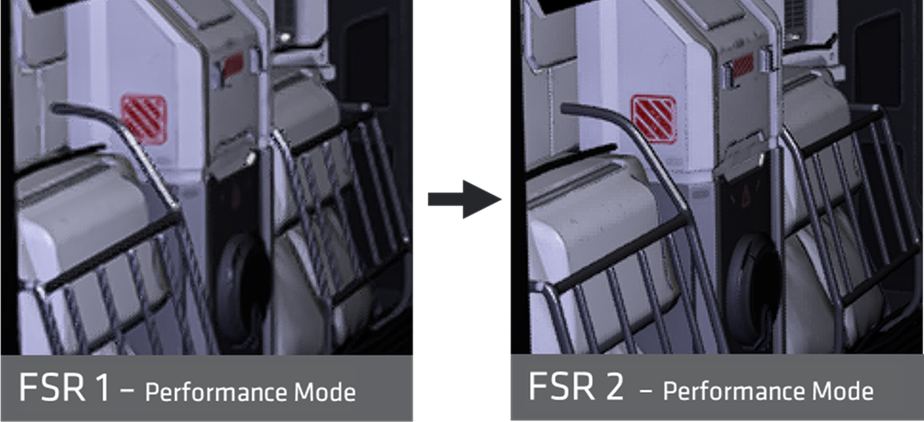
When compared to FSR 1, FSR 2 results in higher quality upscaling -- especially at lower resolutions, as shown below. However, the compute workloads are higher cost.
Reactive Mask
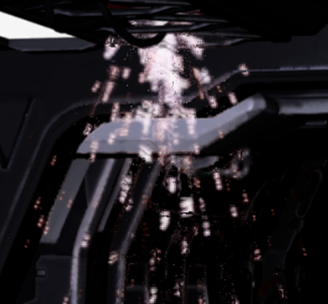
There are two optional inputs which aid situations where there are scene features which do not exist depth and/or motion vectors. This typically occurs with particle effects, or other composition effects such as and reflections. It is strongly recommended that you generate and use these masks within your integration to achieve best quality.
| Without Reactive Mask | With Reactive Mask |
|---|---|
 |
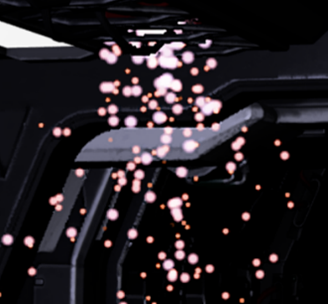 |
This sample utilizes the Reactive Mask optional input to improve
upscaled quality of particles. The mask is generated by inspecting the
particles which are to be composited, and then writing out a single
value to mask off the areas where particles exist in the current frame.
In this sample, the particles are composited into the scene from a
separate resource, and the following value for reactive mask is used:
reactive[did.xy] = min (1.0f, length(particleInput)*8.0f);
Generally, you want the reactive mask to cover an area slightly larger than the area in the scene, which is why the value is multiplied and clamped.
If your pipeline has an opaque and transparency pass which can provide
pre and post transparency scene contents, there is a utility within the
FSR 2 API which can take these as input and output a reactive mask for
use in FSR 2 -- see ffxFsr2ContextGenerateReactiveMask in the main FSR 2
documentation for more information.
Integration
FSR 2 is provided as an open source library, with an API which is used
to create a context which defines the various parameters for display
size, maximum render size and flags such as inverted and infinite depth
buffer configuration. The main FSR 2 upscale workloads are deployed via
the ffxFsr2ContextDispatch() API.
The context takes a set of callbacks, which are filled out by the
ffxFsr2GetInterfaceDX12 function. In this GDKX sample, this is provided
by a custom D3D12X backend, which is a slightly modified version of the
base DX12 backend which is provided in the official FSR2 sources. A
scratch area of memory must be allocated and provided to the
ffxFsr2GetInterfaceDX12 function.
Example scenarios from this sample:
Context Create:
m_fsr2_create_params.maxRenderSize.width = resourceSizeWidth;
m_fsr2_create_params.maxRenderSize.height = resourceSizeHeight;
m_fsr2_create_params.displaySize.width = resourceSizeWidth;
m_fsr2_create_params.displaySize.height = resourceSizeHeight;
m_fsr2_create_params.flags =  FFX_FSR2_ENABLE_HIGH_DYNAMIC_RANGE | FFX_FSR2_ENABLE_TEXTURE1D_USAGE |
                              FFX_FSR2_ENABLE_DEPTH_INVERTED | FFX_FSR2_ENABLE_DEPTH_INFINITE |
                              FFX_FSR2_ENABLE_AUTO_EXPOSURE | FFX_FSR2_ENABLE_DYNAMIC_RESOLUTION;

m_fsr2ScratchSize = ffxFsr2GetScratchMemorySizeDX12();
m_fsr2Scratch = malloc(m_fsr2ScratchSize);
ffxFsr2GetInterfaceDX12(&m_fsr2_create_params.callbacks, device, m_fsr2Scratch, m_fsr2ScratchSize);

m_fsr2_create_params.device = device;

ffxFsr2ContextCreate(&m_fsr2Context, &m_fsr2_create_params);
Context Teardown:
if (m_fsr2Scratch)
{
    ffxFsr2ContextDestroy(&m_fsr2Context);
    free(m_fsr2Scratch);
    m_fsr2Scratch = nullptr;
}
Upscale:
m_fsr2DispatchParams.commandList = ffxGetCommandListDX12(commandList);
m_fsr2DispatchParams.color = ffxGetResourceDX12(&m_fsr2Context, m_tonemapperOutput.Get());
m_fsr2DispatchParams.depth = ffxGetResourceDX12(&m_fsr2Context, m_motionVectorDepth.Get());
m_fsr2DispatchParams.motionVectors = ffxGetResourceDX12(&m_fsr2Context, m_motionVectors.Get());
m_fsr2DispatchParams.exposure = ffxGetResourceDX12(&m_fsr2Context, nullptr);
m_fsr2DispatchParams.reactive = ffxGetResourceDX12(&m_fsr2Context, m_reactive.Get());
m_fsr2DispatchParams.transparencyAndComposition = ffxGetResourceDX12(&m_fsr2Context, nullptr);
m_fsr2DispatchParams.output = ffxGetResourceDX12(&m_fsr2Context, m_upsampleOutput.Get());
m_fsr2DispatchParams.jitterOffset.x = m_jitterX;
m_fsr2DispatchParams.jitterOffset.y = m_jitterY;
m_fsr2DispatchParams.frameTimeDelta = (float)m_deltaTime;
m_fsr2DispatchParams.preExposure = 1.0f;
m_fsr2DispatchParams.reset = m_renderScaleChanged;
m_fsr2DispatchParams.motionVectorScale.x = inWidth;
m_fsr2DispatchParams.motionVectorScale.y = inHeight;
m_fsr2DispatchParams.renderSize.width = (unsigned int)inWidth;
m_fsr2DispatchParams.renderSize.height = (unsigned int)inHeight;
m_fsr2DispatchParams.cameraFovAngleVertical = XM_PIDIV4;
m_fsr2DispatchParams.cameraFar = FLT_MAX;
m_fsr2DispatchParams.cameraNear = 0.1f;
m_fsr2DispatchParams.enableSharpening = m_rcasEnable;

// FSR2 uses a different sharpness range than FSR1

m_fsr2DispatchParams.sharpness = 1.0f - m_rcasSharpness;
ffxFsr2ContextDispatch(&m_fsr2Context, &m_fsr2DispatchParams);
Perspective Jitter:
We also require that the following perspective jitter is used for correct integration.
static int32_t index = 0;
const int32_t jitterPhaseCount = ffxFsr2GetJitterPhaseCount((int32_t)renderWidth, (int32_t)displayWidth);

ffxFsr2GetJitterOffset(&m_jitterX, &m_jitterY, index, jitterPhaseCount);
index++;
This can be applied to an existing projection matrix as so:
DirectX::XMMATRIX jitterTranslation = XMMatrixTranslation(
    2.0f * m_jitterX / (float)renderWidth, -2.0f * m_jitterY
    (float)renderHeight, 0);

m_proj = m_proj * jitterTranslation;
FSR 2 Quality Modes
In addition to fixed scaling, FSR may be used in "arbitrary scaling" mode. This mode is typically used for Dynamic Resolution Scaling, whereby source resolution is determined by a fixed performance budget to achieve a minimum frame rate. Ensure the Dynamic Resolution Scaling flag is passed to FSR 2 context create in this instance, and the perspective jitter is correctly calculated for the current scaling factor.
In DRS mode, we recommend 1.5x scale factor -- the "Quality" mode -- be the lowest possible upscale. If your system scales all the way down to native 1x, the performance impact of the FSR 2 pass without performing an upscale can be significant, without any notable quality gains.
| FSR 2 quality mode | Description | Scale factor | Input resolution | Output resolution |
|---|---|---|---|---|
| "Quality" | Quality mode provides an image quality equal or superior to native rendering with a significant performance gain. | 1.5x per dimension (2.25x area scale) | 1280x720 1706x960 2293x960 2560x1440 |
1920x1080 2560x1440 3440x1440 3840x2160 |
| "Balanced" | *Balanced mode offers an ideal compromise between image quality and performance gains. | 1.7x per dimension (2.89x area scale) | 1129x635 1506x847 2024x847 2259x1270 |
1920x1080 2560x1440 3440x1440 3840x2160 |
| "Performance" | Performance mode provides an image quality similar to native rendering with a major performance gain. | 2 .0x per dimension (4x area scale) | 960x540 1280x720 1720x720 1920x1080 |
1920x1080 2560x1440 3440x1440 3840x2160 |
| "Ultra Performance" | Ultra Performance mode provides the highest performance gain while still maintaining an image quality representative of native rendering. | 3.0x per dimension (9x area scale) | 640 x 360 854 x 480 1147 x 480 1280 x 720 |
1920 x 1080 2560 x 1440 3440 x 1440 3840 x 2160 |
The "Ultra Performance" quality mode is optional.
Recommendations
This sample uses the base FSR 2 library and shaders from the GPUOpen release, however will build them and combine it with a specific Xbox-optimized D3D12X backend.
Shader Compilation
FSR 2 has many different permutations for its compute workloads. These permutations exist for functionality and performance reasons.
Within the FSR2_GXDK project, there is a BuildShaderPermutations.bat file. This builds as a custom build step, using specific GDK toolchains to compile the shaders. This is also done via a FidelityFX Shader Compiler utility executable: FidelityFX_SC.exe. This utility builds all permutations and reduces the output by removing duplicates.
On Xbox Series X|S, FP16 is enabled for shaders which make use of it. All workloads are built Wave32.
On Xbox platforms, embedded HLSL root signatures are used. For workloads which use FidelityFX SPD, wave operations are disabled to work around an issue. There is little to no performance regression using the workaround.
On Desktop platforms, FP16 is enabled and Wave64 will be forced if Shader Model 6.6 is present.
Note: If XIC is enabled by manually including the definition within the BuildShaderPermutation.bat custom build rule, this step will take many minutes to complete. We decided to ship without XIC, as we did not see any significant performance gains at the time - but this could be useful for future GDKs with more recent shader compiler versions.
D3D12X FSR 2 Backend
The D3D12X backend for FSR 2 is a modified version of the DX12 desktop backend on GPUOpen. It allows for compilation targeting Xbox platforms as well as Desktop.
For Xbox Series X|S, we selectively enable DCC on certain internally managed UAV resources by default. This is found to provide in the order of 100us performance gain on Series X doing a 1080p->4K upscale.
MIP bias
For higher quality output, FSR 2 integration should include MIP bias changes. This sample applies the following:
MIP bias = -log2 (display resolution/source resolution) -1
Note: This differs from FSR 1. Using FSR 1 mip bias with FSR 2 will result in loss of detail.*
Color space
FSR 2 recommends a linear RGB color space, however perceptual space may yield acceptable results. We recommend developers experiment with their own scenes. PQ/HLG encodings are not appropriate.
Sharpness
In FSR 2, the sharpness value differs from FSR 1. The value goes from 0.0 (least sharp) to 1.0 (most sharp).
By default, sharpening is disabled in this sample but can be enabled from the gamepad.
FSR for Dynamic Resolution
In DRS mode, we recommend 1.5x scale factor -- the "Quality" mode -- be the lowest possible upscale. If your system scales all the way down to native 1x, the performance impact of the FSR 2 pass without performing an upscale can be significant, without any notable quality gains.
Where in the frame
FSR 2 should replace TAA in the game pipeline.

In this sample, TAA is skipped and the jittered low-resolution scene is passed though tone mapping before being consumed by FSR 2.
Performance Scaling when comparing FSR 1 to FSR 2
Due to FSR 2 replacing TAA, it is earlier in the post processing pipeline than FSR 1 as shown below.
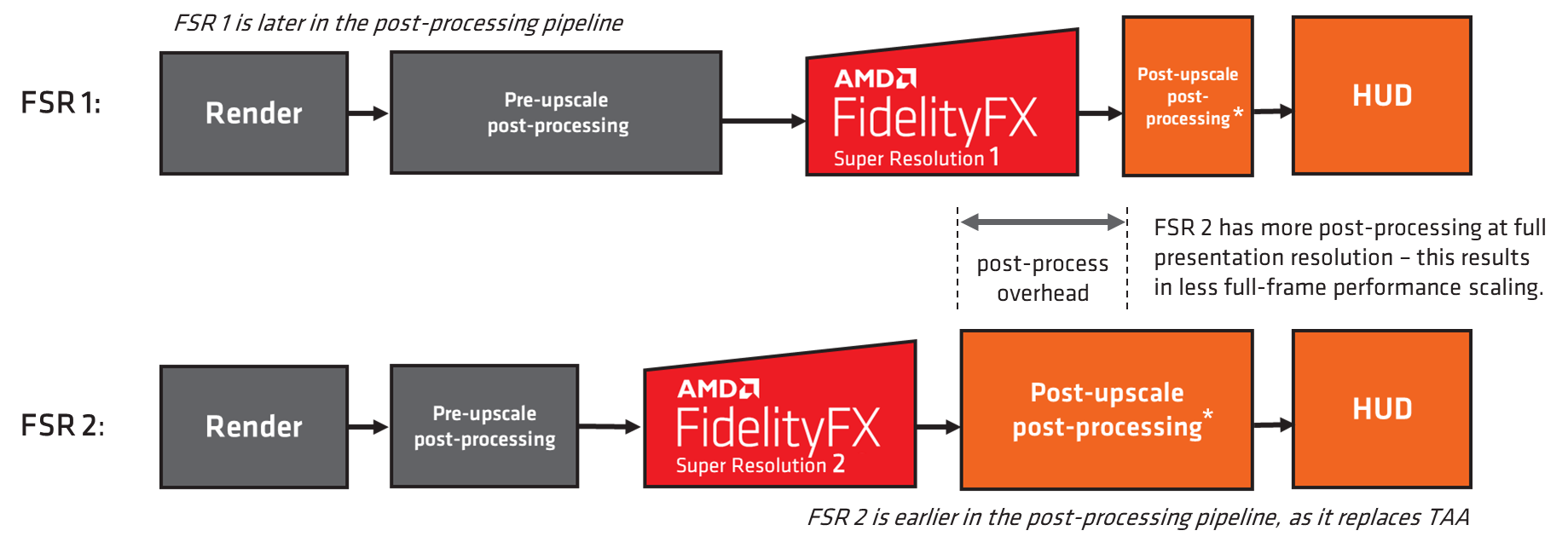
This means FSR 2 game pipelines have more post-processing performed at the higher output resolution and this can impact performance scaling when comparing the two solutions. This must be considered also in terms of quality, with those post-upscale post-processing passes performing operations on output resolution data.
Editing the FSR 2 shaders for performance
We understand that some developers may edit the FSR 2 workloads to unlock further performance at the expense of output quality. We would recommend this is not done on Desktop platforms, however for console we understand there is sometimes a need. There are various constants that can increase performance at the expense of quality, for example iLanczos2SampleCount in ffx_fsr2_upsample.h. Decreasing this to 12 may yield acceptable quality for some with a small reduction in FSR 2 run-time.
Implementation notes -- FSR 1
How it works
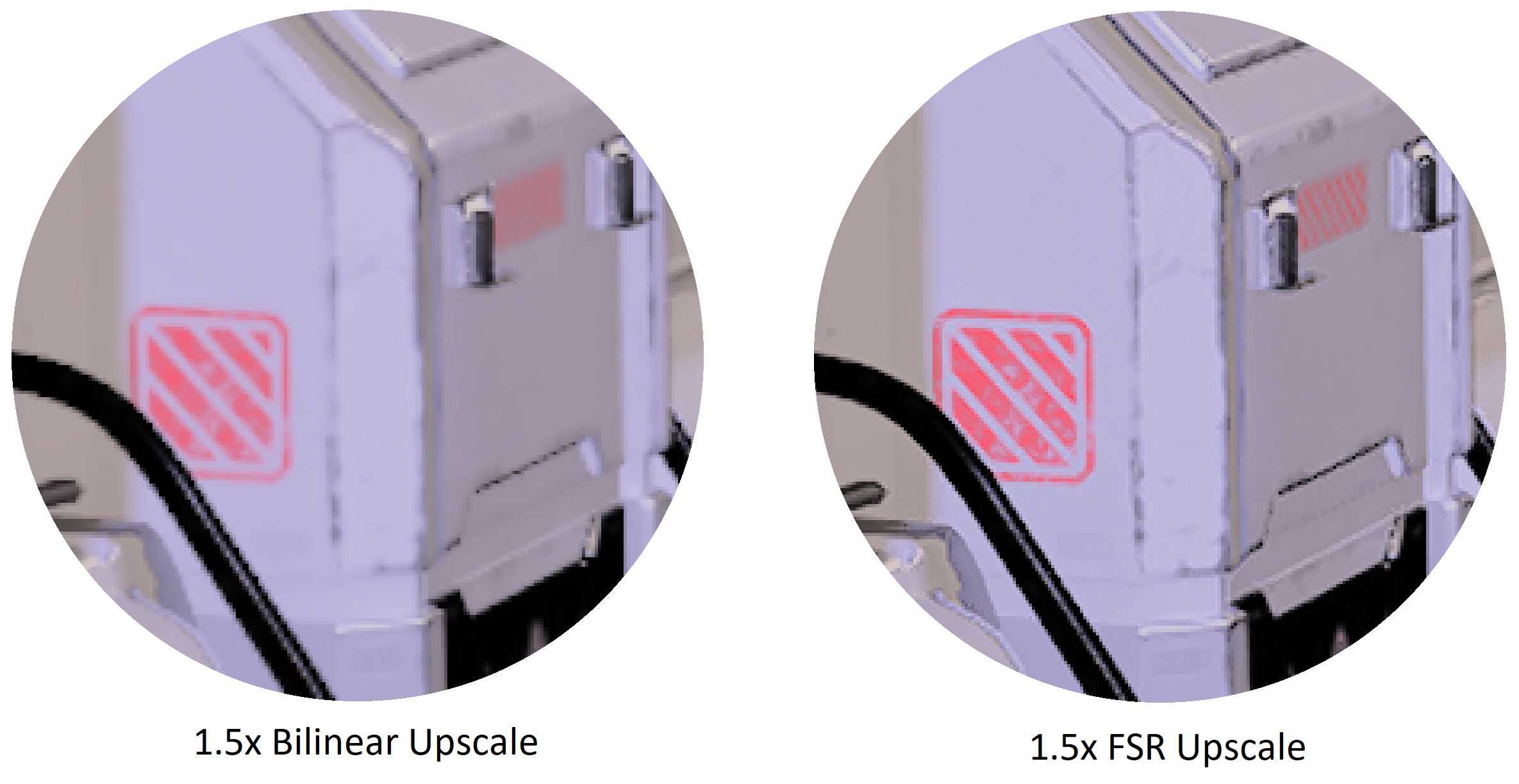
FSR 1 is a spatial upscaler. It works by taking the current anti-aliased frame and upscaling it to display resolution. FSR only requires the current frame's data. It does not require motion vectors or frame history. At the heart of FSR is a cutting-edge algorithm that detects and recreates high-resolution edges from the source image. Those high-resolution edges are a critical element required for turning the current frame into a "super resolution" image. FSR provides consistent upscaling quality regardless of whether the frame is in movement, which can provide quality advantages compared to other types of upscalers.
FSR 1 is composed of two main passes:
An upscaling pass called Edge-Adaptive Spatial Upsampling (EASU) that performs edge reconstruction. In this pass, the input frame is analyzed for gradient reversals -- looking at how neighboring gradients differ from a set of input pixels. Gradient reversal intensity determines the weights applied to samples for reconstruction at display resolution.
A sharpening pass called Robust Contrast-Adaptive Sharpening (RCAS) (extracts pixel detail in the upscaled image.
Integration guidelines
Shading language and API requirements
DirectX 12 + HLSL
HLSLCS_6_2
Expected input
- Image should already be well anti-aliased by a technique like TAA, MSAA etc.
- Image should be normalized to [0-1] and be in perceptual color space (sRGB, not linear).
- A negative input to RCAS will output NaN!
- Image should be generated using negative MIP bias to increase texture detail.
- Image should be noise free.
Where in the frame
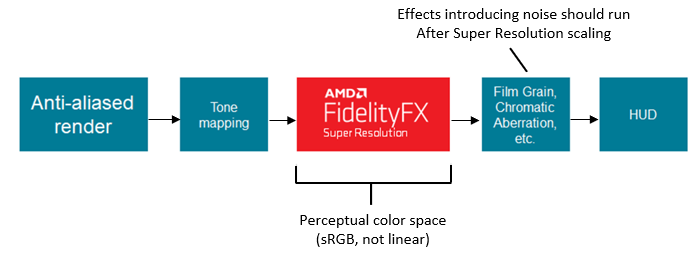
FSR 1 passes work best in perceptual color space and should therefore be integrated after tone mapping. Passes that introduce noise or other high-frequency visual components to the scene should be rendered after upscaling to avoid those noisy components being amplified.
In this sample, the following frame structure applies:

The tonemap pass in the sample writes gamma2 output into a R10G10B10A2_UNORM resource, which is consumed by EASU and RCAS, then the magnifier pass. In SDR, the Color Conversion pass converts gamma2 back to linear. In HDR, with an HDR display connected, the Color Conversion pass converts gamma2 to rec2020.
Walkthrough
Include the ffx_fsr1.h header:
#include <FidelityFX/host/ffx_fsr1.h>
Query the amount of scratch memory required for the FFX Backend using ffxGetScratchMemorySizeDX12:
const size_t scratchBufferSize = ffxGetScratchMemorySizeDX12(FFX_FSR1_CONTEXT_COUNT);
Allocate the scratch memory for the backend and retrieve the interface using ffxGetInterfaceDX12:
const size_t scratchBufferSize = ffxGetScratchMemorySizeDX12(FFX_FSR1_CONTEXT_COUNT);
void* scratchBuffer = calloc(scratchBufferSize, 1);
FfxErrorCode errorCode = ffxGetInterfaceDX12(&m_fsr1ContextDescription.backendInterface, m_deviceResources->GetD3DDevice(), scratchBuffer, scratchBufferSize, FFX_FSR1_CONTEXT_COUNT);
FFX_ASSERT_MESSAGE(errorCode == FFX_OK, "Could not initialize the FidelityFX SDK backend");

FFX_ASSERT_MESSAGE(m_fsr1ContextDescription.backendInterface.fpGetSDKVersion(&m_fsr1ContextDescription.backendInterface) ==
    FFX_SDK_MAKE_VERSION(1, 1, 2), "FidelityFX Super Resolution sample requires linking with a 1.1.2 version SDK backend");
Create the FfxFsr1Context by filling out the FfxFsr1ContextDescription structure with the required arguments:
FfxFsr1Context m_fsr1Context;
FfxFsr1ContextDescription m_fsr1ContextDescription = {};

m_fsr1ContextDescription.outputFormat = FFX_SURFACE_FORMAT_R10G10B10A2_UNORM; // m_upscaledOutput is DXGI_FORMAT_R10G10B10A2_UNORM
m_fsr1ContextDescription.maxRenderSize.width = resourceSizeWidth;
m_fsr1ContextDescription.maxRenderSize.height = resourceSizeHeight;
m_fsr1ContextDescription.displaySize.width = resourceSizeWidth;
m_fsr1ContextDescription.displaySize.height = resourceSizeHeight;
m_fsr1ContextDescription.flags = FFX_FSR1_ENABLE_HIGH_DYNAMIC_RANGE;

// Create FSR1 context with a possibility to enable RCAS irrespectively of whether 'm_rcasEnable' is set.
m_fsr1ContextDescription.flags |= FFX_FSR1_ENABLE_RCAS;

// Create the FSR1 context
errorCode = ffxFsr1ContextCreate(&m_fsr1Context, &m_fsr1ContextDescription);
FFX_ASSERT(errorCode == FFX_OK);

FFX_ASSERT_MESSAGE(ffxFsr1GetEffectVersion() == FFX_SDK_MAKE_VERSION(1, 2, 0),
    "FidelityFX Super Resolution sample requires linking with a 1.2 version FidelityFX FSR1 library");
When the time comes for upscaling, fill out the FfxFsr1DispatchDescription structure and call ffxFsr1ContextDispatch using it:
auto size = m_deviceResources->GetOutputSize();
auto scaledSize = GetScaledRect(size);
float inWidth = static_cast<float>(scaledSize.right);
float inHeight = static_cast<float>(scaledSize.bottom);

FfxFsr1DispatchDescription dispatchParameters = {};
dispatchParameters.commandList = ffxGetCommandListDX12(commandList);
dispatchParameters.renderSize.width = (unsigned int)inWidth;
dispatchParameters.renderSize.height = (unsigned int)inHeight;
dispatchParameters.enableSharpening = m_rcasEnable;
dispatchParameters.sharpness = m_rcasSharpness;

dispatchParameters.color = ffxGetResourceDX12(m_tonemapperOutput.Get(),
    ffxGetResourceDescriptionDX12(m_tonemapperOutput.Get()),
    (wchar_t*)L"FSR1_InputColor", FFX_RESOURCE_STATE_COMPUTE_READ);

dispatchParameters.output = ffxGetResourceDX12(m_upsampleOutput.Get(),
    ffxGetResourceDescriptionDX12(m_upsampleOutput.Get()),
    (wchar_t*)L"FSR1_OutputUpscaledColor", FFX_RESOURCE_STATE_COMPUTE_READ);

FfxErrorCode errorCode = ffxFsr1ContextDispatch(&m_fsr1Context, &dispatchParameters);
FFX_ASSERT(errorCode == FFX_OK);
During shutdown, destroy the FSR1 context:
ffxFsr1ContextDestroy(&m_fsr1Context);
FSR 1 Quality modes
FSR 1 exposes quality modes to describe the amount of scaling to apply to the source image, depending on the quality/performance ratio desired.
In addition to fixed scaling, FSR 1 may be used in "arbitrary scaling" mode. Any area scale factor between 1x and 4x is supported. This mode is typically used for Dynamic Resolution Scaling, whereby source resolution is determined by a fixed performance budget to achieve a minimum frame rate.
| FSR 1 quality mode | Description | Scale factor | Input resolution | Output\ resolution |
|---|---|---|---|---|
| "Ultra Quality" | Ultra Quality mode produces an image with quality virtually indistinguishable from native rendering. It should be selected when the highest quality is desired* | 1 .3x per dimension (1.69x area scale) | 1477x831 1970x1108 2646x1108 2954x1662 |
1920x1080 2560x1440 3440x1440 3840x2160 |
| "Quality" | Quality mode produces a super resolution image with quality representative of native rendering, with a sizeable performance gain. | 1 .5x per dimension (2.25x area scale) | 1280x720 1706x960 2293x960 2560x1440 |
1920x1080 2560x1440 3440x1440 3840x2160 |
| "Balanced" | Balanced mode produces a super resolution image approximating native rendering quality, with a major performance gain compared to native. | 1 .7x per dimension (2.89x area scale) | 1129x635 1506x847 2024x847 2259x1270 |
1920x1080 2560x1440 3440x1440 3840x2160 |
| "Performance" | Performance mode visibly impacts image quality and should only be selected in situations where needing additional performance is critical. | 2.0x per dimension (4x area scale) | 960x540 1280x720 1720x720 1920x1080 |
1920x1080 2560x1440 3440x1440 3840x2160 |
We do not recommend FSR 1 uses the higher scale factors. FSR 2 performs better at these scales, and even includes an optional "Ultra Performance" 3.0x scaling mode.
FSR 1 Ultra Quality is not supported in this sample.
Recommendations
Formats, compiler options and floating-point path choice
This sample uses 32bpp R10G10B10A2_UNORM resources for the FSR path, which results in highest performance. The EASU pass is generally ALU bound, and RCAS is MEM bound.
Our recommendations for the supported platforms, when implemented as per this sample, are as follows:
| Platform | Resource Type | EASU recommendation | RCAS recommendation |
|---|---|---|---|
| Scarlett | R10 G10B10A2_UNORM | Wave32, Fp16 | Wave32, Fp16 |
| R16G 16B16A16_FLOAT | Wave32, Fp16 | Wave32, Fp16 | |
| XboxOne | R10 G10B10A2_UNORM | Fp32 | Fp32 |
| R16G 16B16A16_FLOAT | Fp32 | Fp32 | |
| Desktop | R10 G10B10A2_UNORM | Fp16 | Fp16 |
| R16G 16B16A16_FLOAT | Fp16 | Fp16 |
If native fp16 is not available on the Desktop platform due to device support, fp32 is used.
Anti-aliased input
FSR 1 requires an anti-aliased input. If there is no quality AA available (such as TAA or MSAA 8x) then FSR use is not recommended. A basic TAA is used in this sample.
MIP bias
For higher quality output, FSR 1 integration should include MIP bias changes. This sample applies the following:
MIP bias = -log2 (display resolution/source resolution)
Color space
The input to FSR 1 passes should be in perceptual color space such as sRGB or Gamma2. There should be no banding in the input, as this banding may be amplified.
FSR 1 for Dynamic Resolution
FSR 1 is ideal for dynamic resolution, and this sample shows how to set up the constants for use whereby the input data is a subset of a larger resource.
In the special case where dynamic resolution is rendering at 100%, the EASU pass can be skipped whilst keeping RCAS to provide a seamless experience.
RCAS sharpening
The sharpening attenuation value for RCAS differs from what existed with CAS.
With RCAS, 0.0 is the highest level of sharpening, with N>0 reducing the level of sharpness applied.
The default RCAS sharpening attenuation of this sample is set to 0.25.
Update history
Updated with FidelityFX SDK 1.1.1 integration guidelines September 2024.
Initial release June 2021
June 2022: Updated with FSR 2
October 2022: Updated to FSR 2.1.2
May 2023: Updated to FSR 2.2.1
Privacy Statement
When compiling and running a sample, the file name of the sample executable will be sent to Microsoft to help track sample usage. To opt-out of this data collection, you can remove the block of code in Main.cpp labeled "Sample Usage Telemetry".
For more information about Microsoft's privacy policies in general, see the Microsoft Privacy Statement.
Disclaimer
The information contained herein is for informational purposes only, and is subject to change without notice. While every precaution has been taken in the preparation of this document, it may contain technical inaccuracies, omissions and typographical errors, and AMD is under no obligation to update or otherwise correct this information. Advanced Micro Devices, Inc. makes no representations or warranties with respect to the accuracy or completeness of the contents of this document, and assumes no liability of any kind, including the implied warranties of noninfringement, merchantability or fitness for particular purposes, with respect to the operation or use of AMD hardware, software or other products described herein. No license, including implied or arising by estoppel, to any intellectual property rights is granted by this document. Terms and limitations applicable to the purchase or use of AMD's products are as set forth in a signed agreement between the parties or in AMD's Standard Terms and Conditions of Sale.
AMD, the AMD Arrow logo, Radeon, RDNA, Ryzen, and combinations thereof are trademarks of Advanced Micro Devices, Inc. Other product names used in this publication are for identification purposes only and may be trademarks of their respective companies.
Windows is a registered trademark of Microsoft Corporation in the US and/or other countries.
Xbox is a registered trademark of Microsoft Corporation in the US and/or Other countries.
© 2022 Advanced Micro Devices, Inc. All rights reserved.