Note
Access to this page requires authorization. You can try signing in or changing directories.
Access to this page requires authorization. You can try changing directories.
As a security administrator, you can plan Perception costs around the security work your organization needs. Use this guide to estimate costs, set a budget and notifications, and establish an ongoing review routine.
| Use this tool | To answer this question |
|---|---|
| Cost estimation | What might our planned work cost? |
| Budgets | What spending target are we tracking, and who should be notified? |
| Cost & usage | What has our work cost so far, and where is spending heading? |
Prerequisites
To follow these procedures, you need the Security Administrator role in Microsoft Entra ID.
Plan how you'll use Perception
Start with the security tasks you expect to use Perception for. Use this plan to estimate monthly costs and choose a spending target.
- Identify the security tasks you expect Perception to perform and how often you'll need them.
- Decide who will review costs and receive budget notifications, whether that's you or another administrator.
Estimate the cost of your starting plan
Before you start using Perception, a cost estimate gives you a starting point for your budget. The estimator calculates an estimated cost range based on agent outcomes. An agent outcome is the result of security work, such as an alert triaged or an investigation completed.
- Identify the security work you expect to use Perception for during the month. Use available workload history and upcoming activities to inform your estimate.
- Open the Perception cost estimator. In the Microsoft Defender portal, you can also open Cost & usage, then select Estimate costs, or select Estimate costs while setting up Perception.
- Match the work you identified to the agent outcomes listed in the estimator. Enter the expected monthly number for each agent outcome, and enter zero for those you don't expect to use.
- Review the subtotals and total estimated range. Compare a typical month with a busier month by changing the volumes.
- Select Export to save the estimate.
As you start using Perception, update the estimate based on your recorded usage.
For outcome definitions and details about their outputs, see Perception agent outcomes overview.
Set a budget and notifications
Create a budget to track spending over time and set up email notifications to help you stay informed. A budget is a spending target, not a hard cap. When spending reaches your budget, you get a notification, but Perception keeps running.
Set budget details
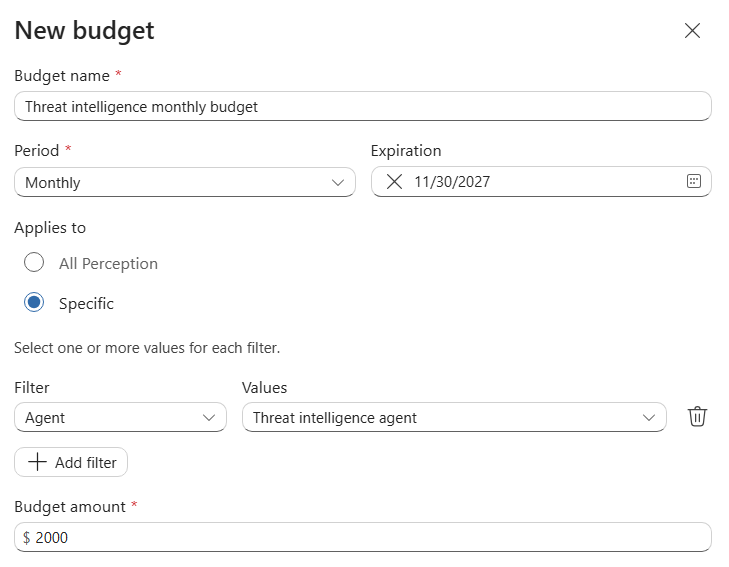
Enter the period, scope, and spending target for your budget:
- In the Microsoft Defender portal, open Cost & usage, then select Manage Budgets for Perception.
- Select New budget.
- Enter a name, choose a period, and set an expiration date. A monthly budget is a useful starting point when your estimate covers a month.
- Under Applies to, choose All Perception for an overall target, or choose Specific and add filters for a defined part of your work.
- Enter your budget amount. Use your cost estimate as a starting point.
Set email notifications
Configure email notifications before you create the budget:
- Turn on Email notifications. Choose the spend type and percentage threshold, and enter one to five unique email addresses under Email recipients.
- Select Create budget and check the saved details.
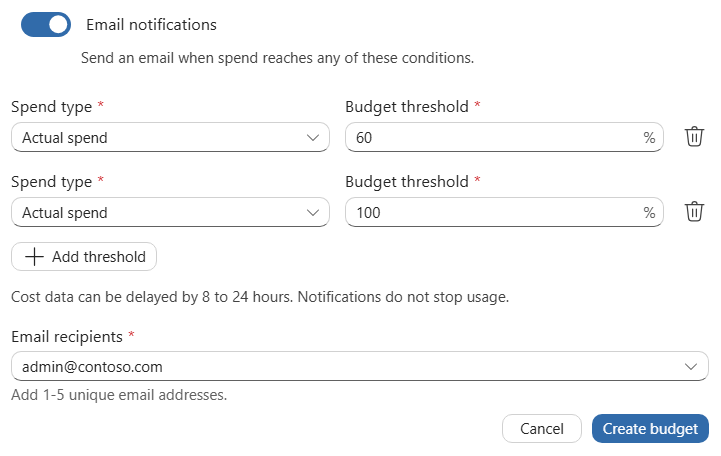
Choose whether notifications are based on what you've spent so far or what you're expected to spend by the end of the budget period:
| Spend type | When a notification is triggered |
|---|---|
| Actual spend | Recorded spending reaches the percentage of your budget you set. |
| Forecasted spend | Estimated spending for the full budget period reaches the percentage of your budget you set. |
For example, if you specify a $1,000 budget with an 80% threshold, an actual-spend notification is based on $800 in recorded costs. A forecasted-spend notification is based on an estimated total of $800 for the period, even if you've spent less so far.
Set notification thresholds below your budget amount to give yourself time to review spending and adjust your plan. Review Cost & usage regularly alongside email notifications.
Cost data can be delayed by up to 24 hours.
Review costs and the work behind them
Review costs regularly to see how spending compares with your budget and estimate.
- In the Microsoft Defender portal, open Cost & usage.
- Use the date selector to choose the period you want to review.
Review spending and budget status
In Spending overview, review:
- Spend to date: The cost recorded for the selected period.
- Spend forecast: The estimated total by the end of the period.
- Budget status: For the current month, the status of your monthly budget for all Perception usage, if you've set one.
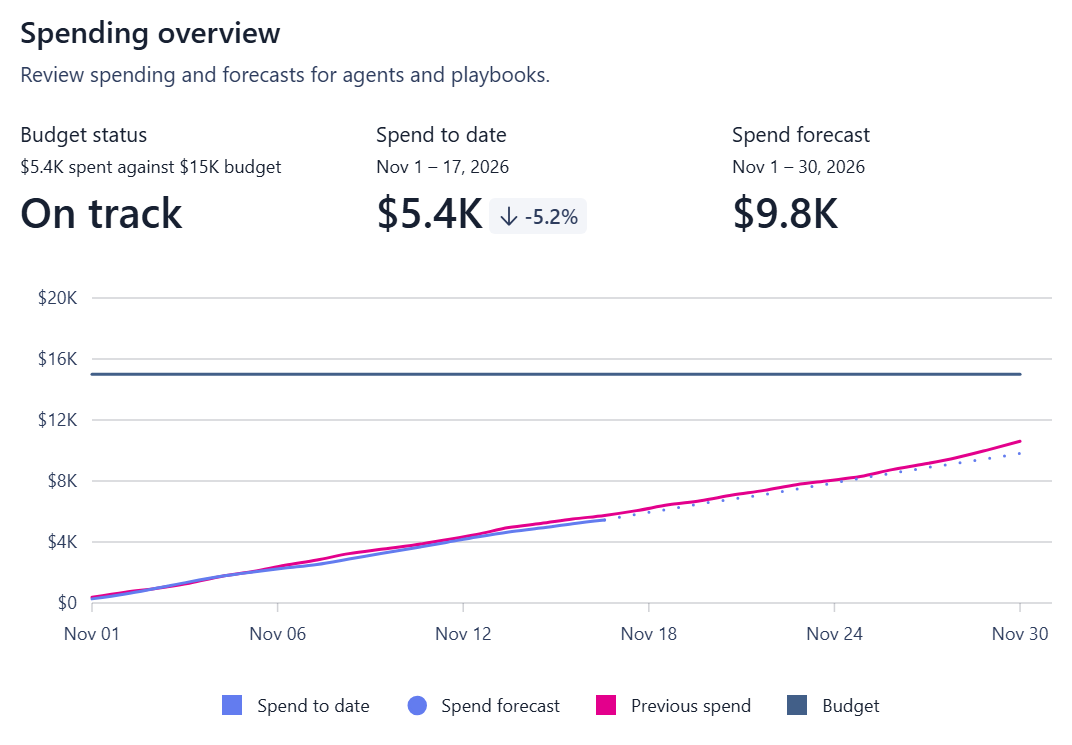
To review other budgets, select Manage Budgets for Perception in Cost & usage.
Review spend against your Flex Plan
If your organization uses a Flex Plan that covers Perception, review its unused amount alongside Perception spending.
On the Cost & usage overview, the Perception card shows the amount of spending covered under Spend this month, when coverage is reported.
To review your Flex Plan's remaining amount:
- Open Credits & Flex Plan.
- Find a Flex Plan that lists Perception under Eligible products. Review Status, Expiration date, Original amount, and Unused amount.
If the plan covers multiple products, Unused amount is the remaining amount for the whole plan, not just Perception.
Review agent outcomes
The Agent outcomes section shows the number of outcomes, average cost, total cost, and share of spending for each outcome type.
Use these details to review how much each outcome type contributes to your spending.
Explore cost drivers
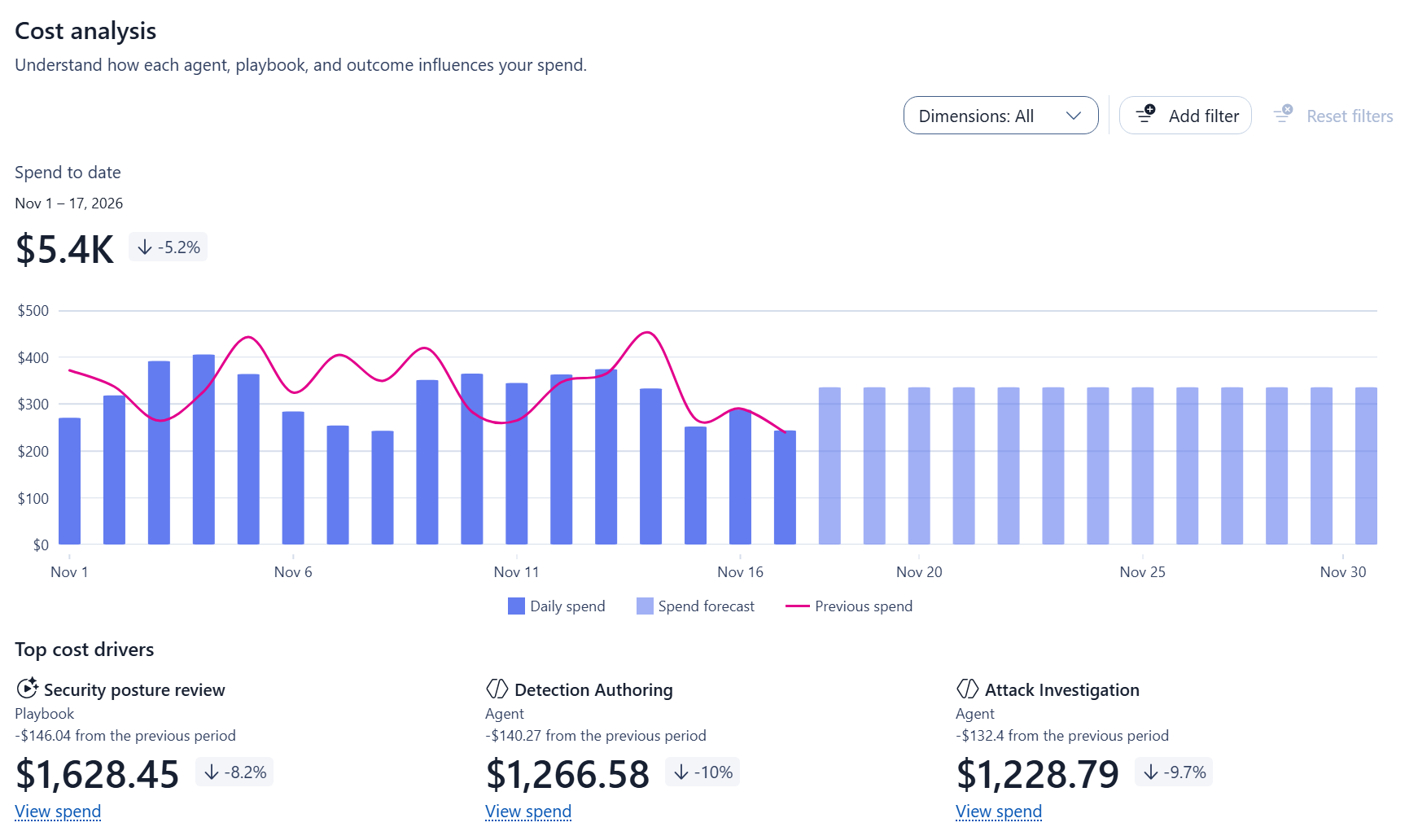
Use Cost analysis to understand when spending occurred and what drove it:
- Spend by date shows daily costs alongside the previous period.
- Top cost drivers highlights the work contributing most to spending.
Use these controls to explore the costs:
- Dimensions changes how costs are grouped. For example, group by agent to compare spending across agents.
- Add filter narrows the costs included in the analysis. For example, filter to a specific agent to review its costs.
Use dimensions to compare cost contributors and filters to focus on a particular one.
Stay in control
Compare recorded usage with the work you expect Perception to do. Use the following table to decide when to update your estimate, budget, or notification thresholds:
| When | What to do |
|---|---|
| You receive a budget notification | Open Cost & usage and review the actual or forecasted spending for the budget's period and scope. |
| Spending increases as expected | Increase your budget amount to match your expected usage so you don't get notifications for planned spending. |
| Spending is different from what you expected | Use Cost analysis to identify the agents, playbooks, or outcomes contributing to the change before deciding what to adjust. |
| You plan to use Perception for more work | Update your cost estimate, then review your budget and notification thresholds. |