Note
Access to this page requires authorization. You can try signing in or changing directories.
Access to this page requires authorization. You can try changing directories.
This article shows you how to add the Microsoft Perception MCP to an agent in Microsoft Foundry. Review the prerequisites before you begin.
Prerequisites
Meet the Perception MCP prerequisites, including organization onboarding, permissions, and the Security reader role.
Before you begin: access and permissions
Arrange the access below before setup. Different people can perform these tasks; one account does not need every role.
| Role | Purpose |
|---|---|
| Application Developer (Microsoft Entra ID) | Register the OAuth app when tenant policy restricts app registration. Not needed if your account can already register apps. |
| Application Administrator or Cloud Application Administrator (Microsoft Entra ID) | Manage the OAuth app's API permissions, client secret and redirect URI; approve delegated consent when required and permitted. For app configuration alone, ownership of this specific app can be sufficient instead. |
| Foundry Project Manager | Create and manage the MCP authentication connection on the target project. |
| Foundry User | Configure and test the agent and its MCP tool on the target project. |
| Foundry Agent Consumer | Invoke the finished agent without development access; assign at the specific agent scope where supported, or the project scope. |
Use an existing Foundry project and model deployment. If these must be created, involve an administrator with resource-creation and role-assignment permissions. Use the narrowest practical scopes; do not grant broad Owner access solely to configure this MCP connection.
How authorization works
OAuth Identity Passthrough uses delegated access for the signed-in user; it does not elevate that user. The app needs the delegated API grant and consent, the user needs Perception and relevant workload access plus permission to invoke the Foundry agent, and each Perception agent identity needs its own downstream permissions. These authorization layers are separate.
Add a Microsoft Perception tool
To add the Microsoft Perception MCP to your agent, follow these steps:
Go to Microsoft Foundry's agent builder, and select Build > Agent.
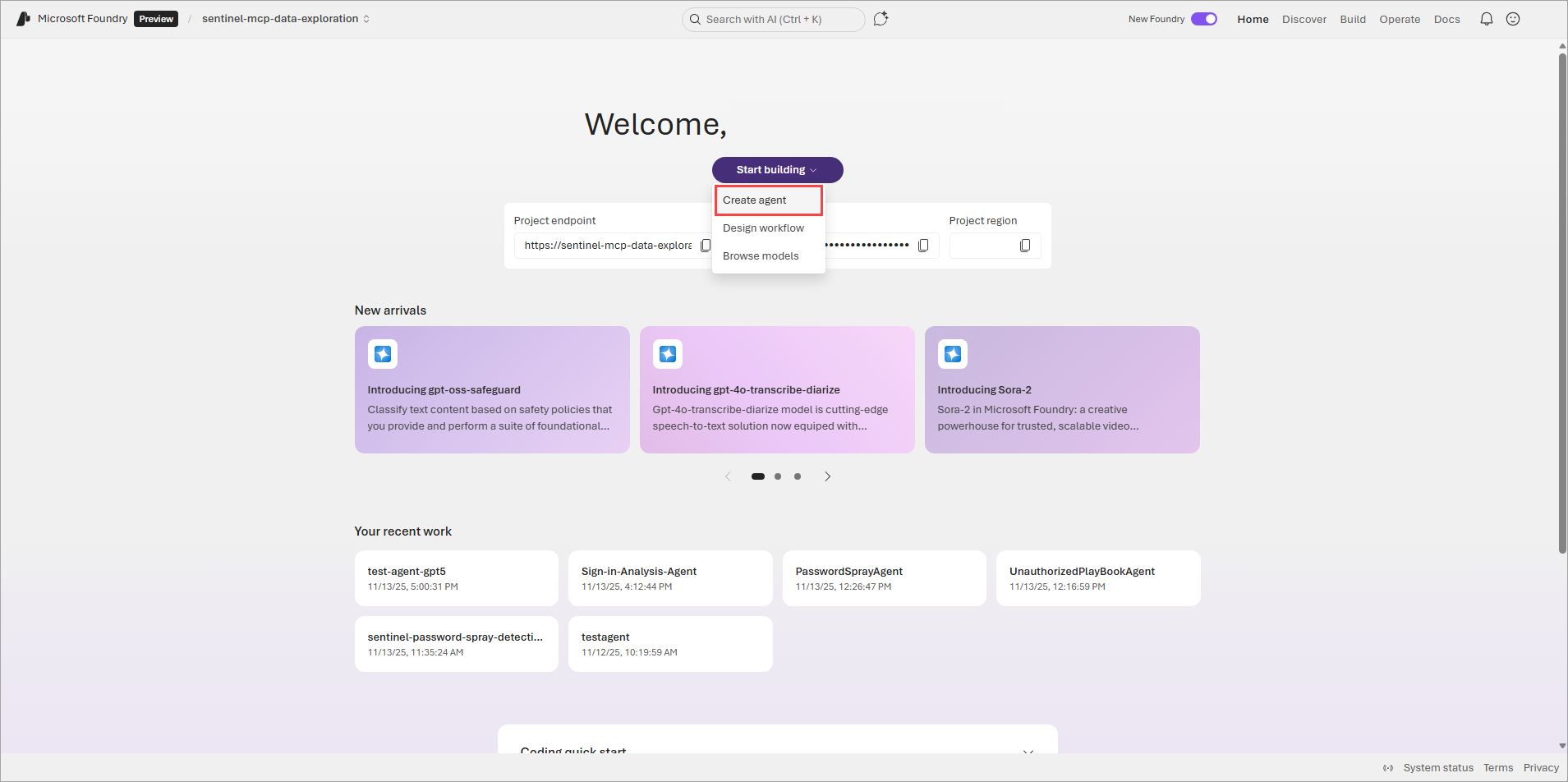
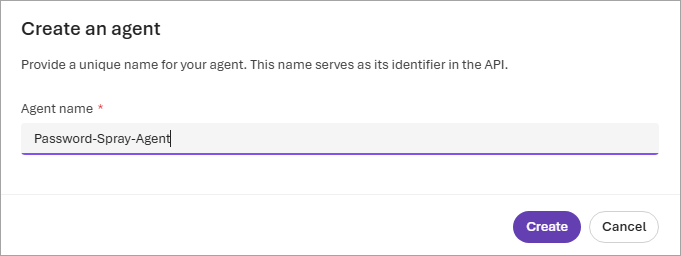
Enter a name for your agent.
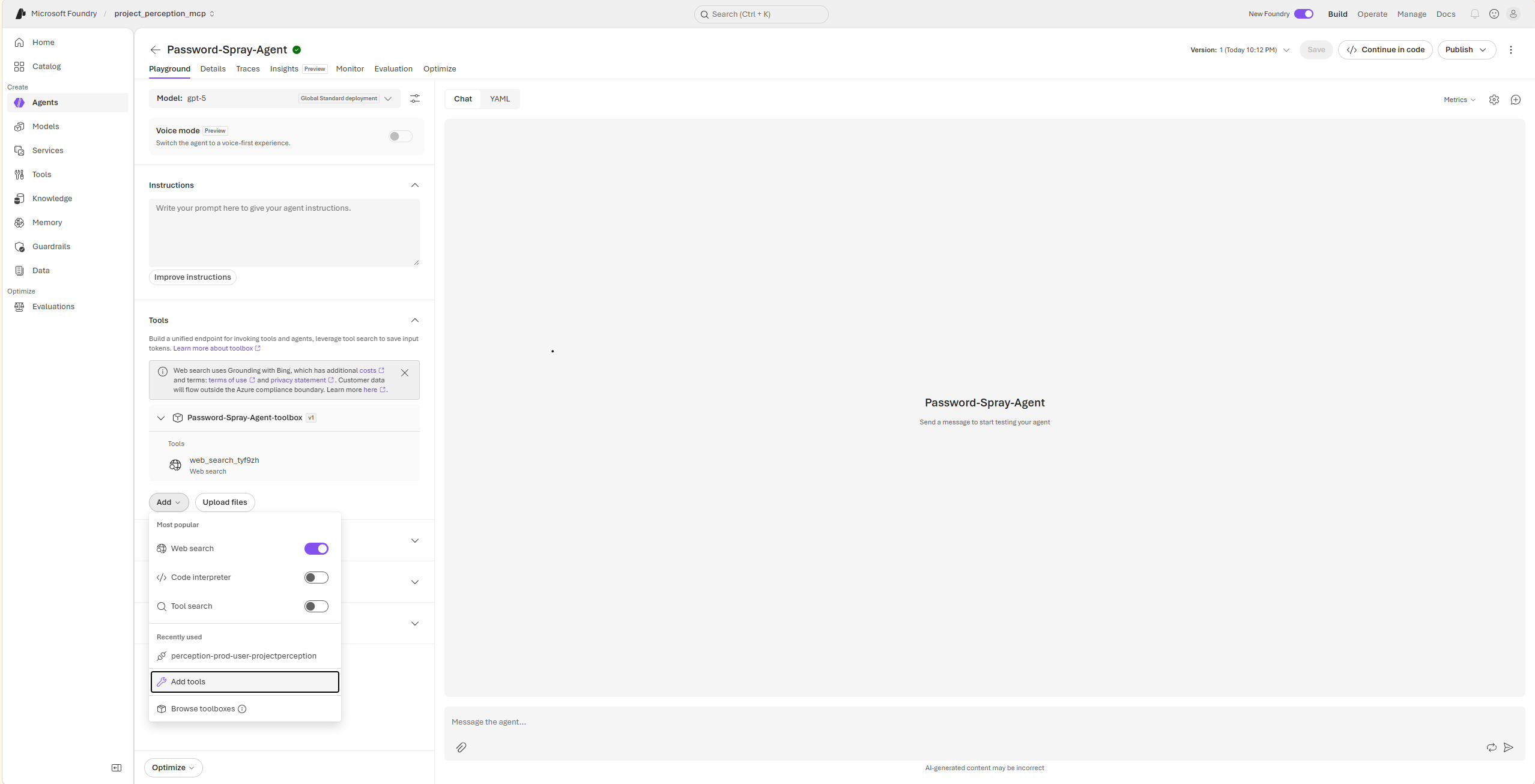
On the Tools panel, select Add a new tool.
In the Select a tool window, search for
Perceptionand select the Microsoft Perception MCP.
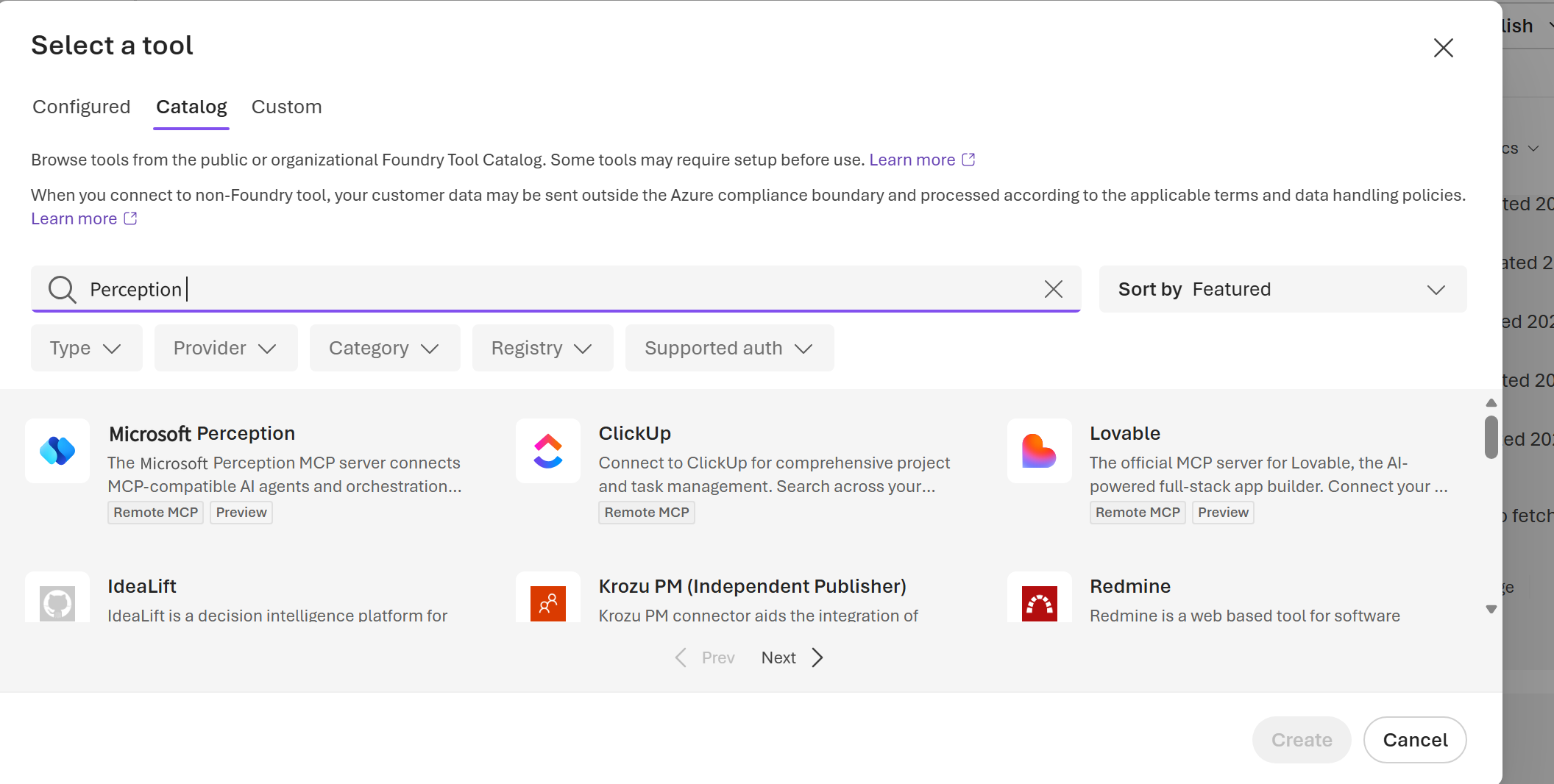
- Select Connect.
After you connect the MCP, start prompting your agent to use the Perception tools.