Share via


What is the SharePoint Admin Agent?

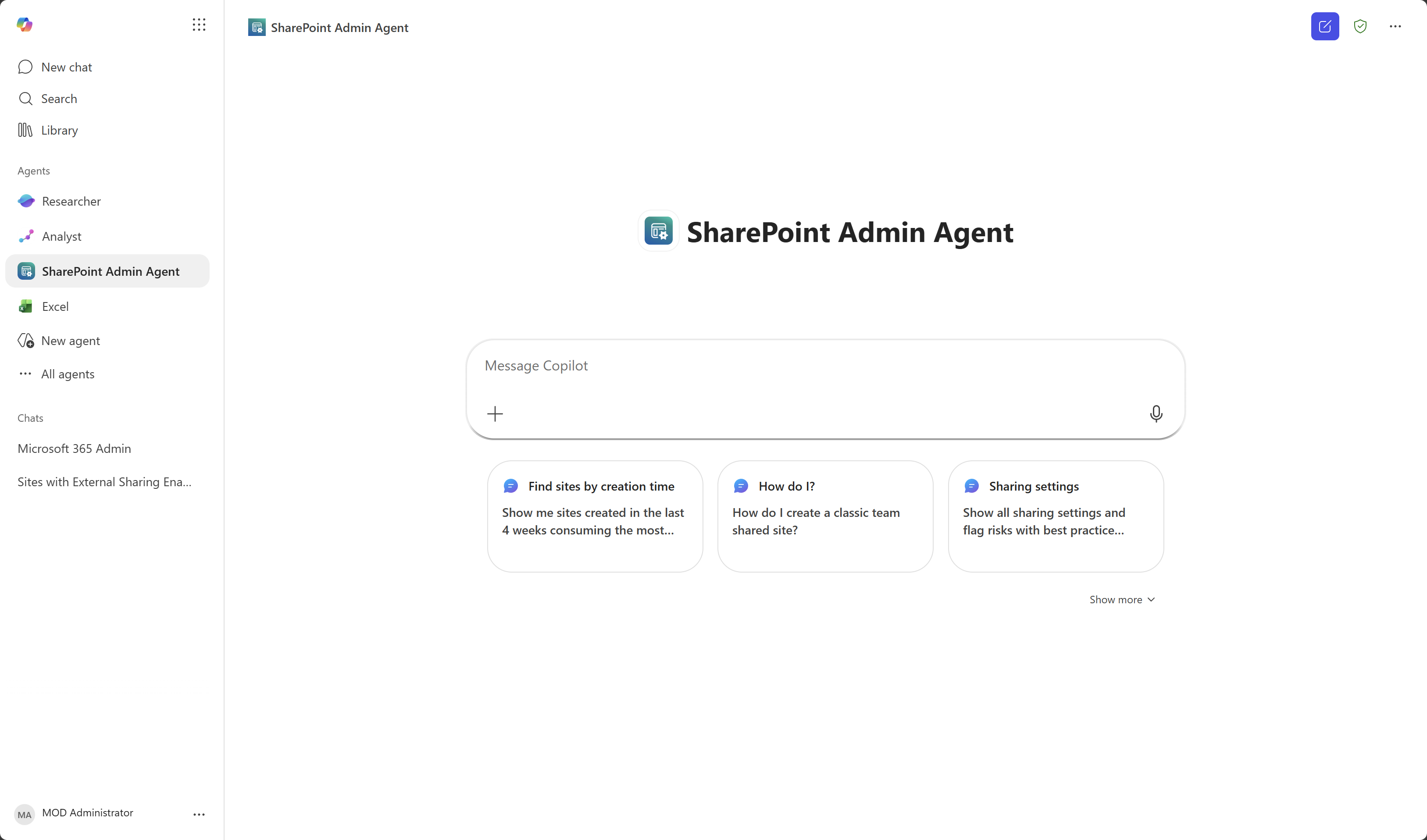
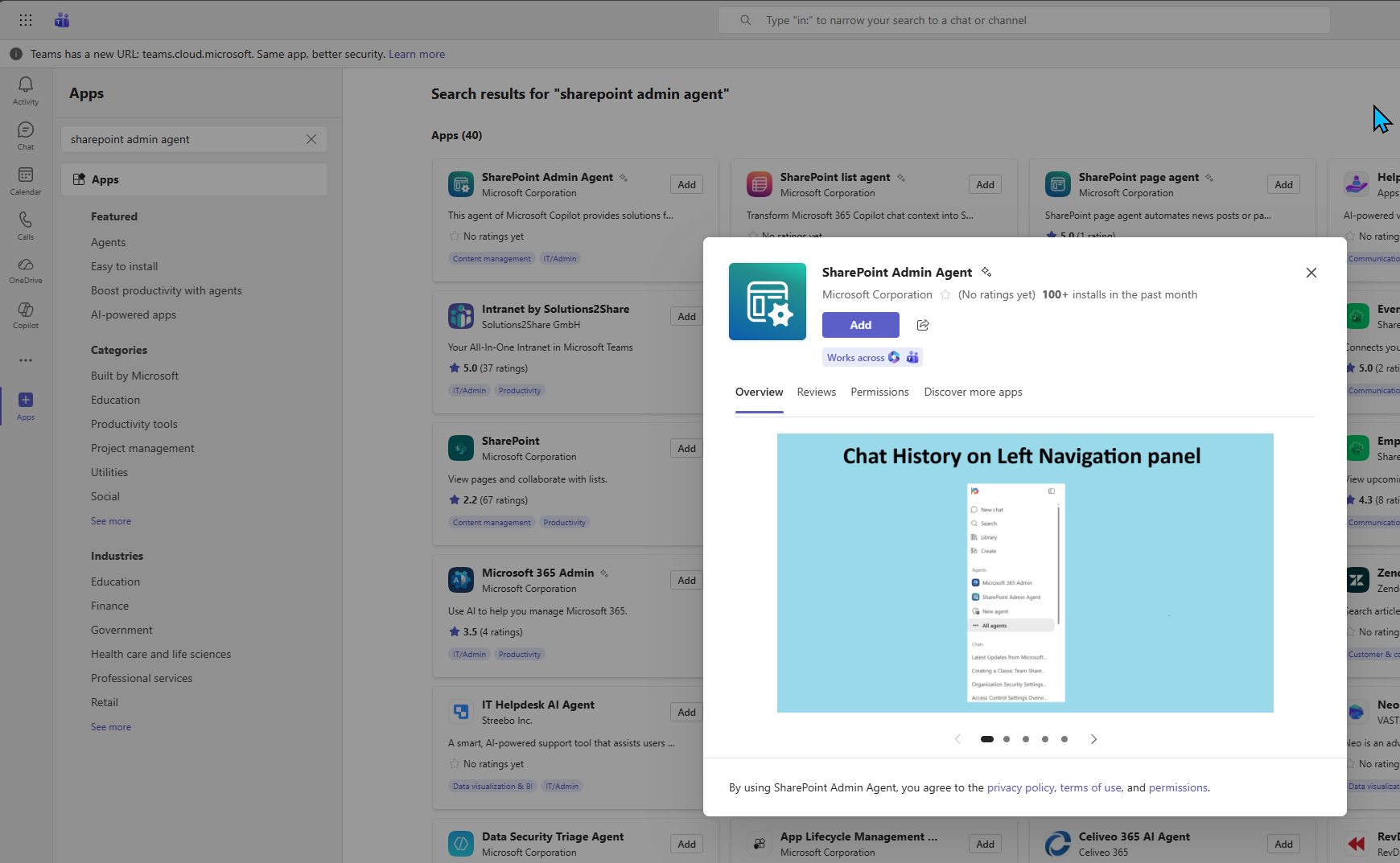
Copilot in SharePoint admin centers uses generative AI to make your SharePoint administration more productive and efficient. With natural language interactions, contextual guidance, and proactive suggestions, Copilot lets you focus on strategic priorities. It draws on your organizational data from SharePoint and OneDrive, so the recommendations and insights you get are always relevant and actionable. The SharePoint Admin Agent builds on Copilot skills in SharePoint to give you a streamlined, focused way to handle governance tasks across your Microsoft 365 content. Instead of running your own searches, the agent works behind the scenes by analyzing your organization's SharePoint and SharePoint Advanced Management (SAM) reports like Content management assessments, Site Lifecycle reports, Data Governance Access reports, and Catalog management. With this agent, you can easily tackle challenges around storage management, site lifecycle, and permissions enforcement. Just describe your governance issue, and the agent provides targeted solutions, saving you time and effort. Right now, the SharePoint Admin Agent helps you manage permissions, storage, and site lifecycle tasks. In the future, it will also support agent management and catalog management, making it even more useful for your governance needs.

What you need for the SharePoint Admin Agent

What are the license requirements?

Your organization needs to have the right license and meet certain administrative permissions or roles to use the feature described in this article.

First, your organization must have one of the following base licenses:

  • Office 365 E3, E5, or A5
  • Microsoft 365 E1, E3, E5, or A5

Additionally, you need to have Microsoft 365 Copilot license.

Note

At least one user in your organization must be assigned a Copilot license (this user doesn't need to be a SharePoint administrator). If your organization has a Copilot license and at least one person in your organization is assigned a Copilot license, SharePoint administrators automatically gain access to the SharePoint Advanced Management features needed for Copilot deployment.

Administrator requirements

You must be a SharePoint administrator or have equivalent permissions.

You should also be a SharePoint administrator for your organization.

Get started with the SharePoint Admin Agent

To use the SharePoint Admin Agent, follow these steps:

  1. Go to the SharePoint admin center and sign in.

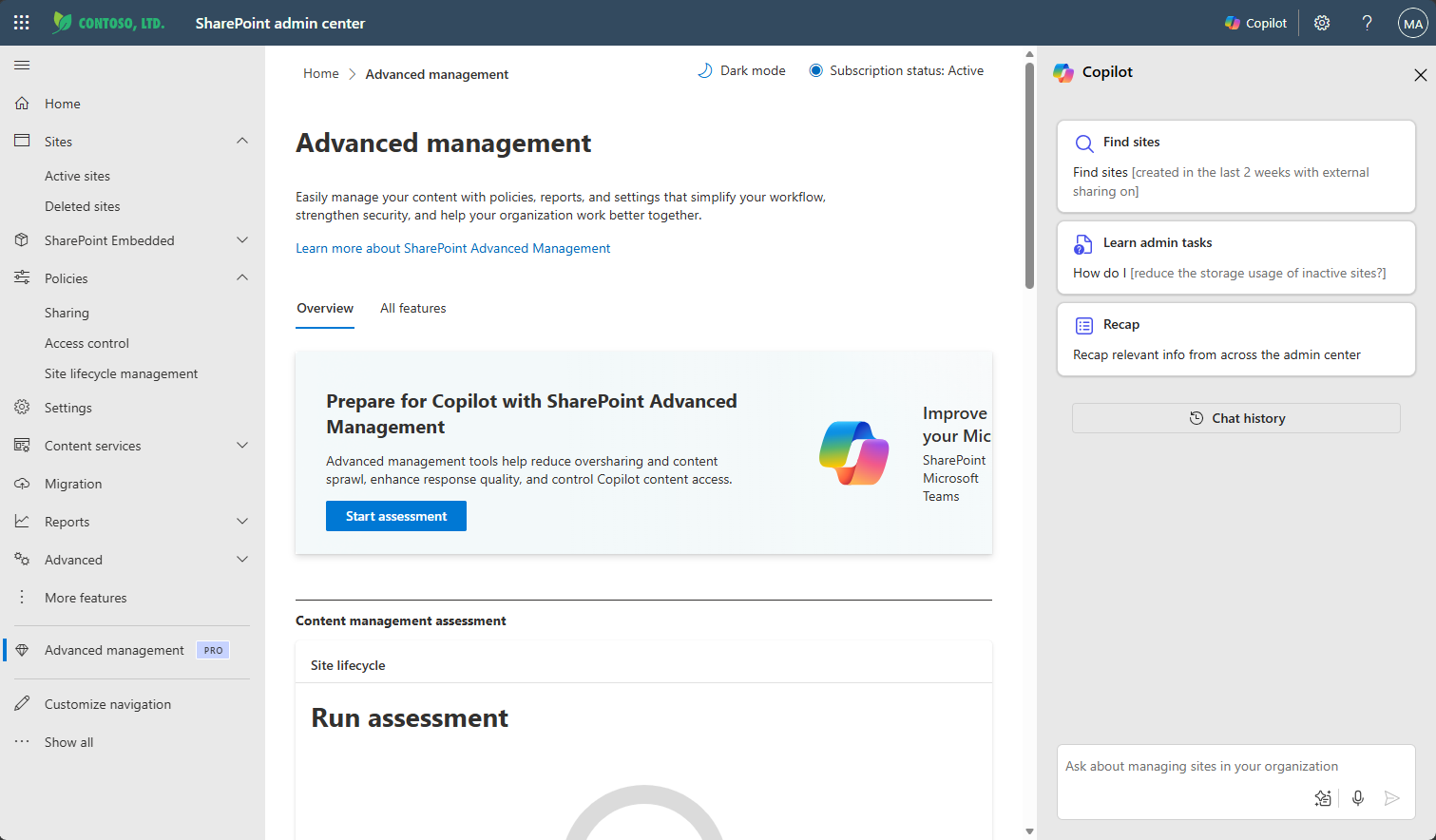
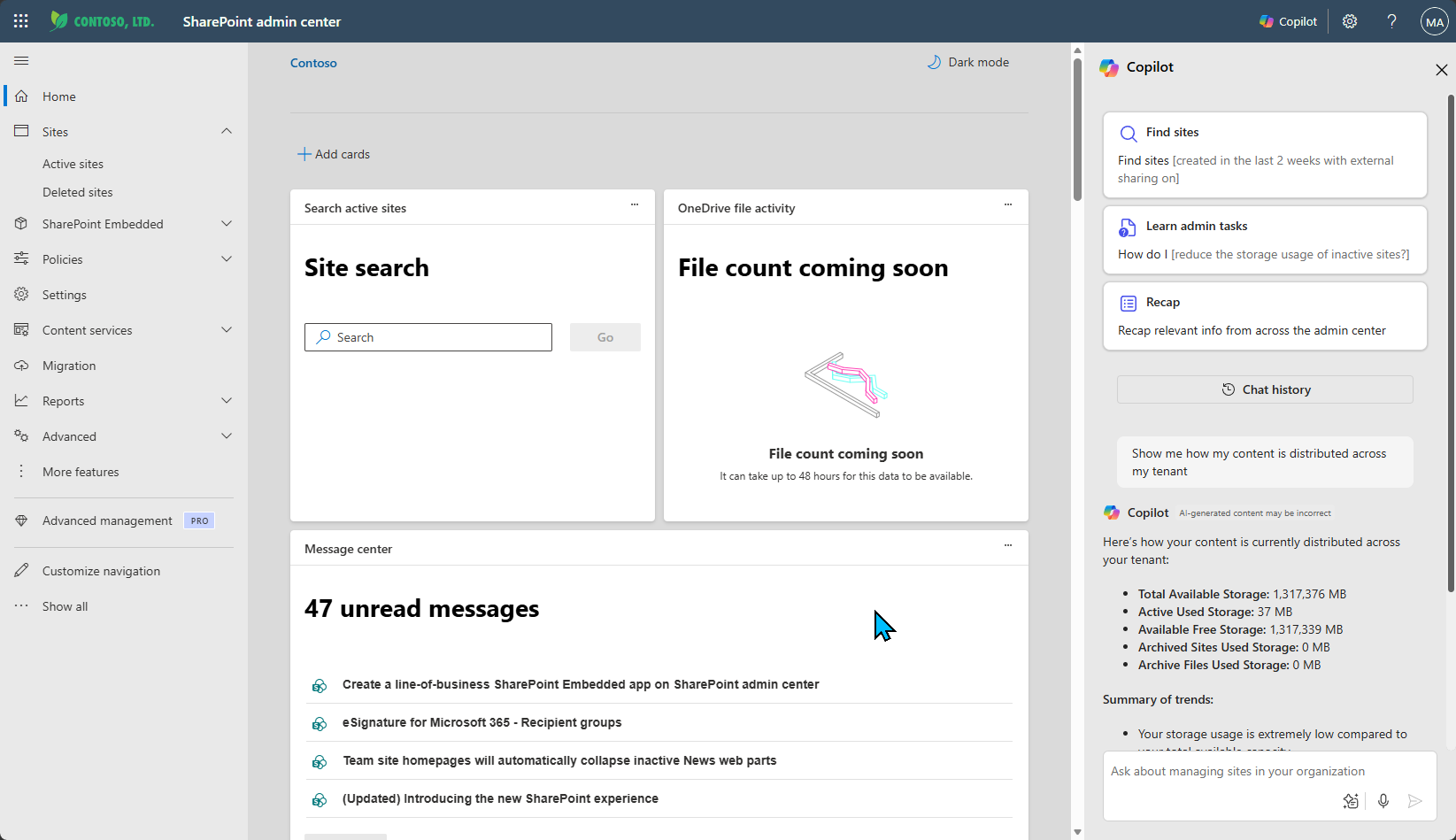
  2. In the upper right corner, select the Copilot button.

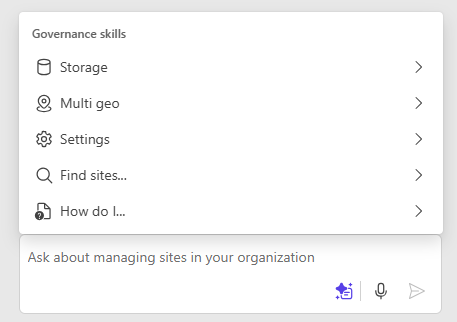
  3. Type a question. As you submit questions, the SharePoint Admin Agent responds by gathering the relevant data and reports, offering analysis, and recommendations. You can use the SharePoint Admin Agent to:

    • Manage your tenant's storage
    • Control content lifecycle
    • Manage content permissions

Manage site permissions with the SharePoint Admin Agent

Managing content permissions is important. First, permissions control who can access, edit, or share content, helping protect sensitive information and support proper collaboration. This ensures compliance with your organization's policies. Second, when Copilot is used, it relies on the user's permissions to decide what information it can find and present. Keeping permissions accurate both protects your data and lets Copilot provide secure, relevant response.

You can use the Permissions skill of the SharePoint Admin Agent to manage your site permissions in natural language and quickly view tenant-wide insights without complex manual analysis. The Permissions skill enables you to analyze site permissions, identify sites at high risk of oversharing, and uncover potential root causes.

Here are some sample questions you can use:

  • Which sites are overshared in my tenant and why?
  • List sites that are private but shared with Everyone except external users.
  • List sites where external sharing is false but have guest user permissions.
  • List all sites where more than 1,000 users can access the content of the site.

Depending on your question, the SharePoint Admin Agent analyzes the site permissions for your organization report and provides you with a summary of findings along with recommended actions. For example, if you ask "What sites in my tenant are overshared and why?" you see a list of overshared sites along with the reasons for oversharing and suggested remediation steps:

The SharePoint Admin Agent analyzing site permissions and providing a summary of findings along with reasons.

If you ask for a list of sites with external sharing disabled but have guest user permissions, you see a response with the list of SharePoint sites with site names, site URLs, site privacy and external sharing setting, and the number of guest users with permissions:

The SharePoint Admin Agent analyzing site permissions and providing a summary of findings with external sharing disabled but guest user permissions.

Based on the analysis, you can then take remedial actions, such as running site access review, or restrict site content discovery.

Limitations of using the SharePoint Admin Agent for site permissions

The Permissions skill has the following limitations:

Manage site lifecycle with the SharePoint Admin Agent

Managing site lifecycle and keeping sites active helps maintain security, reduce costs, and protect sensitive data. Active sites ensure Copilot delivers recommendations based on accurate, relevant information for better collaboration and compliance.

The Lifecycle skill empowers you to manage site lifecycle policies using natural language. You receive clear, actionable insights and can export detailed analyses, making it easy to quickly identify inactive or high-risk sites, prioritize cleanup, and maintain a healthy tenant without navigating complex settings. Key capabilities of the Lifecycle skill include:

  • Insights from latest policy runs: Responses are based on the most recent inactivity report, with citations included.
  • Exportable reports: Download CSV files for offline analysis or sharing with stakeholders.
  • Rapid, advanced analysis: Quickly slice, dice, and filter data for deeper insights.
  • Flexible breakdowns and filters: Generate distributions by template or sensitivity label, and apply filters for ownership state, storage usage, retention holds, and more.

Here are some sample questions you can use:

  • List storage-heavy inactive sites.
  • Show distribution of inactive sites by template.
  • List top inactive ownerless sites.
  • Generate a breakdown of inactive sites with one owner by sensitivity labels.
  • Identify which inactive sites have retention holds.

Depending on your question, the SharePoint Admin Agent analyzes the latest inactivity report and provides you with a summary of findings along with recommended actions. For example, when you ask for a list of inactive sites with storage heavy usage, you might see a list of inactive sites along with their storage usage, last activity date, and owner information.

The SharePoint Admin Agent analyzing site lifecycle and providing a summary of inactive sites with storage heavy usage.

If you ask for a breakdown of inactive sites by template, you see a summary for the numbers of inactive sites breakdown by templates.

The SharePoint Admin Agent analyzing site lifecycle and providing a list of inactive sites by template.

If you ask for a list of top inactive ownerless sites, you see a table summarizing the list of top inactive sites based on the recent run of your Site ownership policy with the site name, last activity date, site storage, and the number of owners.

The SharePoint Admin Agent analyzing site lifecycle and providing a list of top inactive ownerless sites.

Limitations of using the SharePoint Admin Agent for site lifecycle

The Lifecycle skill has the following limitations:

  • No direct actions: The Lifecycle skill provides insights and downloadable reports only; it can't perform actions on your behalf.
  • Limited scope: Analytics are based solely on inactivity insights from the latest Inactive Sites policy run, and are limited to the scope of that policy.
  • Report size constraint: Insights are available only if the Inactive Policy Report contains fewer than 100,000 sites; larger reports can't be analyzed.
  • CSV export threshold: Downloadable CSV files are available for result sets under 10,000 sites. For larger sets, only top results are shown, and the full report is provided for offline analysis.

Optimize storage usage with the SharePoint Admin Agent

Optimizing storage usage is important because it helps you control costs, maintain system performance, and ensure compliance with organizational policies. By regularly reviewing and managing storage, you prevent unnecessary data accumulation, reduce risks associated with outdated or redundant content, and keep your SharePoint environment efficient and secure.

The Storage skill can help analyze your SharePoint storage usage and provide actionable insights for storage management.

Key capabilities of the Storage skill include:

  • Tenant level storage analysis: using historical storage data to reveal usage patterns—highlighting spikes and drops
  • Site level storage analysis: drilling down to identify subsets of sites that could be further optimized for larger impact
  • Uncover cleanup opportunities: through reviewing tenant settings and site attributes like activity level

Here are some sample questions for you to get started:

  • Can you give me an overview of my storage?
  • Help me clean up SharePoint storage.
  • Review storage-related tenant settings.
  • Which sites are taking up the most storage?
  • How do I get more storage?

For example, when you ask "Which sites are taking up the most storage?", the SharePoint Admin Agent analyzes your SharePoint storage data and provides a summary of the top storage-consuming sites along with their URLs, creation date, and storage usage details.

The SharePoint Admin Agent analyzing SharePoint storage usage and providing a summary of top storage-consuming sites.

When you ask "Review storage-related tenant settings," the SharePoint Admin Agent provides a summary of your current storage related settings, which can include the storage quota for your tenant, storage quota allocated, default storage limit for new sites, versioning and retention settings, along with recommendations for optimization.

The SharePoint Admin Agent providing a summary of SharePoint storage settings along with recommendations for optimization.

When you ask "Help me clean up SharePoint storage," the SharePoint Admin Agent provides recommendations on how to optimize your storage usage:

The SharePoint Admin Agent providing recommendations to optimize SharePoint storage usage.

Limitations of using the SharePoint Admin Agent for storage optimization

  • No file-level or geo-level data: File-level and geo-level storage data aren't available yet.
  • Site-level versioning only: Versioning storage data is only available at the site level.
  • Pooled storage isn't supported: the agent focuses on SharePoint storage usage and provides SharePoint-specific recommendations. It can't deliver accurate trend analysis for pooled storage tenants.

Conclusion

The SharePoint Admin Agent in SharePoint admin centers is a powerful tool that uses generative AI to simplify SharePoint administration. By using natural language questions, SharePoint admins can gain insights into site permissions, manage site lifecycle policies, and optimize storage usage more efficiently. As the SharePoint Admin Agent continues to evolve, it will further enhance the productivity of SharePoint administrators.