Note
Access to this page requires authorization. You can try signing in or changing directories.
Access to this page requires authorization. You can try changing directories.
When bringing OneNote notebooks into SharePoint Online (SPO) from outside the service, you are required to convert the file. OneNote files need to be located within a correctly tagged NoteBook folder before the OneNote content is accessible via the modern APIs.
There is now a OneNote converting service in SPO that lets you mark the OneNote notebooks that are being migrated to be converted.
Example
The following example shows SPMT using the SPO OneNote converting service, which is running in SPO background.
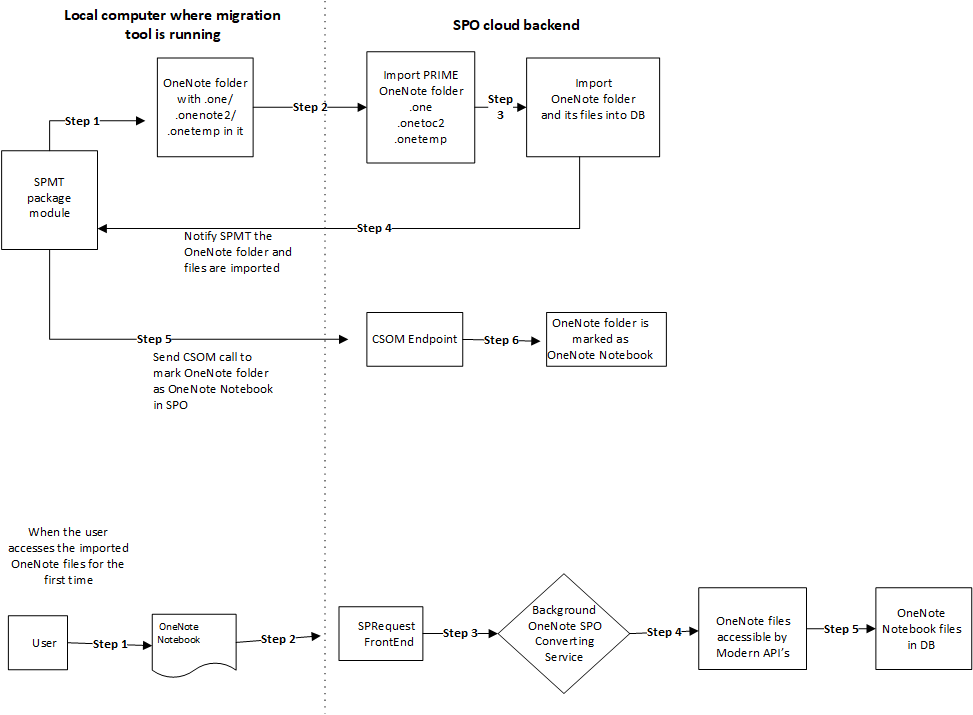
Algorithm for checking whether to mark the folder as OneNote folder
For a normal folder, we use the following algorithm to determine whether it should be marked as OneNote folder or not.
If any of the subfolders or descendant subfolders are NOT considered a OneNote folder, then this folder is NOT considered as a OneNote folder.
If any file under this folder has an extension other than the following, it is NOT considered as a OneNote folder.
- .one
- .onetoc2
- .onetemp
If the folder does not contain one .onetoc2 file, it is NOT considered to be a OneNote folder.
How to mark the OneNote folder
The CSOM will mark the HTML_x0020_File_x0020_Type field of the folder on SharePoint Online as OneNote.Notebook.
The marking must be done ONLY on the top-level OneNote folder candidate in the file hierarchy.
Sample code:
List list = context.web.Lists.GetById({listid});
ListItem item = list.GetItemByUniqueId({itemid});
Item[“HTML_x0020_File_x0020_Type”] = “OneNote.Notebook”;
Item.SystemUpdate();
Context.ExecuteQuery();