Note
Access to this page requires authorization. You can try signing in or changing directories.
Access to this page requires authorization. You can try changing directories.
Applies to: Consuming tenant admin — Compliance admin / Security admin / SharePoint admin
Apply security and compliance controls to SharePoint Embedded content by using Microsoft Purview and supported SharePoint administration features.
SharePoint Embedded uses Microsoft 365 compliance and data governance capabilities so organizations can protect, govern, and investigate content stored by embedded applications.
Some compliance scenarios require the owning application to provide the user experience because SharePoint Embedded is API-only and doesn't have its own user interface.
Important
Coordinate compliance controls with the SharePoint Embedded app owner. A policy can protect content, but app behavior must be implemented by the owning app to handle the effects of those policies.
Before you begin
Confirm these prerequisites.
- You can access Microsoft Purview with the required compliance role.
- You can access SharePoint administration tools when container details are needed.
- You can identify the SharePoint Embedded application and containers in scope.
- You can retrieve container site URLs for targeted policies.
- App owners understand the policy impact on their user experience.
- Legal, records management, and security stakeholders approve the control design.
For supported controls, see Plan security, compliance, and governance.
Get container details for policy scope
Many compliance tasks need a container URL or container identifier.
Use PowerShell to retrieve application and container details.
View SharePoint Embedded applications registered in the tenant.
Get-SPOApplicationRetrieve containers for an application.
Get-SPOContainer -OwningApplicationId <OwningApplicationID>Retrieve details for a container.
Get-SPOContainer -OwningApplicationId <ApplicationID> -Identity <ContainerID>
Use the container site URL to target policies at specific SharePoint Embedded containers.
For cmdlet details, see Get-SPOContainer.
Apply audit controls
Audit capabilities for SharePoint Embedded mirror existing SharePoint audit capabilities. User and admin operations performed in SharePoint Embedded applications are captured in the unified audit log.
Use Microsoft Purview audit to search activity and investigate file, user, app, and admin operations.
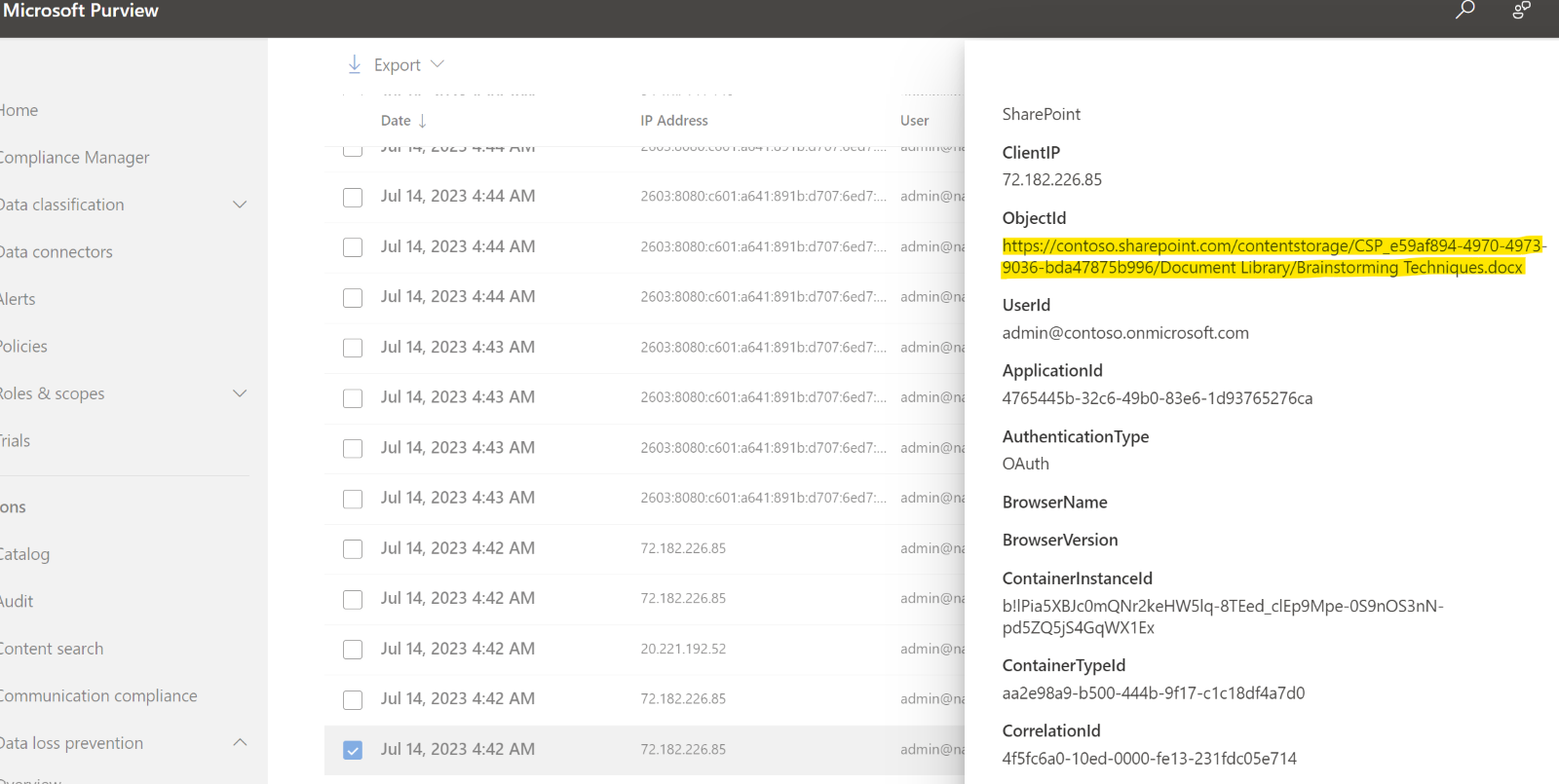
For audit review steps, see Review audit events. For a detailed list of container type and container type registration audit events, see SharePoint Embedded audit log events.
Apply eDiscovery
Compliance admins can use Microsoft Purview eDiscovery to search, hold, and export content hosted in SharePoint Embedded.
To search all SharePoint Embedded content with SharePoint content:
- Open the eDiscovery experience in Microsoft Purview.
- Configure the search.
- Select All SharePoint sites for the SharePoint workload.
- Run the search.
- Review results according to your eDiscovery process.
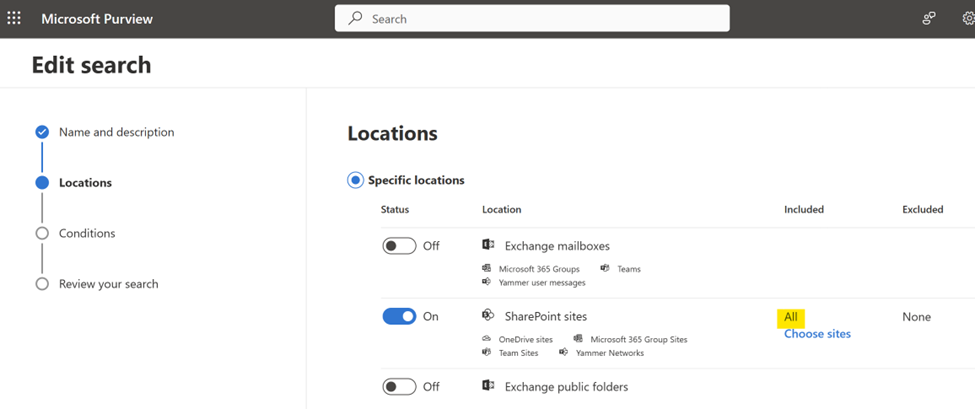
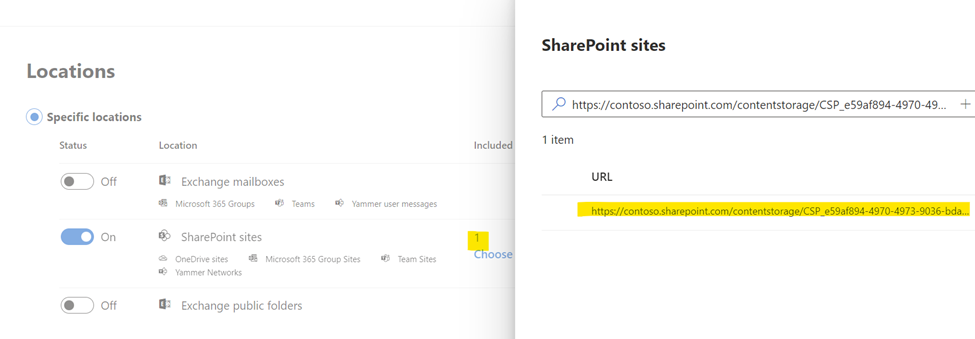
To limit the search to selected SharePoint Embedded containers:
- Retrieve the container site URL.
- In the SharePoint sites workload, choose specific sites.
- Add the container URL.
- Run and validate the search.
For product guidance, see Microsoft Purview eDiscovery solutions.
Apply retention and holds
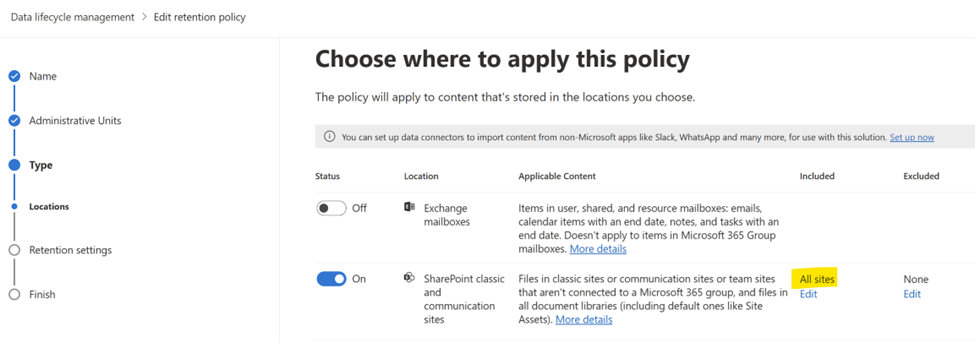
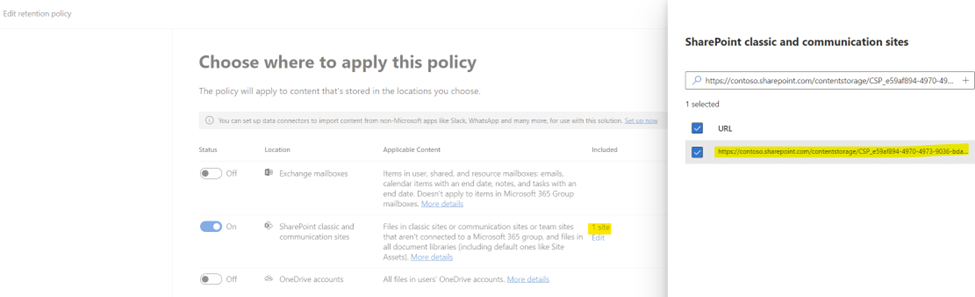
SharePoint Embedded supports retention and hold policies on content stored in applications through Microsoft Purview. Use these scoping options:
| Scope | Effect |
|---|---|
| All SharePoint sites | Applies to SharePoint sites and SharePoint Embedded containers. |
| Selected locations | Applies to specific SharePoint locations, including selected SharePoint Embedded container URLs. |
Use broad scope when a policy applies to all SharePoint and SharePoint Embedded content.
Use selected container URLs when a policy applies only to specific data.
Note
SharePoint Embedded doesn't provide a native user interface for retention label interactions. If users need to apply or respond to retention labels in an app, the owning app must provide that experience.
For Microsoft Purview Data Lifecycle Management, see Learn about Microsoft Purview Data Lifecycle Management.
Apply Data Loss Prevention policies
Use Microsoft Purview Data Loss Prevention (DLP) to identify, monitor, and automatically protect sensitive items stored in SharePoint Embedded applications.
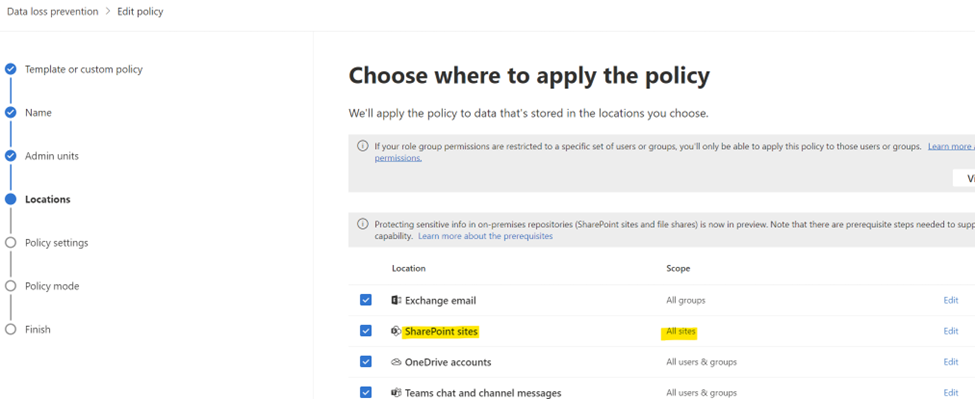
To apply DLP broadly:
- Create or edit a DLP policy in Microsoft Purview.
- Choose the SharePoint sites workload.
- Select All sites when the policy should include all SharePoint sites and SharePoint Embedded containers.
- Configure rules, actions, and alerts.
- Test and then enable the policy according to your rollout process.
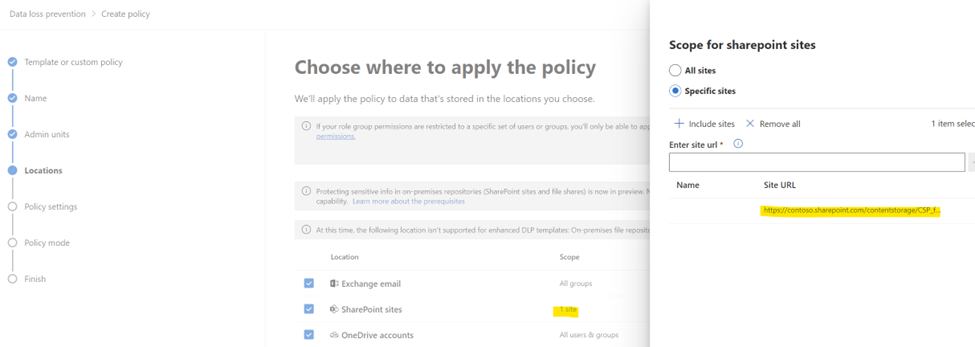
To apply DLP to selected SharePoint Embedded containers:
- Retrieve the container URLs.
- Configure the DLP policy for selected SharePoint locations.
- Add the container URLs.
- Validate policy behavior with the app owner.
Some DLP scenarios require user interaction, such as business justification for override or policy tips.
Because SharePoint Embedded doesn't provide a native user interface, the client app must implement the required user experience, often by using Microsoft Graph where applicable.
For DLP details, see Learn about data loss prevention.
Apply sensitivity labels to containers
Global Administrators and SharePoint Embedded Administrators can set or remove sensitivity labels on SharePoint Embedded containers with SharePoint PowerShell.
Set a label:
Set-SPOContainer -Identity <ContainerID/ContainerSiteURL> -SensitivityLabel <SensitivityLabelGUID>
Remove a label by using the supported container label command documented in Manage containers with PowerShell.
Before applying labels:
- Confirm the label is published.
- Confirm the label is appropriate for the container.
- Confirm app behavior with the app owner.
- Confirm compliance requirements with data owners.
For label concepts, see Learn about sensitivity labels.
Apply block download policy
SharePoint Embedded Administrators and Global Administrators can block file downloads from SharePoint Embedded containers with the SharePoint container policy cmdlet.
Set-SPOContainer -Identity <ContainerSiteURL> -BlockDownloadPolicy $true
You need a SharePoint Advanced Management license to enforce this policy.
Review Block download policy for SharePoint sites and OneDrive before enabling it in production.
Apply Conditional Access policy
SharePoint Embedded supports basic Conditional Access policy configurations.
The ConditionalAccessPolicy parameter supports these values:
AllowFullAccessAllowLimitedAccessBlockAccess
Use this SharePoint PowerShell cmdlet:
Set-SPOContainer -Identity <ContainerSiteURL> -ConditionalAccessPolicy <SPOConditionalAccessPolicyType>
Review tenant access policies before changing container access.
Test app behavior for web, desktop, and mobile clients.
For related guidance, see Control access from unmanaged devices.
Clarify responsibilities
Security and compliance controls often span multiple teams.
| Team | Responsibilities |
|---|---|
| Compliance admins | Configure Purview audit, eDiscovery, retention, DLP, and policy scope. |
| SharePoint Embedded admins | Retrieve container details and apply supported container settings. |
| SharePoint Embedded app owners | Implement app user experiences for policy tips, overrides, labels, and error handling. |
| Security admins | Review Conditional Access and access restrictions. |
| Legal or records teams | Approve holds, retention, and deletion decisions. |
Document the owner for each control before rollout.
Validate policy behavior
After applying a control:
- Confirm the policy is published or enabled.
- Confirm the target container URL or all-sites scope is correct.
- Ask the app owner to test common user workflows.
- Review audit records for policy-related activity.
- Review DLP alerts, eDiscovery results, or retention state as applicable.
- Record the change in your compliance operations log.
Tip
Pilot controls on a small set of containers before applying them broadly to all SharePoint sites and SharePoint Embedded containers.
Related content
- Review audit events
- Manage containers with PowerShell
- Manage containers in SharePoint admin center
- Plan security, compliance, and governance
- Troubleshooting
Next steps
Review troubleshooting guidance in Troubleshooting.