Note
Access to this page requires authorization. You can try signing in or changing directories.
Access to this page requires authorization. You can try changing directories.
This article highlights SharePoint home site updates rolling out starting May 2026 and details the specific changes due to the rename of Viva Connections to SharePoint app.
Note
SharePoint home site technology fully powers the Connections experience in Teams, now branded as the SharePoint app in Teams. Targeted Release rollout of all these updates is planned for early May 2026 with GA by end of June 2026. You can track progress on the related Microsoft 365 public roadmap: ID 557983.
A SharePoint home site provides a customized landing experience that reflects the organization's brand, voice, and priorities. A SharePoint home site also serves as the gateway to other portals in your organization's intranet. It's simply a special communication site in your organization. You can either create a new home site or set an existing communication site as your home site. An admin can do this action in the SharePoint admin center.
Viva Connections is a customizable employee engagement experience app in Teams. It is how your SharePoint intranet can be deployed within Teams desktop and mobile. With the rename of Viva Connections to SharePoint app in Teams, this functionality becomes a prominent feature of a SharePoint home site.
With this update, you can:
- Create or set a Home site in SharePoint admin center.
- Configure your home site with web parts and deploy it to your organization, just like any portal launch.
- In the home site, under Settings, set up the SharePoint app for Teams.
SharePoint home site updates - May-June 2026
What's not changing
- Existing home sites, site content, branding, and overall look and feel stay the same.
- Existing Viva Connections configurations, including customized app names and logos, keep working as configured.
- Existing Viva Connections deployments stay available as a branded employee experience within SharePoint.
- Organizations that require multiple home sites still need the appropriate licensing.
What's new
- SharePoint administrators can now create and designate home sites directly from the SharePoint admin center.
- A new Resources web part is available for curated links and employee resources.
- A new Announcements web part is available with no other license requirement.
- New filmstrip layout options are available for the News web part.
- A simplified experience for configuring SharePoint app in Teams is now available directly from the home site experience.
What's changing in the user experience
- The Teams desktop and mobile branding change from the default Viva Connections to SharePoint for noncustomized experiences.
- The default app experience aligns with SharePoint branding and removes Viva-specific default content.
- The global navigation experience within the SharePoint app in Teams desktop displays either SharePoint or your organization's customized app name.
- The Dashboard web part "See all" experience now supports end-user personalization and customization.
Create and designate home sites directly from the SharePoint admin center
You can now create and establish a communication site as a SharePoint home site directly within your organization's SharePoint admin center. Previously, you needed to go to the Viva Connections management console within Microsoft 365 admin center. Use the following step-by-step instructions to help set up your SharePoint home site. You must be assigned the role of SharePoint admin to accomplish these steps.
Once established, you can configure and manage your site content like any other SharePoint site - choosing your preferred theme, layouts, pages, navigation, and more.
To create a SharePoint home site, follow these steps:
Go to your SharePoint admin center and sign in. (The URL resembles
https://tenantname-admin.sharepoint.com/.)In the navigation pane, select Settings.
Under SharePoint apps, select Home sites to open a configuration panel called Home sites.
Select either + Add or Add a home site.
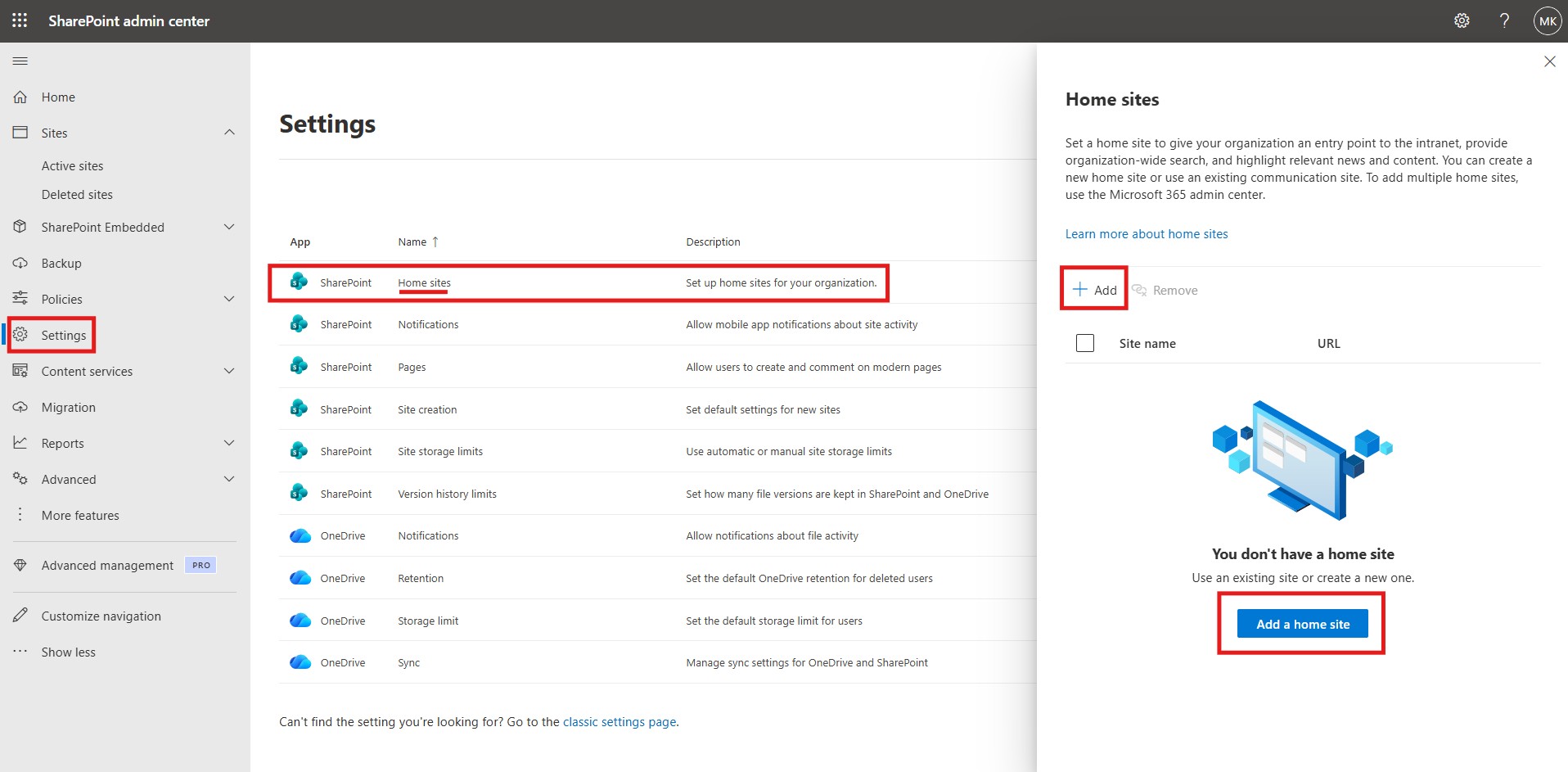
Select the type of home site you want to add. To create a new site, go to step 6. To use an existing communication site, go to step 7.
To create a new site to use as your home site:
Select Create a new site, and then select Next.
On the Preview and use 'Home site' template page, select Use template.
Give your site a unique name in the text box under Site name.
Validate your site name and URL, add a site owner, and then select Next.
Set your language and time zone, and then select Create site.
The site gets created as a home site, with Site name and URL.

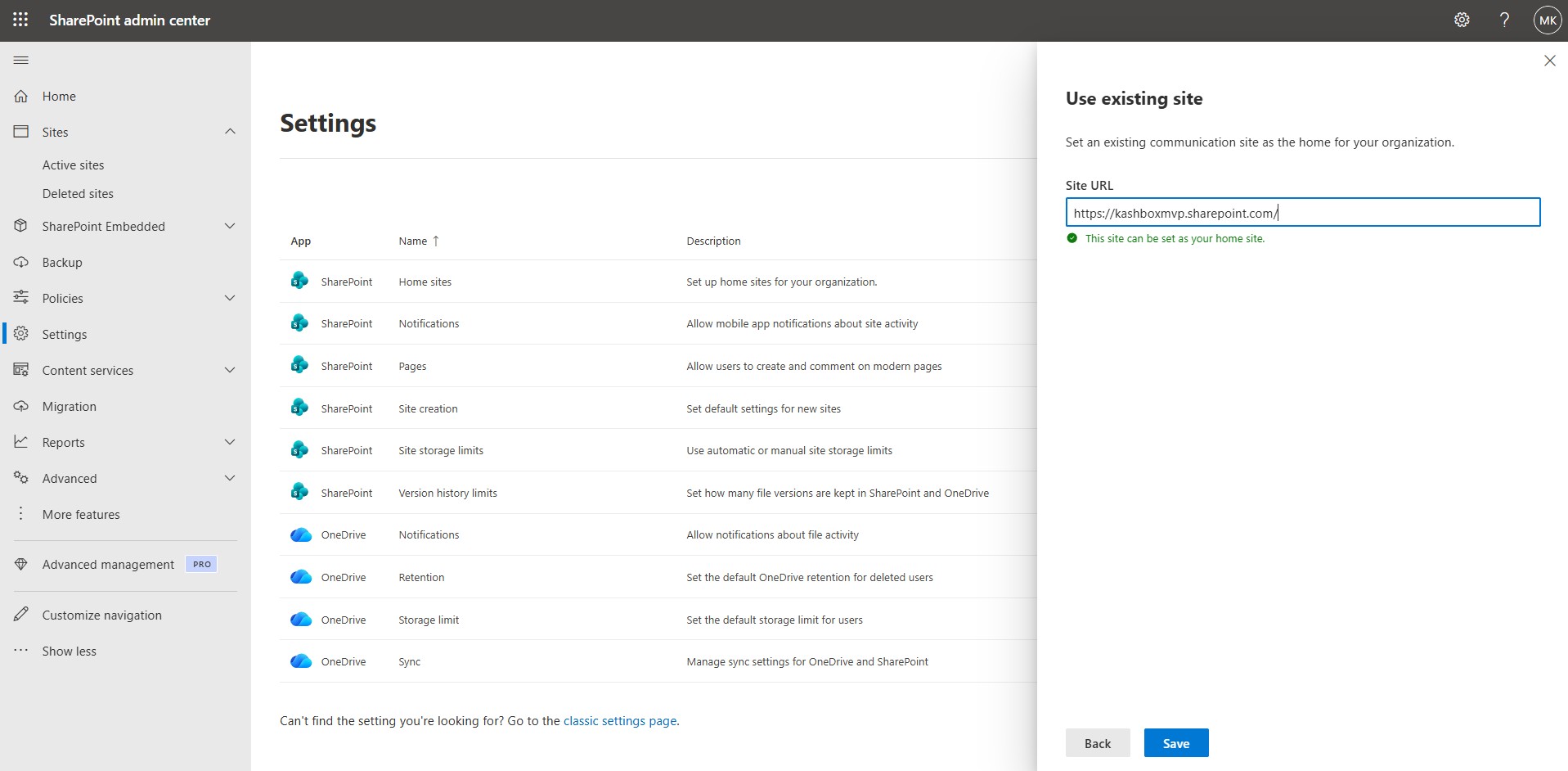
To use an existing communication site:
Select Use an existing communication site, and then select Next.
Specify the site URL of the existing communication site you want to set as your home site.
Validate that this site can be set as your home site. Green text indicates that the site meets the criteria.
Select Save.
The specified site is assigned as a home site, with its site name and URL.
Note
To add multiple home sites, you must still go to Viva Connections in the Microsoft 365 admin center.