Note
Access to this page requires authorization. You can try signing in or changing directories.
Access to this page requires authorization. You can try changing directories.
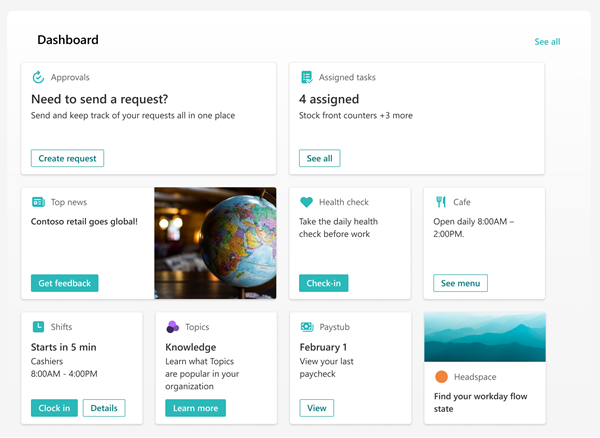
The SharePoint app in Teams dashboard web part provides fast and easy access to information and job-related tasks. Content on the dashboard can be customized and then targeted to users in specific roles, markets, and job functions. It consists of cards that engage viewers with existing Microsoft Teams apps, partner apps, custom solutions using the SharePoint Framework (SPFx), internal links, and external links. You edit the dashboard directly from within the SharePoint app in Teams user interface.
Note
- You're asked to select your primary audience to generate a set of default dashboard cards for when setting up your experience for the first time.
- Operators or members should limit the number of dashboard cards to about 20 for the best viewing experience.
- Operator or member permissions are required to edit the SharePoint app in Teams dashboard.
- Users are able to customize their dashboard in the SharePoint app in Teams on desktop and mobile by reordering, hiding, and showing cards. These changes only affect the experience for the user.
From within your SharePoint app in Teams experience, select Edit in the dashboard section.
Select + Add a card.
Select Edit (pencil icon) for each card to edit properties like the label, icon, image, and audience targeting settings where applicable.
Select Delete (trash can icon) to remove cards.
Preview the experience on all devices to ensure usability before publishing or republishing.
Publish or Republish when you're done to share the edits with others.
Change the dashboard settings
The dashboard details contain settings for your dashboard, page versioning, and controls for the Editor and enabling user customization on their personal dashboard view.
Note
Some settings are only available to the SharePoint app in Teams owner.
From the SharePoint app in Teams, select Edit.
Select Dashboard details above the dashboard.

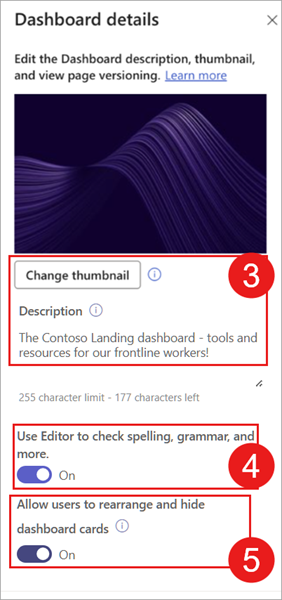
In the Dashboard details pane, you can add a thumbnail and description to show in search results:
Change Thumbnail: Select to add an image to be shown in search results.
Description: Enter a description in the text field to be shown in search results.
The Editor can be toggled off or on. When enabled, the editor checks spelling and grammar (Enabled by default).
Allow users to rearrange and hide dashboard cards can be enabled or disabled (Enabled by default):
If enabled, users see the Customize button on their dashboard, which enables them to show or hide unused dashboard cards, reorder their dashboard card view, and add their own cards.
Changes users make to their dashboard are only seen by that user. Any updates or changes to the dashboard by an owner or member of the experience will override the user’s personal changes.
Note
Disabling user customization resets all user dashboard views to what the organization created. This includes removing any dashboard cards the user added to their dashboard.
When finished making your changes, select the X to close the Dashboard details pane.
Note
- After editing content on the dashboard, it might take several minutes until the new content is available in the Dashboard web part.
- Dashboard cards are refreshed when users manually select Refresh in the SharePoint app in Teams or restart Teams app or navigate away from and back to the SharePoint app in Teams. If Teams remains open and idle in the background, dashboard content may not automatically update until one of these actions occurs.
- For best results, we recommend placing the Dashboard web part in a right vertical section.
-
Images are an important aspect to making your cards rich and inviting. If you're a SharePoint admin, we recommend enabling a Content Delivery Network (CDN) to improve performance for getting images. Consider when storing images that /siteassets is by default a CDN source when Private CDN is enabled while /style library is the default source when the Public CDN is enabled. Learn more about CDNs.
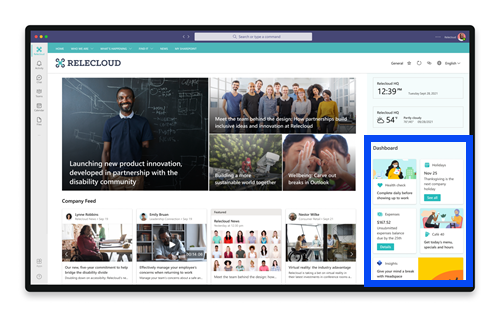
You can set the maximum number of cards you want to display.
Customize your dashboard with cards and audience targeting
Further customize your dashboard by adding various cards meant to help specific users perform specific tasks. Audience targeting and unique dashboard cards can show specific content for specific groups within your organization.
For a list of available dashboard cards, along with a description of the tool and steps for setting up, refer to the article on Available dashboard cards for the SharePoint app in Teams.
For more information on audience targeting and aspects of your SharePoint app in Teams experience it can be applied to, see the article on applying audience targeting to dashboard cards.
How URLs and single sign-on works
For some cards, you'll use links to URLs. Depending on the location of the content, links to URLs might display content in Microsoft Teams or elsewhere and Single sign-on (SSO) behavior can differ. Get more information about how links to URLs and SSO behave depending on the location of the content you're linking to.
Note
When SSO isn't supported, users are asked to enter their sign-in credentials.
| Opens URL to… | On Teams mobile | On Teams desktop |
|---|---|---|
| Teams App | Teams apps (like Shifts, Approvals, or Kudos) open within Teams and user doesn’t need to authenticate again. | Teams apps (like Shifts, Approvals, or Kudos) open within Teams and user doesn’t need to authenticate again. |
| Forms | Forms open within Teams, user is asked to sign-in on the first time, and user doesn’t need to authenticate again if they stay signed in. | Forms open within Teams, user is asked to sign-in on the first time, and user doesn’t need to authenticate again if they stay signed in. |
| Viva Engage | Viva Engage opens within Teams, user is asked to sign-in on the first time and user doesn’t need to authenticate again if they stay signed in. | Opens a web browser session and the user might need to reauthenticate depending on browser and machine settings. |
| Power Apps | Power Apps opens within Teams, user is asked to sign-in on the first time and user doesn’t need to authenticate again if they stay signed in. | Opens a web browser session and the user might need to reauthenticate depending on browser and machine settings. |
| Power Portals | Power portals open within Teams, user is asked to sign-in on the first time and user doesn’t need to authenticate again if they stay signed in. | Opens a web browser session and the user might need to reauthenticate depending on browser and machine settings. |
| Stream | Stream opens within Teams, user is asked to sign-in on the first time and user doesn’t need to authenticate again if they stay signed in. | Opens a web browser session and the user might need to reauthenticate depending on browser and machine settings. |
| External Links | Web view opens within Teams and the user might need to authenticate again (depending on the site.) | Opens a web browser session and the user might need to reauthenticate depending on browser and machine settings. |
Related resources
Learn more about how to plan a dashboard