Note
Access to this page requires authorization. You can try signing in or changing directories.
Access to this page requires authorization. You can try changing directories.
SharePoint stores objects as abstracted code within application databases. When a user uploads a file to SharePoint, SharePoint disassembles the file and translates it into application code. SharePoint stores the code in multiple tables across multiple databases. In SharePoint, all content that a customer uploads is broken into chunks, encrypted (potentially with multiple AES 256-bit keys), and distributed across the datacenter. For specific details about the chunking and encryption process, see Encryption in the Microsoft Cloud.
When you use the SharePoint application within a browser, any user who deletes an item retains the item in the site Recycle Bin for 93 days from the time they deleted it from its original location. The items stay in the site Recycle Bin the entire time, unless someone deletes them from the site Recycle Bin or empties that Recycle Bin. In that case, the items go to the site collection Recycle Bin, also known as the second-stage Recycle Bin, where they stay for the remainder of their retention period. Items deleted from the site collection Recycle Bin are purged immediately. If the item deleted causes the site collection Recycle Bin to exceed its quota, it starts purging the oldest items until there's space for the most recently deleted item. For info about restoring deleted items, see Restore items in the Recycle Bin of a SharePoint site and Restore deleted items from the site collection recycle bin.
When you delete a site collection, you also delete the hierarchy of sites in the collection, and all content within them:
- Documents and document libraries
- Lists and list data
- Site configuration settings
- Role and security information that is related to the site or its subsites
- Subsites of the top-level website, their contents, and user information
If you accidentally delete a site collection, a global or SharePoint admin can restore it by using the SharePoint admin center.
Deleted site collections are retained for 93 days. After 93 days, sites and all their content and settings are permanently deleted, including lists, libraries, pages, and any subsites.
Hard deletion occurs when a user purges deleted items from the site collection Recycle Bin, when the retention and backup periods expire, or when an administrator permanently deletes a site collection by using the Remove-SPODeletedSite cmdlet. When a user hard deletes (permanently deletes, or purges) content from SharePoint, SharePoint also deletes all encryption keys for the deleted chunks. The blocks on the disks that previously stored the deleted chunks are marked as unused and available for reuse.
Users can also interact with the SharePoint platform by using CSOM/REST APIs. API calls can recycle or delete items on SharePoint such as files and folders. Recycling an item adds it to the Recycle Bin, similar to the browser application behavior described earlier in this article. However, deleting results in the item being immediately purged and it isn't recoverable from the site or site collection Recycle Bins. You can read more about SharePoint APIs here.
SharePoint retains backups of all content for 14 more days beyond actual deletion to facilitate a full site collection restore for customers. Customers can reach out to Microsoft support to initiate a full site collection or subsite point in time restore if files are hard deleted, corrupted, or infected with malware and are unrecoverable using the methods described earlier. After this 14 day period, Microsoft no longer retains the data and it isn't recoverable.
Delete an item from the site Recycle Bin
To delete items from the SharePoint site Recycle Bin
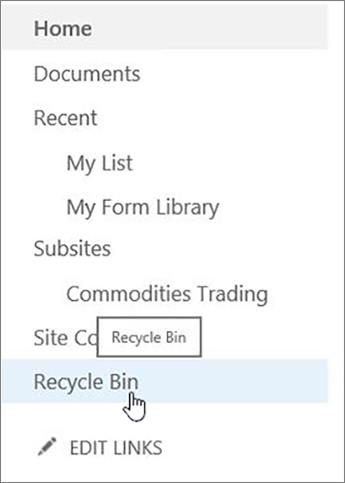
Click Recycle Bin in the Quick Launch bar on the left of the screen.
If you don't see the Recycle Bin on the Quick Launch bar, follow these steps:- Click Settings
 and then click Site Contents.
The Recycle bin option is in the top-right portion of the Site Contents page.
and then click Site Contents.
The Recycle bin option is in the top-right portion of the Site Contents page.

- Click Settings
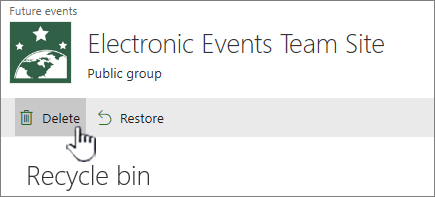
On the Recycle Bin page, click the box to the left of the items or files you want to delete or restore.
Click Delete to delete the selected files.
Note
If you don't see the item you're looking for, it might have already been deleted and already moved to the site collection Recycle Bin. Or it might have exceeded the holding time limit (93 days) and already been permanently deleted.
To delete all items from the SharePoint site Recycle Bin
Click Recycle Bin in the Quick Launch bar on the left of the screen.
If you don't see the Recycle Bin on the Quick Launch bar, follow these steps:- Click Settings
and then click Site Contents.
The Recycle bin option is in the top-right portion of the Site Contents page.
- Click Settings
On the Recycle Bin page, click Empty recycle bin
 to delete all items.
If Empty recycle bin isn't visible, make sure you unselect all items in the recycle bin.
Delete items or empty the Second-stage Recycle Bin in SharePoint
Caution
When you delete an item from the Second-stage or Site Collection Recycle Bin, it is permanently removed.
On modern team sites and classic sites (subsites) in the left pane, choose Recycle bin.
On modern communication sites, select Site contents, and then click Recycle bin in the top navigation bar. If you don't see the Recycle Bin, and you do have permissions, try the following steps.
Click Settings
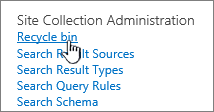
and then click Site settings. If you don't see Site settings, click Site information and then click View all site settings. Some pages might require you to select Site contents, and then Site settings.On Site Settings, under Site Collection Administration, select Recycle bin.
At the bottom of the Recycle bin page, click Second-stage recycle bin.

Do one of the following:
Delete one or more items - Hover and click the circle next to the item(s) you want to delete and then click Delete.
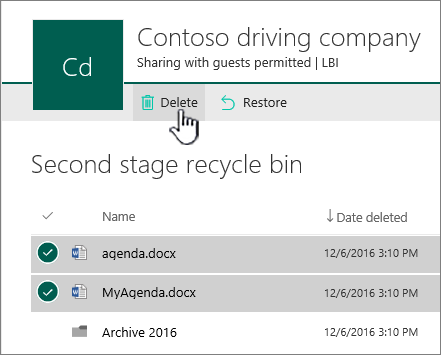
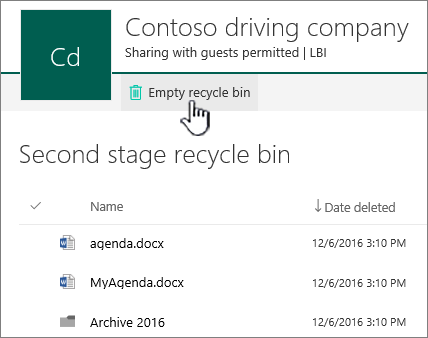
Delete all items - Clear all check marks and click Empty recycle bin.
In the confirmation box, click Delete.