Note
Access to this page requires authorization. You can try signing in or changing directories.
Access to this page requires authorization. You can try changing directories.
The site lifecycle management features from Microsoft SharePoint Advanced Management let you improve site governance by having automated policies configured in the SharePoint admin center. Inactive site policies, part of SharePoint's site lifecycle management features, help you automate this process. You can set up an inactive site policy to automatically detect inactive sites and notify site owners via email. Owners can then confirm if the site is still active.
What do you need to create an inactive site policy
What are the license requirements?
Your organization needs to have the right license and meet certain administrative permissions or roles to use the feature described in this article.
First, your organization must have one of the following base licenses:
- Office 365 E3, E5, or A5
- Microsoft 365 E1, E3, E5, or A5
Additionally, you need at least one of these licenses:
- Microsoft 365 Copilot license: At least one user in your organization must be assigned a Copilot license (this user doesn't need to be a SharePoint administrator).
- Microsoft SharePoint Advanced Management license: Available as a standalone purchase.
Administrator requirements
You must be a SharePoint administrator or have equivalent permissions.
Additional information
If your organization has a Copilot license and at least one person in your organization is assigned a Copilot license, SharePoint administrators automatically gain access to the SharePoint Advanced Management features needed for Copilot deployment.
For organizations without a Copilot license, you can use SharePoint Advanced Management features by purchasing a standalone SharePoint Advanced Management license.
How do inactive site policies work
Scope of inactive site policies
You can configure parameters for an inactive site policy like inactive time period, template type, site creation source, sensitivity labels, and exclusion of up to 100 sites.
In-scope site activities
Inactive site policies analyze activity across SharePoint and connected platforms like Teams, Viva Engage (formerly Yammer), and Exchange to detect a site's last activity.
| Platform type | Activities |
|---|---|
| SharePoint | Viewed files, edited files, shared files internally and externally, synced files, viewed pages, visited pages |
| Viva Engage (formerly Yammer) | Posted messages, read conversations, liked messages |
| Teams | Posted channel messages in a team across standard channels, posted messages in Teams and standard channels, replied to messages, mentioned in messages, reacted to messages, sent urgent messages, conducted meetings (recurring, ad hoc, one-time) |
| Exchange | Received emails in the Exchange mailbox |
Scope of app activities
Inactive site policies do not consider app activity via app token. App activity via user token is considered only when a user agent involved and meets the following criteria.
| Activity source | Condition when activity is considered |
|---|---|
| PnP PowerShell activity via user token | Is not considered |
| SharePoint Online PowerShell activity via user token | Is considered only when UserAgent parameter value is passed |
| CSOM scripting activity via user token | Is considered when script explicitly sets UserAgent value |
| Any other app activity via user token | Is considered when UserAgent exists, except in the following scenarios when - UserAgent starts with "client-request=id"/"ACTIVEMONITORING"/SPORUNNERS" OR - UserAgent ends with "MSDEMO"/"MSDPLATFORM"/"SystemUsage" OR - UserAgent contains "GomezAgent"/"bingbot.htm"/"ms search 6.0 robot"/"http://www.monitis.com"/"ISV" |
| App activity via app token | Is not considered |
In-scope site templates
Site lifecycle management reviews the activity of communication sites, classic sites, Teams-connected sites, and group-connected sites with the following site template types:
| Site type | Template type |
|---|---|
| Communication site | SitePagePublishing#0 |
| Classic sites | STS#0, STS#1, STS#2, WIKI#0, BLOG#0, SGS#0, SPS#0, SPSNEWS#0, ENTERWIKI#0, COMMUNITY#0, DEV#0, EXPRESS#0, EHS#1, EHS#2 |
| Teams-connected site | STS#3 or Group#0 |
| Group-connected site | STS#3 or Group#0 |
Out-of-scope sites
The following sites are considered out-of-scope and excluded from site activity detection:
OneDrive sites
Sites created by system users
App catalog sites
Root sites
Home sites
Tenant admin sites
Sites associated with Shared and Private Teams channels
Policy modes
When setting up a site lifecycle policy, you can choose between a simulation policy and an active policy.
Simulation mode
The simulation policy runs once and generates a report based on the set parameters. If it fails, you need to delete it and create a new one. Once you validate a simulation policy, you can convert it to an active policy.
Active mode
The active policy runs monthly, generating reports and sending notifications to site owners to confirm the site's status. If it fails during a particular month, it will run again on the next schedule. The active policy enforces actions on inactive sites that remain uncertified by the site owner or admin, provided you configured it to take enforcement actions.
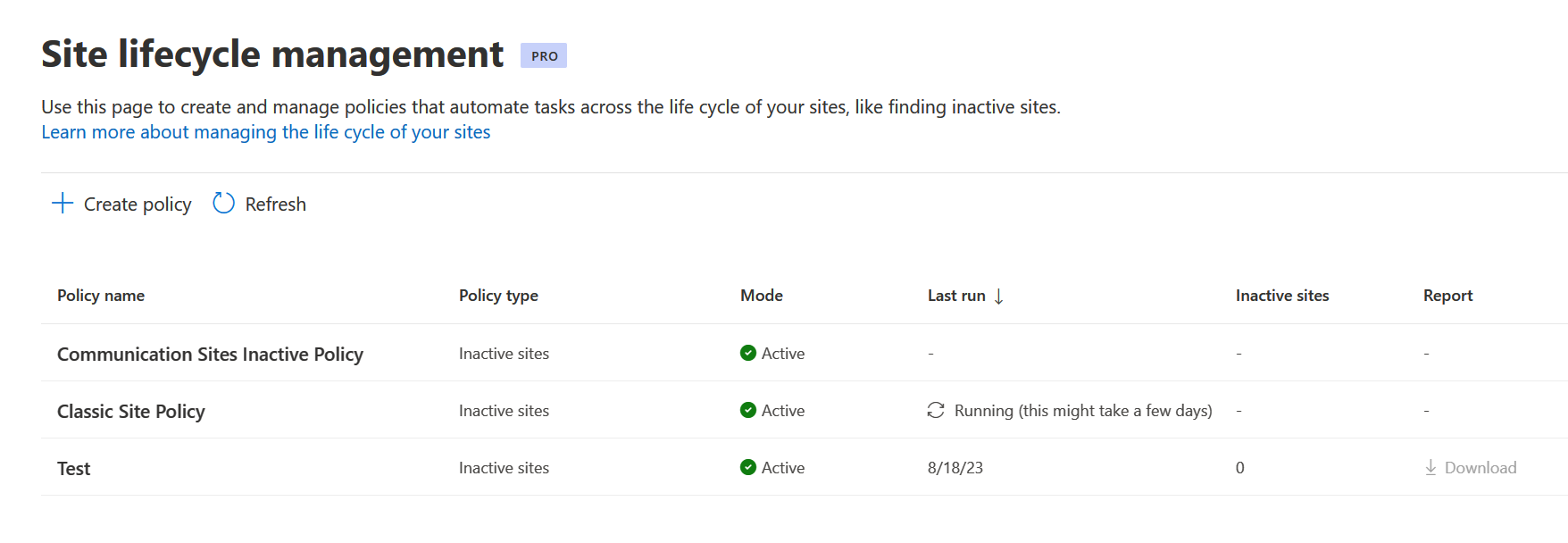
How to create an inactive site policy
To create an inactive site policy, expand Policies and select Site lifecycle management in the SharePoint admin center:
Select + Create policy and then select Next.
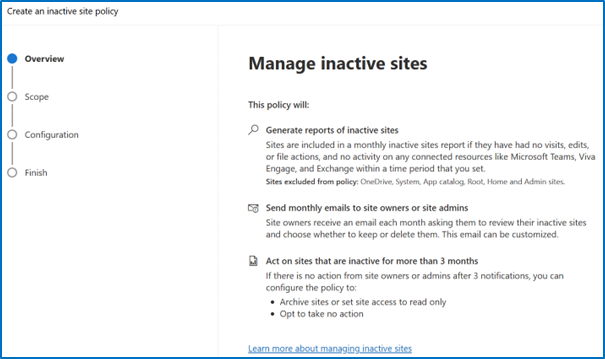
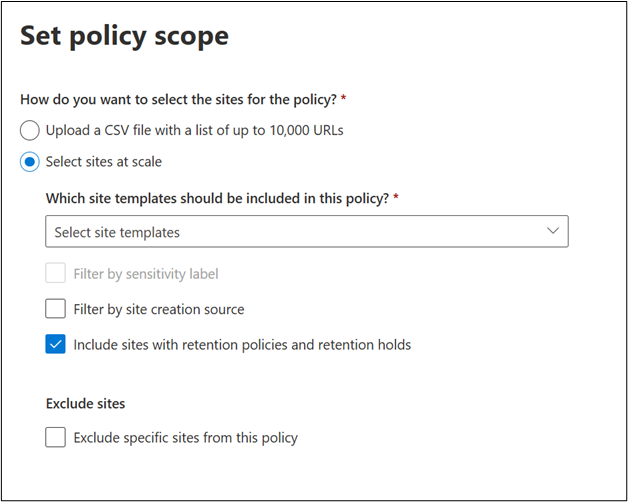
Choose your policy scope option and select Next.
If you select Upload a CSV file with a list of up to 10,000 URLs, you can upload a list of site URLs of select sites for the policy.

Tip
- You can export the site list from the SharePoint active sites page.
- Ensure the CSV file use the same format of the sample CSV file and has no duplicate URLs and those URLs are valid and complete.
- Ensure the URLs listed in CSV file belong to your tenant’s domain.
Note
- When you select Include sites with retention policies and retention holds, read-only sites and locked sites are included in the scope of the policy.
- All inactive ownerless sites are automatically included in the scope of the policy.
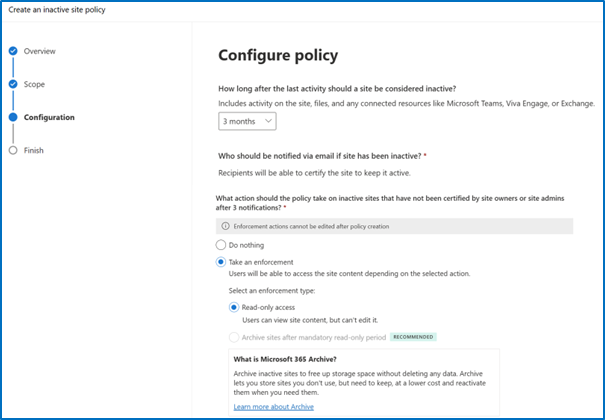
Define the configuration of the policy by selecting the inactivity period, the email recipients and the enforcement actions. Select Next.
During the configuration step, you can:
- Choose to send emails to site owners or site admins, or both.
- Customize the email content to provide more context and instructions to the email recipients.
- Choose enforcement actions if there's no response from site owners or admins after three notifications.
Choose enforcement actions
For sites that aren't certified or attested after 3 monthly notifications for any of the site lifecycle management policies, you can take one of the following enforcement actions.
Enforcement action Policy behavior Do nothing Site owners or site admins receive monthly notifications for three months. After this period, no notifications are sent for the next three months. If the site remains unattested after six months, monthly notifications resume. The policy execution report lists unattested sites as unactioned by the site owner. You can download this report and filter out sites marked as unactioned. Read-only access Site owners or site admins receive monthly notifications for three months. If the notification recipients don't mark the site as attested during this period, the site goes into read-only mode. Archive sites after mandatory read-only period Site owners or site admins receive monthly notifications for three months. If the notification recipients don't mark the site as attested during this period, then the site goes into a read-only mode for a configurable duration (3, 6, 9, or 12 months). After the configured number of months, the site gets archived through Microsoft 365 Archive. Archival is subject to the tenant enabling Microsoft 365 Archive on the Microsoft Admin center. The following screenshot shows an example of configuring enforcement actions for a site attestation policy:

Note
If you configure the policy to take an enforcement action:
- The notifications won’t be sent after policy action is successful.
- The site and it’s status are included in the monthly report.
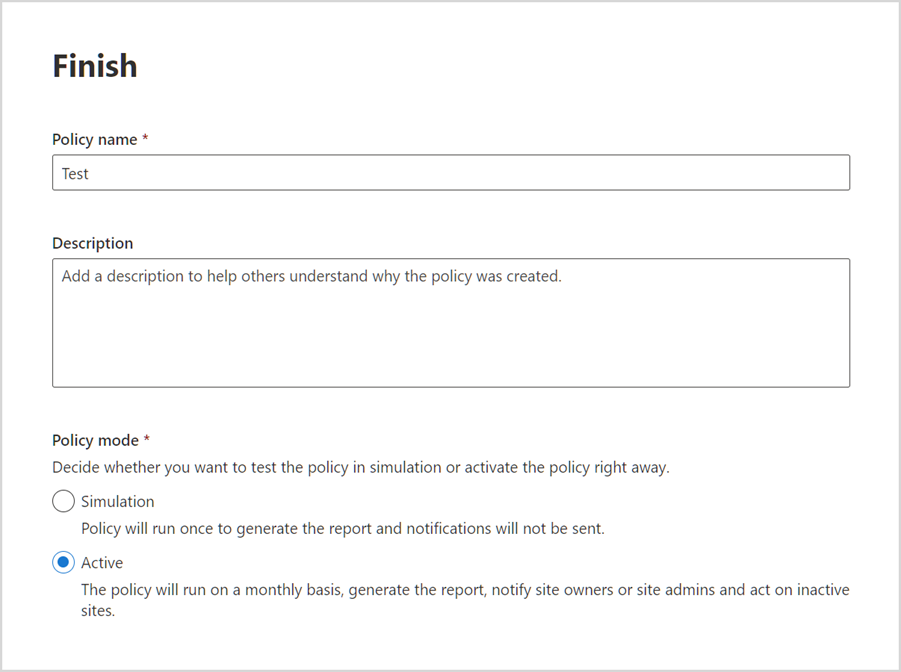
Name the policy, add a description (optional), and select a policy mode. Select Finish. Your policy is now created and can be viewed and managed from the Site lifecycle management > Inactive site policy dashboard.
Inactive site notifications to site owners or site admins
Notifications inform SharePoint site owners or site admins when a site is inactive for a specified number of months. To keep the site, the notification recipients should select the Certify site button in the notification email. Once certified, Site lifecycle management doesn't check the site's activity for one year.
Sites managed by multiple site lifecycle management policies
For each type of site lifecycle management policy—site ownership policy, inactive site policy, and site attestation policy—if multiple policies are created under the same type, notification emails aren't repeated. If a notification was sent within the last 30 days from any policy of that type, and the site remains uncertified, no further notifications are sent. The policy execution report shows the site's status as "Notified by another policy."
For example, if a site is covered by two different inactive site policies and receives a notification email from the first policy, no additional notifications will be sent from the second policy within the next 30 days if the site remains uncertified.
It's recommended to ensure that policies of the same type do not have overlapping scopes. If sites fall under the scope of multiple policies of the same type, the notification schedule and enforcement actions on the site could become unpredictable.
Enforcement actions
The following table summarizes how the inactive site policy behaves based on the selected enforcement action:
| Enforcement action | Policy behavior |
|---|---|
| Do nothing | Site owners or site admins receive monthly notifications for three months. After this period, no notifications are sent for the next three months. If the site remains inactive after six months, monthly notifications resume. The policy execution report lists inactive sites as unactioned by the site owner. You can download this report and filter out sites marked as unactioned. |
| Read-only access | Site owners or site admins receive monthly notifications for three months. If the notification recipients don't mark the site as certified during this period, the site goes into read-only mode. |
| Archive sites after mandatory read-only period | Site owners or site admins receive monthly notifications for three months. If the notification recipients don't mark the site as certified during this period, then the site goes into a read-only mode for a configurable duration (3, 6, 9, or 12 months). After the configured number of months, the site gets archived through Microsoft 365 Archive. Archival is subject to the tenant enabling Microsoft 365 Archive on the Microsoft Admin center. |
Important
- Site lifecycle policies leverage Outlook Actionable Messages to enable site owners or site admins take necessary actions within email.
- For notifications to render properly, ensure Outlook version requirements are met in your organization.
- To troubleshoot rendering issues, refer to frequently asked questionnaire.
- When a site owner or site admin selects the site URL in the notification email, this action does not count as site activity. The site remains inactive. Additionally, any read actions done on the site within one hour of visiting from the email aren't considered activity. However, any edits made to the site count as activity and reset the inactivity status.
Tip
Before creating an inactive site policy, check for any site access restriction policies that could disrupt site attestation by the respective site owner.
Read-only mode
An inactive site policy configured with the read-only enforcement action sends additional notifications to inform site owners or site admins when there's no response.
A notification is sent when the site goes into read-only mode.
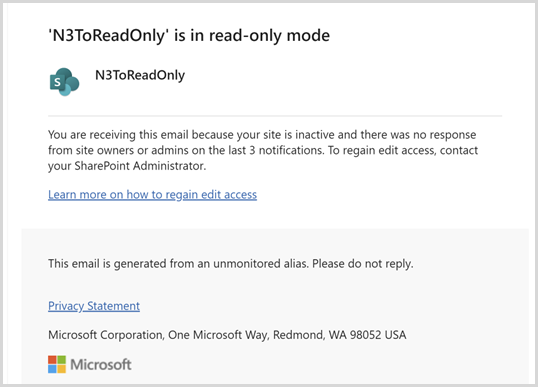
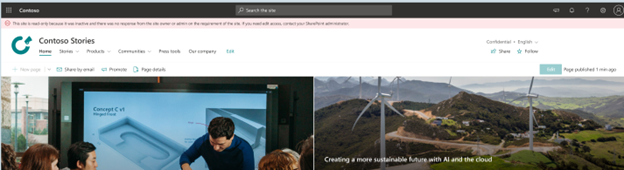
Once the site is in read-only mode, the following banner is added to the site:
Remove site from read-only mode
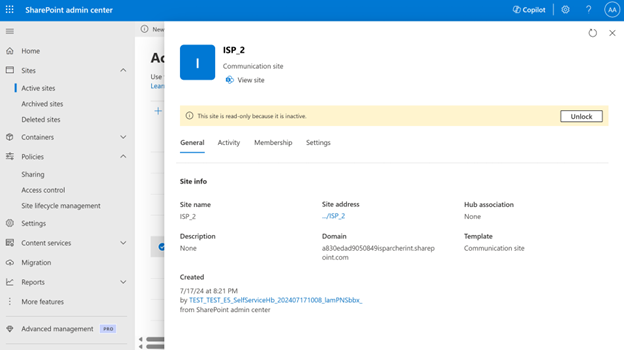
To remove a site from read-only mode in SharePoint admin center, go to the Active sites page, select the site, and then select Unlock from the site page panel.
Site owners can't remove a site from read-only mode and must contact the tenant admin to remove read-only mode.
Unarchive a site
To unarchive a site in SharePoint admin center, expand Sites and select Archived sites. Select the site you want to unarchive and select Reactivate.
Note
Only tenant admins can reactivate an archived site.
Reporting
Sites with inactivity for six months are listed in the policy execution report. The report is available for download as a .csv file and lets you filter out sites that are considered unactioned by site owners.

The following table describes the information included in the policy execution report:
| Column | Definition |
|---|---|
| Site name | Name of the site |
| URL | URL of the site |
| Template | Template of the site |
| Connected to Teams | Is it a Teams-connected site or not |
| Sensitivity label | Sensitivity label of the site |
| Retention policy | Is any retention policy applied to the site or not |
| Site lock state | State of site access before the policy is run (Unlock/Read-Only/No access) |
| Last activity date (UTC) | Date of last activity detected by inactive site policy across SharePoint site and connected workloads (Exchange, Viva Engage (formerly Yammer), or Teams) |
| Site creation date (UTC) | Date when the site was created |
| Storage used (GB) | Storage consumed by the site |
| Number of site owners | Total count of site owners for the site |
| Email address of site owners | Email addresses of all site owners |
| Number of site admins | Total count of site admins for the site |
| Email address of site admins | Email addresses of all site admins |
| Action status | Status of the site (First/second/third notification sent, Site in read-only mode, Site archived, Action taken by another policy: read-only/archive/notified by another policy) |
| Total notifications count | Total notifications sent so far by any policy under the same policy template |
| Action taken on (UTC) | Date on which the enforcement action was taken (date when site was archived or put in read-only mode) |
| Duration in read-only | Number of days the site is in the enforced read-only state |