Note
Access to this page requires authorization. You can try signing in or changing directories.
Access to this page requires authorization. You can try changing directories.
Note
This article applies to the preview version of AI capabilities in SharePoint (previously referred to as Knowledge Agent) and will be available soon.
Structured document generation lets you turn Word document templates into intelligent, AI-powered forms. When a user submits a form, a new document is automatically generated from the template with the submitted values merged into the appropriate fields. This creates consistent, governed documents every time—without requiring manual edits to the template.
This feature is useful for organizations that regularly produce standardized documents, such as:
- Legal and compliance — Contracts, NDAs, statements of work, settlement agreements, vendor agreements.
- Procurement and finance — Purchase orders, invoices, payment authorizations.
- Human resources — Employment verification letters, offer letters, travel and visa support letters.
- Sales and operations — Proposals, bid documents, statements of compliance, customer letters.
How structured document generation works
The document generation process involves two roles and a handoff between them.
Content manager (template creator) — Creates and governs templates and forms. They define the document structure, required fields, and conditional rules to ensure that every generated document is consistent and compliant.
Content consumer (form submitter) — Submits forms to generate documents. They fill out the form with the requested information, and the system generates a new document that preserves the approved layout and language—only the field values change.
Prerequisites
- Content Managers i.e. users who will create and configure forms must have a Microsoft 365 Copilot license assigned.
- To create a form, users must have Edit permissions on the document library.
- The source document must be a Microsoft Word document (.docx format).
Create a form from a document
You can create a form from any Word document stored in a SharePoint document library.
In a SharePoint document library, select Forms from the command bar.
Select Create a document generation form to start the form creation process.
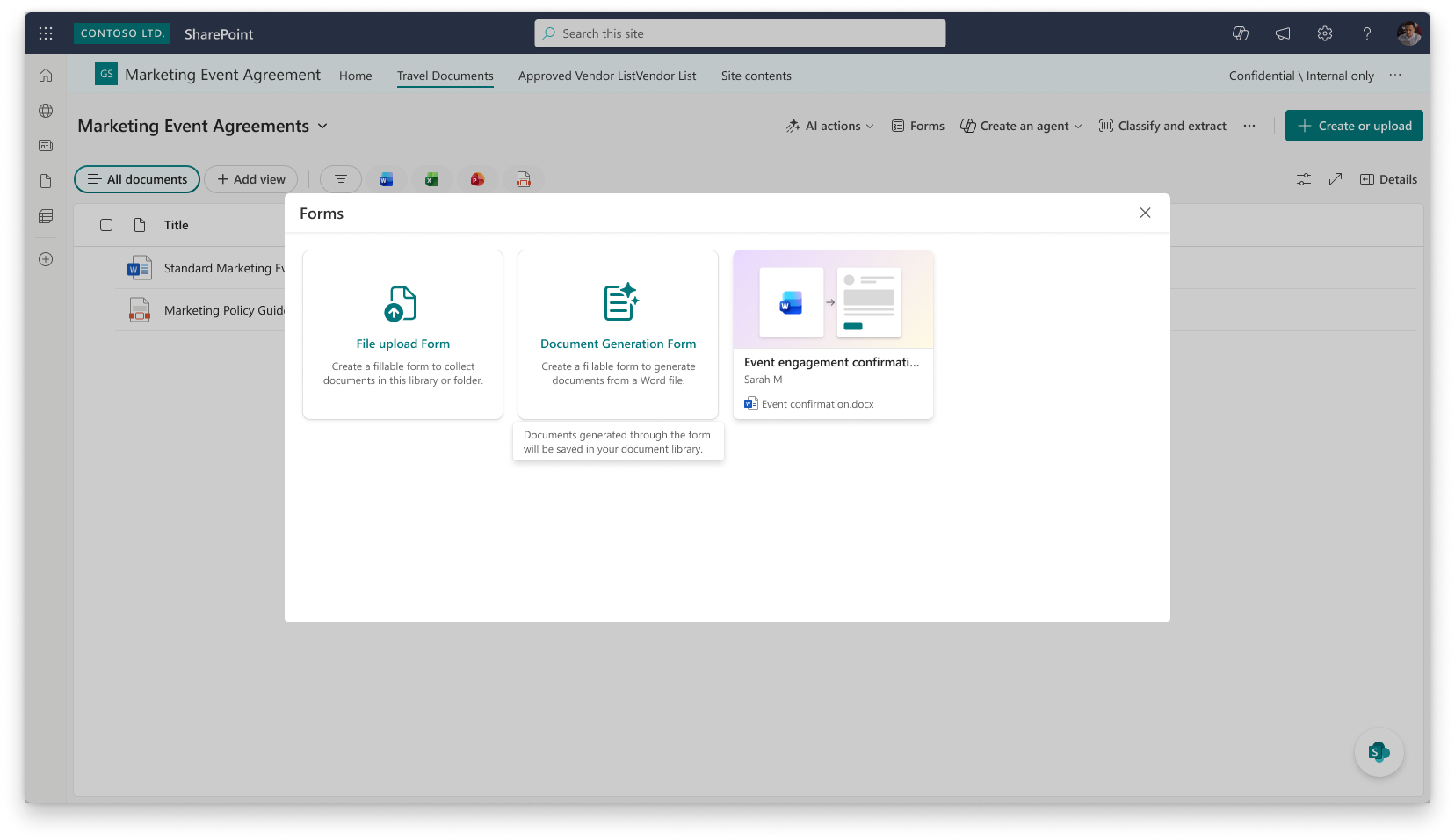
Upload the Word document you want to use as a template. You can select a document from:
- The current SharePoint document library
- A OneDrive location
- Your local device

SharePoint AI analyzes the structure of the document and automatically suggests fields—such as names, dates, addresses, and responsibilities—so you don't have to do manual setup.
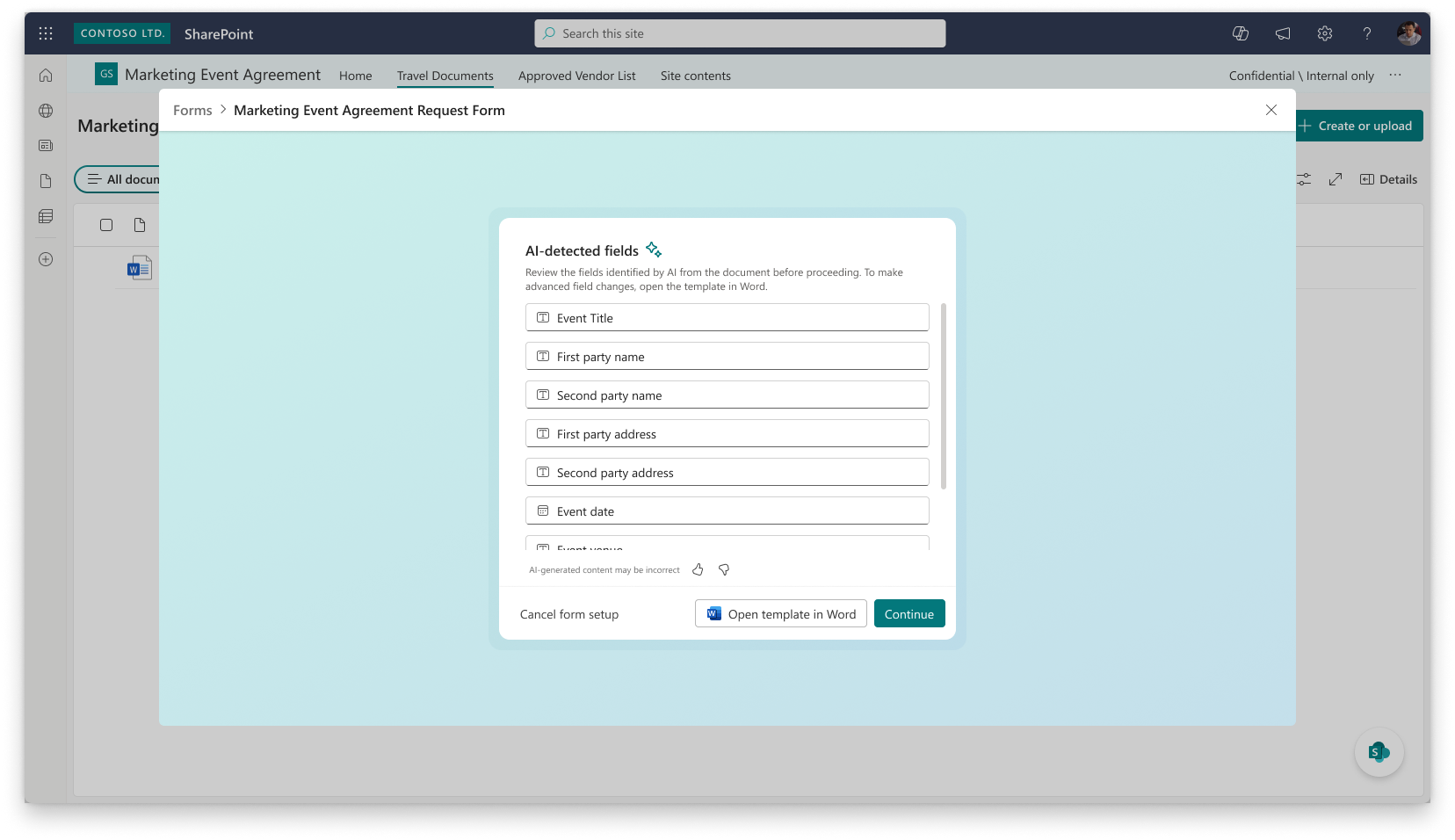
Review the suggested fields. You can:
- Confirm which fields are required.
- Refine field names to match your organization's terminology.
- See how each field maps back to locations in the document.
- Add new fields to capture additional details.
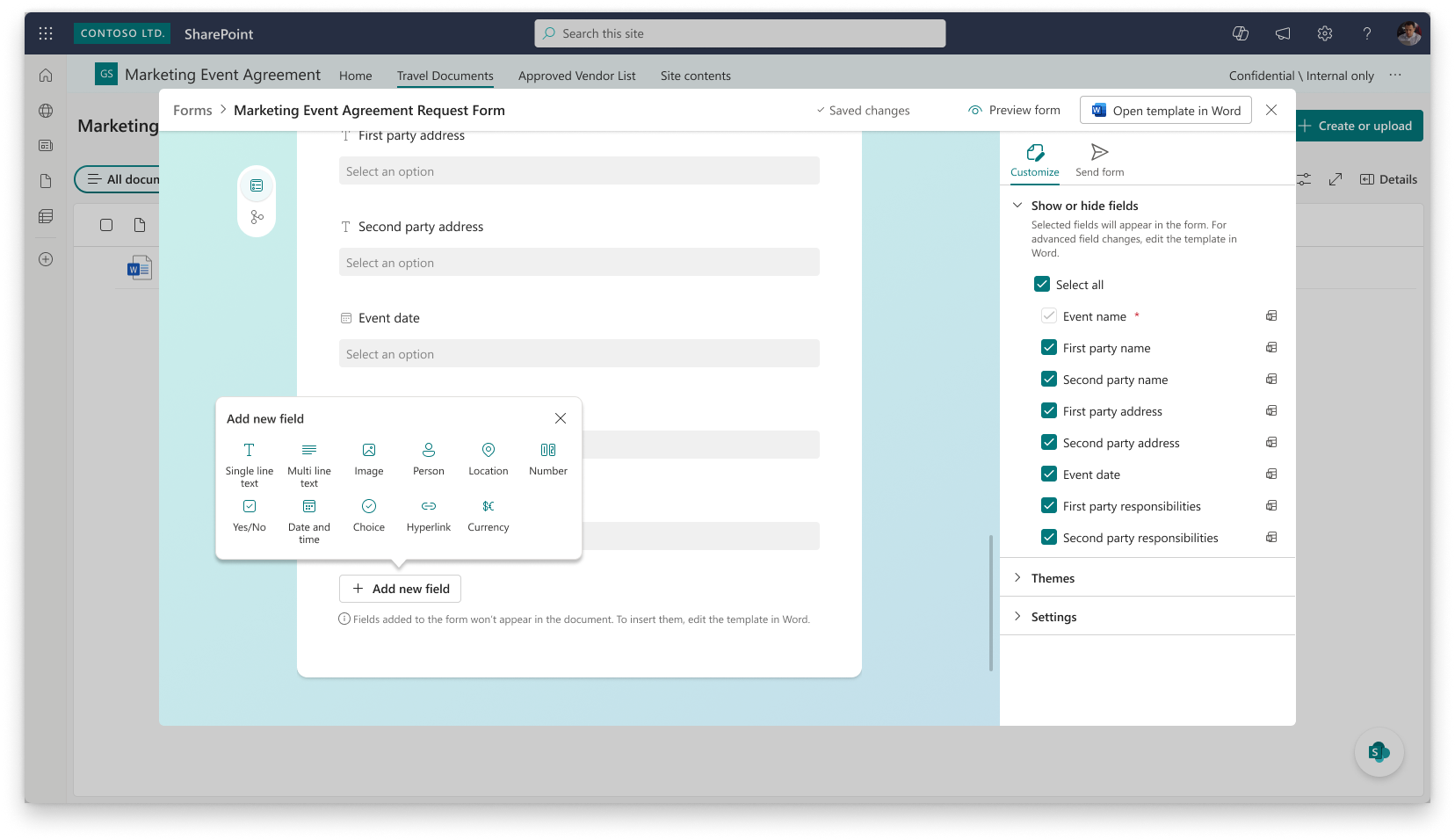
Note
Each field shows the number of insertions in the document (for example, "1 of 3 insertions"), so you can see exactly where values will appear in the generated document.
Configure field details
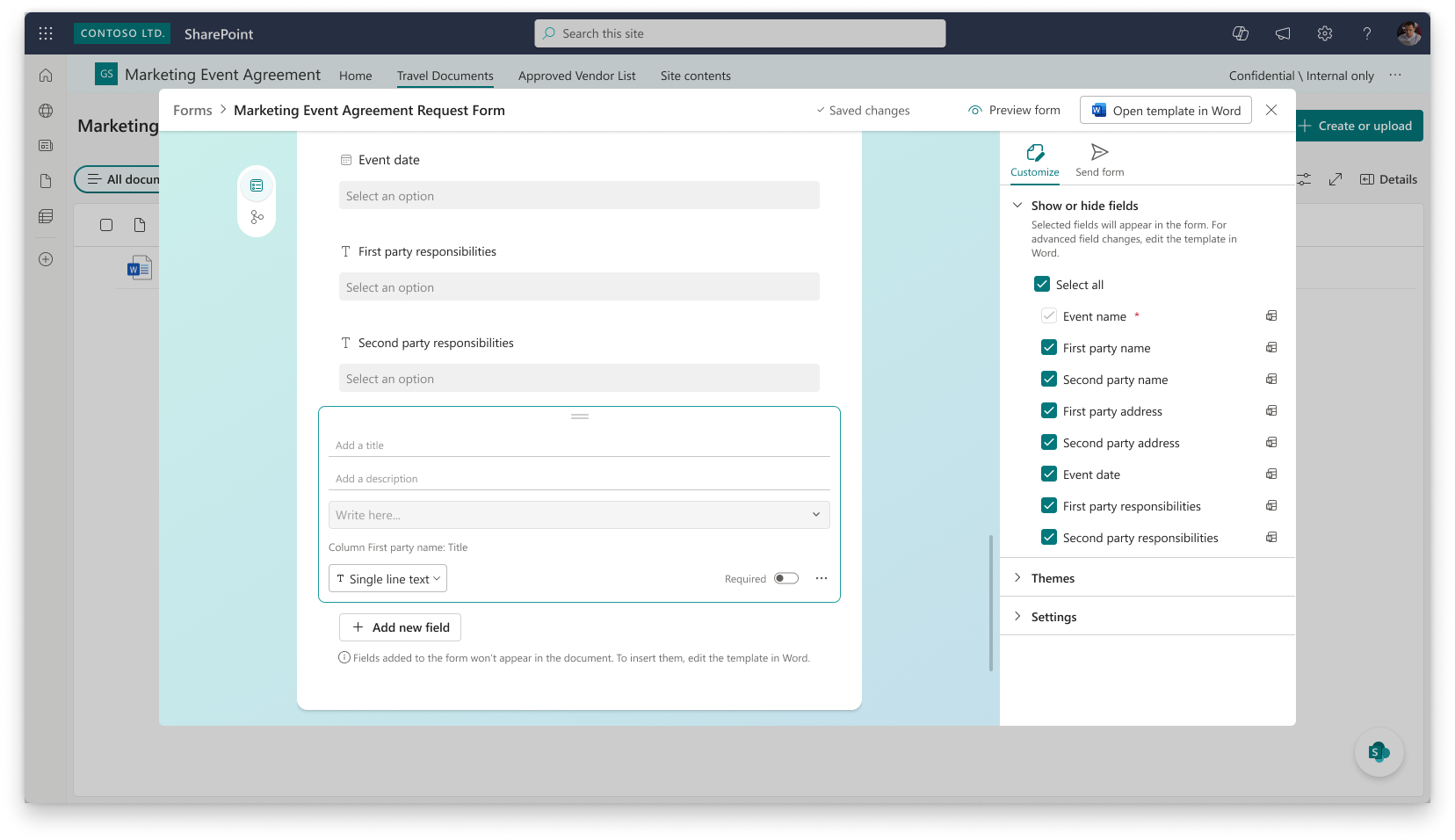
When you create or edit a field, you configure the following details:
Field name — Enter a descriptive name for the field.
Required — Select the Document authors are required to fill this field checkbox to make the field mandatory.
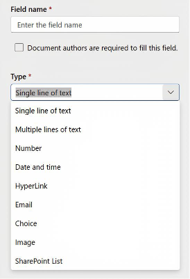
Type — Select the data type for the field from the Type dropdown.
Supported field types
The following field data types are supported:
- Single line of text — A short text input for names, titles, or brief descriptions.
- Multiple lines of text — A longer text input for detailed content such as responsibilities or clauses.
- Number — A numeric input for quantities, amounts, or identifiers.
- Date and time — A date picker for selecting dates or date and time values.
- Hyperlink — A URL input for linking to external resources or references.
- Email — An email address input field.
- Choice — A dropdown selection from predefined options.
- Image — An image field for inserting logos, signatures, or other visual content into the document.
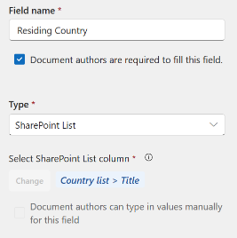
- SharePoint List — A lookup field that references values from a column in a SharePoint list.
When you select SharePoint List as the field type, you're prompted to select the SharePoint list column to associate with the field. You can also select the Document authors can type in values manually for this field option to allow form submitters to enter values directly in addition to selecting from the list.
Set up conditional sections
You can define business rules as conditional logic and map them to multiple sections in the document. Conditional sections let you control which parts of the generated document are included based on the values that form submitters enter.
For example, a legal agreement might include country-specific clauses that only appear when the submitter selects a particular country.
To set up a conditional section:
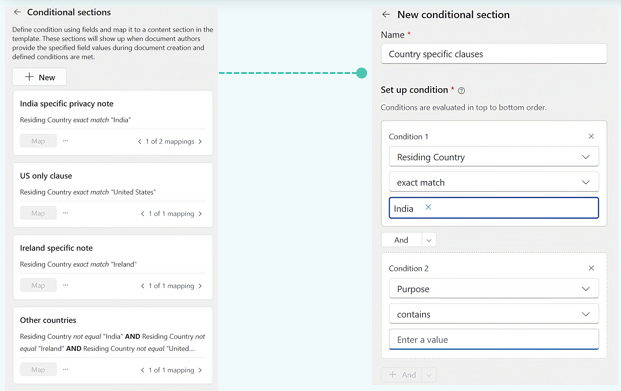
Open the template document and in the Manage templates pane, go to Conditional sections and select + New.
Enter a Name for the conditional section (for example, "Country specific clauses").
Under Set up condition, configure one or more conditions. Conditions are evaluated in top-to-bottom order. For each condition:
- Select the field to evaluate (for example, "Residing Country").
- Select the matching rule (for example, exact match or contains).
- Enter the value to match against.
To add multiple conditions, select And or Or to combine them.
Select Map to associate the conditional section with one or more sections in the document content.
Note
You can create multiple conditional sections, each with different rules. For example, you might have separate conditions for "India specific privacy note," "US only clause," and "Other countries," each mapped to different sections of the document.
Fine-tune the template in Word
When you need to fine-tune specific sections of the document—such as adjusting standardized clauses, formatting, or setting up conditional logic—you can open the template in Word for advanced configuration.
Select the option to open the template in Word. The document opens with the Manage templates pane on the right side, displaying the Customise fields section.
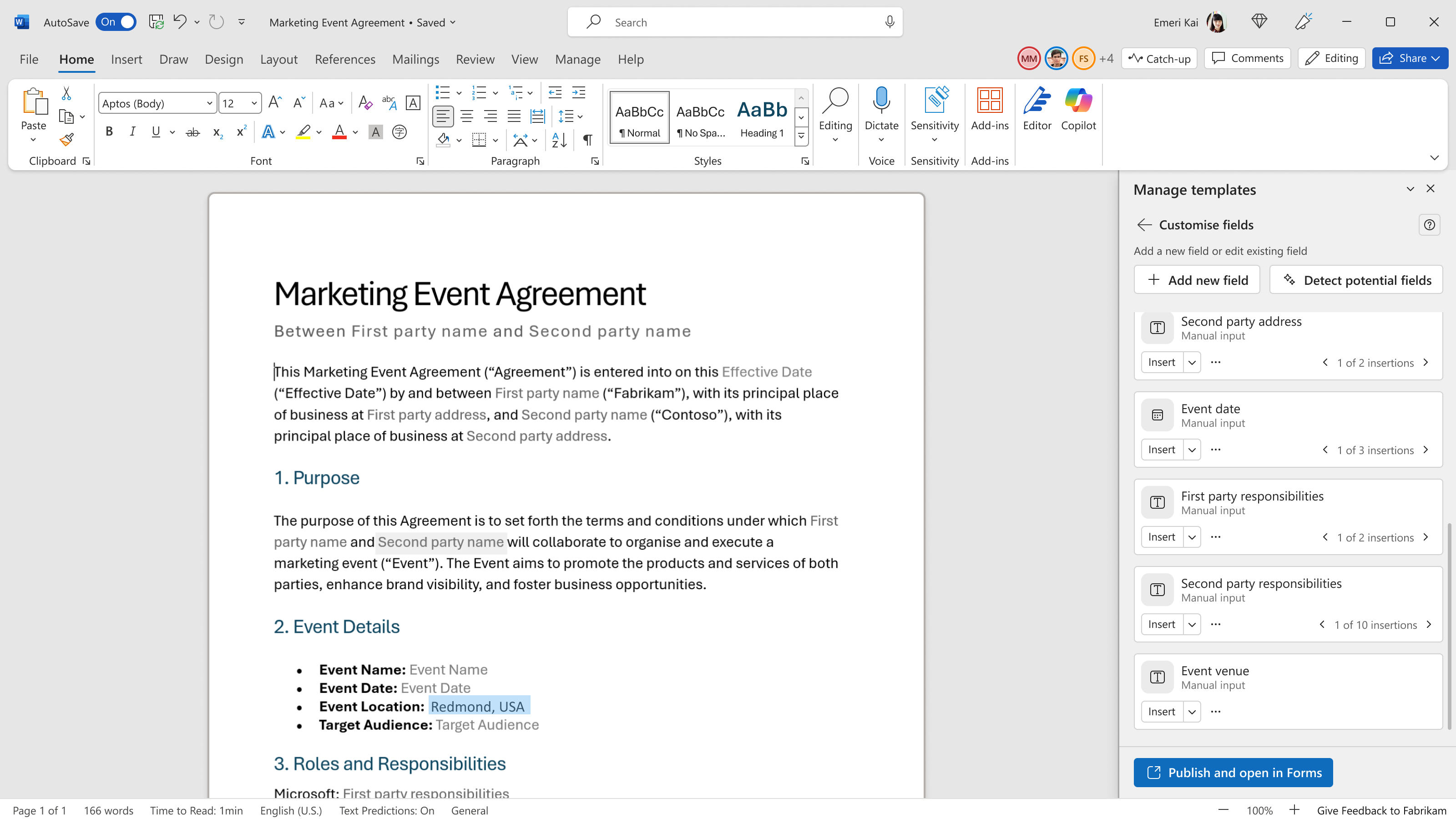
In the Customise fields section, you can:
- Select + Add new field to create additional fields.
- Select Detect potential fields to run AI detection again on the document content.
- Use the Insert dropdown on each field to map it to specific locations in the document.
- Select the ... (more options) menu on a field to rename it, change help text, or delete it.
To set up conditional sections, define business rules that control which parts of the document are included based on field values.
When you're finished, select Publish and open in Forms at the bottom of the pane.
Word closes the template and transitions to the form view in SharePoint. A loading indicator shows "Closing template and opening form" during the transition.
Customize the form
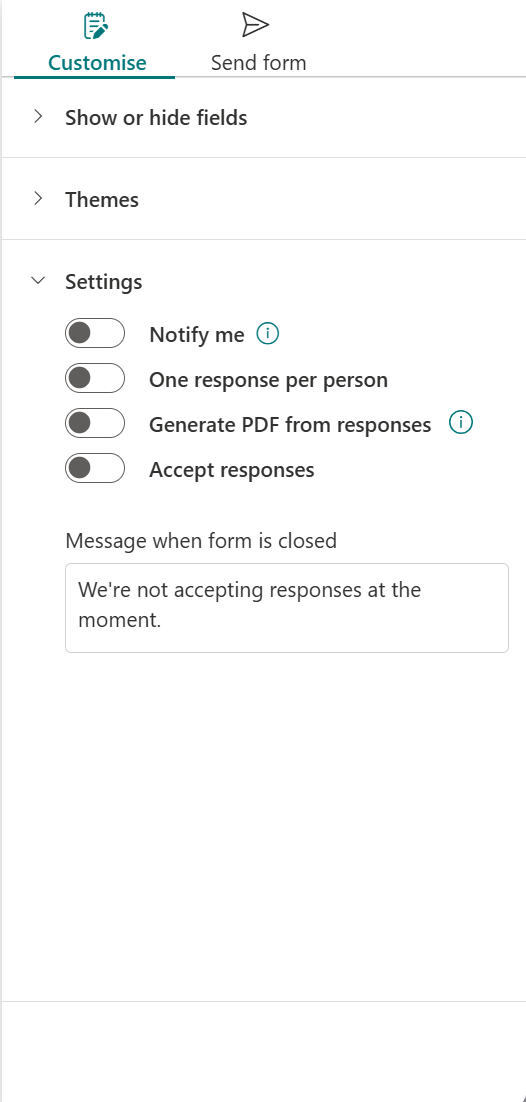
After the template is published, the form opens in SharePoint with a customization pane on the right side. The pane has two tabs: Customize and Send form.
Show or hide fields
On the Customize tab, the Show or hide fields section lists all fields from the template with a checkbox for each one. Selected fields appear in the form. Clear the checkbox for any field you don't want to show to form submitters.
Note
For advanced field changes, edit the template in Word. The Show or hide fields section controls field visibility only.
Themes and settings
Expand the Themes section to change the visual appearance of the form.
Expand the Settings section to configure form-level options:
Notify me — Toggle to receive a notification when a form is submitted.
One response per person — Toggle to limit each user to a single form submission.
Generate PDF from responses — Toggle to generate a PDF version of the generated document.
Accept responses — Toggle to start or stop accepting form submissions.
Message when form is closed — Customize the message displayed to users when the form is no longer accepting responses (default: "We're not accepting responses at the moment.").
Share the form link
After the form is published, share the form link so users in your organization can submit forms and generate documents.
Select the Send form tab in the customization pane to access the form link.
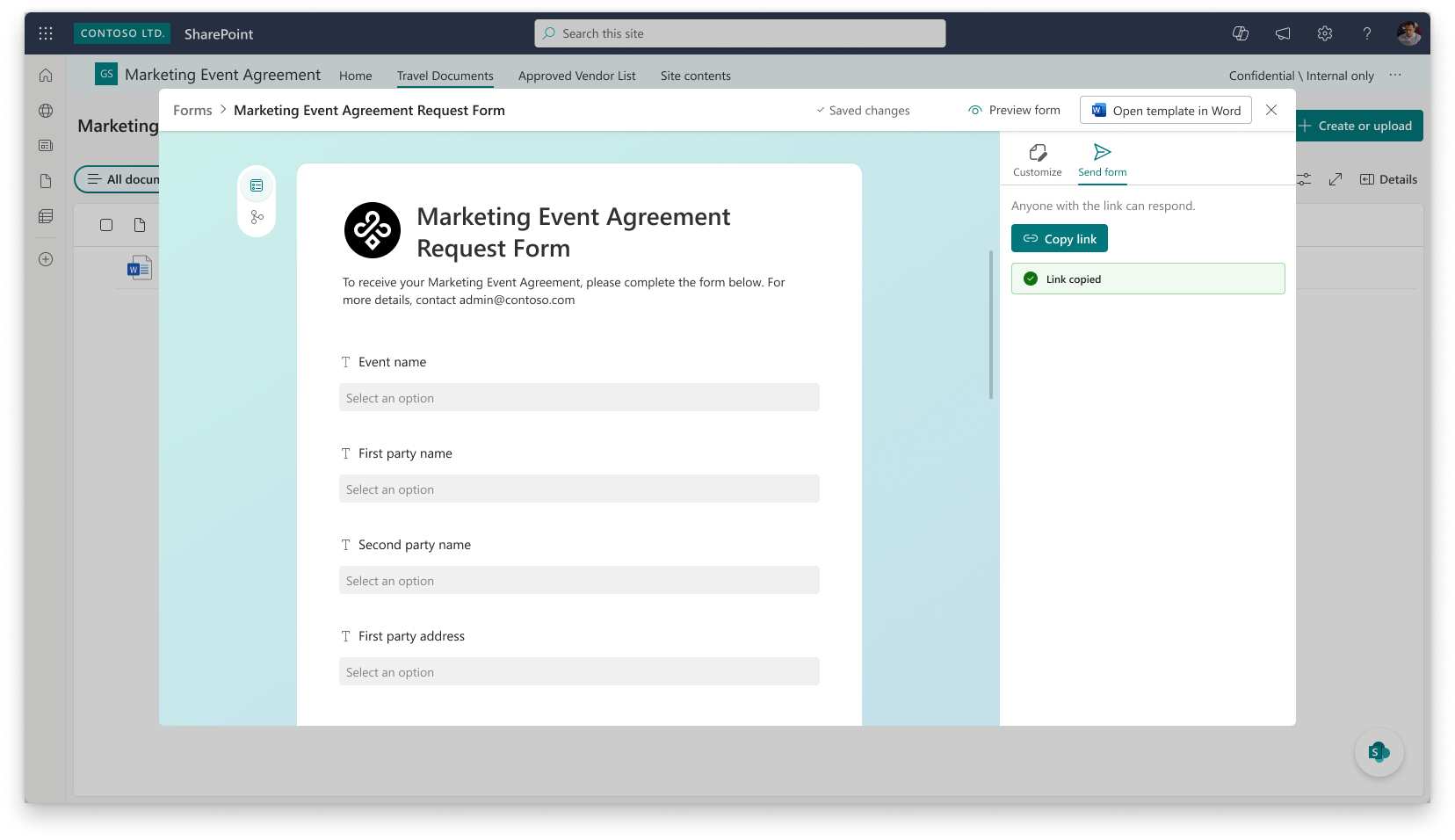
Copy the form link and distribute it through any collaboration channel:
- Microsoft Teams
- Outlook
- SharePoint agents
- SharePoint site pages
Tip
You can embed the form link directly on a SharePoint site page so that users can find and access it alongside other resources on your internal sites.
The form link is persistent—it stays the same URL even when you update and republish the template. Form submitters always see the latest published version.
Fill out and submit a form
Content consumers use the shared form link to generate documents.
Open the form link from the location where it was shared—for example, a SharePoint site page, a Teams message, or an email. A simple form opens in the browser.
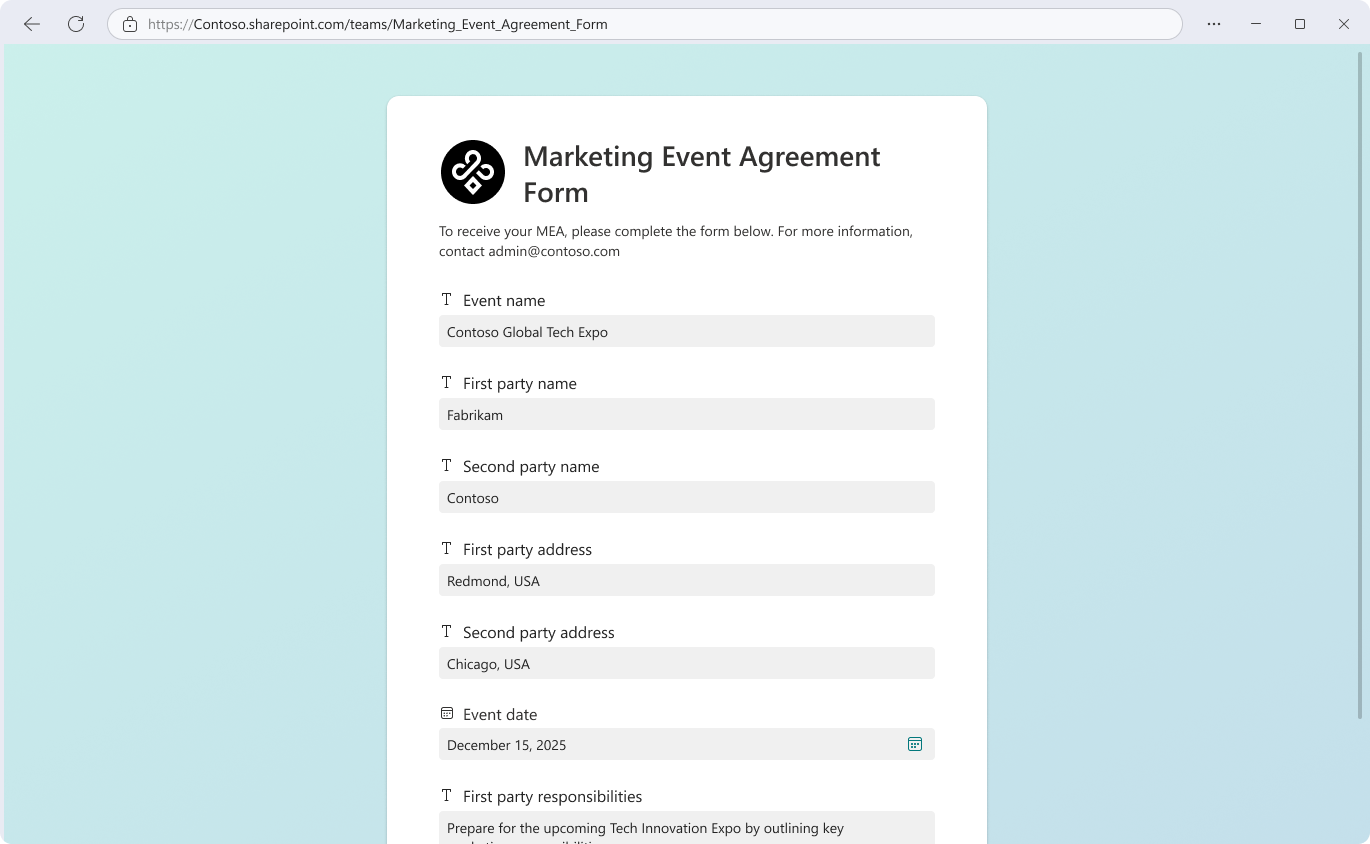
Fill in the requested fields, such as event details, vendor information, roles, responsibilities, and key dates. Each field shows its data type with an icon. Required fields are clearly indicated.
Select Submit to generate the document.
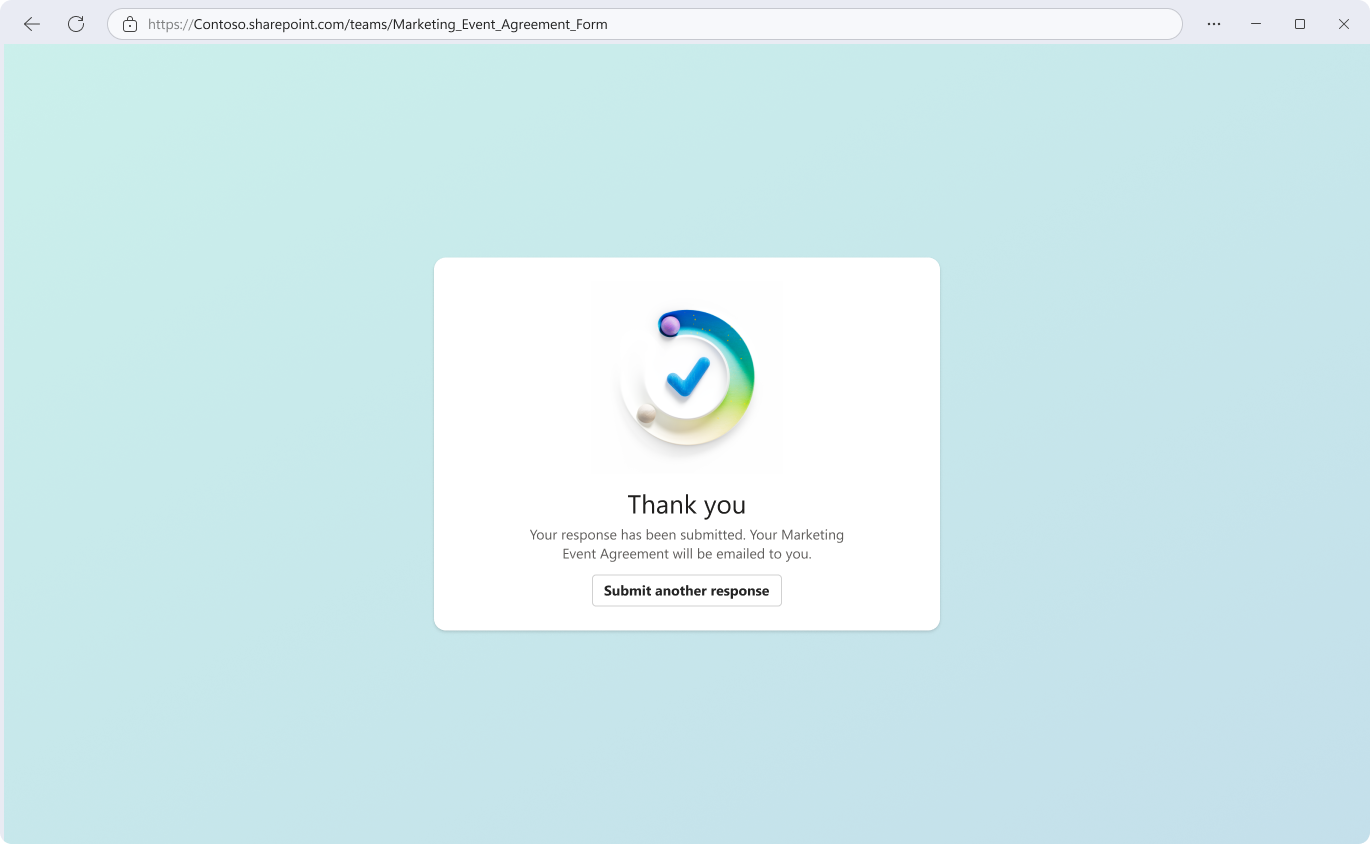
The system generates a professionally formatted document using the approved template. The field placeholders in the template are replaced with the values you entered—no copying, no manual edits.
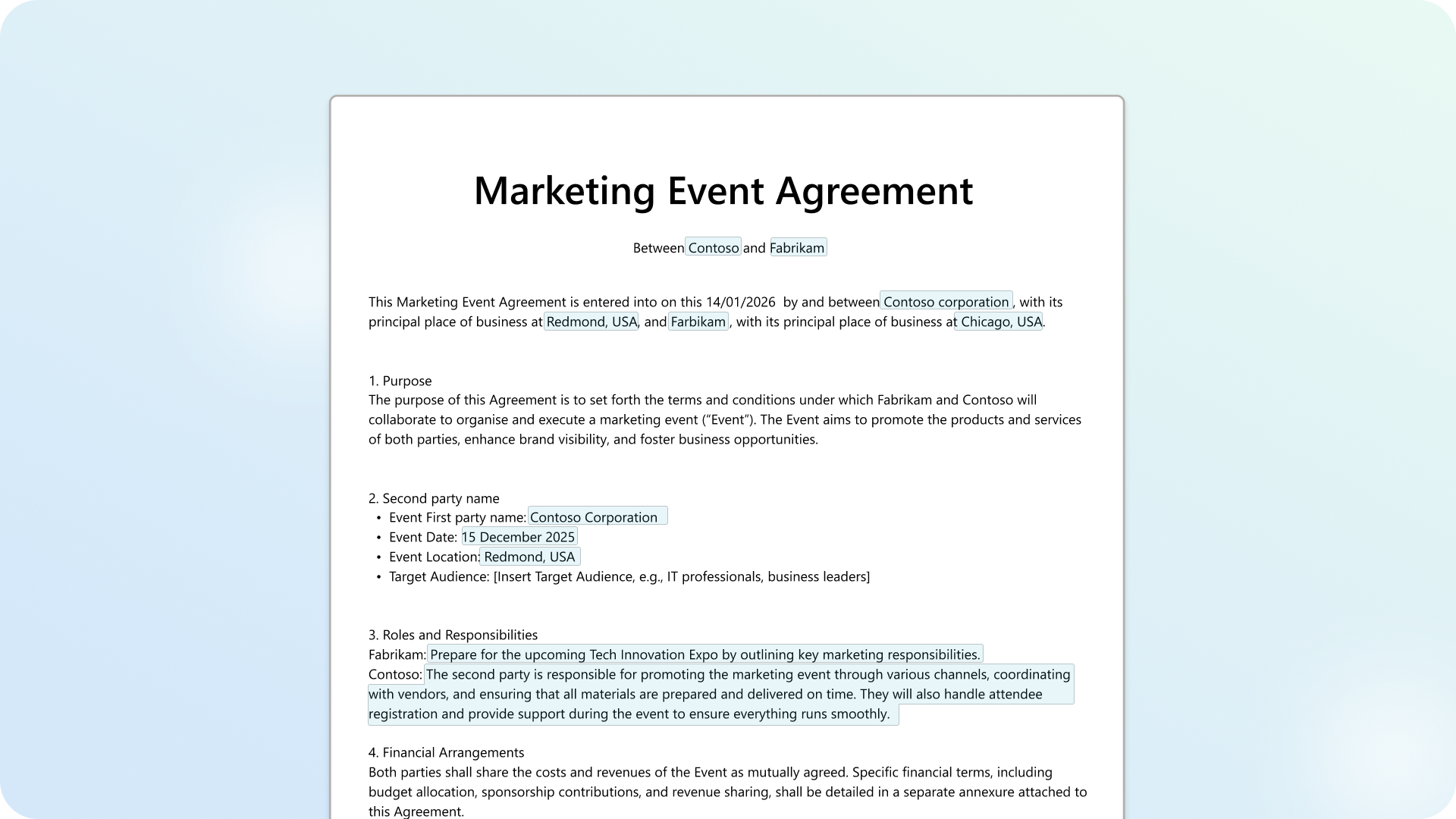
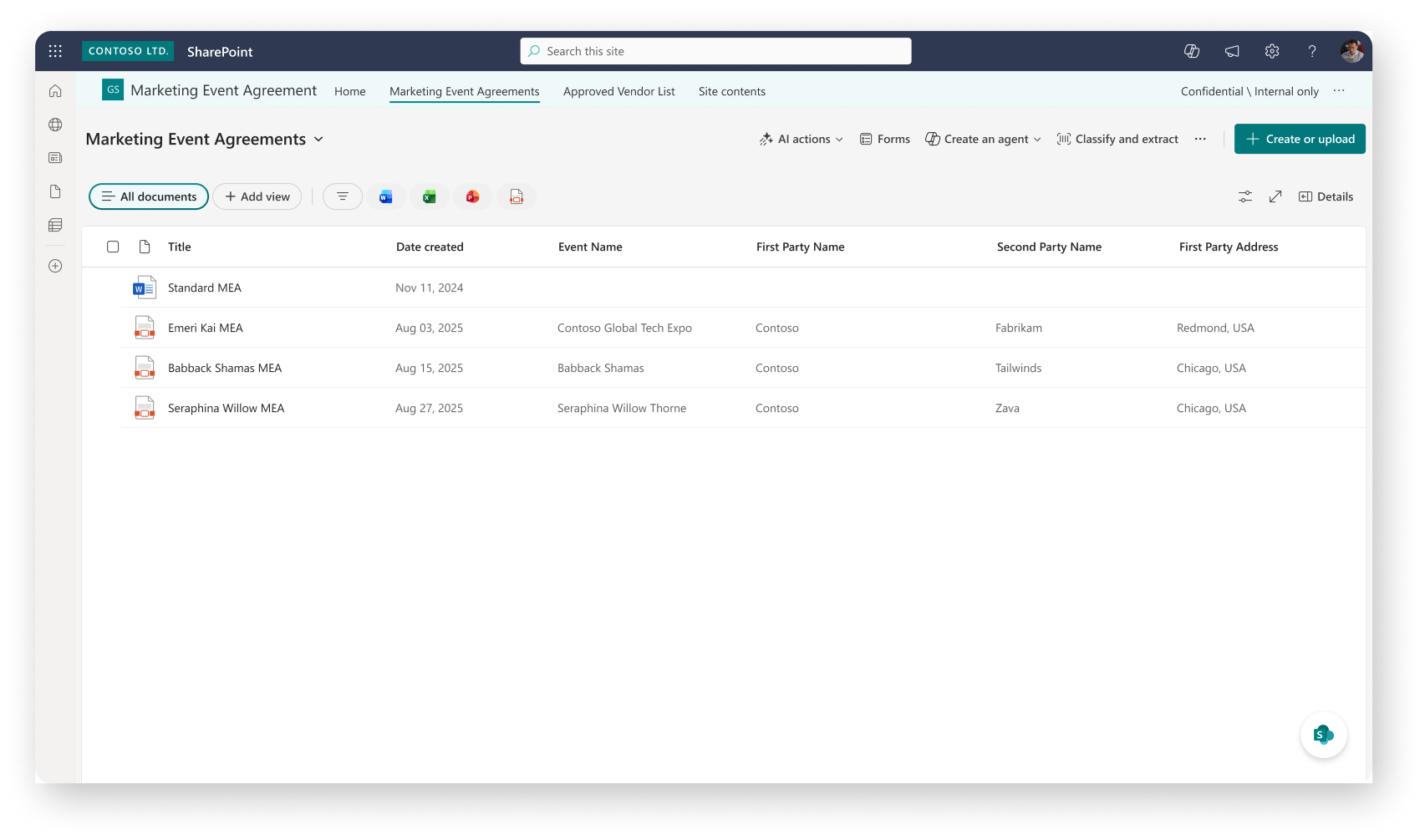
Behind the scenes, the generated document lands in the governed SharePoint library configured by the form creator, with metadata automatically captured from the form submission.
Note
You don't need access to the destination document library to submit the form. You only need access to view the generated document afterward.
Manage generated documents
Each form submission generates a new document that is stored in the SharePoint library where the form is configured. To view generated documents:
Navigate to the SharePoint document library where the form is set up.
Open the folder that is linked with the form. Each generated document is stored here with the submitted values merged into the template.
Review the document metadata. Because the form captures rich, structured metadata from each submission, the library columns are automatically populated with the field values—such as names, dates, and other details—making it easy to sort, filter, and search across generated documents.
Set up downstream automation
The rich metadata captured from form submissions makes it straightforward to configure downstream automation workflows. For example, you can:
- Set up notifications — Use SharePoint rules or Power Automate to notify stakeholders when a new document is generated.
- Trigger approval workflows — Route generated documents for review and approval based on metadata values.
- Move or copy documents — Automatically organize generated documents into specific folders based on field values.
- Integrate with other systems — Use Power Automate to send document details to external systems, CRM tools, or reporting dashboards.
Tip
Because each form submission creates a list item with structured metadata, you can use the full range of SharePoint list automation capabilities—including rules, Power Automate flows, and API integrations—to build end-to-end business processes around your generated documents.
Edit a published form
After a form is published, the form fields are read-only in the SharePoint form view. To make structural changes to fields, edit the template in Word.
From the form view in SharePoint, select the option to open the template in Word.
In Word, select Edit template in the Manage templates pane. You can now add, update, or remove fields.
When you're finished making changes, select Publish and open in Forms to republish the template and return to the form view.
The form link remains the same. Form submitters automatically see the updated fields after republishing.
Important
After a form is published, structural changes to fields (adding, deleting, or modifying field types) must be made in Word. Non-structural changes such as showing or hiding fields, changing themes, and updating settings can be made directly in the SharePoint form view.
Manage forms
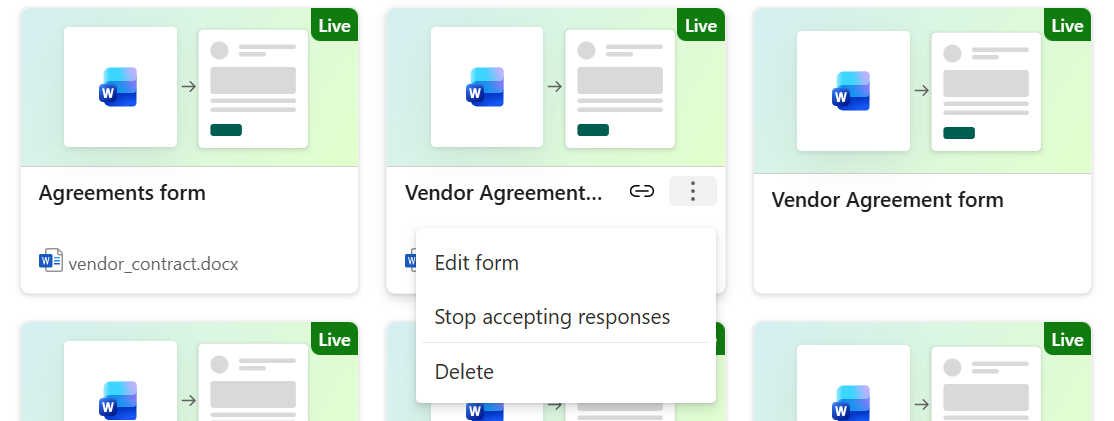
You can view and manage all forms associated with a document library from the Forms menu.
In the document library, select Forms from the command bar to see all created forms. Each form has a one-to-one mapping with a template.
From the forms list, you can:
- Edit form — Open the form configuration to make changes.
- Delete form — Remove the form. The underlying template is preserved.
- Start or stop accepting responses — Toggle form availability.
Requirements and limitations
Supported file types — Only Microsoft Word documents (.docx) are supported for creating templates.
Permissions — Form creators need Edit access on the document library. Form submitters need only the form link (Read access to the template is granted automatically).
Limitations:
- Forms are read-only once published. To make structural field changes, edit the template in Word and republish.
- Form submitters don't automatically receive access to the destination document library. Access to view the generated document must be granted separately, or the form creator can enable the receipt option.