Note
Access to this page requires authorization. You can try signing in or changing directories.
Access to this page requires authorization. You can try changing directories.
The Invoke SSIS Package activity (currently in preview) in Data Factory for Microsoft Fabric lets you move existing SSIS workloads into Fabric with minimal changes. This tutorial shows how to run an SSIS package in Microsoft Fabric.
In this tutorial, the SSIS package reads from and writes to Azure SQL Database using SQL authentication.
Choose the scenario that matches your package configuration:
| Package configuration | Scenario |
|---|---|
Credentials encrypted with a password (EncryptSensitiveWithPassword or EncryptAllWithPassword) |
Scenario 1: Package password |
Saved with DontSaveSensitive, or with a user-key level where credentials are missing or can't be decrypted in Fabric |
Scenario 2: Connection Manager override |
| Unknown protection level | Appendix: Protection level reference |
Prerequisites
- A Fabric tenant with an active subscription. Create an account for free.
- A Fabric workspace.
- An Azure SQL Database logical server and database with SQL authentication enabled and a login/user ready.
- The user needs permissions in the database to perform the steps needed in your SSIS package.
- A
.dtsxpackage built in Visual Studio (SSDT or SQL Server Integration Services Projects extension) that uses an OLE DB or ADO.NET connection manager pointing to Azure SQL Database. - In the Azure SQL Database logical server, the server firewall must be configured to allow connections from Fabric.
- Either maintain the server firewall to allow Fabric IPs to access the server firewall.
- Or, enable the Allow Azure services and resources to access this server setting in the logical SQL server Networking page.
Scenario 1: Package password
Use this scenario when your package protection level is EncryptSensitiveWithPassword or EncryptAllWithPassword. The package file already contains all credentials (encrypted). You supply the password so Fabric can decrypt them.
Step 1: Build the package in Visual Studio
Open your SSIS project in Visual Studio.
Add or open an OLE DB or ADO.NET Connection Manager pointing to your Azure SQL Database:
Property Value Server <your-server>.database.windows.netAuthentication SQL Server Authentication User name <your-sql-login>Password <your-sql-password>Database <your-database>Right-click the package (
.dtsx) and select Properties.Set ProtectionLevel to
EncryptSensitiveWithPassword(orEncryptAllWithPasswordto encrypt the entire file).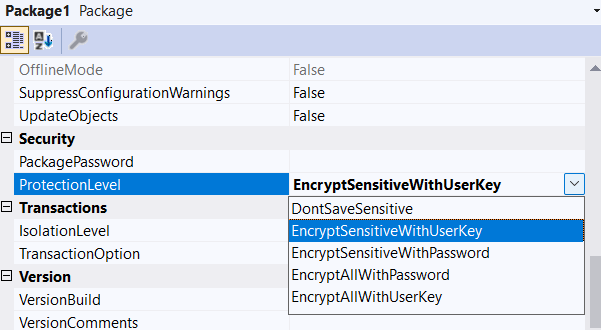
Enter a PackagePassword when prompted.
Save the package. All sensitive values are now encrypted inside the
.dtsxfile.
Step 2: Upload to OneLake
- In the Fabric portal, open your Lakehouse.
- Navigate to Files and create a folder (for example,
ssis-packages). - Upload your
.dtsxfile.
Tip
You can also drag and drop files by using OneLake file explorer.
Step 3: Create and configure the pipeline
In your workspace, select + New > Data pipeline.
Add an Invoke SSIS Package activity.
On the Settings tab, configure the following values:
Setting Value Package path Browse to Files/ssis-packages/YourPackage.dtsxPackage password The password you set in Visual Studio Enable logging Selected (recommended) 

No Connection Managers overrides are needed. The credentials are decrypted automatically using the package password.
Step 4: Run and monitor
- Select Save > Run.
- Monitor progress in the Output tab.
- When the status shows Succeeded, verify the data in the table in your Azure SQL Database.
Scenario 2: Connection Manager override
Use this scenario when you save your package with DontSaveSensitive, or with a user-key protection level (EncryptSensitiveWithUserKey or EncryptAllWithUserKey). In these cases, credentials aren't available to Fabric at runtime. You supply them via the Connection Managers tab.
Step 1: Build or re-save the package in Visual Studio
Open your SSIS project in Visual Studio.
Add or open an OLE DB or ADO.NET Connection Manager pointing to your Azure SQL Database:
Property Value Server <your-server>.database.windows.netAuthentication SQL Server Authentication User name <your-sql-login>Password <your-sql-password>Database <your-database>Right-click the package and select Properties.
Set ProtectionLevel to
DontSaveSensitive.- If your package currently uses
EncryptSensitiveWithUserKey,EncryptAllWithUserKey, orServerStorage, change it toDontSaveSensitive.
- If your package currently uses
Save the package. Visual Studio strips all sensitive values (passwords, secrets) from the
.dtsxfile. Non-sensitive properties like server name and user name are kept.
Step 2: Upload to OneLake
Upload the .dtsx file to your Lakehouse, as described in Scenario 1, Step 2.
Step 3: Create and configure the pipeline
In your workspace, select + New > Data pipeline.
Add an Invoke SSIS Package activity.
On the Settings tab:
Setting Value Package path Browse to Files/ssis-packages/YourPackage.dtsxEnable logging Selected (recommended) Switch to the Connection Managers tab to supply the missing credentials.
Supply the password
Add an entry for each connection manager that needs a password:
| Scope | Name | Property | Value |
|---|---|---|---|
Package |
<YourConnectionManagerName> |
Password |
<your-sql-password> |
Override other connection properties (optional)
You can also override the server, database, or user name. This approach allows the same package to work across environments without rebuilding:
| Scope | Name | Property | Value |
|---|---|---|---|
Package |
AzureSqlDB |
ServerName |
<production-server>.database.windows.net |
Package |
AzureSqlDB |
InitialCatalog |
<production-database> |
Package |
AzureSqlDB |
UserName |
<service-account> |
Package |
AzureSqlDB |
Password |
<password> |
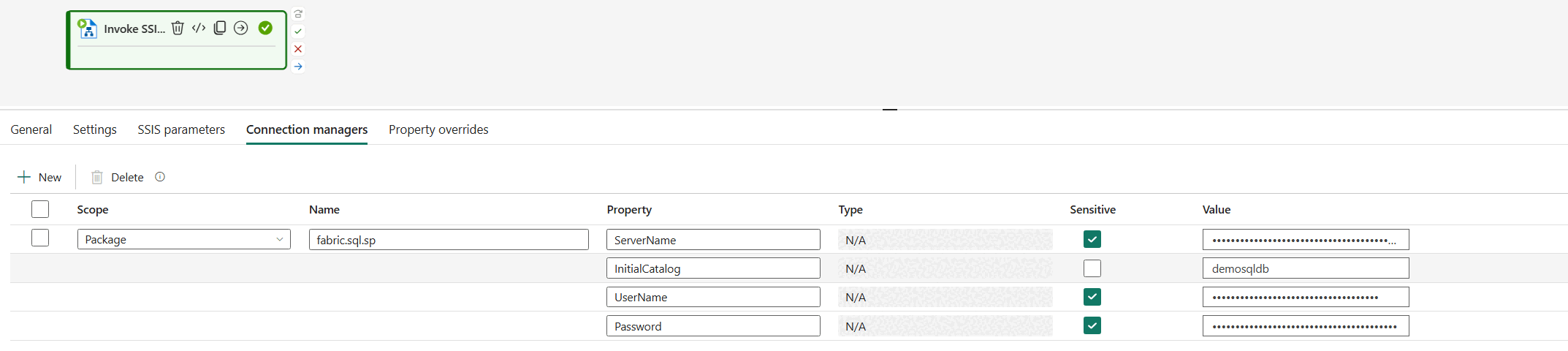
To find the Scope and Name values:
- Scope: Use
Packagefor package-level connection managers, or the task name for task-level ones. - Name: The exact name as shown in Visual Studio (for example,
<YourConnectionManagerName>). This value is case-sensitive.
Step 4: Run and monitor
- Select Save > Run.
- Monitor progress in the Output tab.
- Check the logging path for detailed execution logs.
Troubleshooting
| Issue | Cause | Fix |
|---|---|---|
| Login failed for user | SQL authentication disabled on the Azure SQL Database logical server | In Azure portal, navigate to the Azure SQL Database resource > Settings > Microsoft Entra ID and ensure SQL authentication is enabled. The option Support only Microsoft Entra authentication for this server should not be checked. Alternatively, use Microsoft Entra authentication. |
| Cannot open server requested by the login | Firewall blocking | Add the Fabric IP range to the Azure SQL Database logical server firewall, or, enable Allow Azure services and resources to access this server in the Azure SQL logical server firewall settings. |
| Failed to decrypt protected XML | Wrong or missing package password | Verify the package password in the Settings tab matches what you set in Visual Studio. |
| Failed to decrypt protected XML (user-key) | Package uses a user-key protection level | Change to DontSaveSensitive and supply credentials via the Connection Managers tab (Scenario 2). |
| Connection manager property not found | Wrong Scope or Name in the Connection Managers tab | Open the package in Visual Studio and verify the exact connection manager name (case-sensitive). |
| Package runs but no data written | Missing password override | Add the Password property in the Connection Managers tab. |
| Package fails to parse or load | EncryptAllWithUserKey used, and the entire file is encrypted with an inaccessible key |
Re-save with DontSaveSensitive or EncryptAllWithPassword before uploading. |
| SSL/TLS error | Older OLE DB provider | The Fabric SSIS runtime uses a current driver. Ensure your package doesn't hard-code an old provider version. |
Appendix: Protection level reference
All six levels at a glance
| Protection level | What it encrypts | How | Fabric support |
|---|---|---|---|
EncryptSensitiveWithPassword |
Sensitive values only (passwords, secrets) | Password you provide | Supported (Scenario 1) |
EncryptAllWithPassword |
Entire .dtsx file |
Password you provide | Supported (Scenario 1) |
DontSaveSensitive |
Nothing (strips sensitive values on save) | N/A | Supported (Scenario 2) |
EncryptSensitiveWithUserKey |
Sensitive values only | Windows DPAPI (creator's identity) | Limited 1 (Scenario 2) |
EncryptAllWithUserKey |
Entire .dtsx file |
Windows DPAPI (creator's identity) | Limited 1 (Scenario 2) |
ServerStorage |
Delegates to SSIS Catalog (SSISDB) | SSISDB master key | Not supported 2 |
1 Fabric runs the SSIS runtime on a different machine under a different identity, so it can't access your Windows DPAPI key. Sensitive values fail to decrypt. Re-save the package as DontSaveSensitive (recommended) or a password-based level, then follow Scenario 2.
2 SSISDB doesn't exist in Fabric. Open the package in Visual Studio, change the protection level to DontSaveSensitive, re-save, then follow Scenario 2.
Azure SQL Database connection string reference
When you configure the OLE DB Connection Manager in Visual Studio for Azure SQL Database, use the following connection string format:
Data Source=<server>.database.windows.net;Initial Catalog=<database>;User ID=<user>;Password=<password>;
| Property | Recommended value | Description |
|---|---|---|
| Encrypt | True (default in newer drivers) |
Azure SQL Database requires encrypted connections. |
| TrustServerCertificate | False |
For production. Use True only for testing. |
| Connection Timeout | 30 |
Default. Increase if in a different region. |