Note
Access to this page requires authorization. You can try signing in or changing directories.
Access to this page requires authorization. You can try changing directories.
Copilot in SQL Server Migration Assistant (SSMA) enhances the code conversion process from SAP ASE to Transact-SQL by providing intelligent, AI-powered assistance for complex or unsupported objects. When the SSMA rule engine encounters conversion challenges, such as syntax differences, proprietary SAP ASE features, or unsupported data types, Copilot steps in to analyze the issue, explain the root cause, and generate alternative SQL-compatible code.
Copilot in SQL Server Migration Assistant (SSMA) is generally available from SSMA version 10.4.
By integrating with Azure OpenAI, Copilot in SSMA for SAP ASE allows you to review, refine, and validate the suggested code directly within the SSMA interface, streamlining the migration process and reducing manual effort.
Prerequisites
To use Copilot in SSMA for SAP ASE for code conversion, you can use one of the following methods:
Option 1: Azure OpenAI resource (Bring your own key)
- Azure OpenAI Endpoint URL.
- Azure OpenAI Deployment.
- Model name.
- Azure OpenAI key.
If you don't have these details, see the Modify Azure OpenAI settings section.
Option 2: Microsoft-managed endpoint with Microsoft Entra ID authentication (Preview)
SSMA for SAP ASE 10.5 introduces this authentication type for Copilot in SSMA.
- No manual key entry required.
- Sign in using your Microsoft Entra ID credentials.
- Authentication is handled through a browser-based authentication flow.
Steps to run Copilot in SSMA for SAP ASE
After code conversion, the tool displays warnings or errors for target objects that the SSMA rule engine can't convert. For those objects, you can select Fix with Copilot.
If the OpenAI resource isn't registered, the tool prompts you with an authentication selection form. You can choose between:
- Microsoft Entra ID Authentication (new flow).
- Azure OpenAI Key (existing flow).
Microsoft Entra ID authentication flow (Preview)
- Select Microsoft Entra ID Authentication, and then select Next.
- A browser window opens and prompts you to sign in.
- After authentication, the Copilot interface loads, and you can review the suggested code fixes.
If you select the Copilot icon again, the authentication form doesn't reappear unless you sign out or reset the settings.
To sign out:
- Select the profile icon in the upper-right corner, and then select Log out.
Alternatively, go to Tools > Project Settings > Copilot, clear the saved credentials, and apply changes.
Azure OpenAI key flow
If you want to bring your own key and the OpenAI resource isn't registered, complete the following fields:
- Azure OpenAI Endpoint URL.
- Azure OpenAI Deployment.
- Model name.
- Azure OpenAI key.
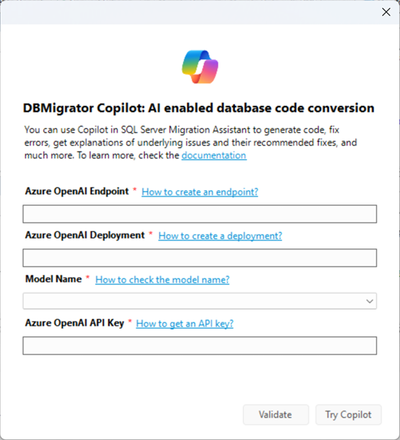
After successful validation, you can view the converted code. It can take a few minutes to generate the converted code. After the code is generated, you can review the suggested changes.
Code conversion interface
The Code Conversion window has three sections:
| Section | Description |
|---|---|
| Errors to fix | Shows the possible errors that the SSMA rule engine couldn't convert or failed to parse in the SQL statement. |
| Explanation | Provides the root cause of conversion issues, describes the logic behind the suggestions, and offers clear, contextual insights to help you understand and validate the generated Transact-SQL code. |
| Code review window | Allows you to view side-by-side differences between SSMA-generated and Copilot-converted code. It highlights changes so that you can evaluate improvements, understand modifications, and make informed decisions before accepting suggestions. |
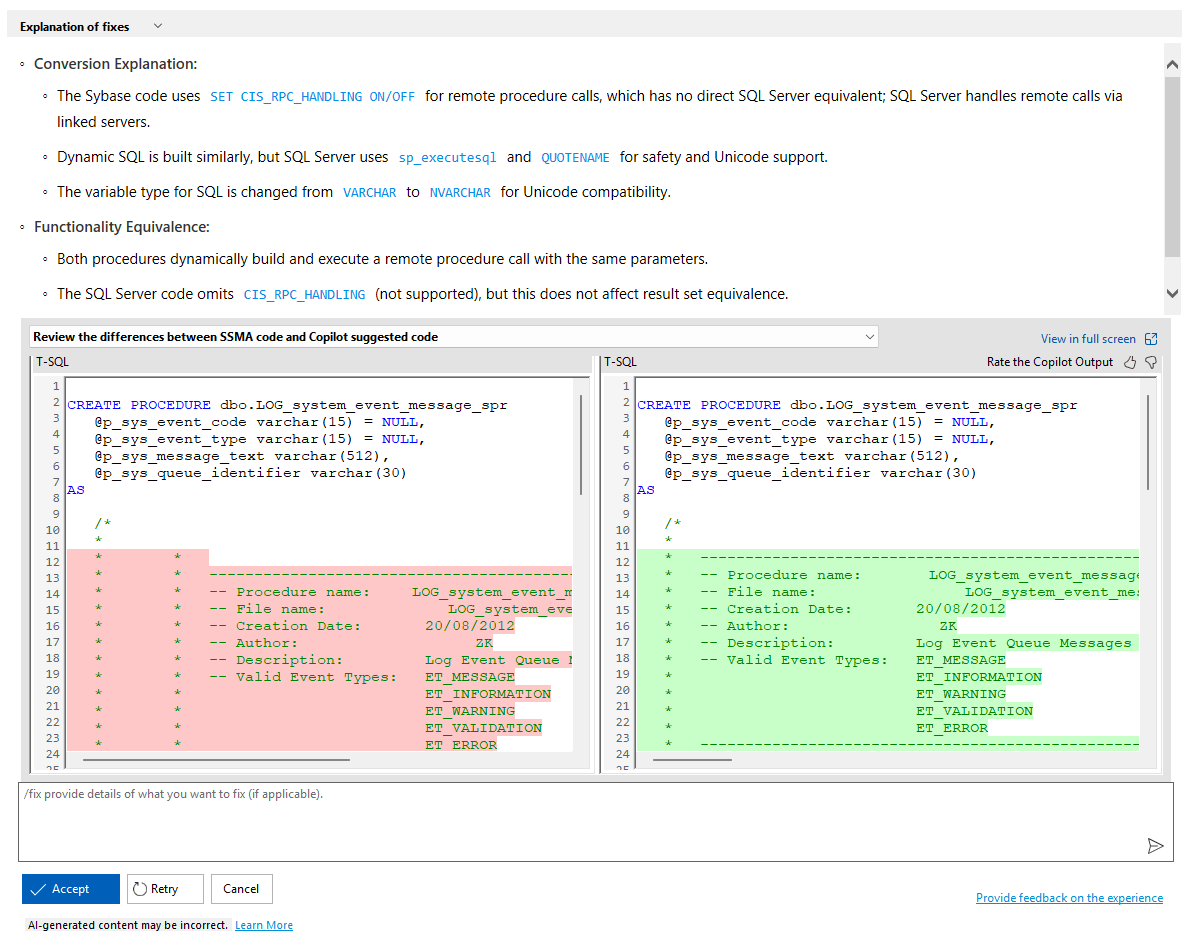
You can retry or send additional information in the prompt if you're not satisfied with the conversion. If the converted code is suitable, you can accept the suggestions.
Manage accepted changes in the IDE
After you review and accept the Copilot-generated code, find the accepted changes in the SSMA IDE. Follow these steps to save and synchronize the changes with your database:
- Go to the SSMA IDE where the accepted changes are displayed.
- Save the changes to store them locally.
- Use the synchronization feature to replicate the changes to your database.
Modify Azure OpenAI settings
If you need to change the Azure OpenAI details, go to Tools > Project Settings > Copilot in the SSMA menu. Update the Azure OpenAI Endpoint, Azure OpenAI Deployment, Model Name, and Azure OpenAI Key as needed.
Review and validation
Because AI generates this code, you must review, validate, and test the changes before you accept or save them. Ensure that the code meets your requirements and functions correctly in your environment.
Limitations
You can't save Copilot-generated code for tables and user-defined data types directly in SSMA. In these cases, SSMA provides a download option to save the Copilot-generated code locally.