Note
Access to this page requires authorization. You can try signing in or changing directories.
Access to this page requires authorization. You can try changing directories.
The MSSQL extension supports two mechanisms for keyboard shortcuts:
- Visual Studio Code keybindings (
keybindings.json): Use these keybindings for Command Palette commands such as Execute Query, Connect, and Disconnect. - Result view shortcuts (
mssql.shortcutsinsettings.json): Use these shortcuts for actions in the query results pane such as navigating grids, copying data, and saving results.
Choose a configuration method
- Use the MSSQL Database Management Keymap extension if you want familiar Azure Data Studio or SSMS-style shortcuts.
- Use Shortcuts Configuration (Preview) for day-to-day shortcut changes.
- Use Advanced: Manually customize Visual Studio Code keybindings for direct control of
keybindings.json. - Use Advanced: Manually customize result view shortcuts for direct control of
mssql.shortcutsinsettings.json.
Install the MSSQL Database Management Keymap extension
If you're moving from SQL Server Management Studio (SSMS) or Azure Data Studio, install the MSSQL Database Management Keymap companion extension to use familiar shortcuts.
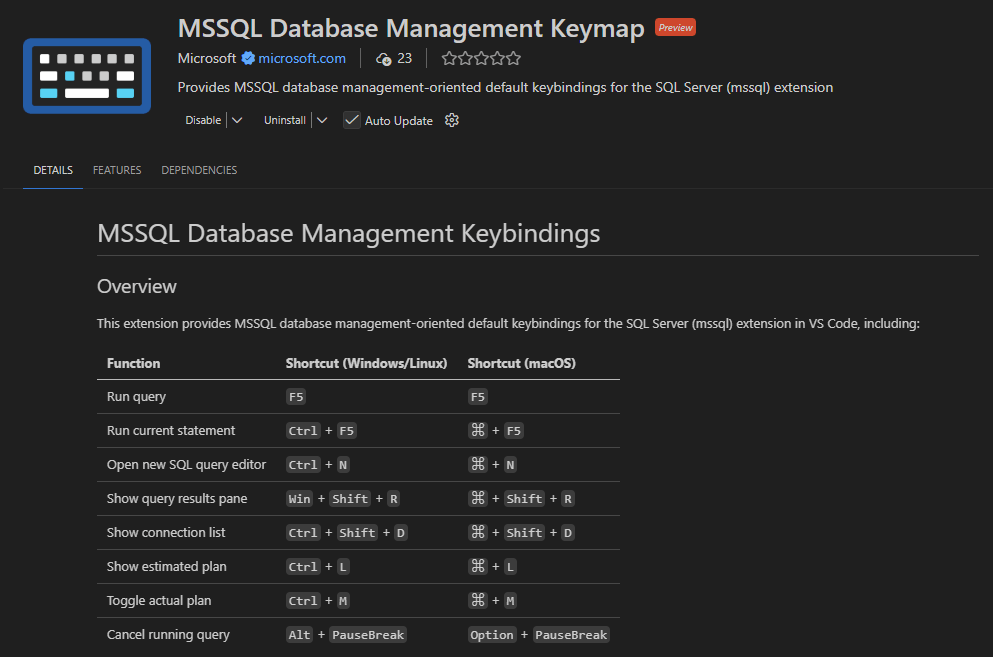
The extension provides the following key bindings:
| Function | Windows/Linux | macOS |
|---|---|---|
| Run query | F5 | F5 |
| Run current statement | Ctrl+F5 | Cmd+F5 |
| Open new SQL query editor | Ctrl+N | Cmd+N |
| Show query results pane | Win+Shift+R | Cmd+Shift+R |
| Show connection list | Ctrl+Shift+D | Cmd+Shift+D |
| Show estimated plan | Ctrl+L | Cmd+L |
| Toggle actual plan | Ctrl+M | Cmd+M |
| Cancel running query | Alt+Pause/Break | Option+Pause/Break |
Note
This keymap doesn't include user-customized key bindings from Azure Data Studio. Configure custom key bindings manually in MSSQL keyboard preference settings from the Command Palette. This extension overrides some default Visual Studio Code shortcuts for database management scenarios.
You can install this extension from the Azure Data Studio migration dialog, or directly from the Visual Studio Code Marketplace.
Use Shortcuts Configuration (Preview)
The MSSQL extension includes a Shortcuts Configuration (Preview) UI to view and configure keyboard shortcuts.
You can use this UI to work with both shortcut systems:
- Visual Studio Code keybindings (
keybindings.json) - Result view shortcuts (
mssql.shortcutsinsettings.json)
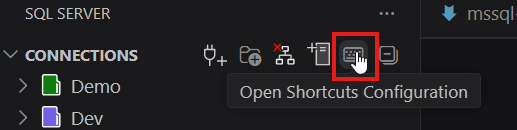
Open the Shortcuts Configuration page from the MSSQL extension toolbar.
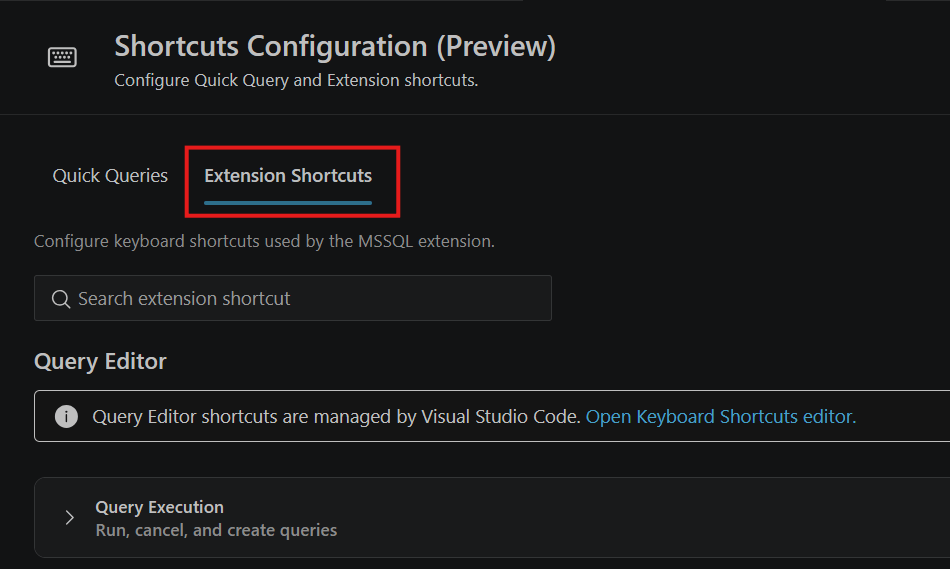
Open the Extension Shortcuts tab to view two keyboard shortcut sections:
- Query Editor: Shows the most commonly used Visual Studio Code keybindings for MSSQL commands, organized into groups such as Query Execution, Connection, and Others.
- Result View: Shows Result view shortcuts for the query results pane, including groups such as Navigation and Results.
Advanced: Manually customize Visual Studio Code keybindings
For most shortcut changes, use Shortcuts Configuration (Preview).
Use this section for advanced, manual control of Visual Studio Code keybindings in keybindings.json.
To customize a shortcut:
Open the Keyboard Shortcuts editor:
- macOS: Cmd+K, then Cmd+S
- Windows and Linux: Ctrl+K, then Ctrl+S
Search for the command name, such as
mssql.newQuery.Select the pencil icon next to the command, and press the new key combination.
Press Enter to confirm.
You can also edit keybindings.json directly:
Open the Command Palette:
- macOS: Cmd+Shift+P
- Windows and Linux: Ctrl+Shift+P
Select Preferences: Open Keyboard Shortcuts (JSON).
Add your shortcut.
[
    {
        "key": "ctrl+shift+n",
        "command": "mssql.newQuery",
        "when": "editorTextFocus && editorLangId == 'sql'"
    }
]
Note
You might override an existing shortcut. Check for conflicts in the Keyboard Shortcuts editor before you save your changes.
MSSQL extension commands
The extension provides commands in the Command Palette.
The following table lists commonly used commands and default shortcuts:
| Command | Description | Windows/Linux | macOS |
|---|---|---|---|
MS SQL: Connect |
Connect to SQL Server, Azure SQL, or SQL database in Microsoft Fabric | Ctrl+Shift+C | Cmd+Shift+C |
MS SQL: Disconnect |
Disconnect the current editor session | Ctrl+Shift+D | Cmd+Shift+D |
MS SQL: Execute Query |
Run a query for the current active SQL document | Ctrl+Shift+E | Cmd+Shift+E |
MS SQL: Execute Selection or Current Statement |
Execute only the Transact-SQL statement under the cursor | None | None |
MS SQL: Cancel Query |
Cancel the running query | None | None |
MS SQL: New Query |
Open a new SQL query file | None | None |
MS SQL: Toggle SQLCMD Mode |
Enable or disable SQLCMD mode for the active SQL document | None | None |
MS SQL: Change Connection |
Change the connection for the active SQL document | None | None |
MS SQL: Change Database |
Change the database for the active SQL document | None | None |
MS SQL: Estimated Plan |
View the estimated query execution plan | None | None |
MS SQL: Toggle Actual Plan |
Toggle actual execution plan collection for SQL queries | None | None |
MS SQL: Copy All |
Copy all query result content | None | None |
MS SQL: Toggle Query Result Panel |
Show or hide the query result panel | None | None |
Advanced: Manually customize result view shortcuts
For most shortcut changes, use Shortcuts Configuration (Preview).
Use this section for advanced, manual configuration of result view shortcuts in mssql.shortcuts (settings.json). These shortcuts apply only to the query results pane.
When you customize these shortcuts, use ctrlcmd to represent both key chords:
- Ctrl on Windows and Linux
- Cmd on macOS
For example, ctrlcmd+c maps to Ctrl+C on Windows and Linux, and to Cmd+C on macOS.
Default configuration
{
    "mssql.shortcuts": {
        "event.queryResults.switchToResultsTab": "ctrl+alt+r",
        "event.queryResults.switchToMessagesTab": "ctrl+alt+y",
        "event.queryResults.switchToQueryPlanTab": "ctrl+alt+e",
        "event.queryResults.prevGrid": "ctrlcmd+up",
        "event.queryResults.nextGrid": "ctrlcmd+down",
        "event.queryResults.switchToTextView": "",
        "event.queryResults.maximizeGrid": "",
        "event.queryResults.saveAsJSON": "",
        "event.queryResults.saveAsCSV": "",
        "event.queryResults.saveAsExcel": "",
        "event.queryResults.saveAsInsert": "",
        "event.resultGrid.copySelection": "ctrlcmd+c",
        "event.resultGrid.copyWithHeaders": "",
        "event.resultGrid.copyAllHeaders": "",
        "event.resultGrid.selectAll": "ctrlcmd+a",
        "event.resultGrid.copyAsCSV": "",
        "event.resultGrid.copyAsJSON": "",
        "event.resultGrid.copyAsInsert": "",
        "event.resultGrid.copyAsInClause": "",
        "event.resultGrid.changeColumnWidth": "alt+shift+s",
        "event.resultGrid.expandSelectionLeft": "shift+left",
        "event.resultGrid.expandSelectionRight": "shift+right",
        "event.resultGrid.expandSelectionUp": "shift+up",
        "event.resultGrid.expandSelectionDown": "shift+down",
        "event.resultGrid.openColumnMenu": "f3",
        "event.resultGrid.openFilterMenu": "",
        "event.resultGrid.moveToRowStart": "ctrlcmd+left",
        "event.resultGrid.moveToRowEnd": "ctrlcmd+right",
        "event.resultGrid.selectColumn": "ctrl+space",
        "event.resultGrid.selectRow": "shift+space",
        "event.resultGrid.toggleSort": "alt+shift+o"
    }
}
Query results shortcut reference
| Shortcut event | Default binding | Description |
|---|---|---|
event.queryResults.switchToResultsTab |
Ctrl+Alt+R | Switch to the Results tab |
event.queryResults.switchToMessagesTab |
Ctrl+Alt+Y | Switch to the Messages tab |
event.queryResults.switchToQueryPlanTab |
Ctrl+Alt+E | Switch to the Query Plan tab |
event.queryResults.prevGrid |
Ctrl/Cmd+Up | Go to the previous result grid |
event.queryResults.nextGrid |
Ctrl/Cmd+Down | Go to the next result grid |
event.queryResults.switchToTextView |
None | Switch results to text view |
event.queryResults.maximizeGrid |
None | Maximize or minimize the current grid |
event.queryResults.saveAsJSON |
None | Save results as JSON |
event.queryResults.saveAsCSV |
None | Save results as CSV |
event.queryResults.saveAsExcel |
None | Save results as Excel |
event.queryResults.saveAsInsert |
None | Save results as INSERT statements |
Result grid shortcut reference
| Shortcut event | Default binding | Description |
|---|---|---|
event.resultGrid.copySelection |
Ctrl/Cmd+C | Copy the current selection |
event.resultGrid.copyWithHeaders |
None | Copy the selection with column headers |
event.resultGrid.copyAllHeaders |
None | Copy all column headers |
event.resultGrid.selectAll |
Ctrl/Cmd+A | Select all data in the active grid |
event.resultGrid.copyAsCSV |
None | Copy the selection as CSV |
event.resultGrid.copyAsJSON |
None | Copy the selection as JSON |
event.resultGrid.copyAsInsert |
None | Copy the selection as INSERT statements |
event.resultGrid.copyAsInClause |
None | Copy the selection as an IN clause |
event.resultGrid.changeColumnWidth |
Alt+Shift+S | Adjust column width |
event.resultGrid.expandSelectionLeft |
Shift+Left | Expand selection to the left |
event.resultGrid.expandSelectionRight |
Shift+Right | Expand selection to the right |
event.resultGrid.expandSelectionUp |
Shift+Up | Expand selection upward |
event.resultGrid.expandSelectionDown |
Shift+Down | Expand selection downward |
event.resultGrid.openColumnMenu |
F3 | Open the column context menu |
event.resultGrid.openFilterMenu |
None | Open the filter menu |
event.resultGrid.moveToRowStart |
Ctrl/Cmd+Left | Move to the start of the row |
event.resultGrid.moveToRowEnd |
Ctrl/Cmd+Right | Move to the end of the row |
event.resultGrid.selectColumn |
Ctrl+Space | Select the entire column |
event.resultGrid.selectRow |
Shift+Space | Select the entire row |
event.resultGrid.toggleSort |
Alt+Shift+O | Toggle sort on the current column |