Note
Access to this page requires authorization. You can try signing in or changing directories.
Access to this page requires authorization. You can try changing directories.
Use the SQL Database Projects extension for Visual Studio Code to deploy database schema changes directly from a SQL project.
A SQL project deployment takes the schema you define in the project, compares it to the target database, and applies only the necessary changes to bring the database into the desired state through a dynamically generated plan.
You can review changes, generate a deployment script, and publish updates to a target database without leaving the editor.
Prerequisites
Before you begin, make sure you have:
- Visual Studio Code installed
- The MSSQL extension for Visual Studio Code
- The SQL Database Projects extension
- An existing SQL database project (
.sqlproj) - Access to a SQL Server or Azure SQL Database target
Open the Publish dialog
You can open the Publish dialog from the Database Projects view.
- Open the Database Projects view.
- Right-click your SQL project.
- Select Publish.
The Publish dialog opens in a new editor tab.
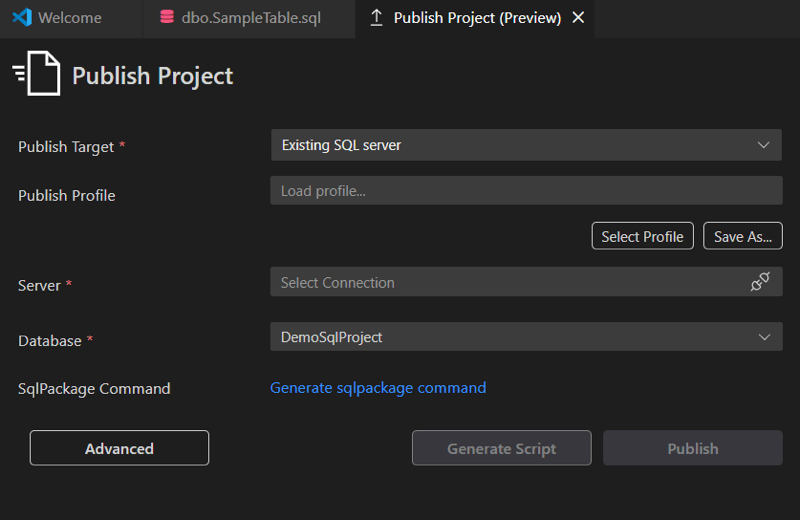
Configure the publish target
Use the Publish dialog to select where to deploy the project.
Select a Publish target, such as SQL Server or Azure SQL.
Select a Server connection.
- If you're not connected, the connection dialog opens.
- You can select an existing connection or create a new one.
Select the target Database.
After you establish a connection, the dialog shows more actions.
Note
Make sure that the database type you're publishing to matches the project's Target platform setting. If they don't match, either change the project's target platform to align with the database, or, if you're confident that the project is compatible, use the advanced option in the Publish dialog that allows publishing to an incompatible platform.
Generate a deployment script
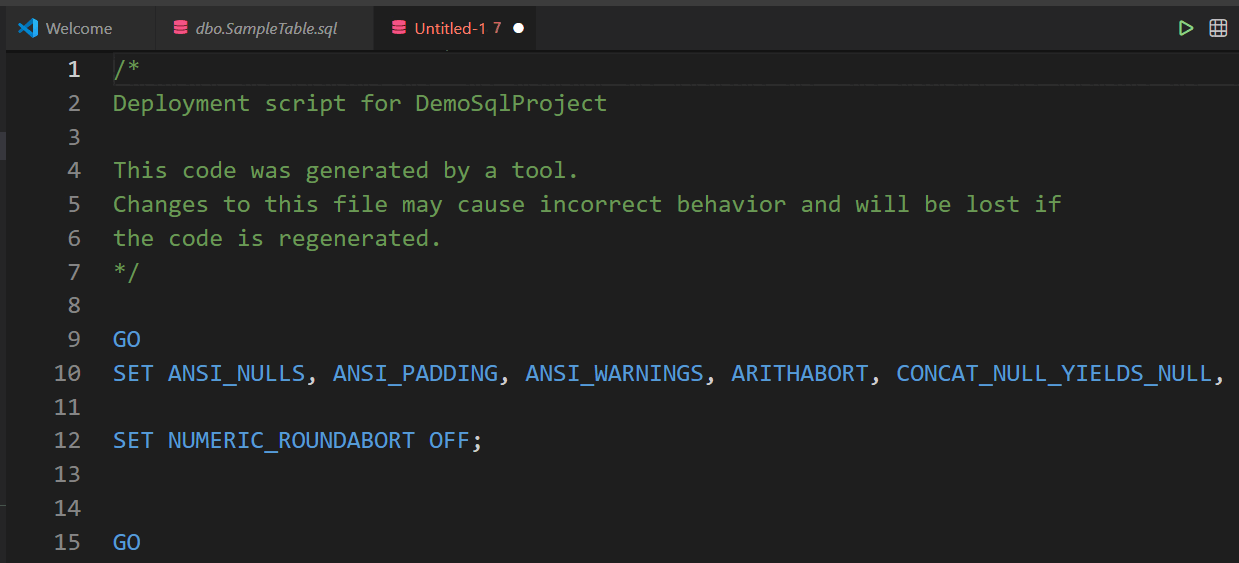
Before publishing, you can generate a deployment script to review the changes that the process makes to the database.
- In the Publish dialog, select Generate Script.
- Wait for the script to generate.
The editor opens the generated script for review.
Note
The deployment script includes SQLCMD variables for the connection and other deployment settings. Make sure SQLCMD mode is enabled in the editor, so that the variables resolve correctly when you run the script as a query.
Publish changes
After reviewing the deployment script, publish the changes.
- Go back to the Publish dialog.
- Select Publish.
- If prompted, confirm or select a database connection.
The project is deployed to the selected target database.