Note
Access to this page requires authorization. You can try signing in or changing directories.
Access to this page requires authorization. You can try changing directories.
GitHub Copilot in SQL Server Management Studio (SSMS) can help you understand why a query is slow or resource-intensive, and how to fix it. In agent mode, Copilot uses the query performance agent skill to analyze a query and its execution plan, identify the root cause, and recommend specific fixes ranked by expected impact.
Tuning a query manually usually means capturing the plan, reading operators, checking statistics and indexes, and testing changes one at a time. The query performance skill does that analysis for you and explains its reasoning, so you can decide what to change.
Use query performance tuning to:
Find the root cause of a slow, long-running, or high-CPU query.
Analyze an execution plan and find the most expensive operators and plan warnings.
Get a rewritten version of a query that's expected to run faster.
Get missing index recommendations, with the scripts to create them.
Get query hint recommendations.
Compare the original and recommended queries before you make a change.
Note
This feature is currently in preview. Copilot recommends changes but doesn't apply them to your database. Test this feature in a dev or test environment only.
Prerequisites
SSMS 22.12.1 or a later version, with the AI Assistance workload installed.
A GitHub account with Copilot Agent mode access. For more information, see Install GitHub Copilot in SSMS.
Agent mode selected in the Copilot Chat window. For more information, see Use agent mode.
Preview features turned on for the SQL tools MCP server, as described in Turn on SQL tools mcp preview skills in the next section.
A query editor connection to the database that runs the query you want to tune.
The permissions described in the Permissions for the logged in user section.
Select Agent mode in the Copilot chat in SSMS and appropriate model. (Copilot response might vary based on the model selected.)
Turn on SQL tools MCP preview skills
The query performance skill is available through the preview features of the SQL tools MCP server.
- In SSMS, select Tools > Options > Preview Features.
- Select Turn on Preview Features for SQL tools MCP server.

- In the Copilot Chat window, open the tools list and restart the sql-tools MCP server so the change takes effect. Alternatively, you can close and reopen SQL Server Management Studio.
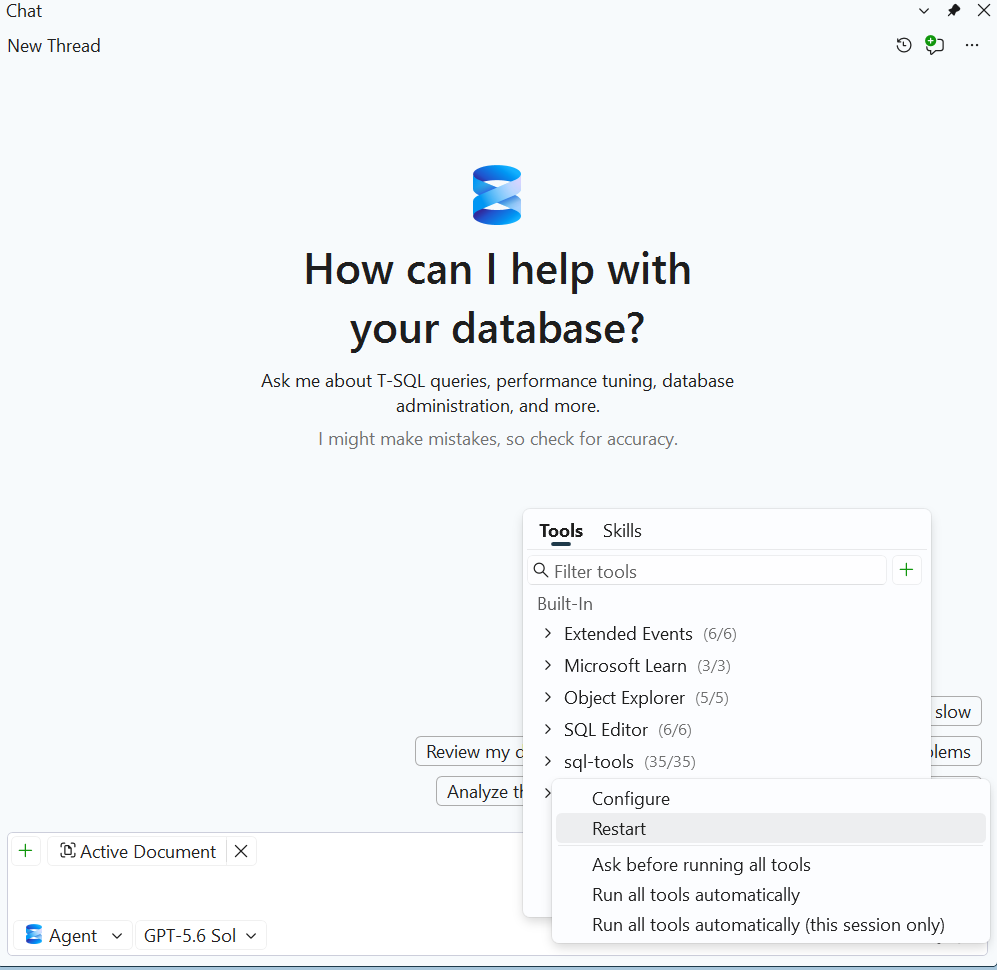
- To confirm the skill is available, type
#improve-query-performancein the chat. The skill name appears if it's loaded in the session.
How query performance tuning works in Agent mode
When you ask the agent about a query's performance in the Copilot chat, it matches your request to the query performance skill and runs the workflow that fits your question. Every workflow uses the database connected to your query editor for context.
By default, agent starts with a quick analysis and returns a first answer in seconds. You can then ask for a full analysis, or ask for a specific fix such as a rewrite, an index, or a query hint.
| Workflow | What it does | When to use it |
|---|---|---|
| Quick analysis | Returns the most likely root cause and the top recommendation in seconds, based on preliminary checks. | You want a fast first answer without going into details. |
| Full analysis | Analyzes the query and plan in depth and returns a detailed report with all findings and recommendations. | You have time to investigate, or the quick analysis wasn't enough. |
| Execution plan analysis | Reviews the estimated plan, ranks the most costly operators, and flags plan warnings. | You want to understand where the query spends its time. |
| Query rewrite | Suggests a functionally equivalent version of the query that improves the performance of the query. | The query is written in a way that results in an inefficient plan. |
| Index recommendations | Identifies missing indexes that would help the query, generates the scripts, and can test an index as a hypothetical index. | The plan shows scans or lookups that an index could optimize. |
| Query hint recommendations | Suggests query hints that could improve the plan and explains the trade-offs. | You can't change the query text, or the optimizer picks a poor plan. |
The analysis report
A full analysis returns a report that usually includes these sections.
| Section | What it contains |
|---|---|
| Baseline metrics | Estimated values from the original plan, such as total estimated cost and estimated rows. |
| Root cause | The main reason the query is slow, for example an anti-pattern, an implicit conversion that prevents an index seek, or an inaccurate cardinality estimate etc. |
| Recommendations | Ranked fixes, such as a rewritten query, an index script, or a query hint, each with its reasoning and estimated improvement. |
| Validation | Checks that the recommended query is valid. For a rewritten query, agent can compare the result set provided it is permitted to execute the queries in the respective database. |
Running queries
By default, agent analyzes the estimated execution plan and doesn't run your query. If a step needs to run a query, for example to collect actual runtime statistics or to compare the results of the original and rewritten queries, agent asks for your permission first.
Note
Run comparisons against a development or test database that has representative data, not against production.
Get started
In SSMS, open a query editor window and connect to the database where the query runs.
Paste or open the query that's slow or uses a lot of resources.
Open Copilot Chat, select Agent mode, and select a model.
Ask a question, for example "Why is this query slow?" or "Make this query faster."
Review the quick analysis. Then ask follow-up questions, request a full analysis, or ask for a specific fix such as a rewrite, an index, or a query hint.
Example scenarios
Investigate a high-CPU alert
You receive an alert for high CPU on a production database, and the alert includes the query that contributed most to it. Connect to the database, open the query in a query editor, and ask Copilot:
- This query is causing high CPU on my database. Do a full analysis and tell me the root cause.
Agent analyzes the estimated plan and returns a report that identifies the root cause, such as a query anti-pattern. It lists the most expensive operators or query patterns. It also suggests a rewritten query and its estimated improvement. Continue with some follow-up questions:
Explain why the original query can't use an index seek.
Is there an index that would further improve the rewritten query? Give me the script.
Find the cause of a slow query
Ask Copilot to explain why a query performs poorly:
Why is this query slow?
Do a quick analysis of this query and tell me the biggest bottleneck.
Do a full analysis of this query and its execution plan.
Which part of this query contributes most to its cost?
Is this query slow because of the query itself, missing indexes, or statistics?
Analyze an execution plan
Open the execution plan in SSMS and ask Copilot to explain it:
Analyze the estimated execution plan for this query.
List the three most expensive operators in this plan.
Are there plan warnings, such as implicit conversions, spills, or missing statistics?
Why does the plan use a clustered index scan instead of a seek?
Why does the plan use a nested loops join here? Would a different join type be better?
Rewrite a query
Ask Copilot to suggest a faster version of a query:
Rewrite this query to improve performance without changing its results.
Are there anti-patterns in this query? Show me how to fix them.
Rewrite the WHERE clause so that it can use an index.
Compare the estimated cost of the original query and the rewritten query.
Note
Asking whether the rewritten query returns the same results runs both queries so agent can compare the result sets. Agent asks for your permission before it runs them.
Get index recommendations
Copilot can recommend indexes, and it can check whether a specific index would improve performance by testing it as a hypothetical index. A hypothetical index holds only column-level statistics, with no data, so the query optimizer can evaluate it without the cost of building a real index. It can't be used as a data access path. Testing a hypothetical index requires extra permissions, described in Permissions.
Ask Copilot about indexes that could help:
Is there a missing index that would help this query?
Would this index improve the query's performance? Test it as a hypothetical index.
Give me the script to create the recommended index.
Would a covering index help this query? Which columns should it include?
Get query hint recommendations
Ask Copilot whether a query hint could help:
Would a query hint improve this query's performance?
What are the trade-offs of the recommended hint?
Apply and validate recommendations
The agent doesn't apply changes to your database. To use a recommendation:
Review the recommendation and its reasoning.
Copy the script from the chat into a query editor window.
Test the change in a development or test database with representative data. Compare duration, CPU time, and logical reads for the original and the changed query.
For a rewritten query, confirm that the results match the original query, then update the application code that runs the query.
Apply index changes to production through your normal change management process.
After you deploy the change, monitor the query, such as by using Query Store, to confirm the improvement.
Permissions
Most query performance workflows in agent mode need read access only. The agent runs on the signed-in user's context. The user connected in the query editor needs permission to:
Read the query's estimated execution plan (SHOWPLAN).
Read the metadata for the objects the query uses, such as tables, indexes, and statistics.
Read Query Store and dynamic management views (VIEW DATABASE STATE, or VIEW DATABASE PERFORMANCE STATE), when you ask about top resource-consuming queries.
Some workflows need more access:
To run a query for comparison, you need permission to run that query on the target database.
To test a hypothetical index, you need ALTER permission on the table, or membership in the db_ddladmin database role, because the test creates statistics on the table.
Limitations
Recommendations are based on the estimated execution plan unless you allow agent to run the query. Estimated improvements can differ from actual results.
Agent analyzes one query at a time. It doesn't analyze your whole workload or recommend changes across many queries or batch at once.
A rewritten query might need application changes. Agent doesn't change application code.
Agent doesn't explain why a plan regressed over time, for example after a statistics update or a compatibility level change.
Result checks compare the output of the original and rewritten queries on the data you test with. They don't prove that the two queries are equivalent for all data.
New indexes use storage and can slow down inserts, updates, and deletes. Review the impact before you create them.
Best practices
Connect the query editor to the database where the problem happens, so Copilot has the right context.
Include the full query text, and describe the symptom, such as high CPU, long duration, or blocking.
Start with a quick analysis, and ask for a full analysis when you need more detail.
Ask Copilot to explain its reasoning before you accept a recommendation.
Test every change outside production first.
Rate responses by using the thumbs-up or thumbs-down buttons in the chat. Your feedback helps improve recommendations.
Important
Always review scripts before you run them. AI can make mistakes.