Note
Access to this page requires authorization. You can try signing in or changing directories.
Access to this page requires authorization. You can try changing directories.
Applies to:  Azure SQL Database
Create a local Azure SQL Database container by using the SSMS provisioning wizard, then connect and run Transact-SQL (T-SQL) commands. You don't need to write container startup commands. The container is free for local development and testing and doesn't require an Azure subscription or credit card.
The SSMS container provisioning wizard supports Azure SQL Database containers only, not SQL Server containers. This SSMS workflow supports Windows x64. ARM devices aren't supported for this workflow.
Note
Azure SQL Database container is in public preview.
This quickstart demonstrates the following steps:
- Create and start a local Azure SQL Database container with the SSMS wizard
- Connect to the container in SSMS
- Create a database and connect directly to it
- Create a table, insert rows, and query the results
- Verify the database and engine identity
- Clean up the local resources
What is an Azure SQL Database container?
A container packages the Azure SQL Database engine so that a container runtime can run it on your computer. Your application connects to a local address such as localhost,1433, rather than an Azure SQL logical server.
The container runs the Azure SQL Database engine, not the SQL Server container image. It supports Azure SQL Database T-SQL and the Tabular Data Stream (TDS) protocol used by SQL drivers. SERVERPROPERTY('EngineEdition') returns 5, identifying the Azure SQL Database engine. Native vectors, vector search, and JSON help you explore AI-ready data scenarios locally.
The container doesn't provide the managed cloud service. Azure-managed backups, high availability, elastic pools, and serverless auto-pause are cloud capabilities, not local container features. For more information, see What is the Azure SQL Database container?
Choose your development database
| Option | Choose it when | Cost and account requirements |
|---|---|---|
| Azure SQL Database container through SSMS | You want to learn SQL or build and test an application targeting Azure SQL Database locally on Windows x64. | Free for local development and testing. No Azure subscription or credit card required. |
| Azure SQL Database in Azure | You need a managed database, cloud integration, or a cloud validation environment. | Requires an Azure subscription. The Azure SQL Database free offer has separate eligibility requirements and usage allowances. |
Important
Azure SQL Database containers are for development, testing, CI, and demos, not production. For production, deploy your application and database to Azure SQL Database in Azure. The free local container and the Azure SQL Database free offer are separate options.
Prerequisites
- Install SQL Server Management Studio 22 on a supported Windows x64 computer. Use a build that includes Create Azure SQL Database container (Preview).
- Install and start a container runtime that runs Linux containers. For Docker Desktop, use the Windows Subsystem for Linux 2 (WSL 2) backend. See Docker Desktop installation on Windows. The wizard checks runtime installation, engine state, Linux container mode, and available resources.
- The wizard requires at least 2 GB of memory and one processor available to the container engine. For local development, allocate at least 4 GB of memory and two CPU cores, and keep at least 10 GB of free disk space for the image and a small database.
- Make a local TCP port available for the database connection. This quickstart uses
1433; use your actual host port if it differs. - Have internet access for the initial image download. After the image is cached, local queries don't require a cloud database. External AI endpoints and other online services still require connectivity.
For engine resource requirements, see container prerequisites. The engine's broader platform support doesn't change the Windows x64-only scope of the SSMS container provisioning experience. ARM isn't supported for this SSMS workflow.
Create an Azure SQL Database container
Use the SSMS wizard to create and start the container. The wizard provisions an Azure SQL Database container; there isn't a SQL Server container option in this SSMS experience.
In the Object Explorer toolbar, select Create Azure SQL Database container (Preview).

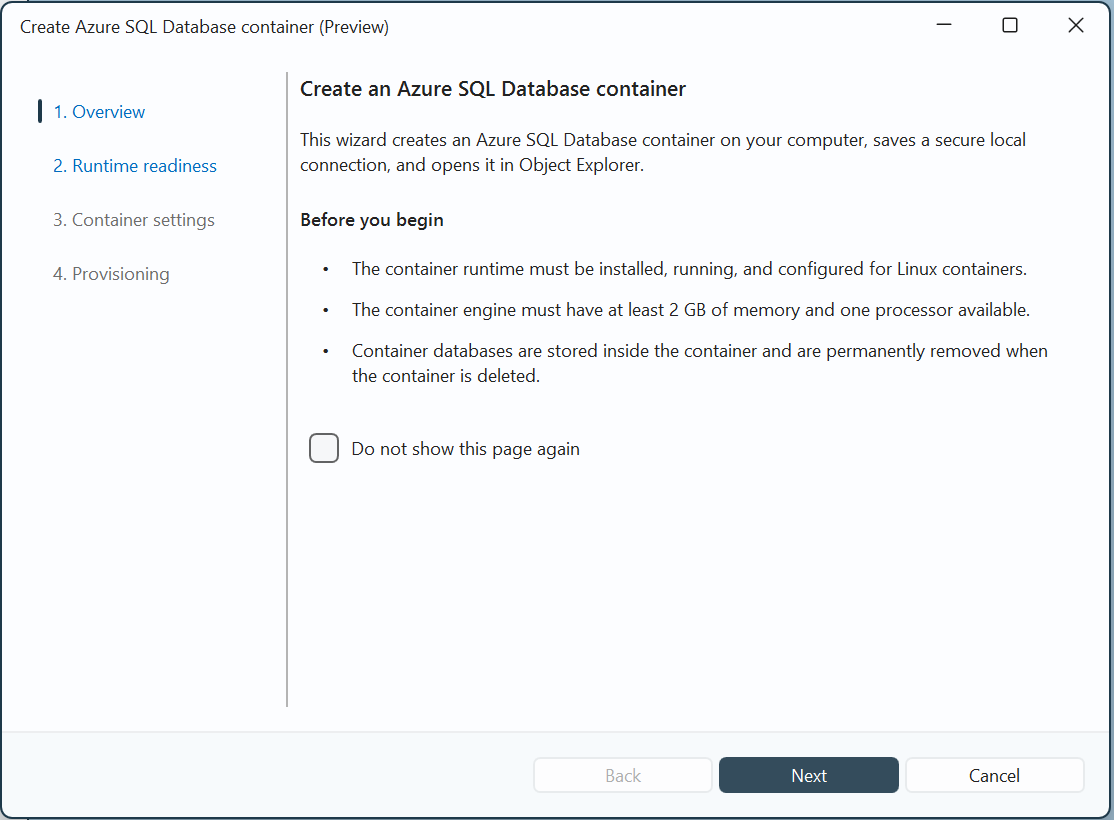
On Overview, review the prerequisites and local development guidance, then select Next.
Warning
Databases created by this wizard are stored inside the container. Deleting the container permanently removes those databases. Export any schema and data you need before deleting it.
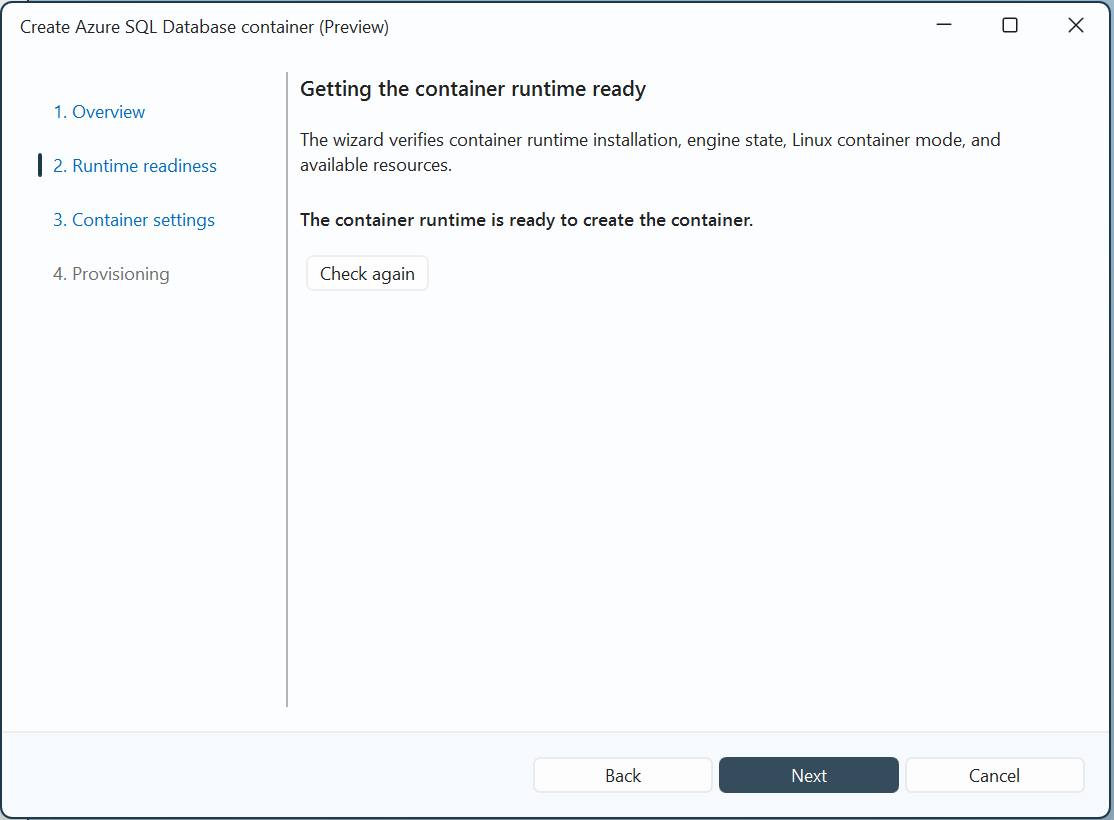
On Runtime readiness, wait for the runtime checks to complete. If a check fails, resolve the reported problem and select Check again. When the page reports that the container runtime is ready, select Next.
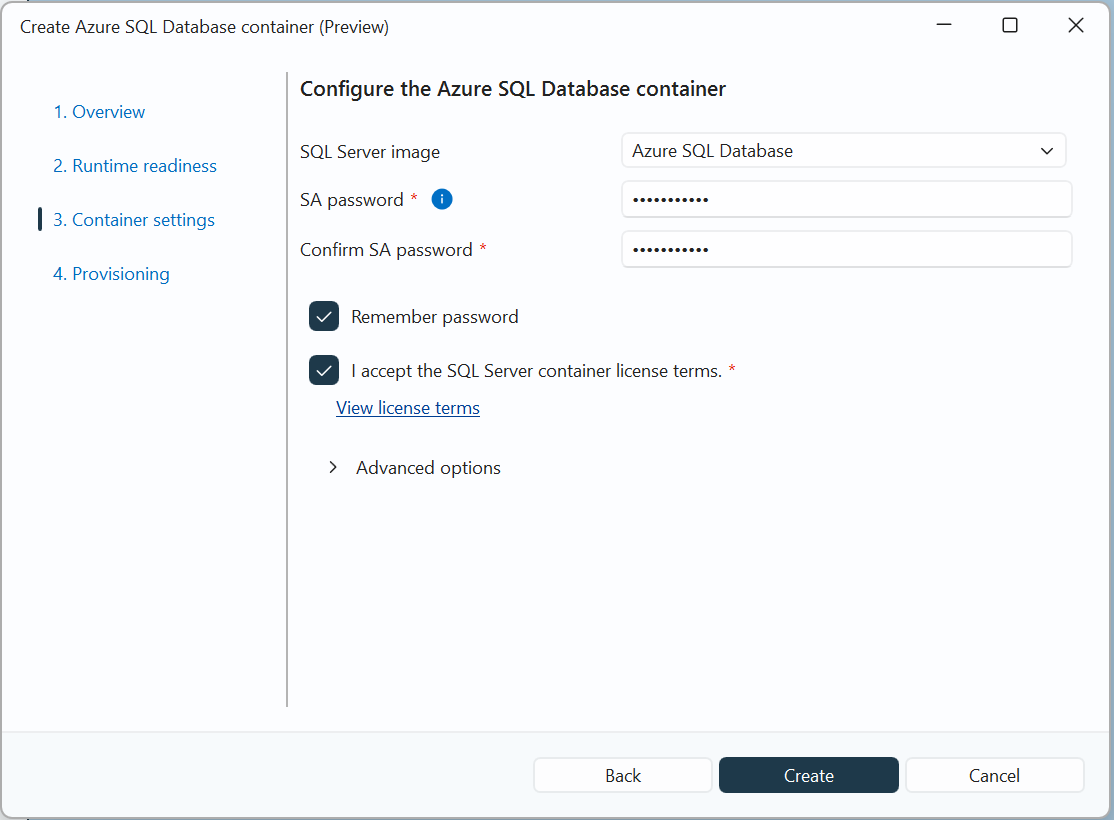
On Container settings, configure the database login and enter your password. The password must contain at least eight characters and include characters from at least three of these categories: uppercase letters, lowercase letters, digits, and symbols. Store it securely, not in source control or AI prompts.
Review View license terms, then select the license acceptance checkbox. Expand Advanced options if you need to review additional configuration. Select Create.
On Provisioning, wait while SSMS verifies runtime readiness, downloads the image, creates and starts the container, waits for the engine, and connects Object Explorer.
When the page reports The container is ready and connected in Object Explorer, expand Connection String Details to review the local connection information. Record the actual server endpoint and host port for application connections. Select Close.
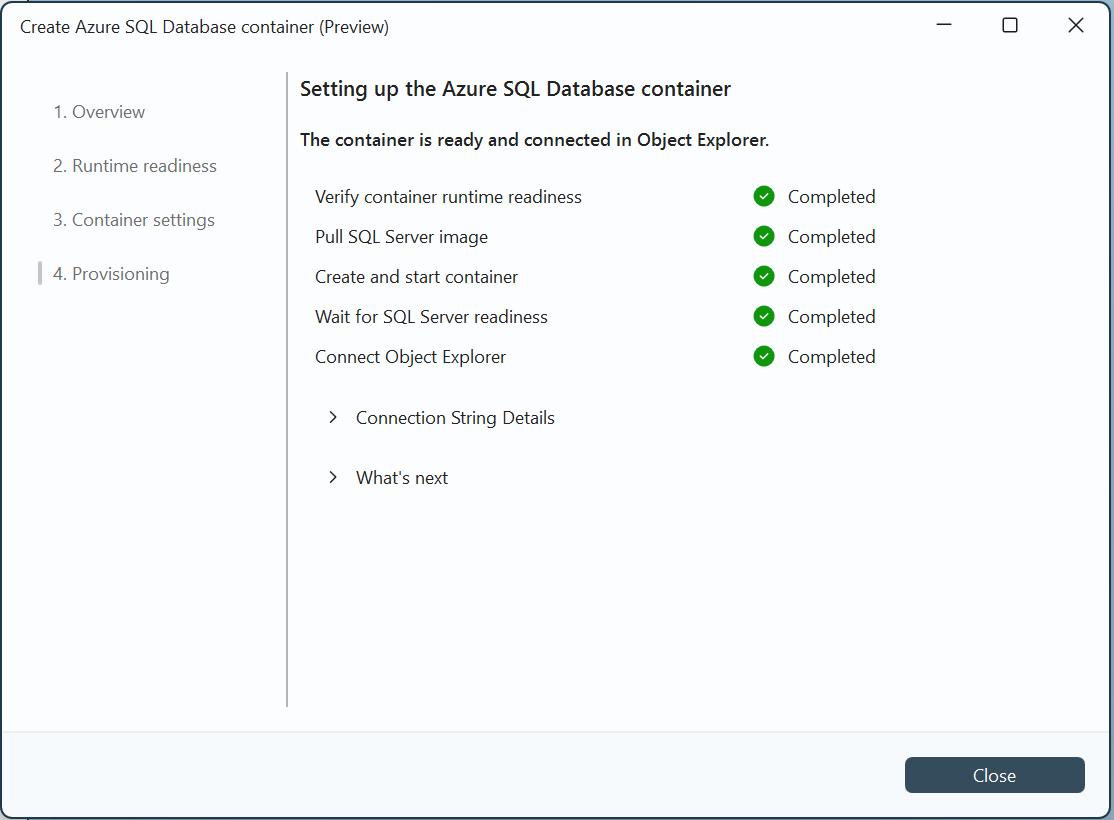
The wizard saves a secure local connection and opens it in Object Explorer. A running container, a connection, and a user database are different resources. Continue with Create a database to create your application database.
Connect to the container in SSMS
The wizard connects Object Explorer automatically. Use these steps if you need to reconnect or open a separate connection, such as a connection explicitly targeting master for provisioning.
Start SSMS. Open a Database Engine connection through Object Explorer > Connect > Database Engine.
Enter the following connection settings. The layout depends on your SSMS version.
Setting Value Server type, if shown Database Engine Server name localhost,1433, or the host port you selectedAuthentication SQL Server Authentication Login The SQL login configured during provisioning, such as saPassword The local database password you chose in the wizard Database name / Connect to database masterEncryption Mandatory, or enable Encrypt connection in older dialogs Trust server certificate Selected In dialogs that don't show the database field on the main page, select Options > Connection Properties and enter
masterunder Connect to database. See Connect to server (Connection Properties page).Important
Trusting the server certificate bypasses certificate validation for the container's self-signed certificate. Use this setting only for this local development connection. Don't apply it to production Azure SQL Database connections.
Select Connect. This workflow uses a local endpoint and SQL authentication, not an Azure logical server, Azure firewall rule, or Microsoft Entra sign-in.
Open New Query for this connection. Confirm that the query targets
master, then select Execute or press F5 to run:SELECT DB_NAME() AS DatabaseName;The result should be
master. Use this connection only to provision or remove user databases.
Create a database
Use TutorialDB as the example database name. The walkthrough screenshots use Demo; substitute your project's database name consistently if you choose another name.
In Object Explorer, expand the container connection, right-click Databases, and select New Azure SQL Database....
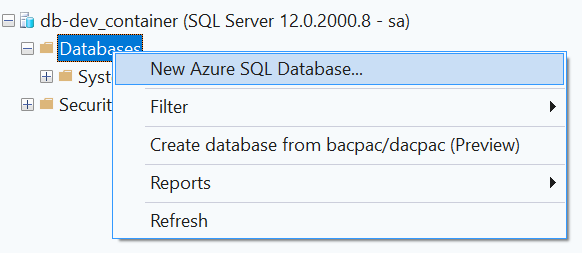
In New Azure SQL Database, enter
TutorialDBin Database name. Review Collation and leave it unchanged for this tutorial, then select OK.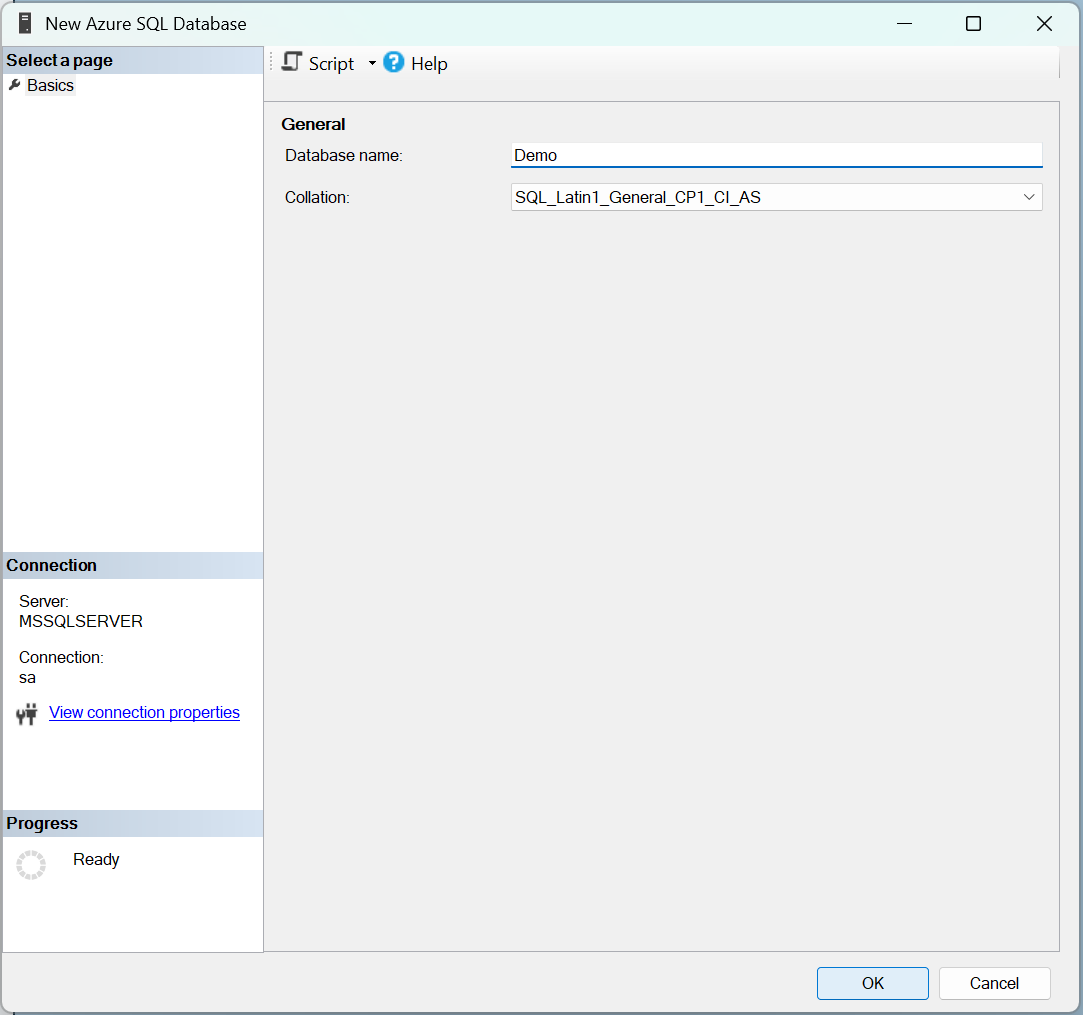
Wait for creation to complete. Expand Databases to find the new database. If it isn't shown, right-click Databases and select Refresh.
If you prefer T-SQL, instead of using the dialog, open a query on a connection explicitly targeting master and run:
CREATE DATABASE [TutorialDB];
GO
Wait for the command to complete before connecting to TutorialDB. If a database with that name already exists, use a different name throughout this quickstart or confirm that the existing database is safe to use. Don't delete an existing database just to repeat the tutorial.
Connecting to a database that doesn't exist doesn't create it. Use master for database provisioning and your user database for application queries.
Connect directly to the new database
Open a new Database Engine connection in SSMS with the same server, SQL login, password, encryption, and certificate settings.
Enter
TutorialDBin Database name or Connect to database, then select Connect.Open New Query for this new connection and run:
SELECT
    DB_NAME() AS DatabaseName,
    SERVERPROPERTY('EngineEdition') AS EngineEdition,
    SERVERPROPERTY('Edition') AS Edition;
Expected results:
DatabaseName EngineEdition Edition TutorialDB 5 SQL Azure If
DatabaseNameisn'tTutorialDB, open a connection that explicitly targets it before continuing. IfEngineEditionisn't5, check that you started the Azure SQL Database image, not a SQL Server image.
Important
Select the database when opening the connection. Don't use USE or the query editor database dropdown to switch from master for this workflow. A direct user-database connection enforces Azure SQL Database semantics; USE to switch databases isn't supported in that session.
Create a table
In the query window connected directly to TutorialDB, run:
CREATE TABLE dbo.Customers
(
    CustomerId int NOT NULL PRIMARY KEY,
    Name nvarchar(50) NOT NULL,
    Location nvarchar(50) NOT NULL
);
GO
Keep using this TutorialDB connection for the remaining table operations.
Insert rows
Run the following statement once to add sample data:
INSERT INTO dbo.Customers (CustomerId, Name, Location)
VALUES
    (1, N'Orlando', N'Australia'),
    (2, N'Keith', N'India'),
    (3, N'Donna', N'Germany'),
    (4, N'Janet', N'United States');
GO
Query the table and view the results
Run the query:
SELECT CustomerId, Name, Location
FROM dbo.Customers
ORDER BY CustomerId;
SSMS displays four rows in the Results pane:
| CustomerId | Name | Location |
|---|---|---|
| 1 | Orlando | Australia |
| 2 | Keith | India |
| 3 | Donna | Germany |
| 4 | Janet | United States |
The query window status bar also identifies the server and database. Verify that it shows your local endpoint and TutorialDB, not an Azure database used for production.
Import your schema and data
If you already have a database package, use the SSMS package commands instead of creating the sample table manually.
| Package | What it contains | Operation |
|---|---|---|
.dacpac |
Database schema, without table data | Deploy schema to a development database. |
.bacpac |
Database schema and table data | Import schema and data into a new or empty development database. |
To create a database from a package, right-click Databases under the container connection and select Create database from bacpac/dacpac (Preview). Review the package and target in the operation's dialog before proceeding.
For an existing user database, right-click the database and select Tasks. The menu includes Apply bacpac/dacpac (Preview) and Create bacpac/dacpac (Preview). Use the create operation to package schema or schema and data that you want to keep before deleting the container.
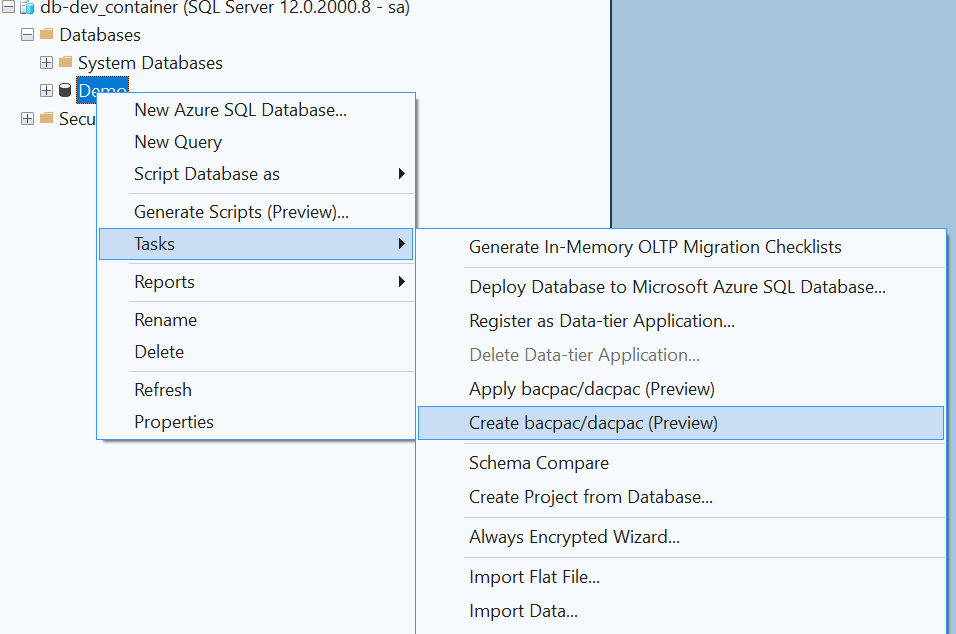
Target the local server, host port, and intended user database. Review the target and proposed changes before proceeding, then connect directly to the user database to inspect the result. Don't import a BACPAC into TutorialDB after creating the sample table because the database isn't empty.
For command-line workflows, use Azure SQL-compatible SqlPackage Publish or Import operations.
SQL Server .bak files aren't BACPAC files. BACKUP DATABASE and RESTORE DATABASE aren't supported by the Azure SQL Database container.
Connect your application
Use the local endpoint, the wizard's selected host port, your database name, and your credentials with an Azure SQL-compatible driver or object-relational mapper (ORM). For example, this ADO.NET-style connection string targets TutorialDB:
Server=localhost,<host-port>;Database=TutorialDB;User ID=<sql-login>;Password=<password>;Encrypt=True;TrustServerCertificate=True;
Replace the placeholders before connecting. TrustServerCertificate=True is for the local container's self-signed certificate only. Use certificate validation and an appropriate authentication method for Azure SQL Database in Azure.
Store connection strings in environment variables or your development secret store, not source control or AI prompts. Other drivers use different connection-string syntax. See Get started with Microsoft.Data.SqlClient.
Develop with AI
You can use GitHub Copilot in SSMS to explain SQL, draft queries, and plan schema changes against your local database. Review generated SQL and the selected connection before executing it. The local container is free; GitHub Copilot and external model services have their own access and pricing requirements.
After creating dbo.Customers, try this prompt:
I'm developing against an Azure SQL Database container.
Use my existing TutorialDB connection. First confirm the active database
and EngineEdition = 5. Explain the dbo.Customers schema, then draft a
parameterized query to insert a customer and a query to list customers.
Don't execute changes, delete data, or create cloud resources.
Don't request or display passwords. Don't use USE to switch databases.
For code-first workflows, the Azure SQL Database container agent skills provide setup, connection, migration, and local-to-cloud guidance for supported AI coding agents.
Troubleshoot connectivity and tooling
| Symptom | Action |
|---|---|
| Wizard isn't available | Confirm that your SSMS release includes the Azure SQL Database container wizard and that you're using Windows x64. The ARM workflow isn't supported. |
| Runtime prerequisite check fails | Start the runtime and verify that it's configured for Linux containers, with at least 2 GB of memory and one processor available. Select Check again on Runtime readiness. For Docker, run docker info. |
| Image download fails | Review the wizard's error and check network access and any required image access settings. |
| Container exits or SSMS can't connect after startup | Review provisioning errors and runtime logs for the actual container name. Check the password policy and runtime resources, then retry after the engine is ready. |
| Port is already allocated | Use an available host port during provisioning and the same port in the SSMS connection. |
| Certificate validation fails | For this local self-signed certificate only, enable Trust server certificate and keep encryption enabled. |
Can't open TutorialDB |
Create the database on a master connection first, then open a separate connection directly to TutorialDB. |
USE returns error 40508 |
Open a new connection that names the target database instead of switching databases within a session. |
| Object Explorer or another graphical feature fails | Check the error against the known limitations for your preview build. The container's bundled sqlcmd is an alternative if a graphical feature blocks progress; see Getting started. |
Test your application against Azure SQL Database in the cloud before deploying it; preview restrictions, defaults, and feature support can differ.
Manage the container lifecycle
You can reconnect to a running container with its local endpoint, user database, and credentials. Stopping the container makes it unavailable to SSMS and your application until you start it again. Deleting a wizard-created container permanently removes the databases stored inside it.
In Object Explorer, right-click the container's server connection and select Container Tasks. Choose the action you need:
| Action | Purpose |
|---|---|
| Start Container | Start a stopped container. |
| Stop Container | Stop the container without deleting its databases. |
| Restart Container | Restart the container, temporarily interrupting database connections. |
| Delete Container | Remove the container and permanently delete its stored databases. |
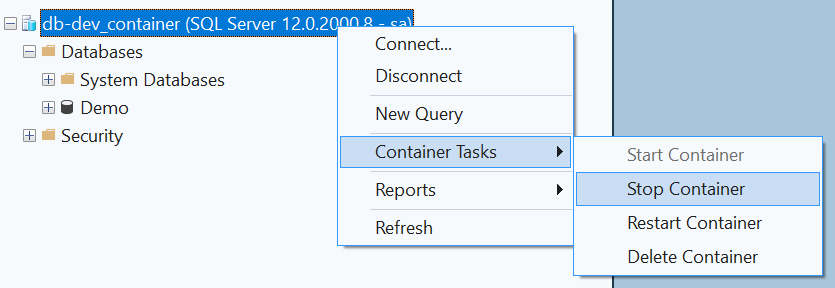
Actions can be unavailable depending on the container's current state. After starting or restarting, wait for the engine to be ready and reconnect directly to TutorialDB using the same credentials. Disconnect closes the Object Explorer connection; use Stop Container when you want to stop the container itself.
Before deleting the container, use Tasks > Create bacpac/dacpac (Preview) on each database whose schema or data you need to retain. A schema-only DACPAC doesn't preserve table data. A package doesn't provide the managed backups or recovery services of Azure SQL Database in Azure.
Clean up resources
To remove the tutorial resources:
Export any schema and data you want to keep before deleting the database or container.
Close query windows and disconnect SSMS connections to
TutorialDB.On a connection explicitly targeting
master, run the following command only ifTutorialDBis the database you created for this tutorial:DROP DATABASE [TutorialDB]; GOIn Object Explorer, right-click the tutorial container's server connection and select Container Tasks > Delete Container.
Warning
Removing the wizard-created container permanently deletes all databases stored inside it, not only
TutorialDB. Ensure you export any data you need from other databases before continuing.
Stopping the container preserves it for a later session; removing it deletes its stored databases. The local container doesn't provide the managed backup, high availability, or recovery services of Azure SQL Database in the cloud.