Note
Access to this page requires authorization. You can try signing in or changing directories.
Access to this page requires authorization. You can try changing directories.
Warning
Review the General Safety Precautions and Battery Safety guidelines in their entirety before proceeding with any repair steps.
Important
Read this Guide in its entirety before starting any repairs. If at any point you're unsure or uncomfortable about performing the repairs, as detailed in this Guide, DO NOT proceed. Contact Microsoft for more support options.
Warning
Failure to follow the instructions in this Guide, use of non-Microsoft (nongenuine), incompatible, or modified replacement parts, and/or failure to use proper tools could result in serious injury, death, and/or damage to the product or other property.
Prerequisite Steps
Steps outlined in this section should be conducted prior to starting any repair on a Surface device.
- Power off device – Ensure the device is powered off completely and the battery has been fully discharged. Refer to the Repair-Specific Precautions and Warnings section for details. Once discharged, the device should be disconnected from all power sources.
- ESD Prevention – Ensure ESD prevention steps and general guidelines are followed prior to opening the device. Refer to the ESD Prevention section for details.
Position Device
To prevent damage to the device, ensure the device is placed on a clean surface free of debris.
What’s included with your component
To reduce waste and complexity, component boxes include only the components that are meant to be replaced. Some parts you interact with during service are reused and will not be included.
If a reusable component is lost or damaged, a collateral kit or screw kit is available for purchase.
Cover Removal
Preliminary Requirements
Important
Be sure to follow all special (bolded) notes of caution within each process section.
Required Tools
- Plastic Opening Pick
- Soft ESD-Safe Mat
- 5IP (Torx-Plus) Driver
Procedure – Removal (Cover)
Place Device – Carefully place the closed device Display side down with the bottom facing up on a soft ESD-Safe Mat.
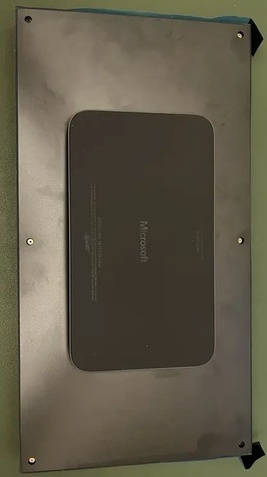
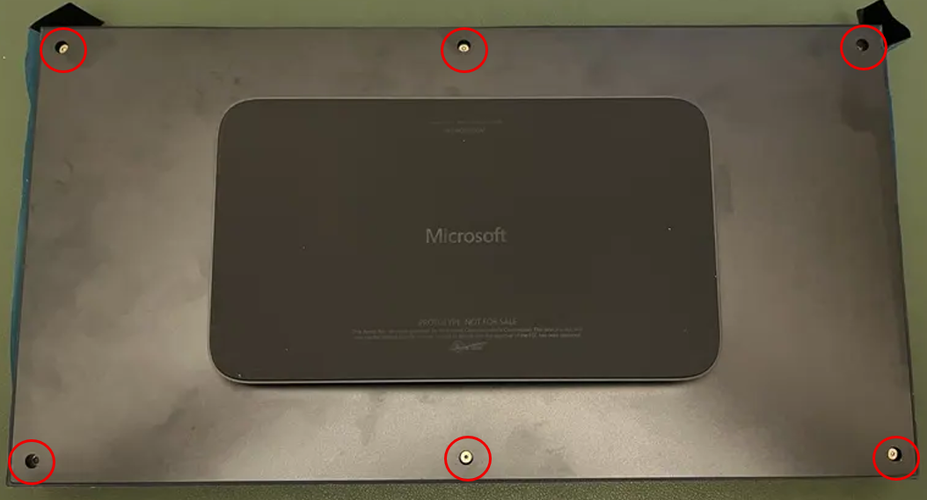
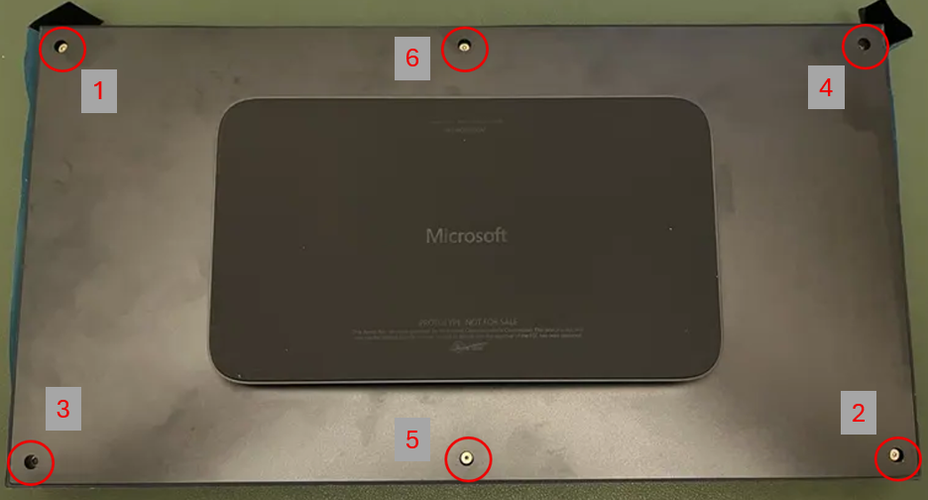
Remove the Screws – Using 5IP (Torx-Plus) Driver, carefully remove all six feet from the lower enclosure.
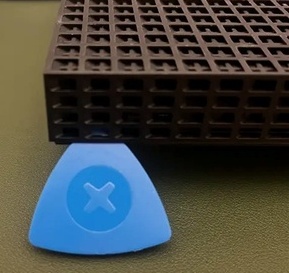
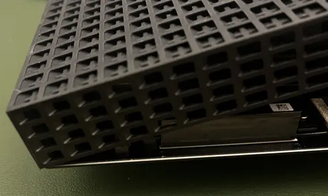
Remove the cover– Using a Plastic Opening Pick, carefully pry up the cover.
Procedure – Installation (Cover)
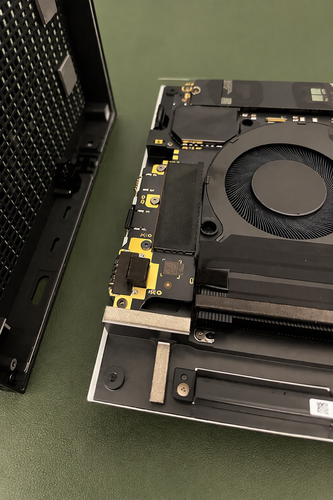
Replace the Cover – Using both hands, carefully lower the right or left edge of the Cover onto the device ensuring you line it up against the top edge as shown below. Once aligned, lower the Cover into place on to the Device. Finally, adjust the position of the Cover so that the gaps are even on all sides, and none of the sides are catching when you press the Cover down flat.
Install the Screws – Using 5IP (Torx-Plus) Driver, carefully reinstall all six feet from the lower enclosure in the order indicated.
Removable Solid-State Drive Replacement
Preliminary Requirements
Important
Be sure to follow all special (bolded) notes of caution within each process section.
Required Tools
- Plastic Opening Pick
- Soft ESD-Safe Mat
- 3IP (Torx-Plus) Driver
- Anti-Static wrist strap (1M Ohm resistance)
- USB drive loaded with the Surface Repair Toolkit (SRT)
Primary Components
- Removable Solid-State Drive (Refer to the Illustrated Service Parts List)
Additional Components
- Thermal Pad - M1381057-001
- Thermal Pad x2 - M1363244-002
Important
Thermal Pad replacement IS REQUIRED regardless of state of the current pad
Procedure – Removal (Removable Solid-State Drive)
Place Device – Carefully place the closed device Display side down with the Feet facing up on a soft ESD-Safe Mat.
Remove the Cover – Refer to the Procedure - Remove (Cover) section of this document for detailed instructions Procedure – Removal (Cover).
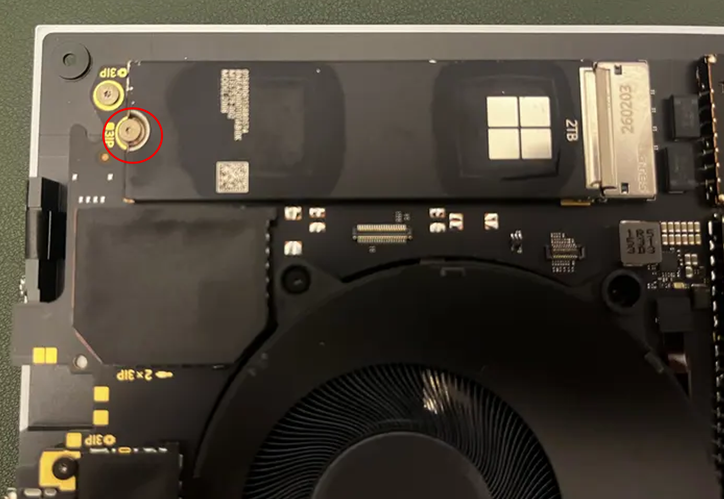
Remove the Removable Solid-State Drive – Using a 3IP (Torx-Plus) driver, remove the screw holding the Removable Solid-State Drive onto the Motherboard. Lift the drive out of the device and place it on a soft ESD-Safe mat.
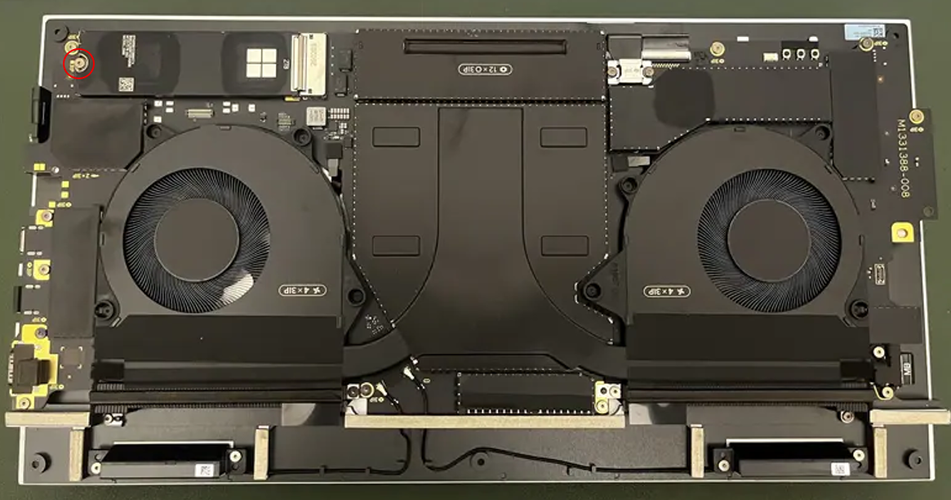
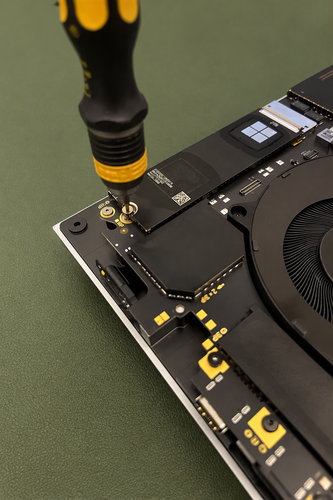
Remove Thermal Pad – Using a Plastic Opening Pick, carefully scrap off the grey thermal pad that sits under the SSD.
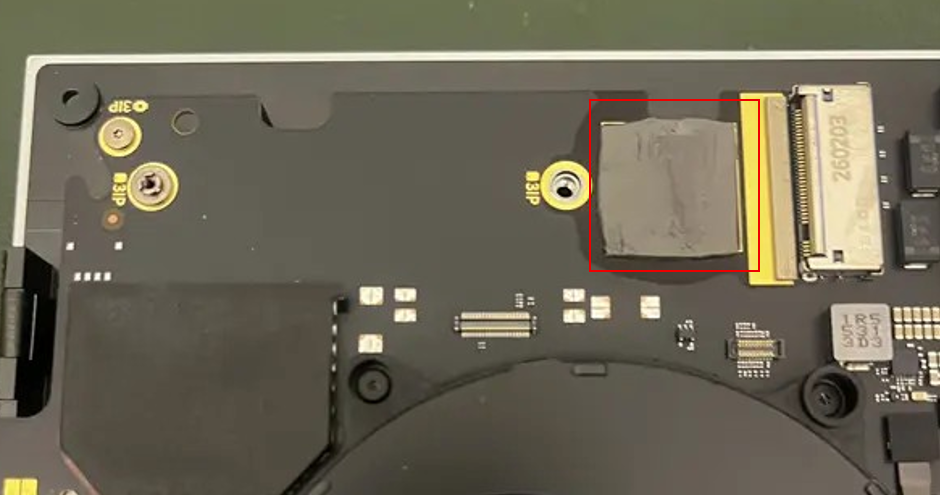
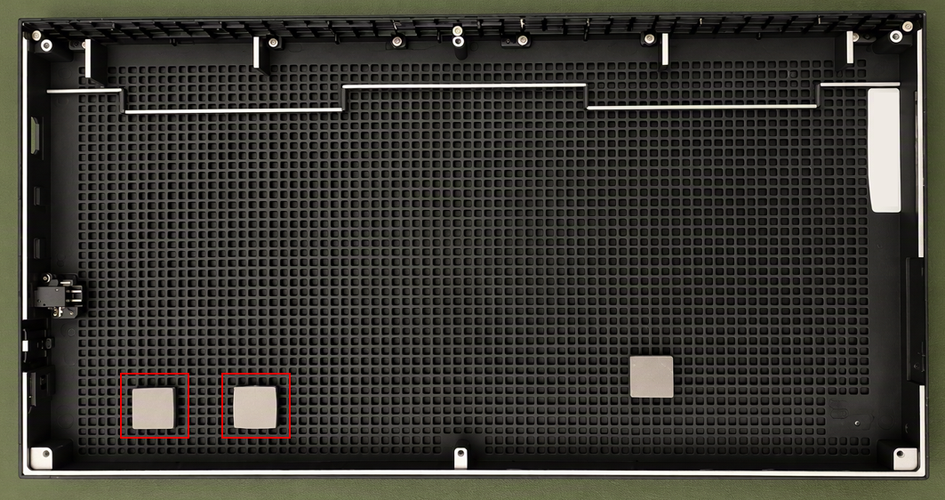
Remove Thermal Pad - Using a Plastic Opening Pick, carefully scrap off the highlighted grey thermal pads that sit on the cover. See image below.
Procedure – Installation (Removable Solid-State Drive)
Install Thermal Pad (Motherboard) – Remove the replacement thermal pad (M1381057-001) from the plastic backing and carefully place it in the same locations as the previous thermal pad. See image below for location.
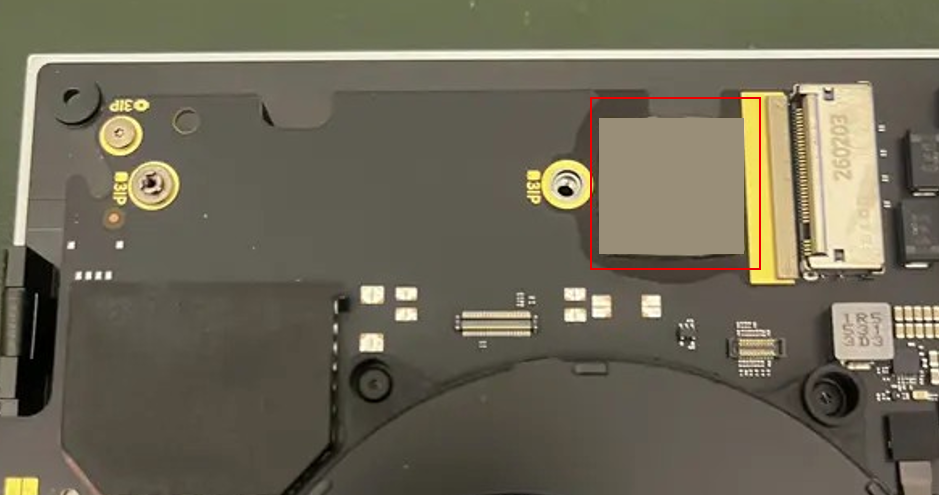
Install Thermal Pad (Cover) – Remove the replacement thermal pads (M1363244-002) from the plastic backing and carefully place them in the same locations as the previous thermal pads. See image above for locations.
Insert the Removable Solid-State Drive – Carefully insert the connector end of the Removable Solid-State Drive into the receptable on the motherboard while keeping the Removable Solid-State Drive as close as possible to horizontal.
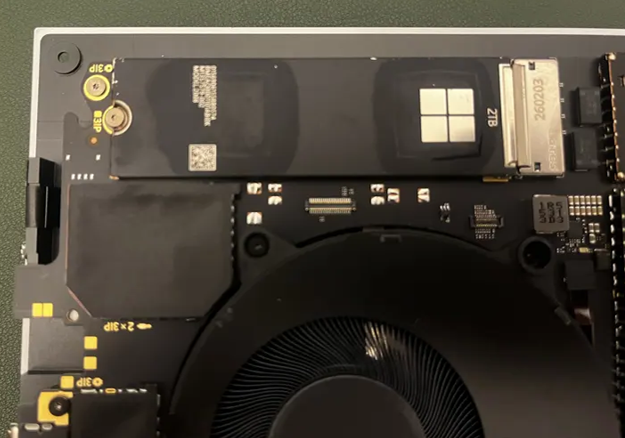
Install Removable Solid-State Drive screw – Using a 3IP (Torx-Plus) driver, install the 1 rSSD screw until the screw is just snug. Then turn the screw an additional 45-degrees (1/8th turn) until screw is fully fastened.
Install Cover – Refer to the Procedure - Install (Cover) section of this document for detailed instructions Procedure – Installation (Cover).
Power on device – Carefully flip the device and place it upright. Connect the device to a power supply and open the Display.
Image the device – Reinstall the operating system and all drivers/firmware by using a USB-drive containing the latest Surface BMR for your model. For information about SRT, see Surface Repair Tool (SRT) overview.
Run the Surface Repair Toolkit (SRT) – With Windows installed and sitting at the desktop, insert the USB drive containing SRT and launch the program. Run all diagnostics to ensure the device is functioning as expected before moving forward.
Power off the device – Once the SRT tests have completed, power down the device and close the display. Invert the device so that the bottom of the device is facing up.