Note
Access to this page requires authorization. You can try signing in or changing directories.
Access to this page requires authorization. You can try changing directories.
The Surface integrated privacy screen reduces the visibility of on-screen content when viewed from the side angles while maintaining readability for the main user.
When to use the privacy screen
The privacy screen helps protect sensitive content when users work in public spaces.
Examples include:
- Travel scenarios such as airplanes or trains
- Public spaces such as cafés or waiting areas
- Open office environments
In these scenarios, enabling the privacy screen can help limit side-angle visibility of on-screen content.
Enable the privacy screen
There are several ways to enable or disable the privacy screen. See the following sections for more information on each method.
Use the keyboard key
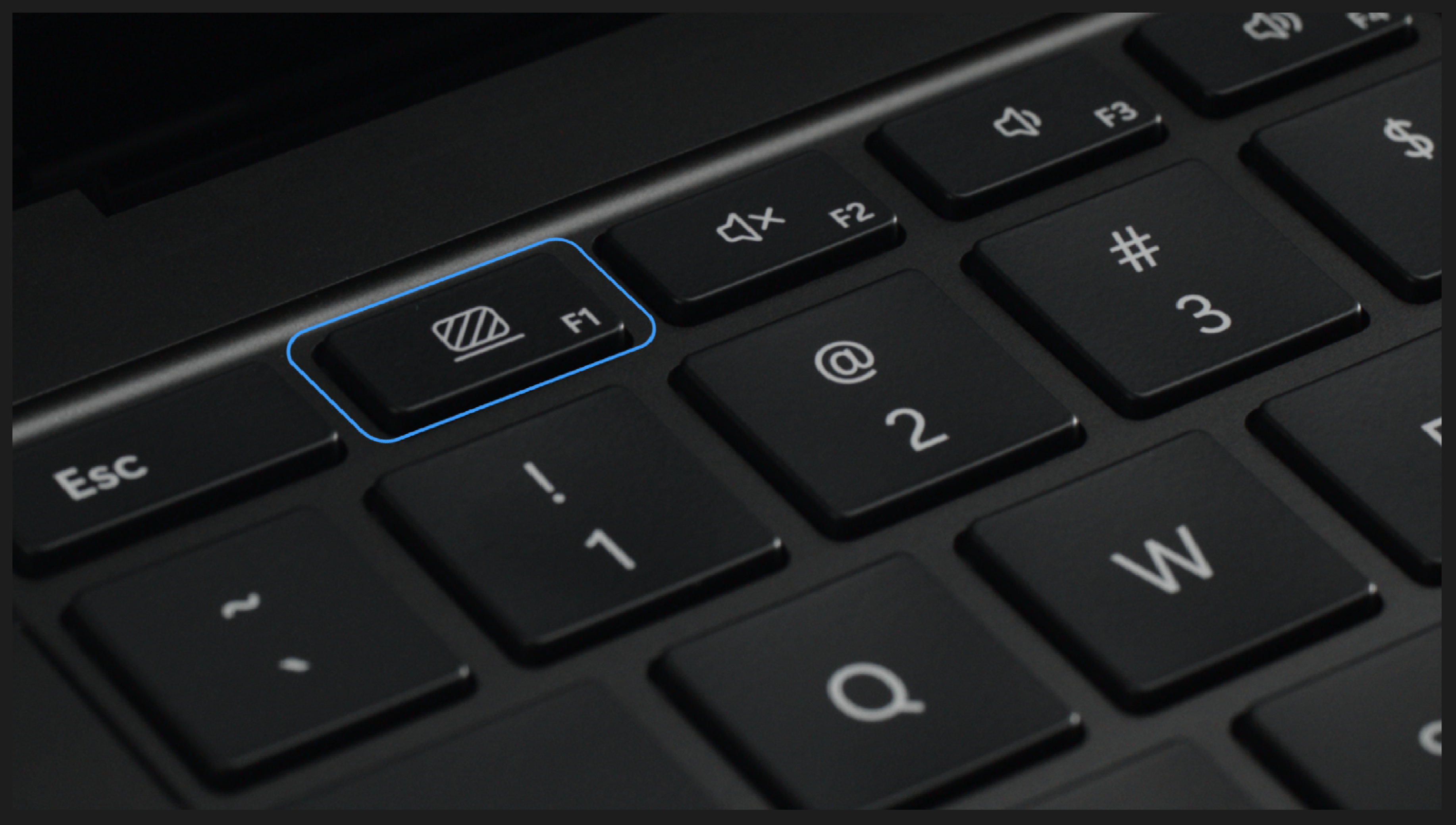
Devices that support the privacy screen include a dedicated keyboard key (F1). Users can select the key to toggle the feature on or off.
Note
The privacy screen applies only to the integrated display. External monitors aren't affected. Content shown on external displays remains visible regardless of the privacy screen state.
Use the Surface app
Users can toggle the privacy screen on or off using the Surface app. The Surface app also:
- Displays the current state (on or off)
- Indicates whether the setting is managed under IT policy
Notification behavior
- A notification appears in the bottom-center of the screen when the privacy screen is toggled using the dedicated key.
- Notifications don't appear when turning on the privacy screen using the Surface app.
If the feature is managed by IT policy, users are notified that the feature is controlled by IT when they attempt to change the setting.
The state of the privacy screen (on/off) persists after the device restarts or resumes from sleep.
First-run experience
The Surface app provides a guided experience to introduce the privacy screen feature.
The first-run experience (FRE) appears the first time the feature is enabled.
If the feature hasn't been enabled within 48 hours of device setup, a toast notification appears to alert the user that the feature exists and provides the option to watch the (FRE).
Users can access this experience later from within the Surface app.
Manage privacy screen settings (IT admins)
IT administrators can manage the privacy screen using policy settings.
Policies are configured using the SurfaceIntegratedPrivacyScreenSetting registry key.
Policy options
| Setting | Description |
|---|---|
| Not configured / Disabled | Privacy screen is off by default. Users can enable or disable it. |
| Enabled – Off by default (user override allowed) | Privacy screen is off by default. Users can turn it on or off. |
| Enabled – On by default (user override allowed) | Privacy screen is on by default. Users can turn it off or on. |
| Enabled – Force on (user override blocked) | Privacy screen is enabled. Users can't disable it. |
When user override is blocked:
- Surface app controls are unavailable
- Keyboard attempts show a notification that the setting is managed by IT
Feature dependencies
Some aspects of the privacy screen feature require the Surface app.
| Feature | Surface app required |
|---|---|
| Toggle using keyboard | No |
| Control using Surface app | Yes |
| Notification display | Yes |
| First-run experience | Yes |
| IT policy enforcement | No |
Important
- If the Surface app isn't installed, notifications and the first-run experience aren't available.
- The Surface app doesn't need to be installed for policy enforcement to apply.
How the privacy screen works
When enabled, the display appears to have lower contrast and dimmer when viewed from the sides of the device. The front-facing view remains readable for the user.
Display behavior
The privacy screen uses a luminance-control algorithm that adjusts display output based on:
- Display brightness (nits)
- Ambient lighting (lux)
- Display contrast characteristics
This behavior influences the Ambient Contrast Ratio, which dictates the balance between end-user readability and onlooker visibility.
Brightness and visibility behavior
- Increasing the display's brightness can make content easier to read from the front but might increase readability when viewing from the side.
- Decreasing the display's brightness might reduce side-angle readability but can also reduce readability.
In brighter environments, reflections can reduce contrast, which reduces side-angle visibility.
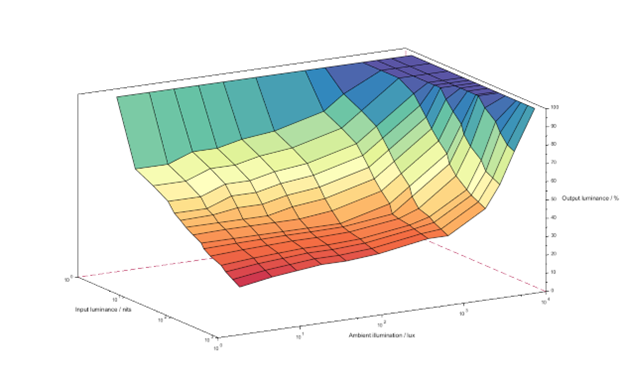
Automatic brightness
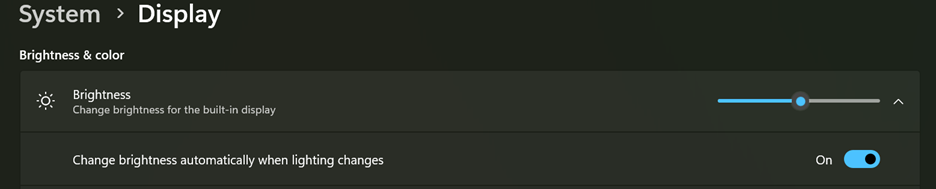
- Enabled by default
- Adjusts display output dynamically based on ambient lighting
- Can be configured in system display settings
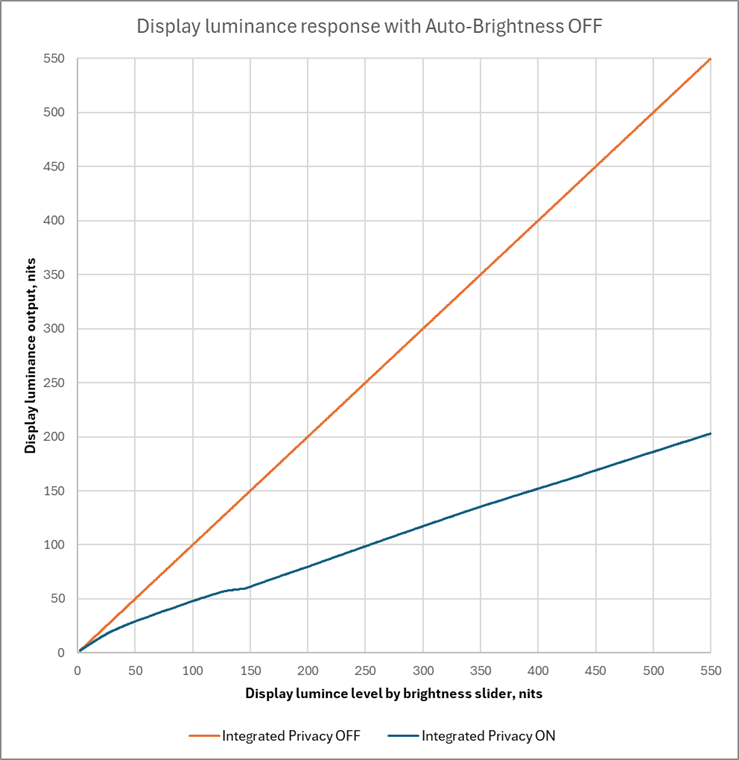
Manual brightness
When automatic brightness is disabled:
- Brightness is controlled using the display slider
- The privacy screen continues adjusting luminance relative to the selected level
Compatibility with display features
The privacy screen works with other Windows display features, including:
- High Dynamic Range (HDR)
- Adaptive Color
- Night Light
- Color profiles