Note
Access to this page requires authorization. You can try signing in or changing directories.
Access to this page requires authorization. You can try changing directories.
This article describes the console-level changes that you need to use group Managed Service Accounts (gMSAs).
Note
This article applies to Operations Manager 2019 Update Rollup 1 (UR1) and later.
Change the credentials for Action accounts
In the Operations Manager console, go to Administration > Run-as configuration > accounts. Perform the following actions for the specified accounts.
Default Action account
The following images show the default Action account.
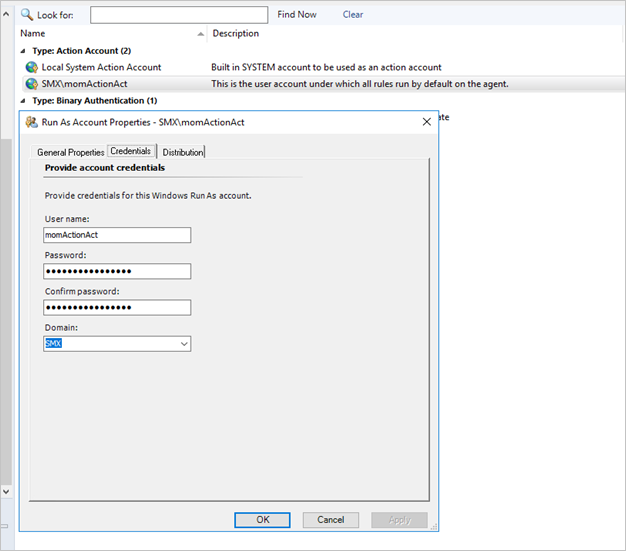

Change the credentials of the default Action account to gMSA.
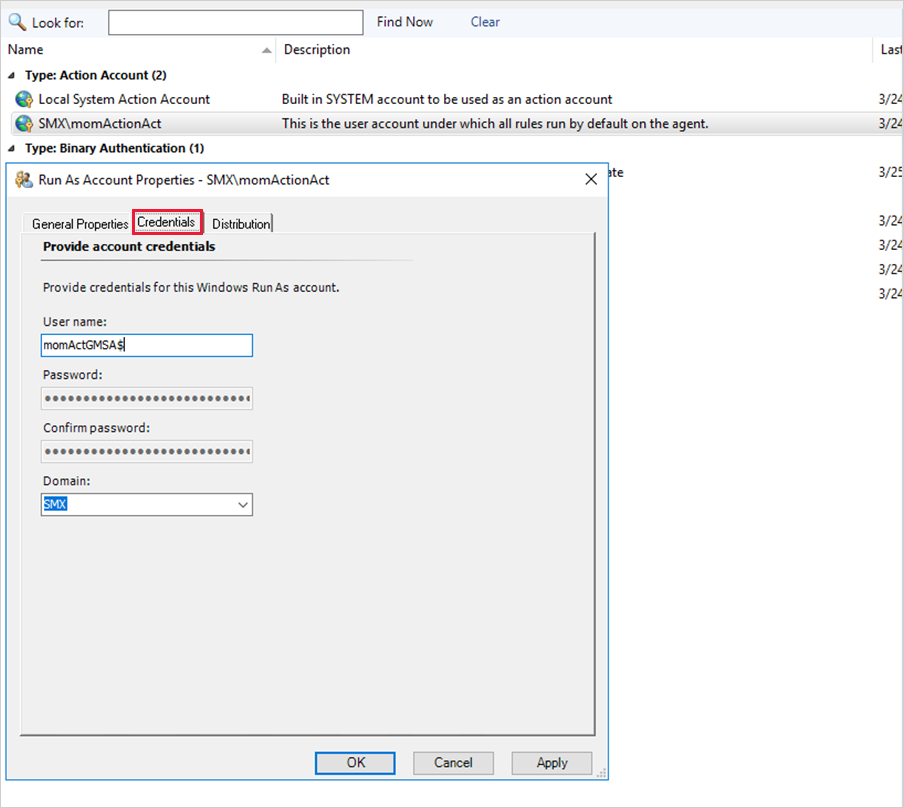

Validate that MonitoringHost.exe runs as gMSA.

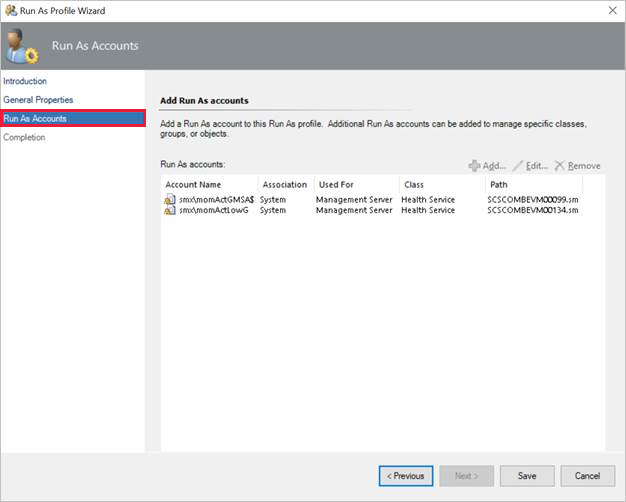
Default Action account Run As profile
Change the default Action account Run As profile to use the gMSA Run As default Action accounts.
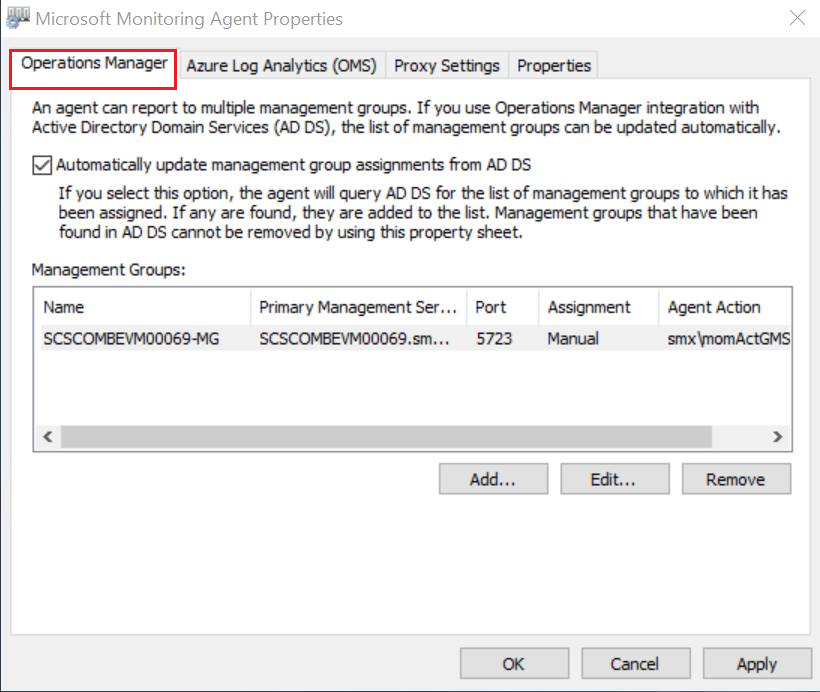
Microsoft Monitoring Agent
To change the agent Action account in the Microsoft Monitoring Agent, update the credentials from the target agent computer, as shown.
Create Run As accounts
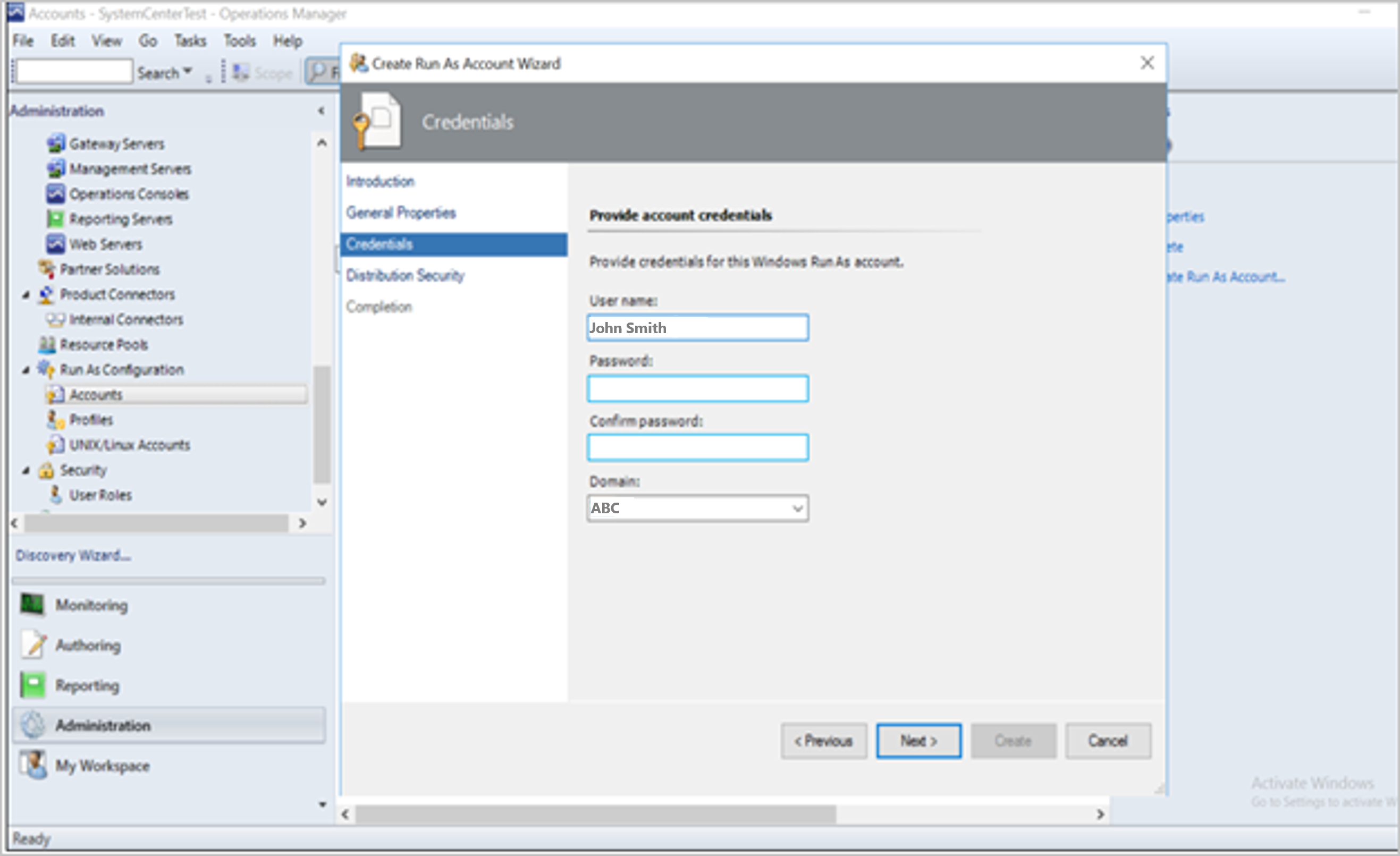
When you create a new Run As account, enter the gMSA in the User name box followed by $. Don't enter a password. Continue to create the Run As account.
Discovery and push installation of the agent
When you provide a gMSA during the discovery process, leave the Password box blank when you add $ at the end of the user name. The agent should install without problems on the target computers.
Known issue and resolution
After migration to gMSA, you might encounter an error when you export a report in Word, PowerPoint, or Excel format. SQL Server Reporting Services on SQL Server 2017 shows this error.
This error is a persistent problem with SQL Server Reporting Services in SQL Server 2017. To resolve it, follow these steps.
- Grant admin access to the Execution account on the report server.
- Restart SQL Server Reporting Services, and wait for five minutes.
- Try to export the reports again.