Perform object and domain controller recovery
Once you've determined the scope of your recovery action, you need to perform the actual recovery using appropriate tools. In this unit, we examine recovering objects and recovering or restoring domain controllers.
Active Directory Recycle Bin
Active Directory Recycle Bin preserves deleted objects and their link-valued and non-link-valued attributes for the configured lifetime. It's the preferred recovery method for eligible objects. Active Directory Recycle Bin has been available since Windows Server 2008 R2. Enabling it's forest-wide and irreversible. You can use an account with Enterprise Admins privileges for the forest-wide enablement unless the organization has implemented and validated equivalent delegated control. Restore operations use Domain Admins by default or a delegated identity with Reanimate Tombstone, destination object-creation, relative distinguished name, and required attribute-write rights.
You can check status of AD Recycle Bin by running the following command:
Get-ADOptionalFeature 'Recycle Bin Feature' |
    Select-Object Name, EnabledScopes
If EnabledScopes contains the forest configuration naming context, the feature is enabled.
Warning
Enabling Recycle Bin changes forest behavior permanently. Use the minimum approved forest-level privilege, change approval, replication health validation, and a rollback statement that explicitly says the feature can't be disabled.
If you need to enable AD Recycle Bin, you can do so from an elevated Windows Server 2025 or Windows 11 RSAT session, using approved forest-wide authority. The operation must target the domain controller that holds the domain naming master role. To enable AD Recycle Bin, run the following PowerShell command:
$forest = Get-ADForest
$domainNamingMaster = $forest.DomainNamingMaster

Enable-ADOptionalFeature `
    -Identity 'Recycle Bin Feature' `
    -Scope ForestOrConfigurationSet `
    -Target $forest.RootDomain `
    -Server $domainNamingMaster
Find deleted objects
To find Active Directory objects that have been deleted but are still present within the Recycle Bin:
- Open Server Manager and select Tools > Active Directory Administrative Center. Alternatively, run
dsac.exe. - Select the relevant domain.
- If it isn't displayed, select Manage > Add Navigation Nodes and add the domain.
- Open the domain’s Deleted Objects container.
- Enter the object’s name, username, or another identifying value in the Filter box.
- Expand the filter options and add criteria such as:
- Name
- When deleted
- Object type
- Last known parent
- SAM account name
- User principal name (UPN)
- Review the results and use Last Known Parent to confirm the object’s original location.
- Press F5 if the results need to be refreshed.
When searching large environments:
- Right-click Deleted Objects.
- Select Search under this node.
- Add the Last modified between given dates criterion.
- Apply additional filters to locate the required object.
Note
Objects displayed in Deleted Objects are still restorable. Objects deleted before Active Directory Recycle Bin was enabled, or that have exceeded the recoverable lifetime, will not appear.
To find deleted objects using PowerShell, use a narrow filter against an explicit domain controller, require exactly one result, and confirm the object GUID before attempting any restore:
$server = 'DC01.contoso.com'
$candidates = @(
    Get-ADObject `
        -Server $server `
        -Filter 'isDeleted -eq $true -and samAccountName -eq "pattifuller"' `
        -IncludeDeletedObjects `
        -Properties lastKnownParent, whenChanged, objectClass `
        -ErrorAction Stop
)

if ($candidates.Count -ne 1) {
    throw "Expected exactly one deleted object; found $($candidates.Count). Refine the search and confirm the intended object GUID."
}

$candidate = $candidates[0]
$candidate |
    Select-Object ObjectGUID, Name, ObjectClass, LastKnownParent, WhenChanged |
    Format-List

$guidInput = Read-Host 'Enter the confirmed ObjectGUID to restore'
$confirmedGuid = [guid]::Empty
if (-not [guid]::TryParse($guidInput, [ref]$confirmedGuid)) {
    throw "Input '$guidInput' isn't a valid GUID. No object was restored."
}

if ($confirmedGuid -ne $candidate.ObjectGUID) {
    throw "The confirmed GUID doesn't match the reviewed deleted object."
}
Restore a leaf object
To restore an object such as a user account or group account stored in an OU or container:
- Open Server Manager → Tools → Active Directory Administrative Center (
dsac.exe). - Select the appropriate domain, then open Deleted Objects.
- Select the deleted object.
- In the Tasks pane, choose:
- Restore: returns it to its original location.
- Restore To: restores it to another OU or container.
- Verify the object appears in the destination.
You can only use the Recycle Bin to restore objects if Recycle Bin was enabled before deletion.
If a parent OU was also deleted, restore the parent first, followed by its child objects.
Continue in the same PowerShell session after completing the selection and GUID confirmation. This is the branch that restores the object to its last known parent:
Restore-ADObject `
    -Identity $confirmedGuid `
    -Server $server `
    -Confirm `
    -ErrorAction Stop
Before restoring using PowerShell, confirm:
- Object GUID.
- Object class.
- Last known parent.
- Deletion time.
- Incident scope.
To validate the restoration using PowerShell:
Get-ADUser `
    -Identity 'pattifuller' `
    -Server $server `
    -Properties MemberOf, Enabled, SID
After restoration, also validate:
- Group membership.
- Access control.
- Ownership.
- User principal name.
- Service principal names.
- Application references.
Restore to another location
Instead of restoring to the last known parent, you can restore the confirmed object to a different location. For example, to restore to a different OU, specify that OU in the target path:
Restore-ADObject `
    -Identity $confirmedGuid `
    -Server $server `
    -NewName 'Kim Abercrombie' `
    -TargetPath 'OU=Finance,OU=UserAccounts,DC=contoso,DC=com' `
    -Confirm `
    -ErrorAction Stop
Preconditions:
- The target container exists.
- The name doesn't conflict.
- The operator can reanimate the object and create it in the destination.
- Application owners accept the new distinguished name.
Restore a hierarchy
In some scenarios you must restore more than a single object. For example, you may need to use AD Recycle Bin to restore deleted organizational units or containers. To do this, restore top-down:
- Highest deleted organizational unit.
- Immediate child containers.
- Nested child containers.
- Leaf objects.
A child can't return to a deleted parent, so you need to restore the parent item first.
After hierarchy recovery, compare:
- Direct and nested group membership.
- Cross-domain membership.
- Access control entries.
- Delegation.
- Group Policy links.
- Managed-by relationships.
- Application distinguished-name references.
Recover attributes
Recycle Bin doesn't provide arbitrary point-in-time rollback for an object that still exists. You can recover attributes from:
- Replication metadata.
- Directory auditing.
- Security event records.
- Known-good exports.
- Configuration management.
- Offline backup inspection.
- Application-owned source data.
When restoring, apply the smallest correction. Record the old value, new value, source evidence, approver, and replication validation.
Apply accidental deletion protection
You can also enable accidental deletion protection on objects to minimize the possibility that they'll be inadvertently removed. Recommended practice is to scope accidental deletion protection to approved organizational units:
$targetOUs = Get-ADOrganizationalUnit `
    -SearchBase 'OU=UserAccounts,DC=contoso,DC=com' `
    -SearchScope Subtree `
    -Filter *

$targetOUs |
    Select-Object DistinguishedName

$targetOUs |
    Set-ADOrganizationalUnit `
        -ProtectedFromAccidentalDeletion $true `
        -WhatIf
Review delegated administration before removing -WhatIf. Protection changes delete permissions and can affect automation.
Know when AD Recycle Bin is insufficient
In some cases, AD Recycle Bin is insufficient for the restoration task you need to perform. You may need to use another method when:
- The object was deleted before Recycle Bin enablement.
- Retention expired.
- The object still exists but attributes must return to an earlier state.
- Required forest state isn't trustworthy.
- Widespread damage needs domain or forest recovery.
Directory Service Restore Mode
Directory Services Restore Mode (DSRM) is a special domain-controller boot mode that keeps Active Directory Domain Services (AD DS) offline. It allows administrators to repair or restore the directory database using system-state backups. DSRM uses a local administrator password rather than normal domain authentication.
| Feature | DSRM | AD Recycle Bin |
|---|---|---|
| Purpose | Disaster recovery and database repair | Recover accidentally deleted AD objects |
| Scope | Domain controller, AD database, or forest recovery | Users, groups, computers, OUs, and their attributes |
| Operation | Domain controller boots offline and usually requires a backup | AD remains online; no backup required |
| Recovery method | Authoritative or nonauthoritative restore | Active Directory Administrative Center or Restore-ADObject |
| Limitations | More disruptive and operationally complex | Must be enabled before deletion, is retention-limited, and can't repair corruption or recover a failed domain controller |
Use AD Recycle Bin first for ordinary object deletion because it preserves attributes such as group memberships.
System-state recovery of AD DS runs on the original server instance, or on the instance first reconstructed through the approved full-server recovery path. Use console or approved out-of-band access. To be able to restart and enter Directory Services Restore Mode (DSRM) an approved boot configuration can use:
bcdedit /set '{current}' safeboot dsrepair
shutdown /r /t 0
Before restarting, ensure:
- DSRM password is verified.
- Backup media is accessible in DSRM.
- Network state matches the recovery design.
- Console access remains available if remote services stop.
After all required DSRM work is complete, including authoritative object processing when applicable, remove the setting from the same boot entry to restart normally:
bcdedit /deletevalue '{current}' safeboot
shutdown /r /t 0
Don't boot normally between an incomplete system-state restore and required authoritative object processing. Stop if DSRM access, media, source identity, or boot configuration can't be verified.
Note
DSRM credentials can be stored using Windows Local Administrator Password Solution (Windows LAPS) functionality, but you should store DSRM credentials in a safe location (escrow) outside the failed forest. Test access before an incident. DSRM account management has prerequisites. It depends on Windows LAPS password encryption, which requires a domain functional level of 2016 or later, and it's supported only on Windows Server 2019 and later domain controllers. When every domain controller in a domain is unavailable, you can retrieve a LAPS-stored DSRM password from a mounted backup copy of the directory database.
Select the system-state backup in DSRM
Select the backup source and version in the PowerShell session that will run the recovery. The -machine value is the computer represented by the backup, not the recovery workstation, or backup server. Retain the version-listing output as recovery evidence. Using an elevated local console, run the following command:
$backupTarget = Read-Host 'Enter the backup target, for example E: or \\backup01\dcbackups'
$backupMachine = Read-Host 'Enter the backed-up computer name represented by this backup'

$versionListing = & wbadmin get versions `
    "-backupTarget:$backupTarget" `
    "-machine:$backupMachine"

if ($LASTEXITCODE -ne 0) {
    throw "wbadmin couldn't list versions for the approved source."
}

$versionListing
$backupVersion = Read-Host 'Enter the exact version identifier from the preceding output'

if ([string]::IsNullOrWhiteSpace($backupVersion) -or
    -not ($versionListing -match [regex]::Escape($backupVersion))) {
    throw "The selected version identifier wasn't found in the version listing."
}
Note
The version identifier is locale-specific. Stop if the backup target, source computer, selected version, or available recovery type doesn't match the approved backup. When -backupTarget is specified for wbadmin start systemstaterecovery, -machine is required.
Perform authoritative object restore
When Recycle Bin can't recover selected objects, run ntdsutil locally in DSRM after the nonauthoritative system-state recovery and before normal startup. Confirm the distinguished name against the mounted backup and use the smallest approved scope.
For one approved object:
ntdsutil
activate instance ntds
authoritative restore
restore object "CN=Patti Fuller,OU=UserAccounts,DC=contoso,DC=com"
quit
quit
For an approved hierarchy, use an exact subtree instead:
ntdsutil
activate instance ntds
authoritative restore
restore subtree "OU=Finance,OU=UserAccounts,DC=contoso,DC=com"
quit
quit
Review the ntdsutil result and retain the generated ar_*_objects.txt object list and ar_*_links_*.ldf link files as recovery evidence.
Rebuild domain controllers
When you need to return a domain controller to service, you have the option of rebuilding it, which is essentially replacing it with another new Windows Server instance, or restoring it, which involves recovering from backup. Rebuild a domain controller using a new deployment when:
- Other writable controllers are healthy.
- Required partitions replicate.
- A healthy SYSVOL source exists.
- DNS capacity remains available.
- The server won't return in its old state.
To do this:
- Isolate the failed server.
- Confirm it won't return.
- Clean metadata if demotion can't complete (delete the domain controller's computer account from AD DS)
- Remove stale DNS records.
- Reinstall Windows Server 2025 from trusted media and provide the same identity data.
- Domain join and then promote the replacement server.
- Validate replication, SYSVOL, DNS, time, and authentication.
- Securely dispose of old disks or virtual media (depending on the failure, you may reuse storage for the replacement server).
Choose to restore a domain controller from backup
You should only choose to restore a domain controller from backups under a limited set of circumstances. Restore when:
- No healthy partner contains the required state.
- A selected controller provides the trusted recovery point.
- The recovery path is supported for the source server and backup type.
- DSRM credentials and media are available.
- The authority design is approved.
Don't apply system state to an unsupported fresh installation or unrelated server. Use full-server or bare-metal recovery when operating system reconstruction is required.
Prepare the restore
Record:
- Selected backup evidence.
- Exact source controller.
- Backup location.
- DSRM access.
- Network isolation.
- AD DS authority.
- SYSVOL authority.
- DNS role.
- Expected replication partner.
- Stop conditions.
Before entering DSRM, record the approved backup target, source computer, version, and available recovery types from the backup inventory. Verify them again locally in DSRM before starting recovery.
Select SYSVOL authority
AD DS database recovery and SYSVOL recovery solve different replication problems.
| Scenario | AD DS database | SYSVOL |
|---|---|---|
| Routine domain controller restore with healthy partners | Nonauthoritative | Normally nonauthoritative |
| First writable controller in each domain during forest recovery | Nonauthoritative | Authoritative |
| Later controllers in a recovered domain | Replicate or promote cleanly | Nonauthoritative or promote cleanly |
| Selected deleted objects without Recycle Bin | Nonauthoritative base restore plus authoritative object marking | Unchanged unless separately required |
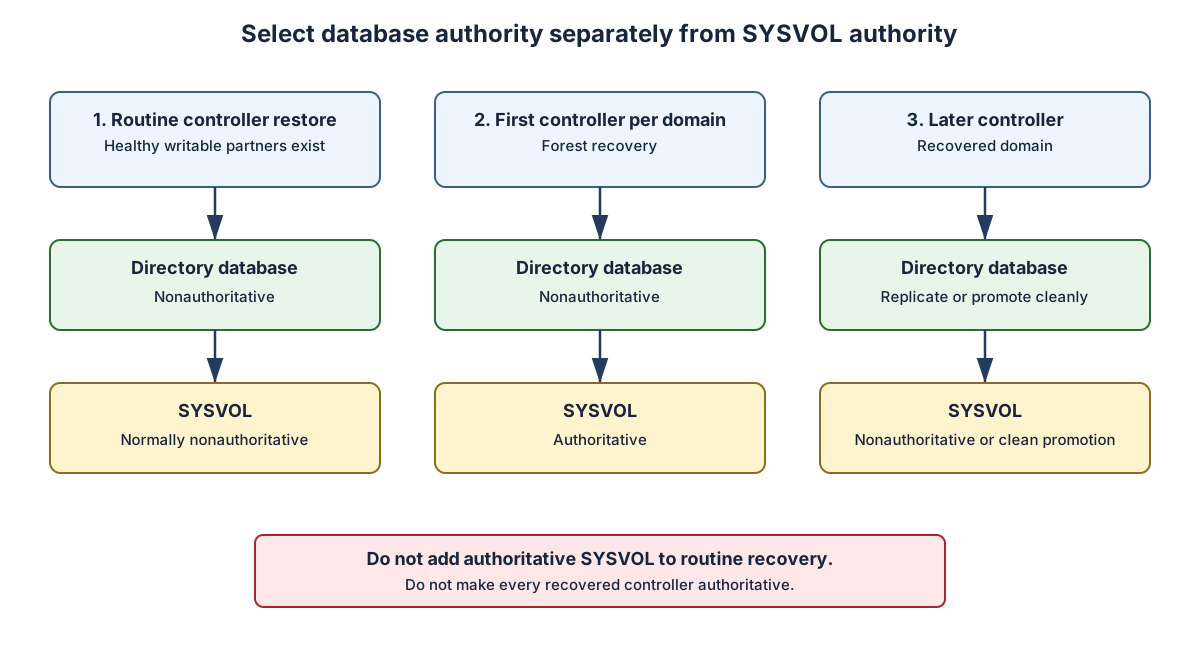
-authsysvol isn't a generic safety switch. It's used only when the recovery design requires the restored SYSVOL copy to become authoritative.
Keep directory-database authority separate from SYSVOL authority. When selecting SYSVOL authority, use this matrix:
| Scenario | SYSVOL action |
|---|---|
| Routine controller restore with a healthy SYSVOL partner | Nonauthoritative synchronization; don't use -authsysvol |
| Isolated first restored writable controller in a recovered domain, using a subsequent system-state recovery | Use -authsysvol on that one approved source |
| Isolated first restored writable controller after bare-metal or full-server recovery, without a subsequent authoritative system-state recovery | Use the forest-recovery msDFSR-Options=1 procedure |
| Coordinated repair when multiple domain controllers are online | Use the complete KB 2218556 all-controller procedure |
| Later controller in a recovered domain | Nonauthoritative synchronization or clean promotion |
Restore system state and make SYSVOL authoritative
Use this procedure only on the designated Windows Server 2025 domain controller whose SYSVOL copy must become authoritative. This operation restores all system state: AD DS is restored nonauthoritatively and SYSVOL authoritatively.
Before starting:
- Boot the designated controller into DSRM and use an elevated local console.
- Ensure the selected backup explicitly includes system state.
- Keep untrusted writable domain controllers offline or isolated from the recovery environment.
- Complete the recovery-point gate in the current PowerShell process.
$gateState = $global:ADRecoveryApprovedGateState
$currentGateRunId = [string]$global:ADRecoveryCurrentGateRunId

$gateIsInvalid = (
    $null -eq $gateState -or
    [string]::IsNullOrWhiteSpace($currentGateRunId) -or
    -not [string]::Equals(
        [string]$gateState.GateRunId,
        $currentGateRunId,
        [StringComparison]::Ordinal
    ) -or
    [string]::IsNullOrWhiteSpace([string]$gateState.BackupTarget) -or
    [string]::IsNullOrWhiteSpace([string]$gateState.BackupMachine) -or
    [string]::IsNullOrWhiteSpace([string]$gateState.BackupVersion)
)

if ($gateIsInvalid) {
    throw 'Stop: no validated values exist for the current recovery-point gate run in this PowerShell process.'
}

try {
    & wbadmin start systemstaterecovery `
        "-version:$([string]$gateState.BackupVersion)" `
        "-backupTarget:$([string]$gateState.BackupTarget)" `
        "-machine:$([string]$gateState.BackupMachine)" `
        -authsysvol

    if ($LASTEXITCODE -ne 0) {
        throw "The system-state recovery with authoritative SYSVOL didn't complete successfully."
    }
}
finally {
    Remove-Variable -Name `
        ADRecoveryApprovedGateState, `
        ADRecoveryCurrentGateRunId `
        -Scope Global `
        -ErrorAction SilentlyContinue
}
The command deliberately omits -quiet, allowing Windows Server Backup to display confirmation prompts, including the warning when a backup belongs to another server. If an approved unattended run adds -quiet, record that the recovery-point gate becomes the sole cross-server safeguard.
Important
The -authsysvol option is supported only by wbadmin start systemstaterecovery. Use it only on the designated authoritative controller. Omit it for routine restores and other controllers in the recovered domain. Bare-metal and full-server recovery through Windows Recovery Environment or wbadmin start sysrecovery can't mark SYSVOL authoritative.
Recover DNS
AD-integrated zones return with their directory partitions. They require:
- Correct partition availability.
- DNS Server service where intended.
- Replication.
- Netlogon registration.
File-backed zones, forwarders, policies, and server-local settings can require separate restoration.
For a file-backed primary zone:
- Restore the approved zone file to the protected DNS zone-file location.
- Recreate or verify the primary-zone configuration.
- Reload the zone through the supported DNS Server procedure.
Example after the zone file and definition are in place:
Restore-DnsServerPrimaryZone -Name 'legacy.contoso.com'
Validate zone load, records, dynamic-update policy, transfers, delegation, and resolution. AD DS recovery doesn't restore this file-backed data.
Remove stale:
- NS records.
- CNAME records.
- A and AAAA records.
- SRV records.
Recover virtualized domain controllers
Virtualization changes the mechanics of recovery. A supported hypervisor exposes VM-Generation ID to the guest. AD DS stores the value and compares it during startup and update processing.
When the value changes after a supported restore, AD DS:
- Changes the replication invocation ID.
- Discards the local RID pool.
- Accepts inbound replicated changes.
- Protects against update sequence number reuse.
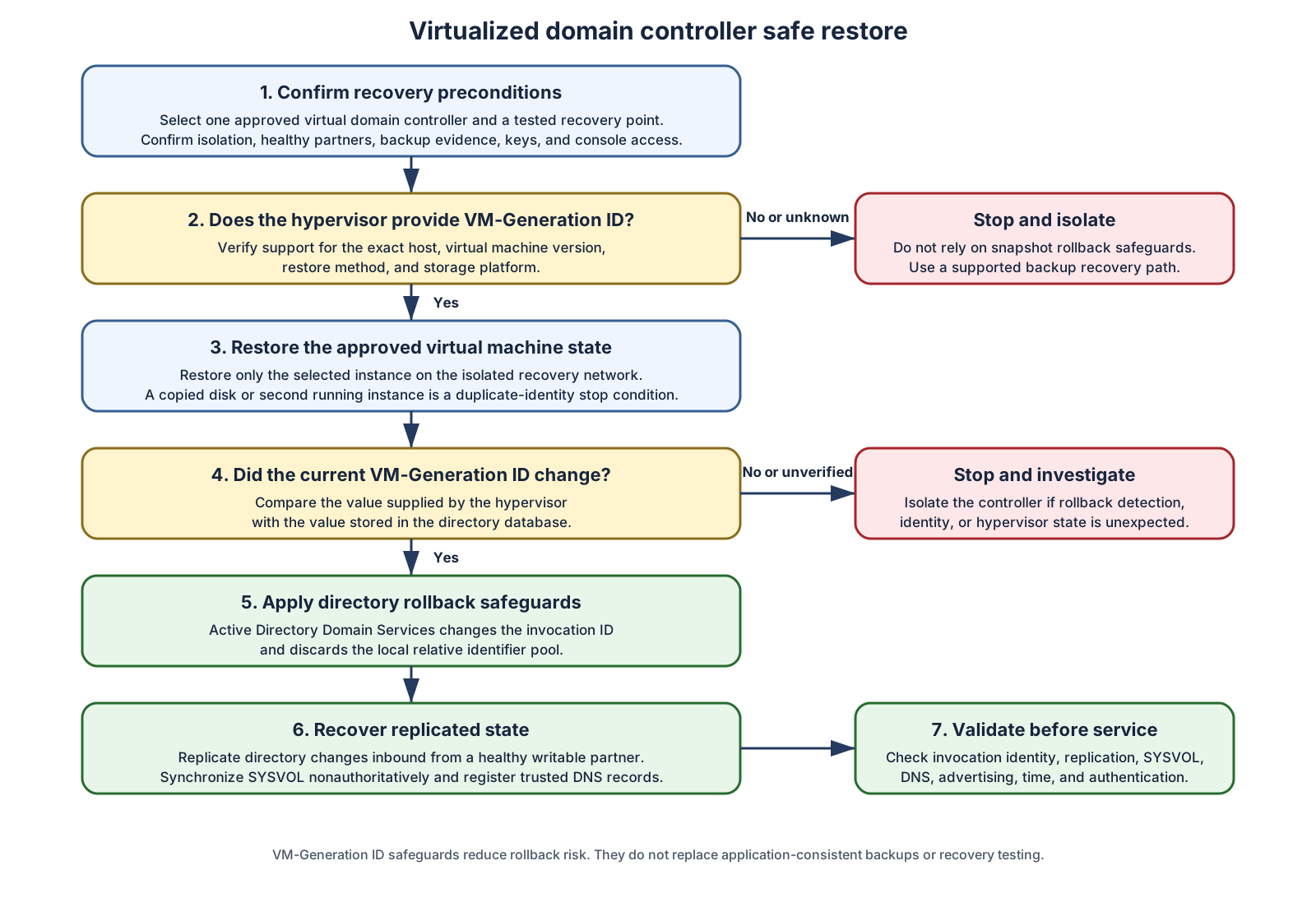
VM-Generation ID doesn't:
- Make every snapshot a supported backup.
- Preserve changes that never replicated outward.
- Prove SYSVOL authority.
- Prevent duplicate identity from copied virtual disks.
- Protect encryption keys.
- Replace restore testing.
Warning
Manually replacing an in-place VHD or VHDX, and restoring a controller with ordinary file-level or full-disk imaging software, are outside VM-Generation ID safe-restore semantics and might not change the generation ID at all. Use an AD-aware system-state recovery, or a full-server recovery through Windows Server Backup or another supported AD-aware path. Verify support before boot.
VM-Generation ID doesn't authorize starting an arbitrary virtual machine copy. Decide the platform operation explicitly before power-on, and record the exact operation and the vendor's support statement in the incident runbook:
- Checkpoint or snapshot rollback is covered by the safeguard only when the vendor documents that this exact guest and hypervisor version changes VM-Generation ID for that exact operation. It still needs a healthy writable replication source, and it's not a backup substitute.
- An export, an import, a copied virtual disk, or a disk attached to another virtual machine must never be booted as a second controller merely because it now runs in a new location. Treat it as a clone only when the supported cloning procedure was followed. Otherwise keep it offline and use a supported AD-aware restore or clean promotion.
- Generic image recovery including file-level restore, full-disk image restore, or in-place VHD/VHDX overwrite isn't converted into a supported restore by VM-Generation ID. Use the supported AD-aware recovery procedure for that backup type.
Distinguish safe restore from cloning
Safe restore is different from cloning:
- Safe restore returns one virtual controller to an earlier state under the same identity and invokes rollback safeguards.
- Cloning creates a new controller identity from an approved source and configuration. It isn't a rollback and isn't a recovery path for the source controller.
Cloning requires:
- A supported VM-Generation ID platform.
- A gracefully shut-down and authorized source.
- Membership in the Cloneable Domain Controllers group with a validated application inventory.
- An approved
DCCloneConfig.xml. - An available PDC Emulator.
- A new virtual machine with its own virtual machine identity.
A copied virtual disk without valid cloning configuration can create a second controller with the same identity.
Control snapshot use
Snapshots, checkpoints, replicas, and storage snapshots aren't the only recovery mechanism.
Before restore, determine:
- Was the controller powered off, running, or suspended?
- Does the hypervisor support VM-Generation ID?
- Did post-snapshot changes replicate outward?
- Is a healthy writable partner available?
- What happens to SYSVOL?
- Can the restored virtual machine register duplicate DNS data?
- Are virtual TPM, BitLocker, secure boot, and key services available?
Handle suspended-state restore
When a snapshot containing a suspended virtualized controller is restored on a supported VM-Generation ID hypervisor, restarting AD DS can be required to trigger a new RID pool request:
Restart-Service NTDS -Force
Use this command only for that documented scenario.
Preconditions:
- Hypervisor support is confirmed.
- Another healthy writable controller exists.
- Authentication impact is approved.
- Console access is available.
- The server isn't the only functioning DNS or authentication source.
Expected result: AD DS restarts and requests safe post-restore identity state.
Validate:
- Service recovery.
- Invocation identity.
- RID behavior.
- Replication.
- SYSVOL.
- DNS registration.
- Advertising.
- Authentication.
Stop and isolate the server if:
- VM-Generation ID can't be confirmed.
- Duplicate identity appears.
- Replication quarantine occurs.
- Invocation identity doesn't change as expected.
- SYSVOL has no valid source.
Prevent simultaneous restore
Don't restore every controller in a domain at once. If all restored controllers treat SYSVOL as nonauthoritative, no authoritative source remains.
During forest recovery:
- First writable controller in each domain: authoritative SYSVOL.
- Other controllers: nonauthoritative SYSVOL or clean promotion.
Protect key dependencies
Virtual recovery can depend on:
- Virtual TPM state.
- BitLocker keys.
- Secure boot.
- Host key protectors.
- Storage encryption.
- Network virtualization.
- Hypervisor administration.
Store recovery keys outside the failed forest. Test restoration on the intended hypervisor platform.