Configure tenant settings and delegate admin rights
Now that Alex understands who manages what, she can start configuring the platform. Before her teams can create workspaces and build reports, she needs to control which Fabric features are available, create governance boundaries for different departments, and delegate the right admin tasks to the right people. In this unit, you learn how to configure tenant settings, set up domains, delegate settings to domain admins, and assign workspaces to capacities.
Configure tenant settings
Tenant settings give you fine-grained control over which Fabric features are available to users in your organization. You find them in the Fabric admin portal under Tenant settings.
Each tenant setting can be in one of several states. You can disable a feature for the entire organization, enable it for everyone, enable it for specific security groups only, or enable it for everyone except specific security groups. This flexibility lets you roll out Fabric features gradually or restrict certain capabilities to approved teams. Changes can take up to 15 minutes to take effect across the tenant.
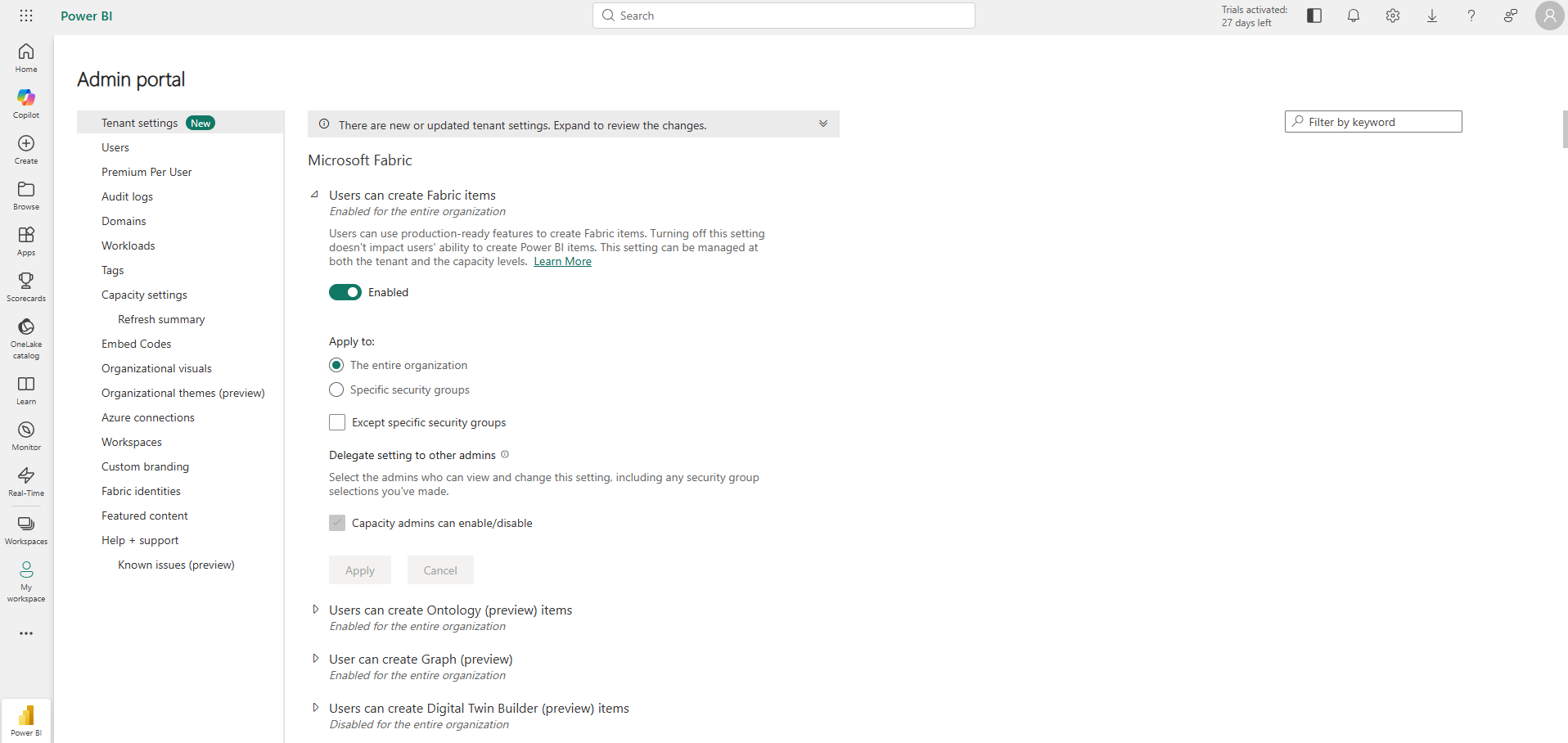
Alex starts by enabling the Users can create Fabric items setting for the entire Contoso tenant. This is the main Fabric on/off switch. Without it, users can't create lakehouses, warehouses, or any other Fabric items. She enables it tenant-wide because she wants all departments to start experimenting with Fabric. Capacity admins can override this setting at the capacity level if they need tighter control later.
Important
Tenant settings control feature availability in the UI. They're governance policies, not security measures. For example, turning off the Export data setting removes the export button from the interface, but it doesn't prevent a user with read access to a semantic model from querying that model through another tool like Excel or Python. Real data security requires item permissions and sensitivity labels.
With that distinction in mind, Alex configures export and sharing settings next. Finance data at Contoso must stay within Fabric and can't be exported to Excel or shared externally. She creates a security group called "Finance Restricted" that includes all Finance users, then enables the Export to Excel setting for the entire organization except the Finance Restricted group. This approach keeps Finance compliant without affecting other departments.
Alex also configures the Certification setting, which controls who can certify items as trusted. She enables certification tenant-wide but limits it to a "Data Stewards" security group. Only designated data stewards can mark semantic models and reports as certified, which helps users identify trustworthy content.
Set up domains
Domains let you create governance boundaries that reflect your organization's structure. Alex uses domains to apply different policies to Finance and Risk without affecting Marketing or IT.
A domain is a logical grouping of workspaces. Domain assignment doesn't change item visibility or security. Workspace roles and item permissions still control who can access what. Domains organize governance, not access. Department leads sometimes assume that moving a workspace into a Finance domain automatically restricts access to Finance users. It doesn't. Access control happens at the workspace and item level.
Assigning a workspace to a domain doesn't change who can see or use items in that workspace. Workspace roles and item permissions still control access. Domains organize governance policies, not access.
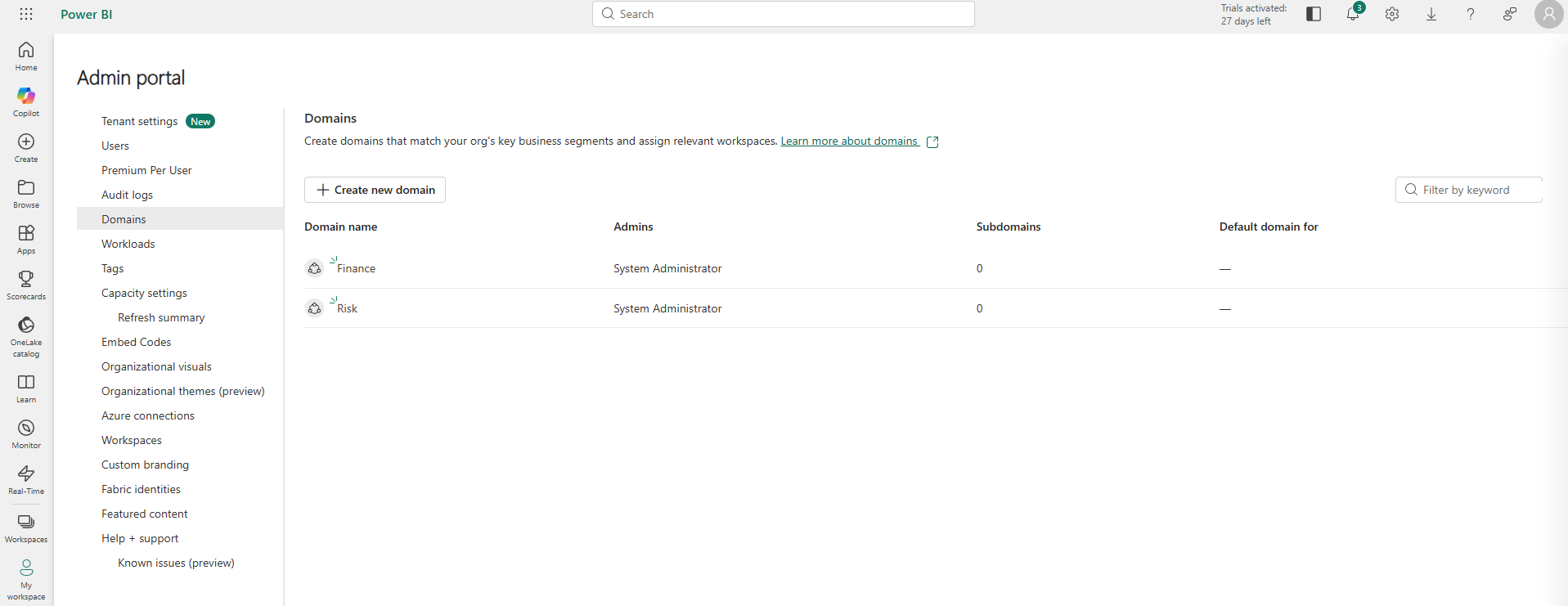
Alex creates a Finance domain and a Risk domain from the admin portal Domains tab. She assigns workspaces to domains in two ways: by workspace name (using pattern matching to catch workspaces with "Finance" in the name) or by workspace admin (assigning all workspaces whose admin is the Finance lead). She chooses the workspace admin approach because it scales. As new Finance workspaces are created, Fabric automatically assigns them to the Finance domain if the Finance lead is the workspace admin.
She specifies domain admins for each domain. The Finance lead becomes the domain admin for the Finance domain, and the Risk lead becomes the domain admin for the Risk domain. Domain admins can manage workspaces within their domain and override certain tenant settings that Alex delegates to them. They can also designate domain contributors, which are workspace admins with permission to assign their own workspaces to the domain.
Alex briefly considers creating subdomains (she could create an "Audit" subdomain under Finance for the audit team's specialized compliance needs) but keeps the structure flat for now. You can always add subdomains as governance requirements become more complex.
Delegate settings to domain admins
Some tenant settings can be delegated so domain admins can override them for their domain. This is how Alex customizes governance per department without creating exceptions in every tenant setting.
Delegated settings appear in the domain settings pane under Delegated settings. Domain admins can override specific tenant-level settings that Alex has made delegatable. This approach gives department leads control over the details that only they understand, while Alex maintains the broader governance framework.
Alex delegates the Certification setting to domain admins. The Finance lead can now specify their own certifiers for Finance semantic models. Finance might have a dedicated data quality team that handles certification differently from Risk. Alex doesn't need to manage these details. She sets the delegation policy and lets domain admins handle their specifics.
She also delegates the Default sensitivity label setting. Finance can now require a "Confidential" label on all items in Finance workspaces, while Marketing uses "Public" as the default for their customer-facing content. Domain-level customization reflects the reality that different departments have different data sensitivity requirements.
Assign workspaces to a capacity
All Fabric work runs on a capacity, so Alex assigns Contoso's department workspaces to the F64 capacity. Workspaces not assigned to a capacity fall back to shared capacity, which has limitations and isn't suitable for production workloads.
Alex assigns workspaces to capacity in the admin portal Capacity settings tab. She assigns production workspaces from all departments to the F64 capacity, but she makes a deliberate decision about development workspaces. Development work, such as experimenting with data pipelines, testing semantic models, and running training sessions, can consume significant compute and affect performance for production users. By keeping dev workspaces on a separate trial or test capacity, development activity doesn't compete with the Finance team's daily reports or the Executive team's real-time dashboards.
With the platform configured and admin rights delegated, Alex can turn her attention to the people. In the next unit, you'll learn how to manage user licenses and control how users access and share Fabric content.