Diagnose discovery, connectivity, timing, and performance
Troubleshooting Group Policy can be challenging because:
- Policy can be correct yet arrive late.
- Policy can use the wrong network path.
- Policy might wait for a trigger or exceed an operational time target.
The diagram shows the timeline running from startup and computer foreground processing through user sign-in, user foreground processing, desktop availability, and background refresh. Foreground work can be asynchronous or synchronous. Software Installation, Folder Redirection, and startup, shutdown, sign-in, and sign-out scripts are foreground-only or trigger-dependent examples. Background refresh can't replace a required trigger, and every processing instance has a fixed 60-minute limit.
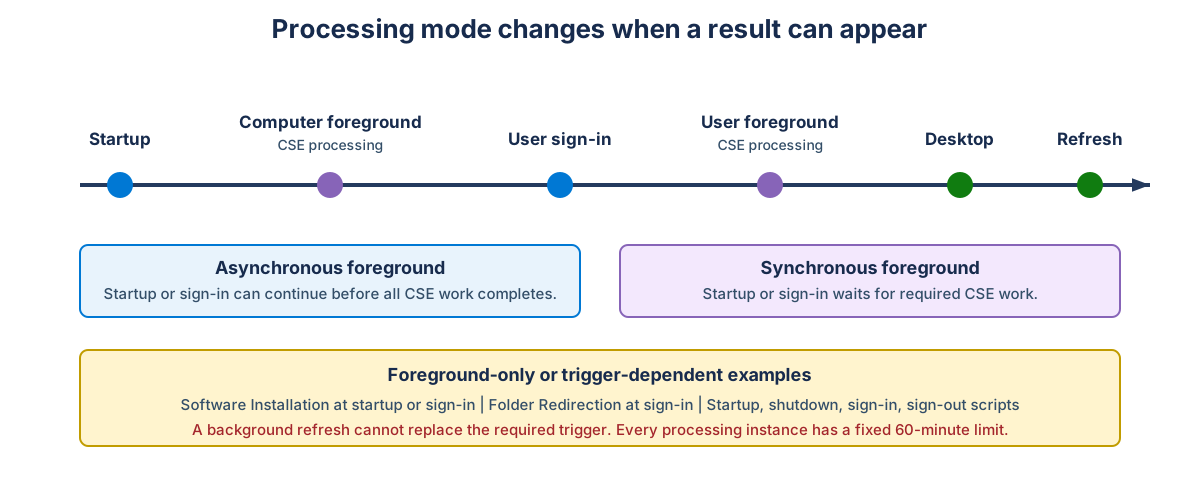
[Diagram that shows Group Policy startup, sign-in, foreground, and background timing.]
Validate domain controller discovery
Group Policy depends on DNS-based domain controller locator. The client must perform the following sequence:
- Identify its AD site.
- Query service records.
- Select a suitable domain controller.
- Authenticate.
- Reach LDAP plus SYSVOL.
Read-only examples:
nltest /dsgetsite
nltest /dsgetdc:contoso.com
nltest /dclist:contoso.com
DNS service-record evidence:
Resolve-DnsName `
    -Name '_ldap._tcp.dc._msdcs.contoso.com' `
    -Type SRV
Check:
- Client DNS servers point to the AD DNS service.
- Service records resolve to current domain controllers.
- The client address maps to the expected subnet plus site.
- The selected domain controller advertises required services.
Test only the required path
Examples:
Test-NetConnection -ComputerName 'DC02.contoso.com' -Port 389
Test-NetConnection -ComputerName 'DC02.contoso.com' -Port 445
LDAP commonly uses TCP 389. SYSVOL uses SMB over TCP 445. RPC-based management can require TCP 135 plus dynamic ports.
A successful port test proves one connection at one time. It doesn't prove authentication, protocol negotiation, referral behavior, or sustained access.
Check authentication dependencies
Kerberos depends on DNS, time, account state, secure channel, plus service principal names.
Use klist for diagnosing domain authentication, SPNs, and ticket-expiry problems.
Use w32tm /query /status for diagnosing current time synchronization health.
For a domain member computer, PowerShell can test its secure channel to the domain:
Test-ComputerSecureChannel -Verbose
Note
Don't use Test-ComputerSecureChannel as the primary domain controller test. Use nltest, netdom, event evidence, plus AD DS diagnostics to determine the health of domain controllers.
Review:
- Current ticket-granting ticket.
- Ticket issue time.
- Domain controller.
- Time source.
- Time offset.
- Secure-channel result.
Note
Policy refresh doesn't automatically rebuild every user or computer token. A group change can require a user sign out or computer or service restart.
Account for disconnected processing
Common timing failures include:
- Offline sign-in with cached credentials.
- Virtual private network established after sign-in.
- Wireless network established after foreground processing.
- Network Access Protection or firewall delay.
- SYSVOL path unavailable during startup.
- Domain controller reachable only after the desktop appears.
The client can complete sign-in with cached credentials while domain policy retrieval fails or waits for a later background refresh.
Use event timestamps to answer:
- Was a network available?
- When was the domain controller found?
- Was the connection slow?
- Did the CSE defer to foreground?
- Did a later refresh succeed?
Distinguish processing modes
Different Group Policy processing modes are listed in the following table:
| Mode | Behavior | Common impact |
|---|---|---|
| Computer foreground | Runs at startup | Software Installation, startup scripts, plus some security changes |
| User foreground | Runs at sign-in | Folder Redirection, sign-in scripts, plus user environment |
| Asynchronous foreground | Startup or sign-in continues before all policy completes | Setting can appear after the desktop |
| Synchronous foreground | Startup or sign-in waits for policy | More predictable for foreground-only extensions. Slower user experience |
| Background refresh | Runs after foreground processing | Many registry plus security settings. Not every extension |
Note
Fast Logon Optimization allows asynchronous foreground processing when conditions permit. Configuring the Always wait for the network at computer startup and logon policy can force synchronous behavior. Don't enable this policy globally as a troubleshooting shortcut as it delays startup and logon across your organization. First prove that network readiness or foreground ordering is the failure domain before making this change.
Each Group Policy processing instance must complete within 60 minutes. The limit isn't configurable. A long-running script, WMI filter, unavailable path, or extension retry can consume the time budget. The operational log can show the extension or phase that approached the limit.
Interpret slow-link behavior
The Group Policy Service determines whether the connection is slow, then tells each Client Side Extension. Each extension decides how to behave.
Don't conclude that "Group Policy is skipped on slow links." Instead ask:
- Was a slow link detected?
- Which extension received that state?
- Does that extension process on a slow link?
- Was processing deferred?
- Is the threshold appropriate for the environment?
Software Installation processes only at computer startup plus user sign-in. Folder Redirection processes only at user sign-in. Network availability is a separate dependency that applies when the extension must reach a distribution point or a redirection target. Scripts or preferences can still attempt remote paths.
Isolate performance cost
When troubleshooting how timing influences Group Policy application, consider the following causes:
| Cause | Evidence |
|---|---|
| Slow WMI filter | Filter start plus completion time, provider health, query design |
| Long script | Script start, script host process, script log, network dependency |
| Unavailable path | Repeated name-resolution, SMB, or timeout events |
| Excessive GPO count | Long selection plus download phase, duplicate configuration |
| Complex preference targeting | Preference extension duration, item trace |
| Synchronous processing | Startup or sign-in waits for CSE completion |
| CSE retry | Repeated start, warning, timeout, completion events |
| Domain controller latency | Site, selected server, DNS, network round-trip evidence |
Compare an affected system with a healthy peer. Use the same user type, site, build, role, plus policy scope.
Escalate deep tracing carefully
Take care when performing deep traces.
- Use Process Monitor only after evidence identifies a file or registry question. Filter by the responsible process, path, plus reproduction interval.
- Use a network trace (such as
netsh trace) only after evidence identifies DNS, LDAP, SMB, Kerberos, or RPC as the suspected dependency. Capture the smallest interval that includes failure.
Warning
Deep traces can contain credentials metadata, host names, paths, application data, plus security configuration. Protect and sanitize them.