Exercise - Block agents with security risks
You can block agents across your organization. Blocking an agent turns off all instances created under that agent. These instances remain inactive until you unblock the agent.
In this exercise, you learn how to block an agent with risky behavior from the agents Overview page and from the agent Map. When you block an agent, all instances created under it are turned off. You can unblock the agent later to turn on the instances again.
Block from Agent Registry
Go to Microsoft 365 admin center.
In the left navigation pane, select Agents> Overview.
In the Top actions for you section, select View agents under Agents at risk.
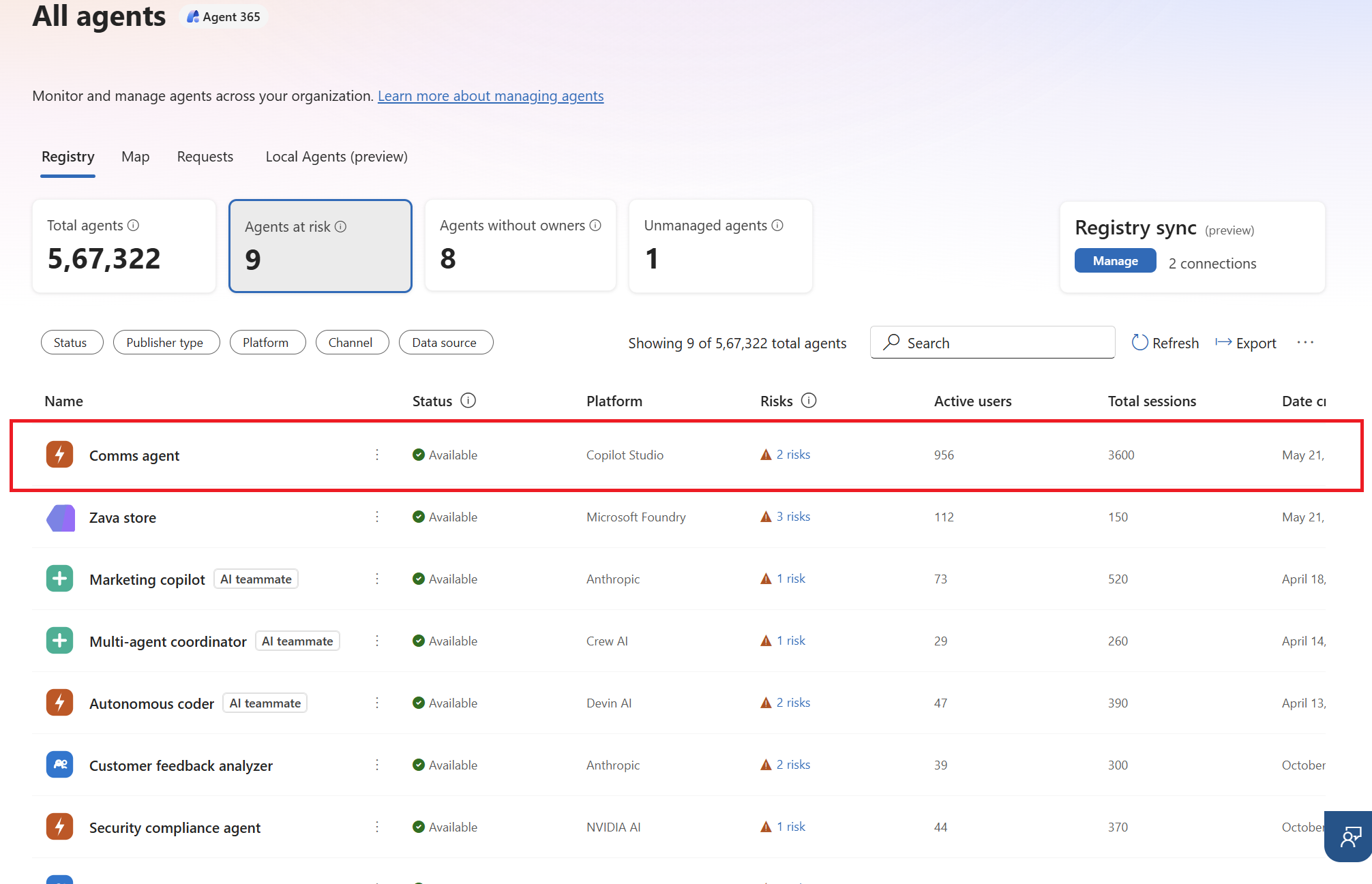
In the Risks column, select the risks for the Comms agent.
In the Security tab, select the risk.
Review how Microsoft Entra flagged the risk due to abnormal activity such as abnormal sign-in frequency.
In the upper right hand corner, select Block .
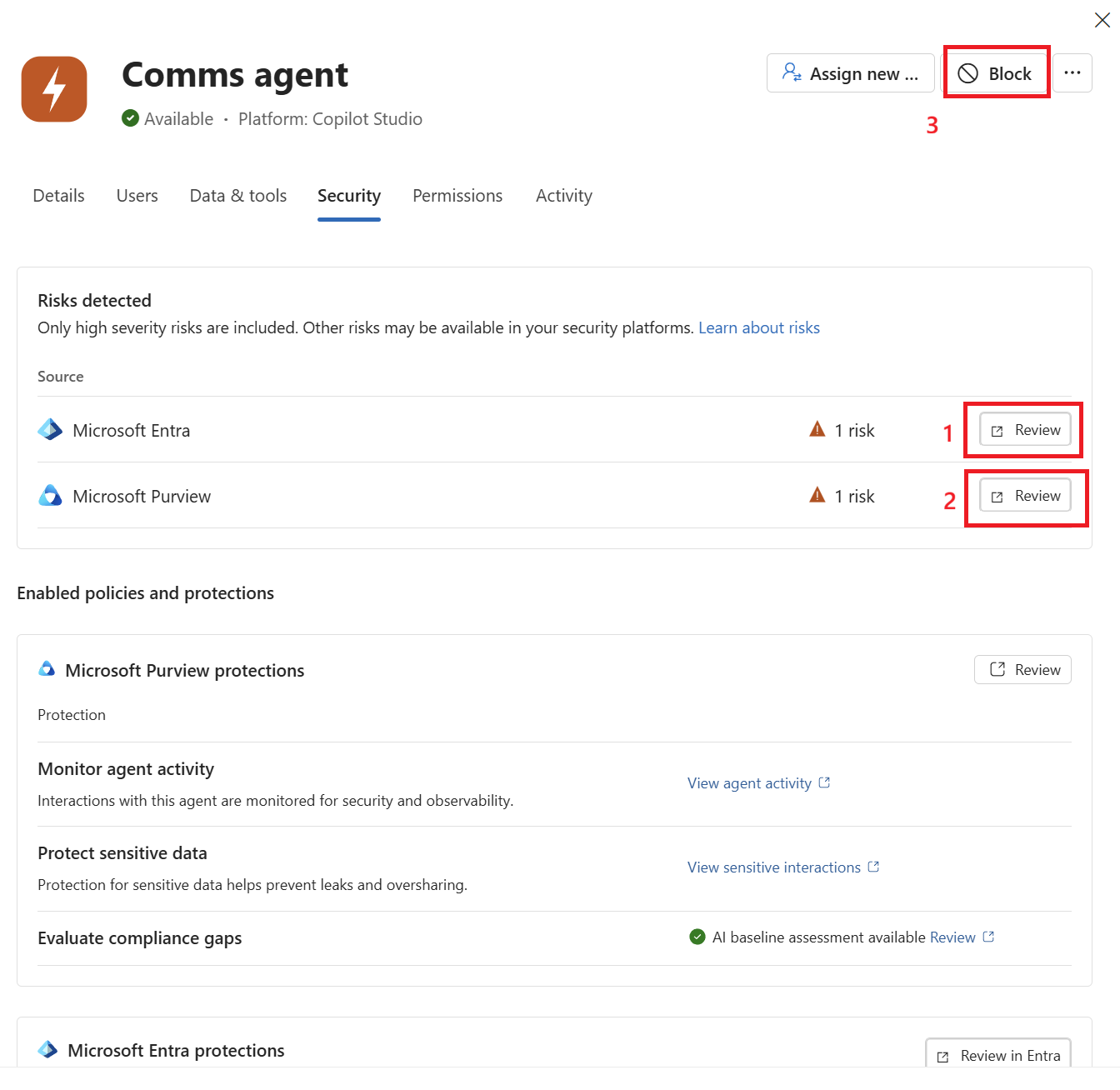
Select Save.
Block from agent Map
Go to Microsoft 365 admin center.
In the left navigation pane, select Agents > All Agents.
Select Map.
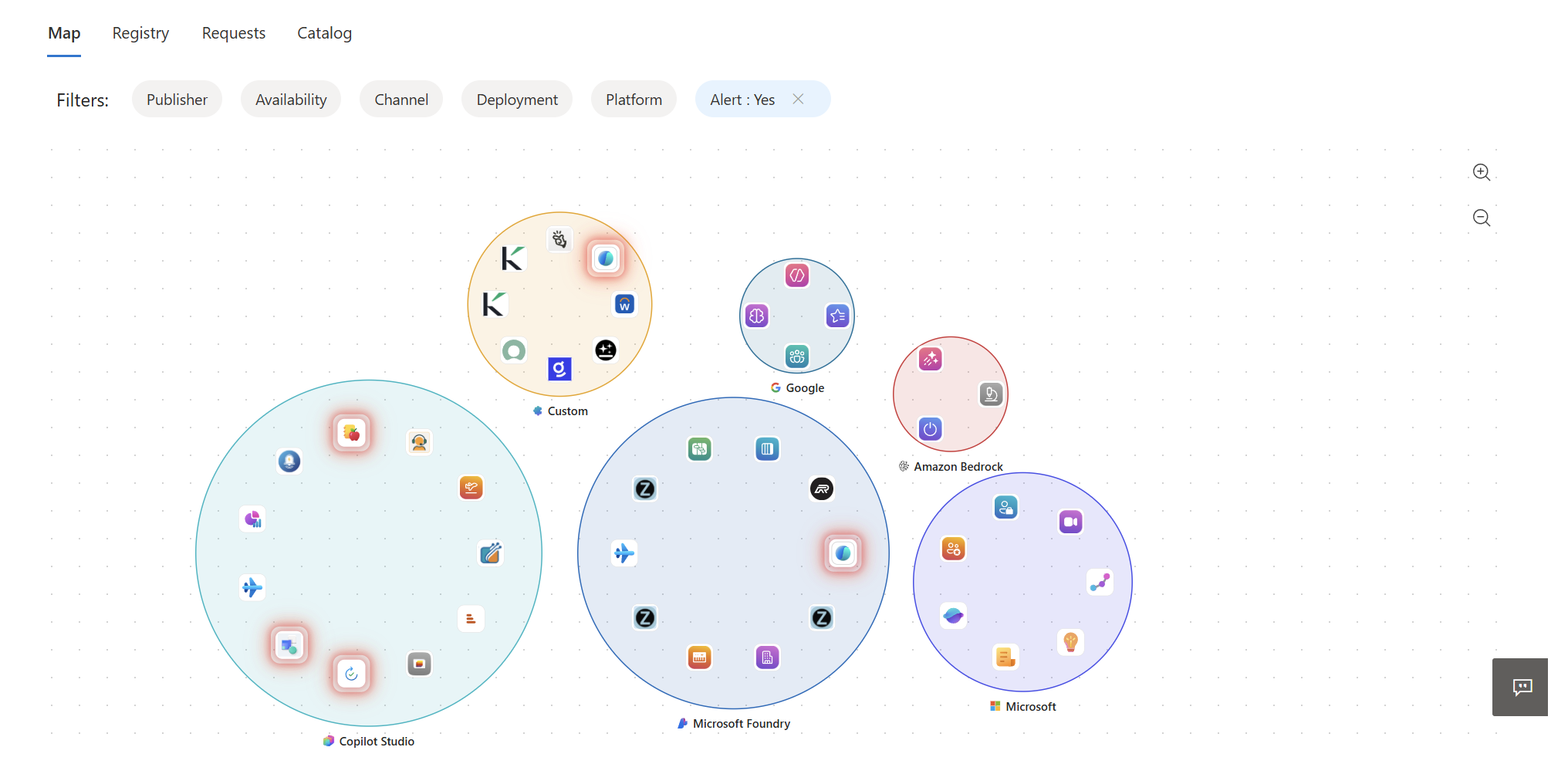
Select the agent with security risks.
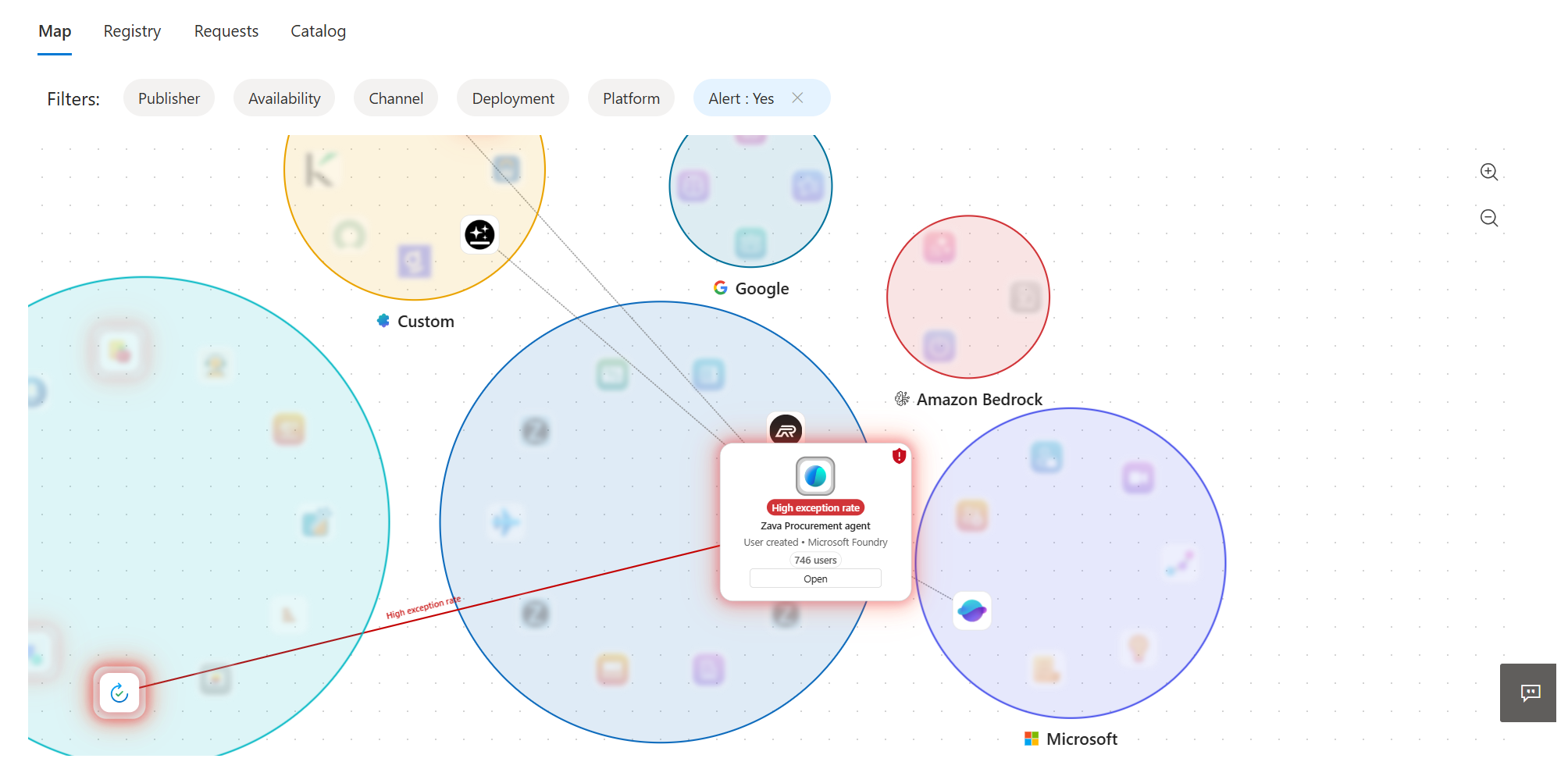
In the Security tab, review the agent risks.
Select Block in the upper-right corner.
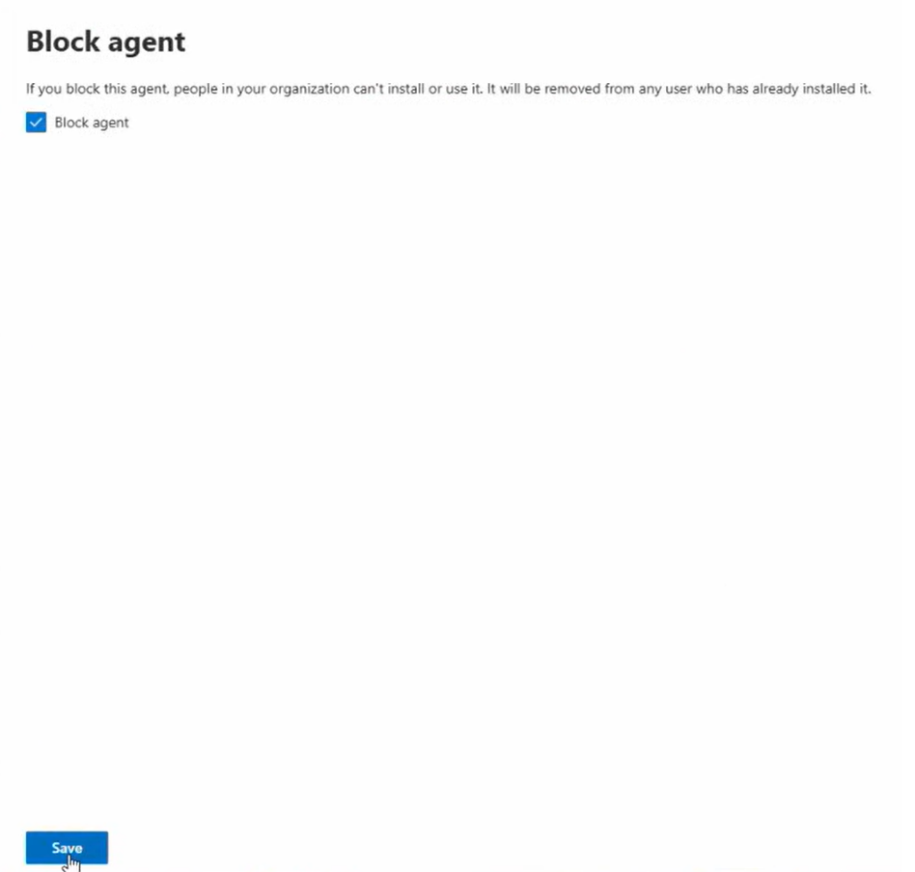
Select Save.
