Exercise – Set up policy template
Custom templates extend governance beyond default policies and help meet your organization's specific requirements. These templates include policies from Microsoft Entra that you can apply on a case-by-case basis to address specific governance needs. For more information, see Security and governance policies.
In this exercise, you create a custom template named Restrict External Content Sharing that includes policies to restrict external content sharing for agents. You can then apply the template to any agent during activation or publication, to ensuring that the specified policies are enforced.
Prerequisites
Create policies in Microsoft Entra. Otherwise, you can't select a policy when you create a template.
Assign the Attribute Assignment Administrator role for custom security attribute policies.
Note
The AI administrator can create and apply access packages, but doesn't have enough privileges for conditional access and custom security attributes.
Add a custom template
Open the Microsoft 365 admin center in your browser.
Select Agents > Settings > Policy template.
Select Add a new policy template.
Enter the name of the policy template as Restrict External Content Sharing and provide a brief description.
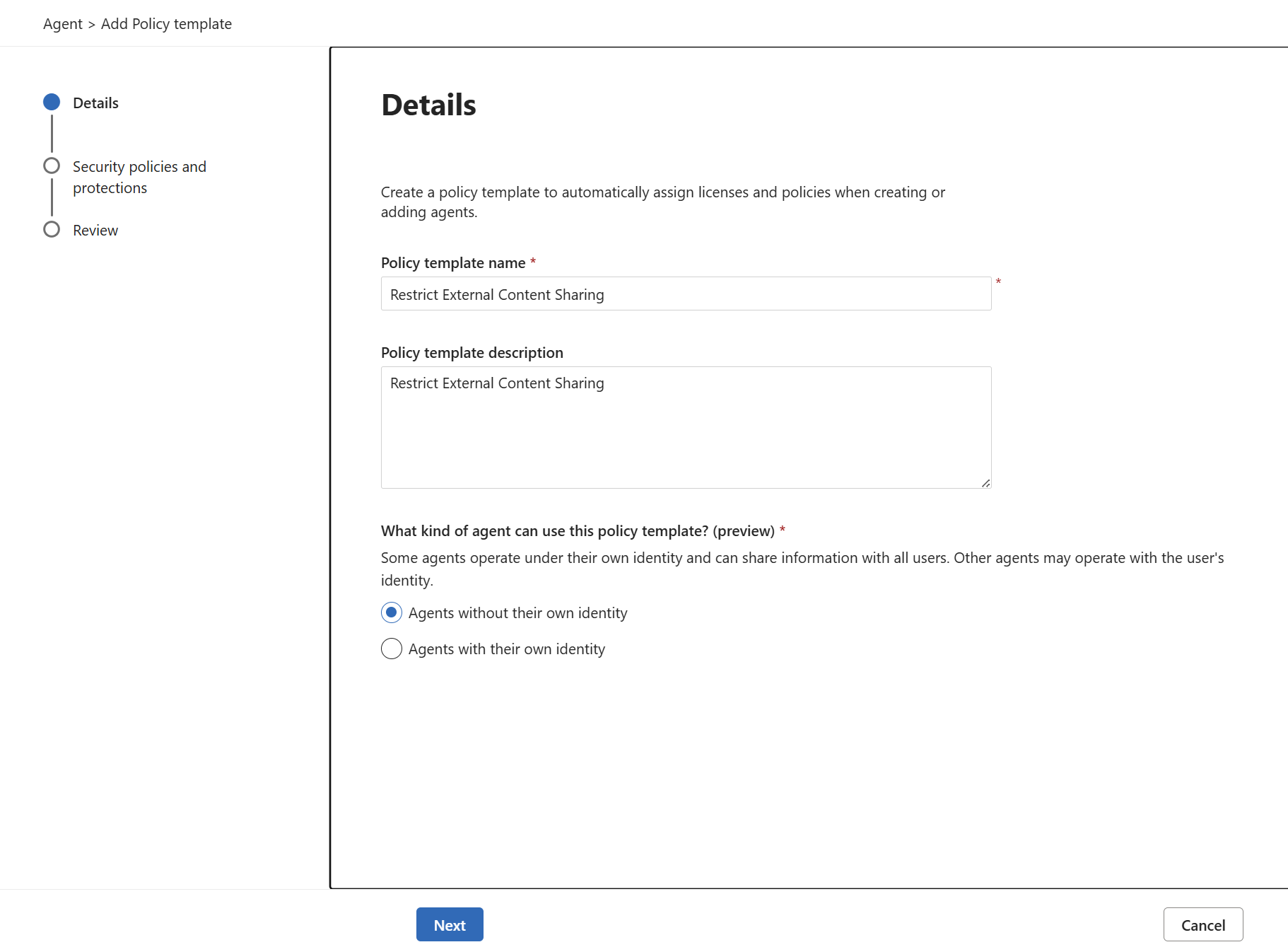
In the What kind of agent can use this policy template? (preview) section, select Agents without their own identity. This option lets you apply the template to agents that don't have a unique identity, such as agents that operate under a shared or generic account. For example, scenarios where you want to enforce policies on agents that aren't tied to specific user accounts, ensuring consistent policy enforcement across those agents.
Select Next.
Select Next again to include custom policies and protections available to users when activating agents. These specified policies are automatically enforced for any agent created or added with this template.
Review the default policies and protections that are included in the template. For each policy, select the vertical ellipsis (...) and then select Learn more to view details and settings.
Under Custom select Conditional Access and then select Block high risk agent, Block high risk agent identities from accessing resources.
Select Next.
Review the details and select Save template.
Select Finish.
When an agent is being activated or published, a dropdown menu with both your custom templates and Microsoft's default templates are displayed. To apply its policies to the agent, select the desired template from the list.