View audit logs
Audit and logging are critical in regulated industries. Agent 365 strengthens visibility and traceability for agent actions and interactions through logging and reporting.
Use Microsoft Purview audit capabilities to review detailed audits, similar to user auditing. Audit records show who approved an agent, what it accessed, and how it behaved. These records strengthen the visibility and traceability of agent actions and interactions.
Auditing helps you:
Monitor agent activities - Track who creates, changes, or deletes agents, and when they take those actions. This tracking helps ensure that only authorized admins manage your agents and helps identify potential security breaches.
Ensure compliance - Maintain a comprehensive audit trail of agent activities to demonstrate compliance with regulatory requirements and industry standards. This audit trail is important in industries like healthcare, finance, and government, where strict regulations govern the use of technology and data.
Investigate incidents - Use audit logs to investigate unauthorized or malicious activity. The logs help identify the source of the issue so you can take action to reduce risks and prevent future incidents.
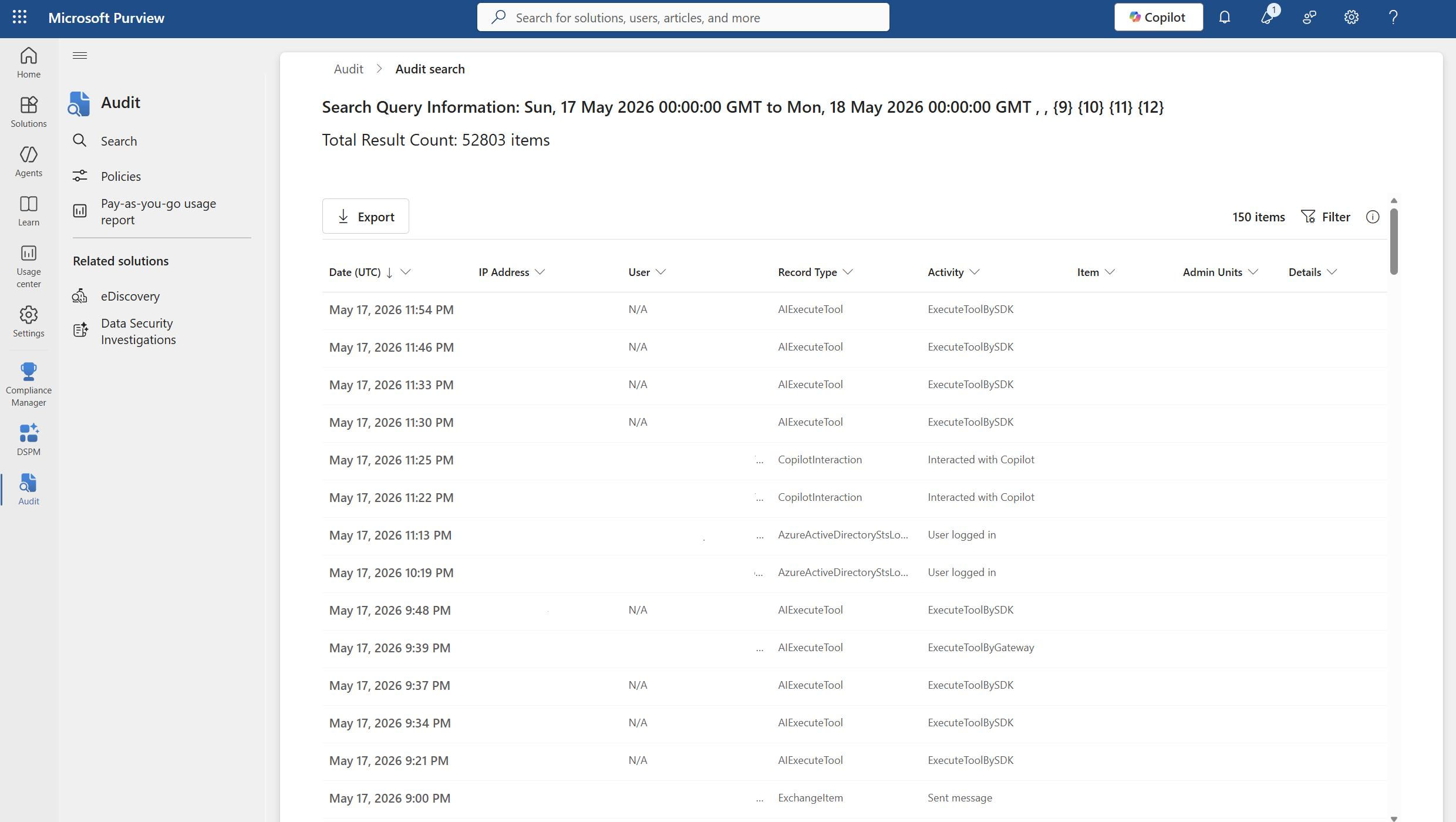
Access audit logs - Review audit logs in the Microsoft Purview portal. Search and filter logs by criteria like date, user, and activity type to monitor and investigate suspicious or unauthorized activities.
Set up alerts - Configure alerts for specific activities or events related to your agents, such as when an agent is created or modified. Alerts help you stay informed about any changes and take immediate action if necessary.
Monitor by using audit logs
In this exercise, you review audit logs for an agent in Microsoft Purview. Audit logs provide a record of agent activity, like when someone created, changed, published, or deleted it. Reviewing these logs helps you learn the agent's history and find possible issues or unauthorized activity.
View audit logs for an agent
View audit logs for an agent in the Microsoft Purview portal.
Go to Microsoft 365 admin center.
In the left navigation pane, select Agents > All agents.
Search for and select the Researcher agent.
Select the Security tab. Select Review in the Microsoft Purview protections section.
Select Home > Audit > Search.
Enter the following values:
- Date range as March 1, 2026 to May 18, 2026
- Search name as Researcher
Select Search.
When the search job is complete, the status displays as Completed.
Select the completed job and view the audit logs.