Configure suggested contacts for Microsoft Teams chat
Suggested contacts appear when a representative starts a connected Teams chat. They help the representative find coworkers who have relevant experience or a relationship with the record.
For cases, Dynamics 365 Customer Service supports AI-based and rules-based suggestions. Other record types that support connected chats use rules-based suggestions.
Configure AI-based suggested contacts
AI-based suggestions identify representatives who resolved cases that are similar to the active case. The ranking considers the number and similarity of cases that a contact resolved, how recently they resolved them, and their average resolution time.
Before you enable AI-based contacts, confirm these prerequisites:
- AI suggestions for similar cases are enabled.
- The tenant grants permissions for enhanced Microsoft Teams integration.
- Embedded Teams chat and connected chats are configured for cases.
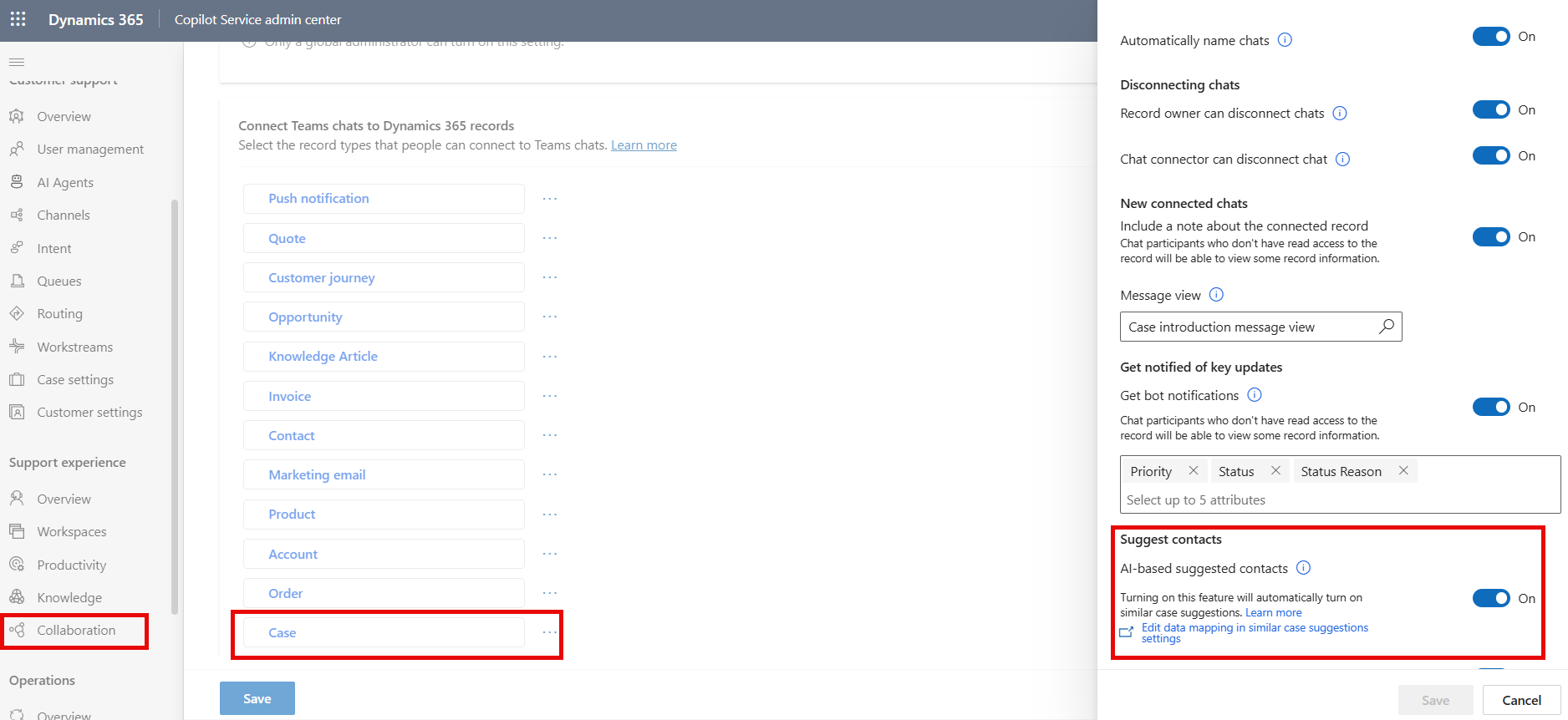
To enable AI-based suggested contacts, follow these steps:
- In Copilot Service admin center, under Support experience, select Collaboration.
- In Embedded chat using Teams, select Manage.
- Turn on Turn on the linking of Dynamics 365 records to Microsoft Teams channels.
- Under Connect Teams chat to Dynamics 365 records, select Case.
- Under Suggest contacts, turn on AI-based suggested contacts.
- Save your changes.
The first data preprocessing run can take up to 24 hours.
Configure rules-based suggested contacts
Rules-based suggestions identify coworkers through relationships with the connected record. For example, a rule can suggest the representative's supervisor, the customer account owner, or a coworker who added an activity to the case timeline.
- Under Connect Teams chats to Dynamics 365 records, select the record type.
- Under Suggest contacts, turn on Rules-based suggested contacts.
- In Update rules for suggesting contacts, reorder, disable, edit, or delete the existing rules.
- To add a rule, select New rule, enter a name, and choose a rule type:
- Relational follows relationships between the connected record and a user field.
- Custom uses custom logic that your organization provides.
- Save and activate the rule.
Representatives see a maximum of three contacts in each suggestion section before they select View more. Rules appear in the order that you configure.