How to use Agent in Settings
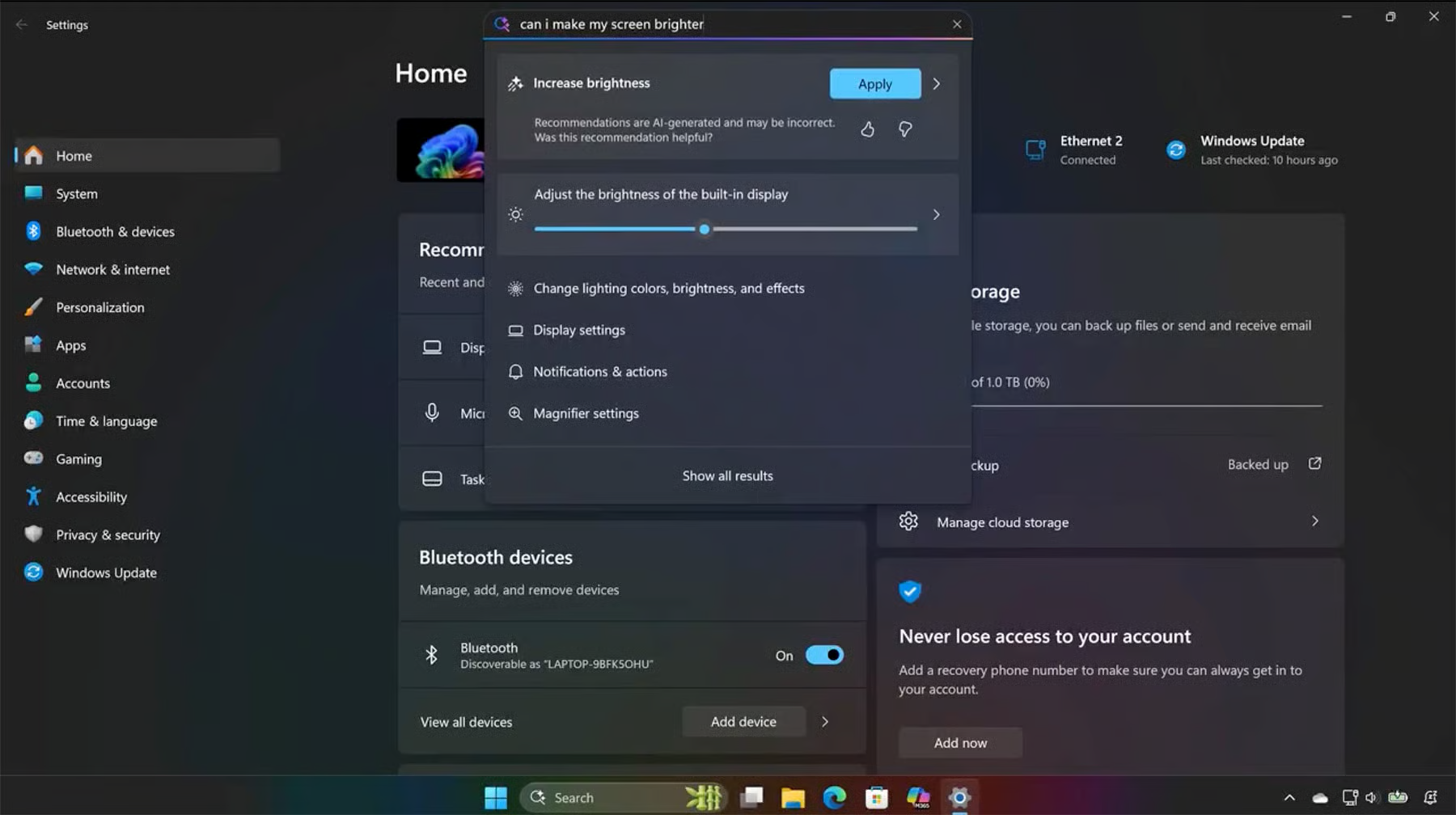
You can use Agent in Settings directly within the Settings app to find and change system settings faster. Open Settings and type what you want to do in the search box. The agent then provides relevant suggestions based on your request.
Open Settings and describe what you want to do
To use Agent in Settings:
- Open Settings in Windows.
- Select the search box.
- Type what you want to do in natural language, such as “I want to control my PC by voice” or “Connect headphones.”
- Review the suggested setting.
- If the option is available and you want to proceed, choose to let the agent apply the change.
If Agent in Settings can't match your request to a setting, Windows displays standard search results.
Stay in control of changes
Agent in Settings guides you to the right setting, but you’re still in control. It won’t make changes unless you choose to apply them—and you can undo changes if needed.
That flow looks like this:
- The agent interprets the request.
- The agent suggests the relevant setting.
- You choose whether to apply the change.
- You can reverse the change if needed.
Common tasks
Use Agent in Settings for tasks related to device setup and personalization, such as:
- Adjusting accessibility-related settings, like pointer size or voice control options.
- Connecting accessories such as Bluetooth devices like headphones, keyboards, and more.
- Personalizing display behavior, including external screen setup.
In the next unit, you’ll explore why this matters for productivity, accessibility, and everyday usability.
Note
Copilot+ PC experiences vary by device and market and might require future updates; timing varies.