Why Agent in Settings matters
When someone knows what they want to accomplish but doesn’t know where the setting lives, they can waste time clicking through menus or searching for the exact setting name. Agent in Settings helps address this by providing a clearer path to action that saves time and helps users get the most out of their devices.
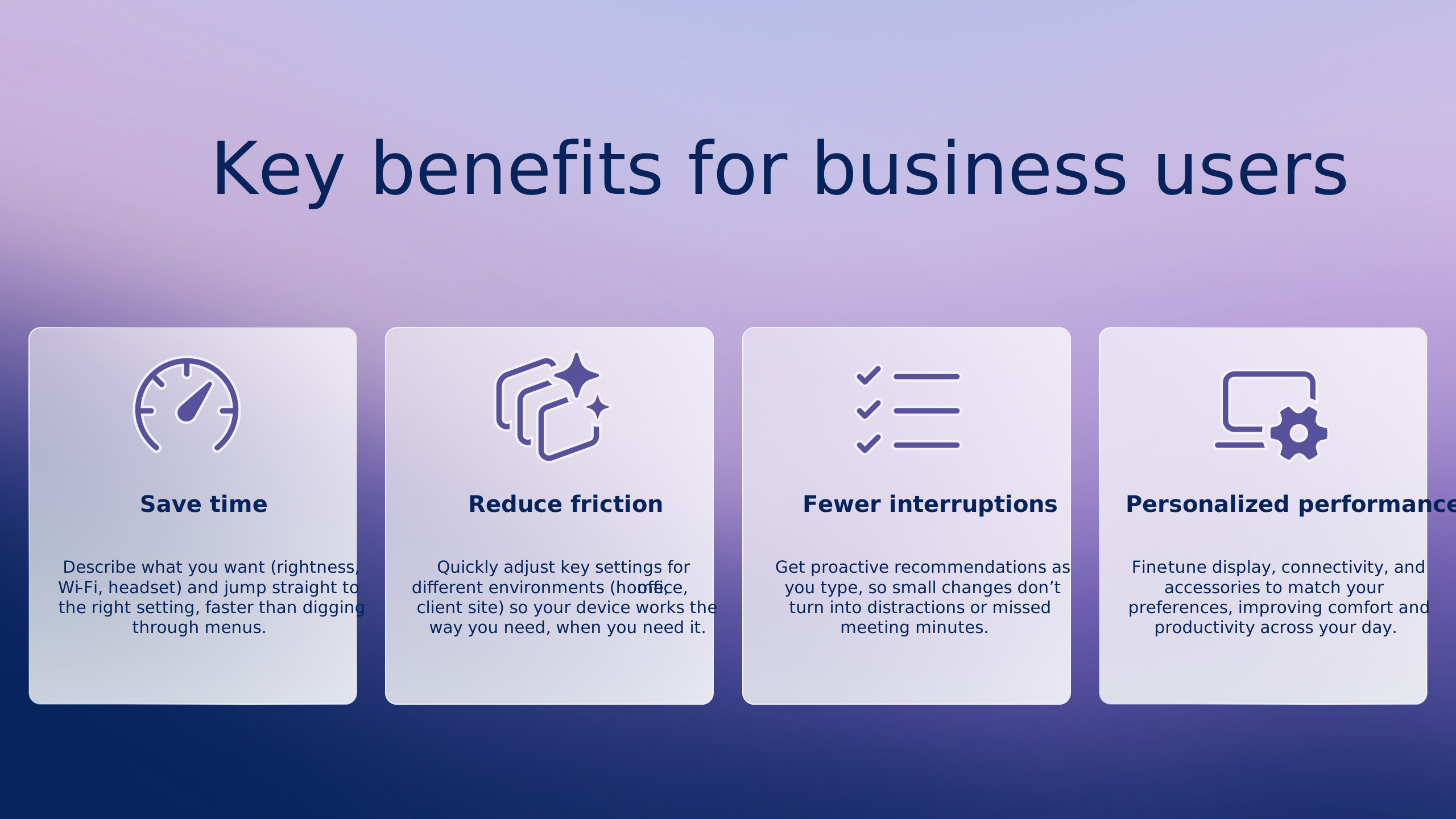
Agent in Settings benefits users in several ways:
It makes settings more intuitive
Users can describe what they want in their own words instead of memorizing Windows terminology. This lowers the barrier to making changes, especially for people who are less familiar with system settings.
This makes it easier for users to personalize their device and work the way they prefer, without needing help from others.
It can speed up personalization and setup
Tasks like attaching an external display, connecting accessories, or adjusting usability settings can often be completed faster when users start with what they want to do rather than where to find it.
Instead of hunting through menus for the right setting, you can just describe what you need and get there faster, with less hassle.
It supports accessibility and troubleshooting scenarios
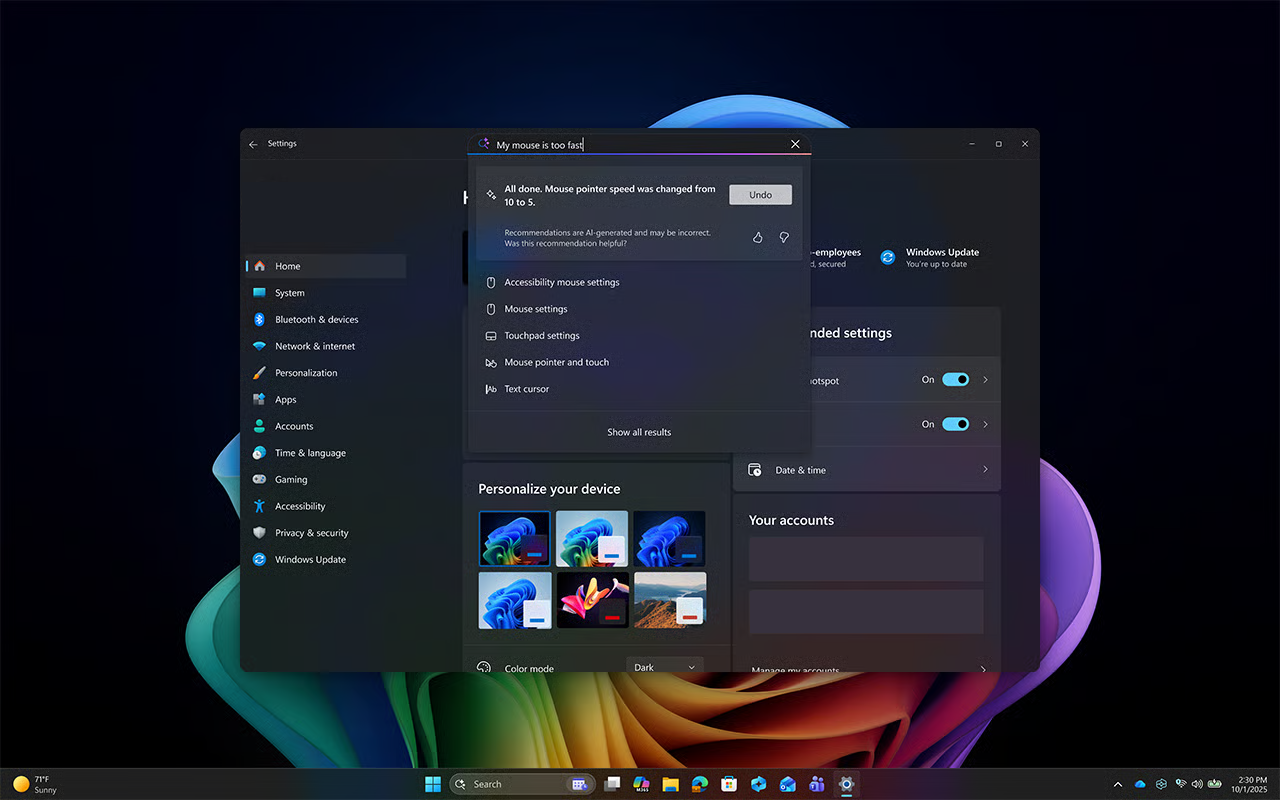
Agent in Settings can help people find accessibility options, such as adjusting pointer size or enabling voice control, and can guide users toward solutions for common issues. For example, you can quickly describe your issue like “my mouse pointer is too small,” and Agent in Settings will recommend the steps to resolve it.
This means users can work more comfortably by finding and applying the accessibility settings they need, helping them stay focused and get more done. It helps guide users to resolve issues faster without digging through settings, so they can quickly get back to what they were doing.
It helps users make changes with confidence
Agent in Settings doesn’t apply changes automatically—you’re always in control. You choose what to apply, and you can undo changes if needed. This means you always understand what’s changing and can make updates with confidence knowing they can be reversed.
When users feel confident personalizing their devices, they can set things up the way they work best—helping them stay focused and work more effectively.
In the next unit, you’ll explore how these benefits apply across different roles and everyday scenarios.