Role-based scenarios
Agent in Settings can support a wide range of everyday tasks across different roles. The following examples show how it can help users complete common tasks more quickly and with less effort.
Human Resources
An HR specialist is onboarding a new employee who relies on voice commands to navigate apps and dictate emails. The specialist wants to help set up the right accessibility features but isn't sure what they're called or where to find them.
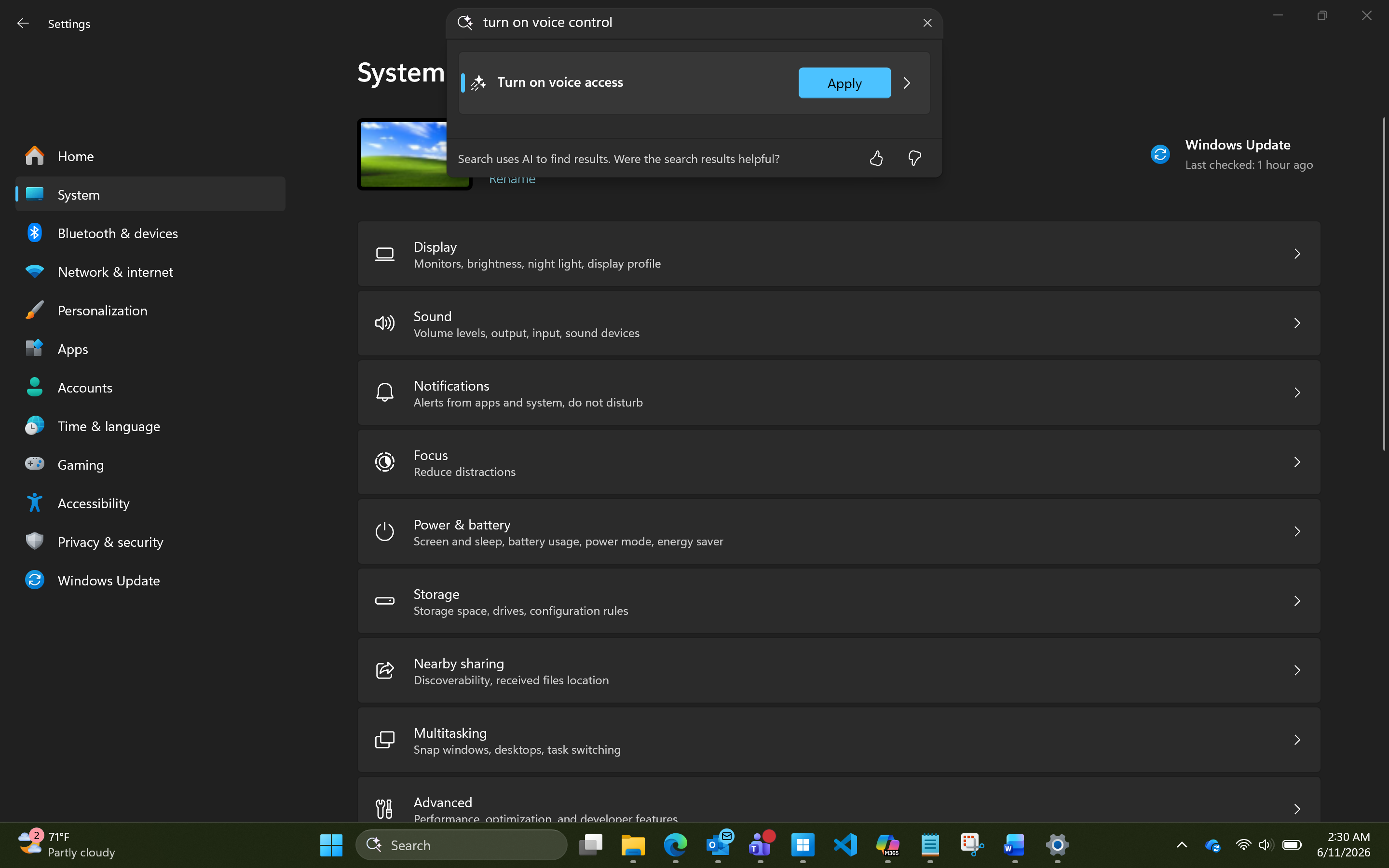
To complete the setup, the specialist opens Settings and types "turn on voice control." Even though that isn't the exact name of the setting, Agent in Settings recognizes the intent and suggests Voice access in Accessibility settings.
The specialist selects Apply, and the Voice access setup launches automatically—without needing to navigate through Accessibility settings to find it.
Result: The employee can start using their device right away with the accessibility features they need.
Quick takeaway: Agent in Settings can understand user intent and guide users to the right accessibility feature, even if they don’t use the exact setting name.
Finance
A financial analyst is working with two monitors to compare reports side by side, but their displays aren’t set up correctly. They want to extend their screen and rearrange the displays, but aren’t sure where to find those settings or what they’re called.
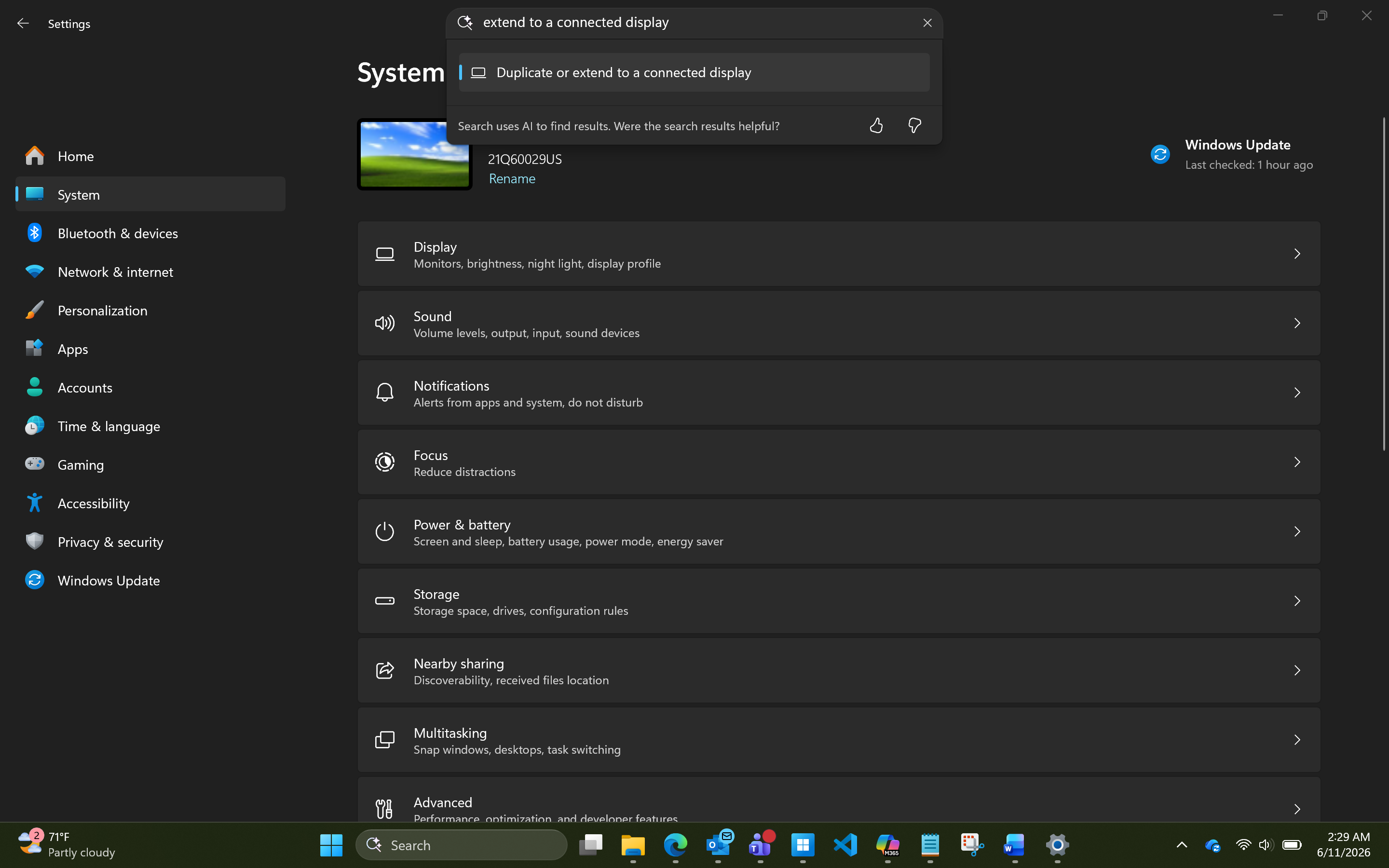
To fix the setup, the analyst opens Settings and types “extend to a connected display.” This brings up Display settings, where they can extend their screen and rearrange their displays.
Result: A more organized workspace that makes it easier to compare data and work efficiently.
Quick takeaway: Use natural language to quickly find and adjust display settings without searching through menus for the specific setting name.
Sales and marketing
A sales manager is about to join a client meeting and realizes their Bluetooth headset isn’t connected. With only a few minutes before the call starts, they don’t have time to search through Settings to find the right option.
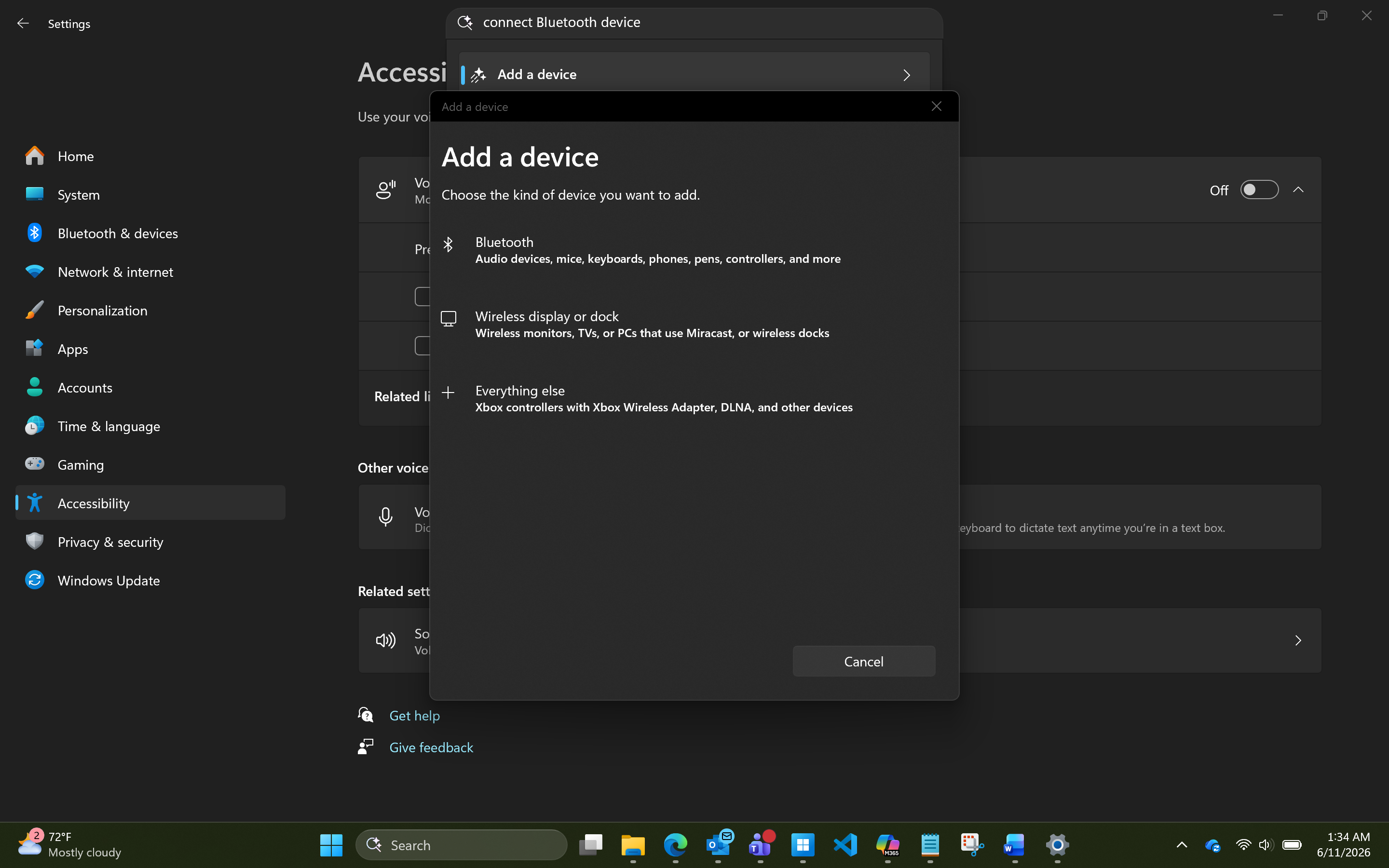
To quickly connect the device, they open Settings and type “connect my headphones”. This brings up the Add a device option, where they can select Bluetooth and pair their headset before the meeting begins.
Result: A faster setup that allows the sales manager to join the meeting on time without disruption.
Quick takeaway: Use natural language to quickly complete setup tasks when time is limited.
IT and operations
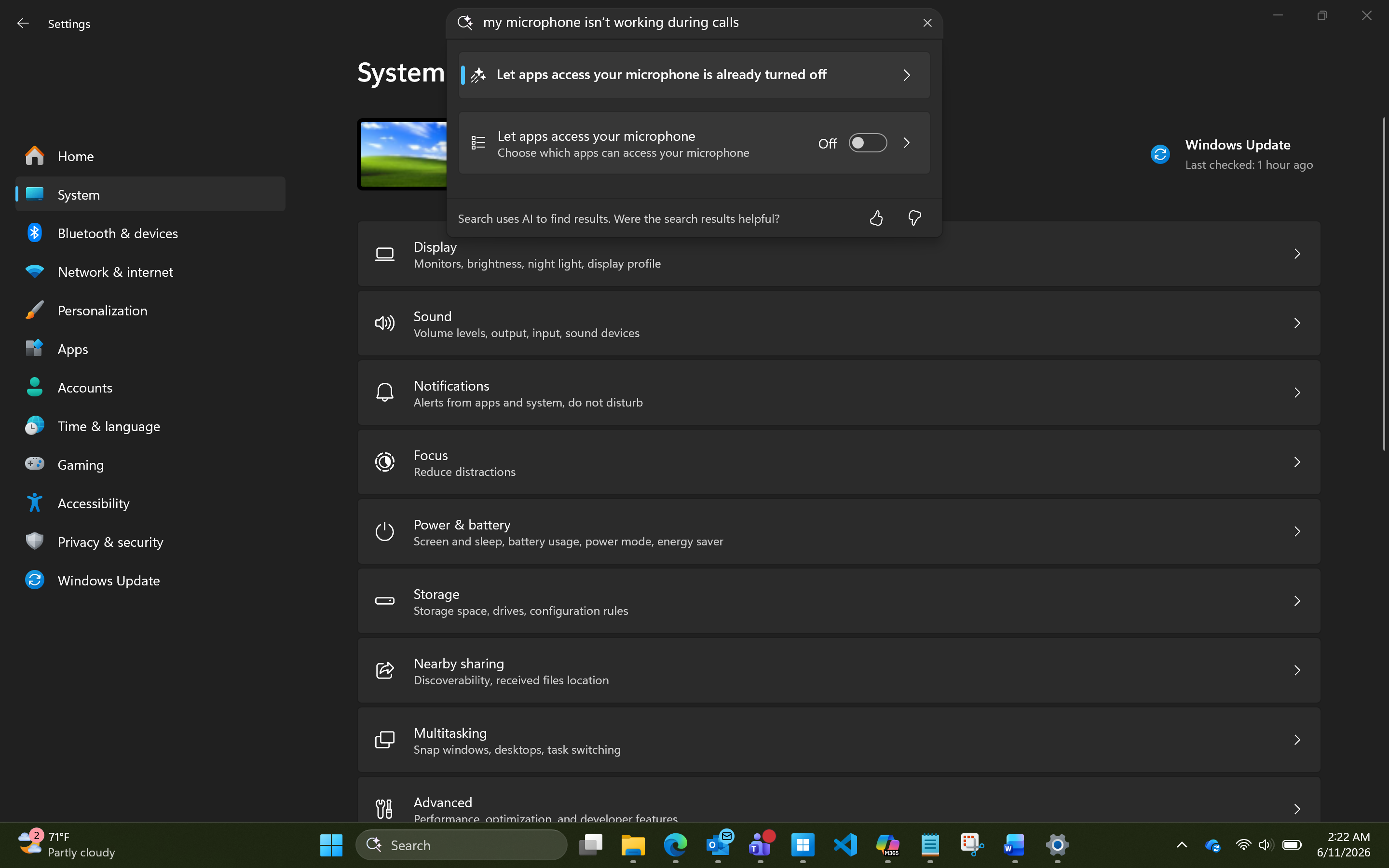
An IT administrator is helping a colleague who isn’t very tech-savvy troubleshoot an issue where their microphone isn’t working during calls. The administrator knows where the setting is, but guiding the colleague through multiple menus step by step would be confusing.
Instead, the administrator asks the colleague to open Settings and type “my microphone isn’t working during calls.” This brings up the relevant setting—app permissions for microphone access—allowing the colleague to adjust the microphone input more intuitively without navigating through multiple windows.
Result: The issue is resolved more quickly, with less need for step-by-step support from IT. The colleague can fix the problem largely on their own, reducing support time and effort.
Quick takeaway: Natural language helps users of different technical skill levels find the right settings and resolve issues independently, while also reducing the need for IT to provide detailed troubleshooting guidance.