Configure the Service Operations Agent
Deploying a production contact center traditionally demands weeks of manual configuration, specialized expertise, and constant iteration across dozens of settings. Administrators configure routing rules, set up queues, provision phone numbers, build AI agents, and define escalation paths—all through separate interfaces that require deep product knowledge.
The Service Operations Agent reduces this complexity. It's a self-service AI agent that supports administrators with configuration, validation, and troubleshooting tasks through natural language conversation.
Note
The Service Operations Agent is currently in preview. Preview features aren't meant for production use and might have restricted functionality. The agent is available in the United States and in English only.
Service Operations Agent capabilities
The Service Operations Agent supports three categories of tasks:
- Configure channels and workstreams: Set up voice, chat, SMS, and other channels. Sync phone numbers with Azure Communication Services and Teams. Get guidance on configuration best practices.
- Manage queues: Assign users to queues, create skills and assign them to users, check queue details, and set up operating hours.
- Query capabilities and troubleshoot issues: Ask questions about contact center capabilities, query environment details, and run diagnostics for supported channels.
Prerequisites
Before you use the Service Operations Agent, confirm:
- The Omnichannel administrator role is assigned to the user accessing the agent.
- The System Administrator role is assigned for managing Power Apps connections and Model Context Protocol (MCP) connections.
- A pay-as-you-go plan is configured for your environment.
- For troubleshooting capabilities:
Access the Service Operations Agent
The Service Operations Agent requires a Dataverse connection through the MCP server. This connection enables the agent to access and manage your environment.
- In the Copilot Service admin center, select Launch in the Conversational Setup tile.
- On the Service Operations Agent page, select Allow once to connect to Dataverse via the MCP server.
If the agent can't perform actions or retrieve information, verify that the connection is configured correctly. To refresh the connection:
- Go to Power Apps.
- Select the correct environment in the upper-right corner.
- Select Connections in the left pane.
- Locate D365 Contact Center MCP Connection and delete it.
- In the Copilot Service admin center, open Admin Copilot and start a new conversation.
- When the connection card appears, select Allow to create a new connection.
Use conversational setup
With the Service Operations Agent, you describe your configuration needs in natural language and the agent walks through the steps.
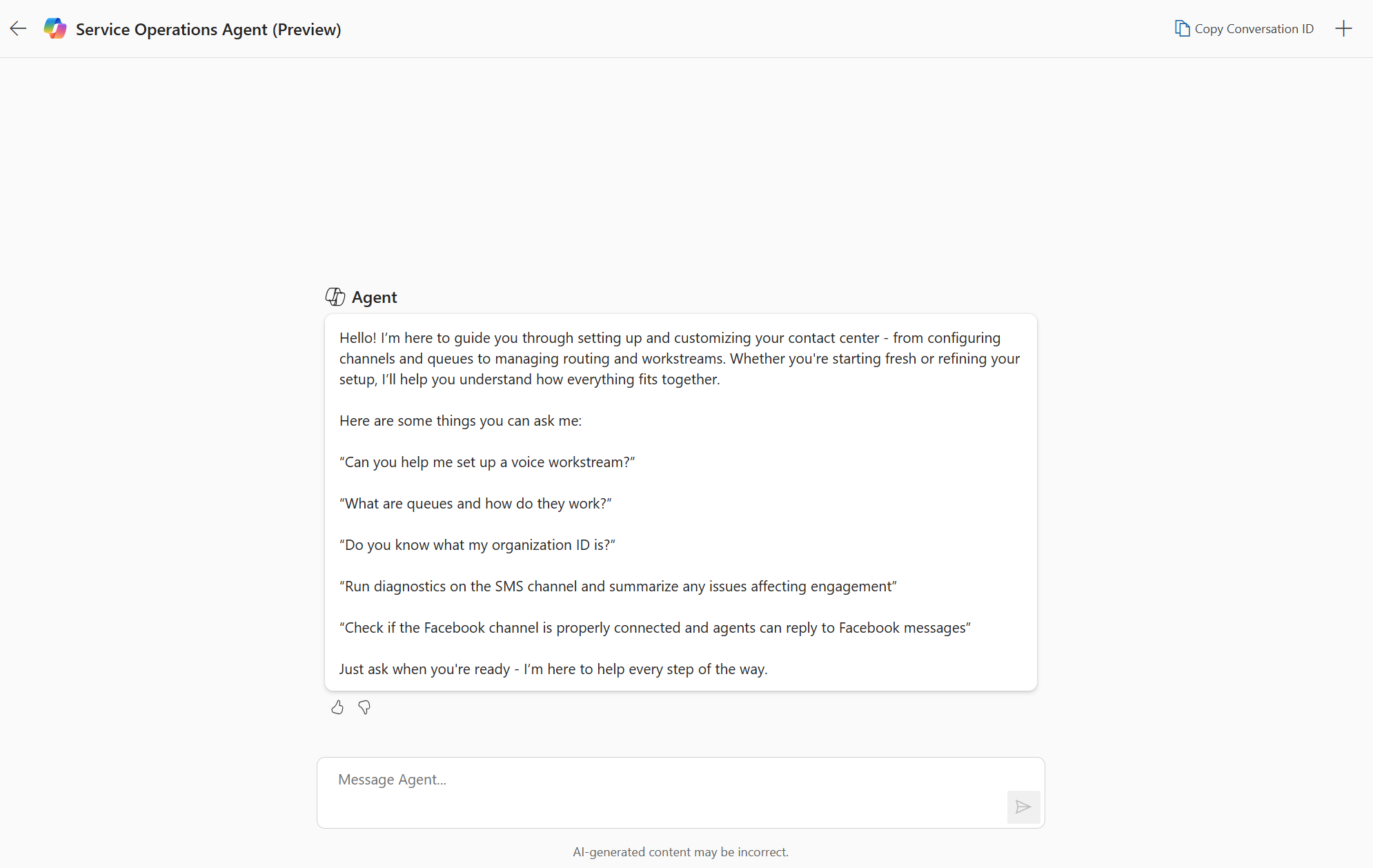
Here are examples of prompts you can use:
Configuration and setup:
- "Can you help me create a voice workstream?"
- "Please create a voice workstream with the name BillingSupport and use the BillingQueue as the default queue."
Queue management:
- "Which voice queues are available?"
- "Which queues aren't connected to workstreams?"
Knowledge and troubleshooting:
- "Is there an active Azure Communication Services resource in this organization?"
- "List the phone numbers associated with the Azure Communication Services resource."
- "What is my organization ID?"
The agent runs setup steps while keeping a human in the loop. You review and confirm each action before it's applied. Built-in validations prevent configuration errors before changes go live.
Configure conversation orchestration with playbooks
Conversation orchestration keeps every conversation actively managed throughout the conversation lifecycle, from initiation through resolution. Instead of applying fixed rules at different stages, conversation orchestration monitors each conversation as conditions evolve and responds automatically with the right action.
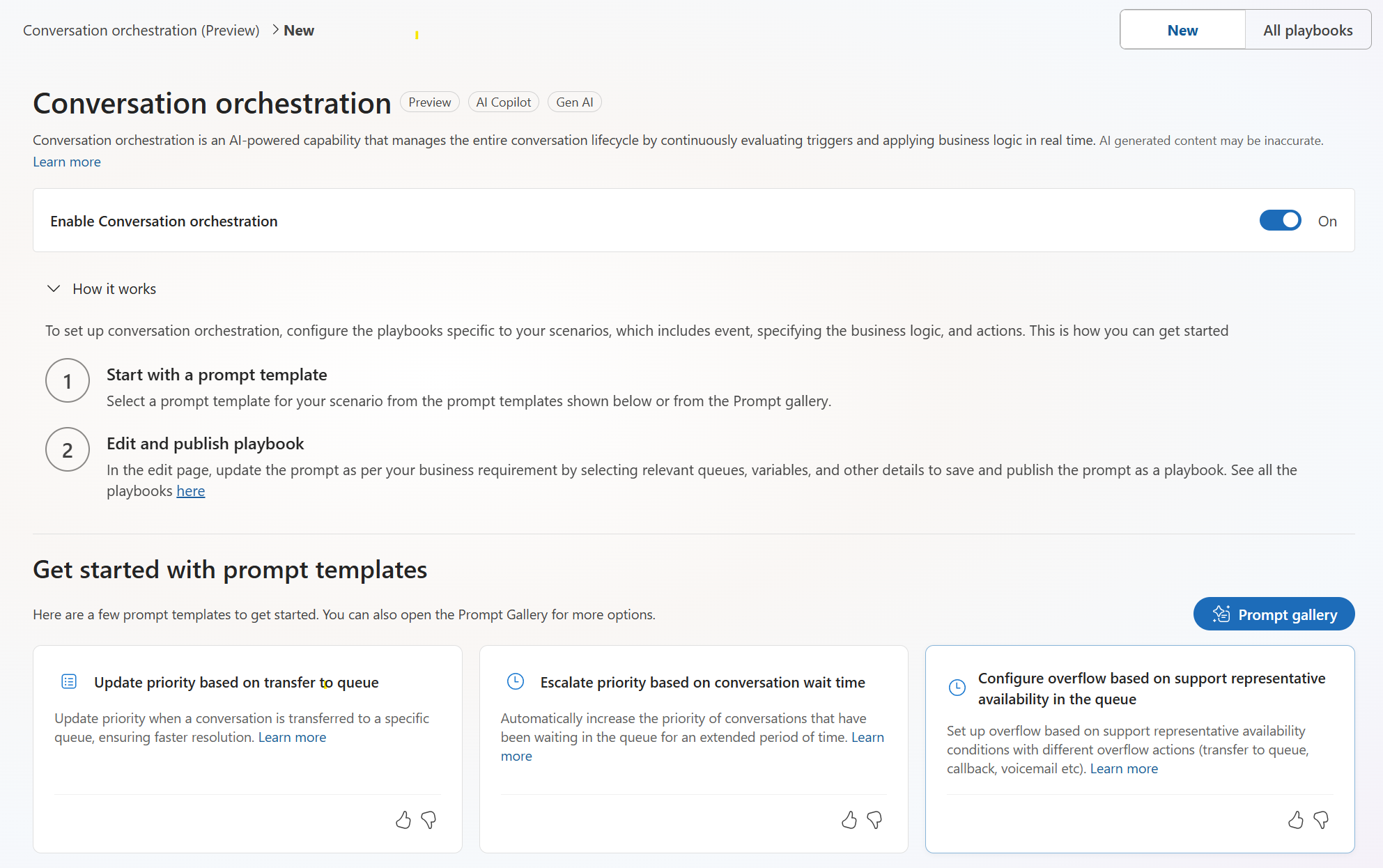
Administrators define the orchestration logic using natural-language playbooks. A playbook consists of a trigger event and a set of conditions and actions to run when the trigger event occurs.
Note
Conversation orchestration is currently in preview and is available for voice and live chat channels only.
Understand playbooks
Each playbook includes:
- Queues: The queues where the playbook applies.
- Trigger event: The event that starts the playbook, such as a conversation waiting in queue or a conversation transfer.
- Channel: The channel type (voice or messaging).
- Conditions: Business rules based on context variables, such as customer tier or region. You can define up to 10 conditions.
- Actions: The outcomes when conditions are met, such as increasing priority or transferring to an overflow queue.
Create a playbook
- In the Copilot Service admin center, go to Customer support > Conversation Orchestration (Preview).
- Select Prompt gallery to view available templates organized by scenario:
- Dynamic prioritization: Escalate priority based on wait time or queue transfer.
- Overflow handling: Configure overflow based on representative availability in the queue.
- Select a template that matches your scenario.
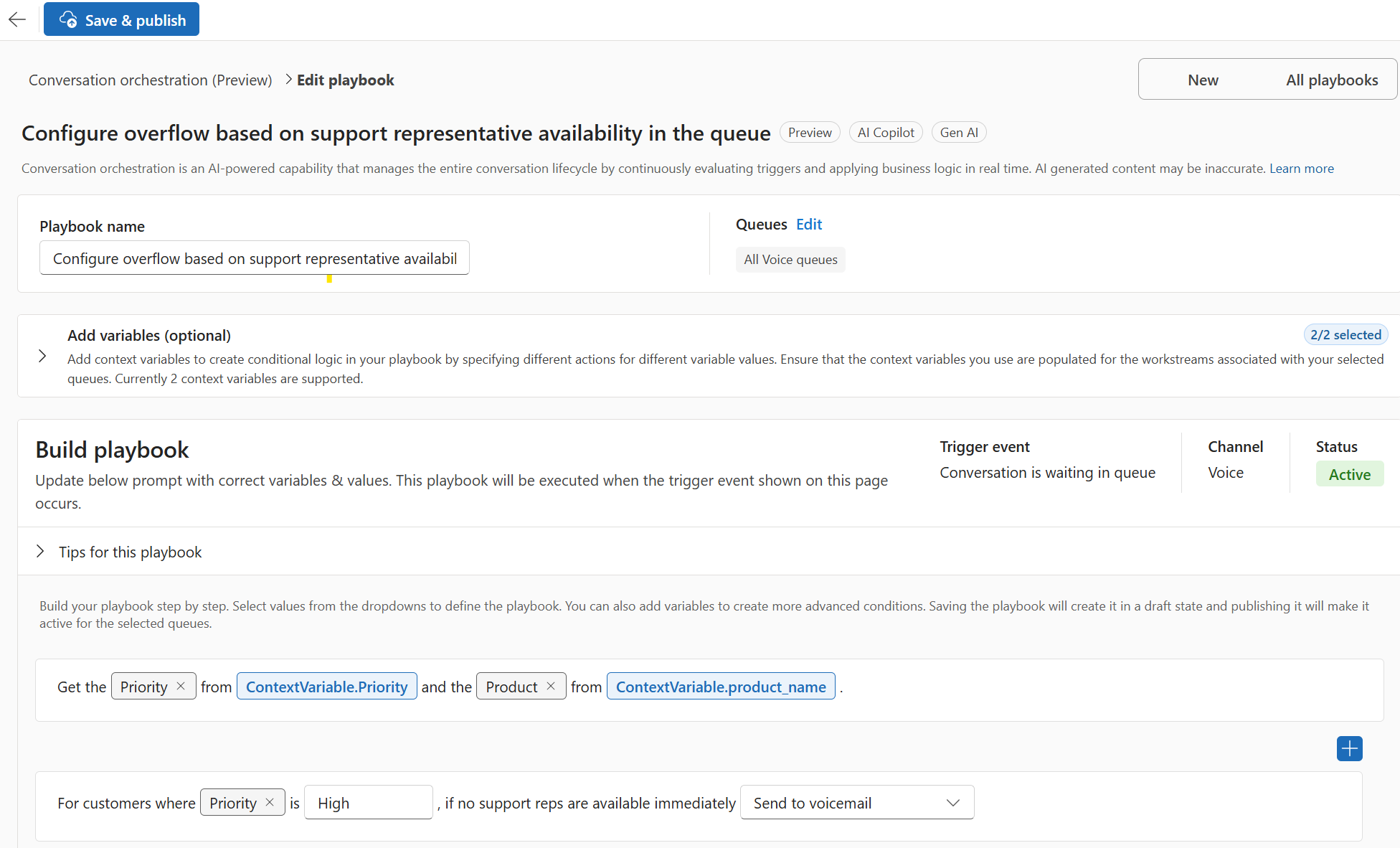
- In the playbook editor, accept the default name or enter a name in Playbook name.
- Select Queues > Edit to choose a channel (Voice or Messaging) and specify which queues the playbook applies to—all queues, a specific list, or all queues except certain ones.
- Optionally, add context variables to create conditions based on customer or conversation attributes, such as CustomerTier, Is VIP Customer, or Customer Region.
- Configure conditions and actions based on your selected template.
- Select Save to save as a draft, then select Publish to activate the playbook.
Dynamic prioritization
Dynamic priority escalation continuously reevaluates priority as a conversation progresses. You define conditions such as wait time thresholds, queue transfers, customer tier, or other context. Conversation orchestration adjusts priority automatically throughout the conversation lifecycle.
For example, high-value or long-waiting customers move forward in the queue without anyone watching manually.
Overflow based on representative availability
Availability-driven overflow moves conversations immediately when no eligible representatives are available, while still respecting all configured assignment logic (priority, skills, and capacity). Administrators can enable this behavior per queue, allowing selective adoption.
Built-in validations
Conversation orchestration validates your playbook configuration before activation:
| Validation | What it checks |
|---|---|
| Required fields | Mandatory fields are complete (priority score, time interval, action) |
| Range validation | Values fall within allowed ranges (priority: 0–10,000; time: minimum 30 seconds) |
| Duplicate detection | Two conditions have identical variable-value combinations |
| Conflict detection | Overlapping conditions that might cause unexpected behavior |
| Cross-playbook conflicts | Multiple active playbooks exist for the same queue and scenario |
Important
You can't have multiple active playbooks for the same scenario and the same queue. If a conflict exists, edit the existing playbook or deactivate it before publishing a new one.
With the Service Operations Agent configured, your administrators can set up and optimize the contact center through natural language conversation, and conversation orchestration keeps every interaction actively managed as conditions change—reducing reliance on specialized expertise while maintaining full operational control.