What is AI Dev Gallery (Preview)?
AI Dev Gallery (Preview) is a Windows application that makes it easy to discover, download, and experiment with AI models and AI-powered scenarios on your device. It provides a familiar interface for exploring local AI capabilities without requiring extensive development experience.
With AI Dev Gallery, users can test AI models, review sample applications, and better understand how AI workloads can run locally on Windows and Copilot+ PCs. It serves as an accessible entry point for Foundry on Windows, helping users experience the benefits of local AI, including improved responsiveness, keeping processing on device for supported workloads, and support for Microsoft's goal to deliver unmetered intelligence to every desk and every home.
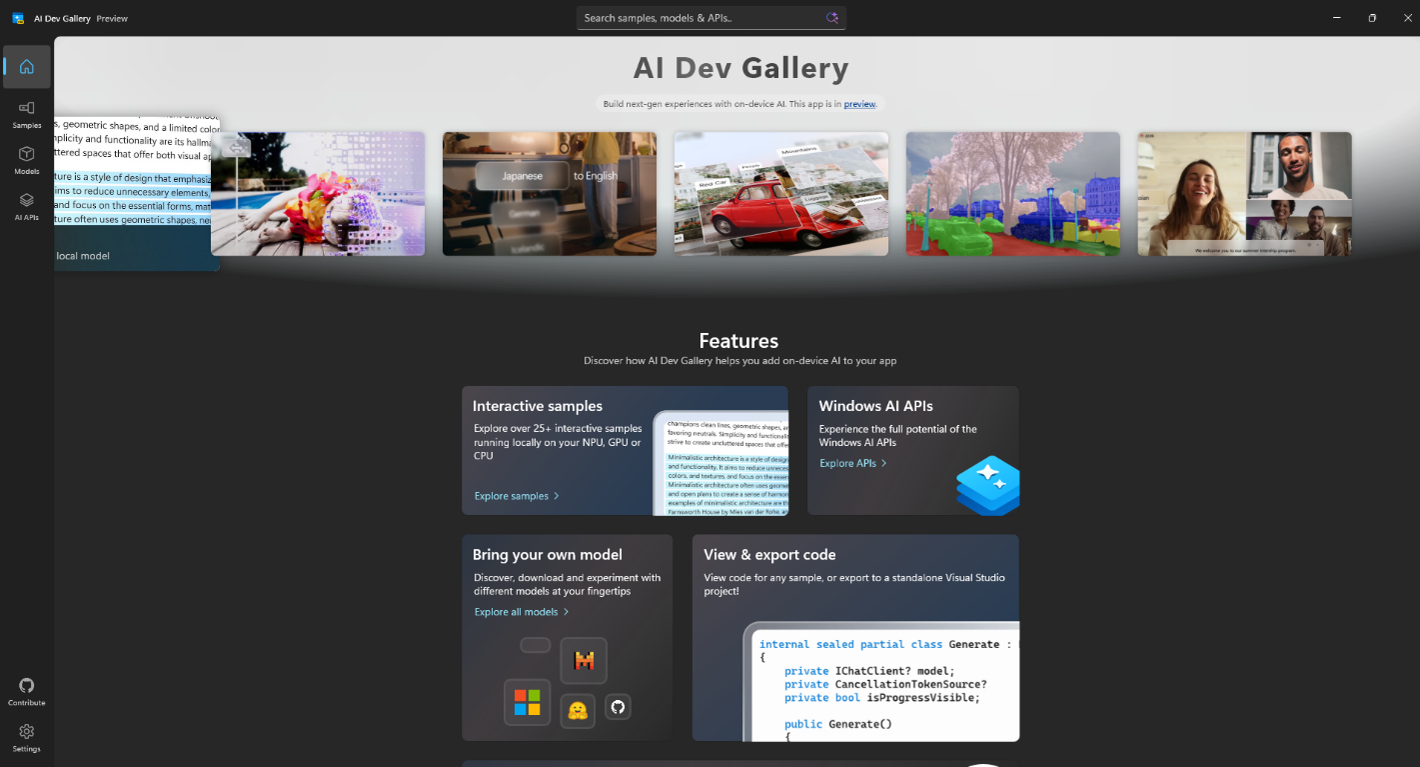
Key benefits of using AI Dev Gallery (Preview) for demo purposes?
- Explore and run AI models locally on Windows.
- Discover AI sample applications and scenarios.
- Experience the capabilities of Copilot+ PCs.
- Learn how local AI reduces cloud dependency and latency.
- Quickly prototype and demonstrate AI use cases without complex setup.
Tip
Explore the AI Dev Gallery app throughout this module to follow along with feature walkthroughs, role-based scenarios, and guided demo experiences.
How to install AI Dev Gallery App
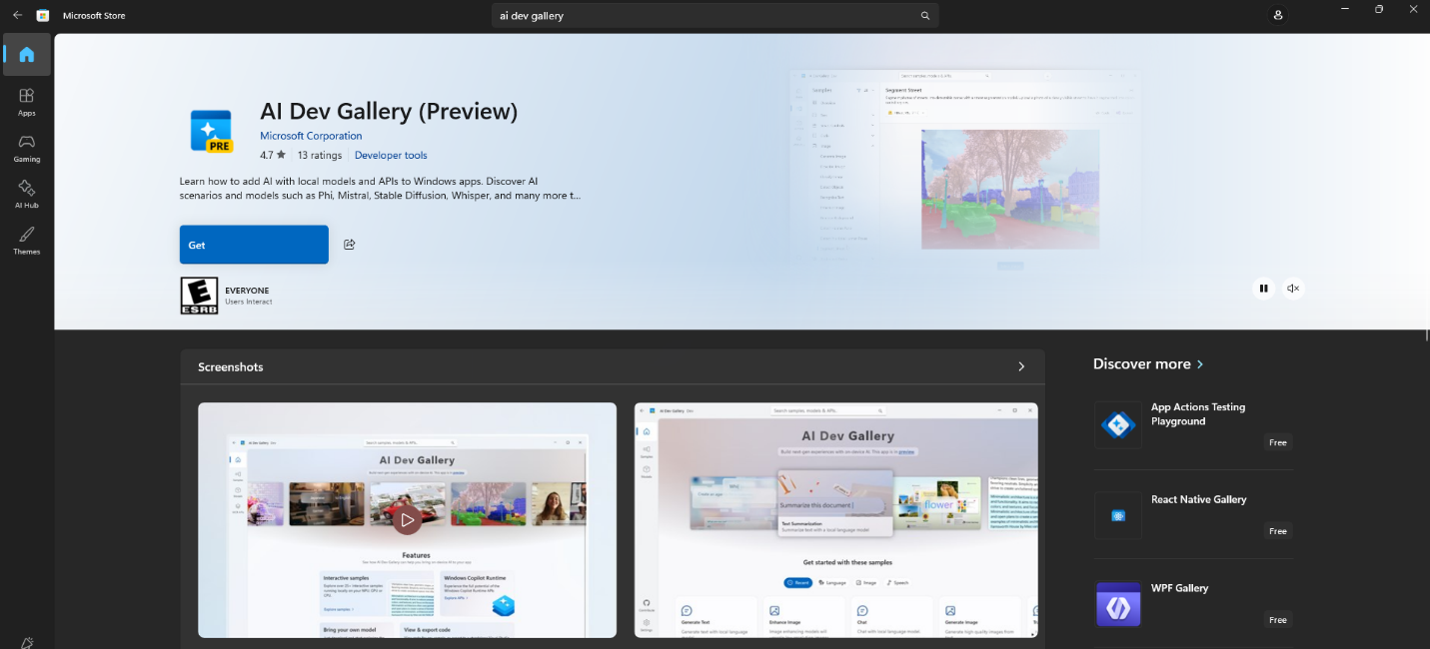
Follow these steps to download and install AI Dev Gallery (Preview) from the Microsoft Store at no added cost:
- Select Start and open the Microsoft Store.
- In the Store search bar, type AI Dev Gallery.
- Select AI Dev Gallery (Preview) from the search results.
- Select Get (or Install) to download the application.
- Wait for the installation to complete.
- Select Open to launch AI Dev Gallery, or access it anytime from the Start menu.
Tip
Ensure you're signed in to Windows with a Microsoft account and connected to the internet before downloading apps from the Microsoft Store.
Experiences available within the AI Dev Gallery (Preview) App
AI Dev Gallery (Preview) is organized into three core experiences that help users explore the local AI ecosystem on Windows—from trying AI-powered scenarios to discovering models and understanding the APIs that power them.
| Experience | Purpose | Best For | Example Use Cases |
|---|---|---|---|
| Samples | Explore ready-to-run AI demonstrations and scenarios. | Learning and showcasing AI capabilities. | Text generation, summarization, translation, image processing, RAG, and semantic search. |
| Models | Browse, download, and manage AI models available for local execution. | Understanding the AI models behind experiences. | Exploring Phi models, reviewing model requirements, and downloading optimized versions. |
| AI APIs | Explore built-in AI capabilities available to Windows developers. | Understanding how AI is integrated into applications. | OCR, text generation, image description, image creation, object removal, and semantic search. |
Tip
If you're new to AI Dev Gallery, start with Samples to experience AI capabilities firsthand, then explore Models and Windows AI APIs to understand what powers those experiences behind the scenes.
Hands-On with AI Dev Gallery Samples
Keep in mind that the samples shown here require a Copilot+ PC to function.
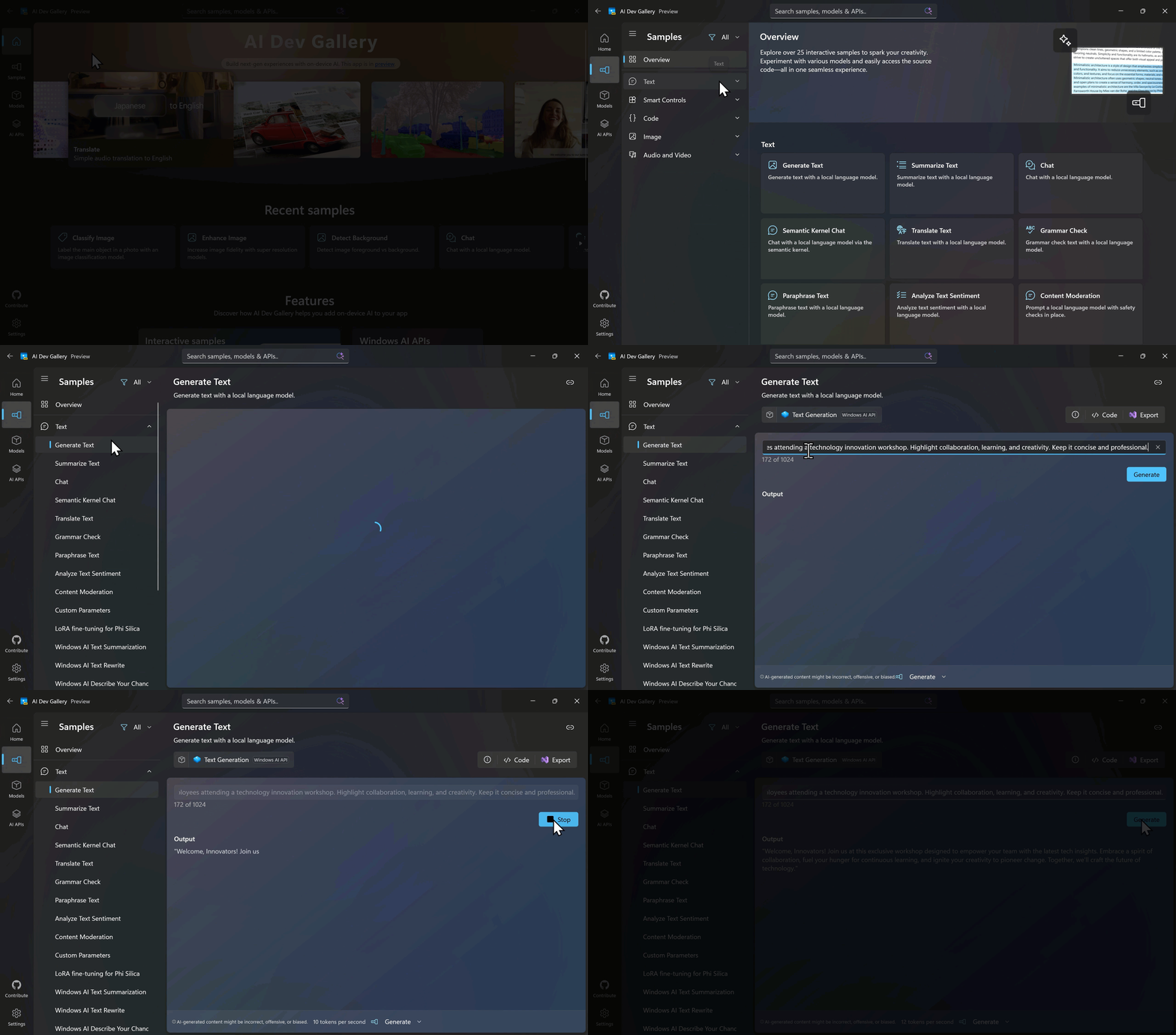
Step 1: Choose Samples on the left-hand navigation bar.
Step 2: Choose Generate Text.
Step 3: Select a model (select Text Generation and your model will show as selected in the bottom left of the pop-up window).
Step 4: Select Run Sample.
Step 5: Insert prompt and select Generate.
Note
For this sample, the following prompt is used: "Write a short welcome message for employees attending a technology innovation workshop. Highlight collaboration, learning, and creativity. Keep it concise and professional."
Now with the understanding of how to execute the demonstration, it is of further importance to understand the significance of the demo. AI Dev Gallery and its samples show the building blocks of what is possible to be made in on-device applications. Many of these samples could in fact be pieced together to make an application that can support offline or limited-connectivity scenarios when required models, sample assets, and dependencies are available locally. This is done by utilizing either the CPU, GPU, or neural processing unit (NPU) on the given Windows device, including Copilot+ PCs; allowing users to realize the vision of unmetered intelligence possibilities with supported local models and APIs, reducing reliance on cloud compute for eligible workloads.
NPU specific sample
Some AI Dev Gallery Experiences are designed specifically to utilize the power of the Neural Processing Unit (NPU) on a Copilot+ PC.
How to see only NPU model experiences outside of Windows AI API
Step 1: At the Samples screen, select the filter as shown.
Step 2: Filter to NPU.
As a result of this step, there will only be options for Image samples that can utilize other NPU models, that aren't the Windows AI APIs.
Step 3: Select Image drop down, then select Classify Image.
Step 4: Select the model you would like to use.
Tip
If you're new to AI Dev Gallery, a user might need to download the necessary models to run custom models. A user also has the capability to add their own model by selecting Add model.
Step 5: After selecting (and/or downloading) the model select Run Sample. Users might have to select the Execution Provider to utilize the NPU as seen.
The model analyzed the image and compared it against thousands of known categories to predict what objects it recognized. It then returned the most likely matches along with a confidence score for each prediction.
Image classification like this helps AI automatically identify and categorize visual content. Common use cases include image search, photo organization, product identification, quality inspection, and content management.
In this demo, the model ran locally on the device's NPU, enabling fast and efficient AI inference with supported local models and APIs, reducing reliance on cloud compute for eligible workloads. This demonstrates how Copilot+ PCs can deliver responsive AI experiences while processing on the device.