Reduce friction between information and action
Finding information is only part of the productivity challenge. Once employees locate the information they need, they often spend extra time copying data, reformatting content, switching applications, or manually completing routine tasks before meaningful work can begin.
Another way Windows 11 helps improve productivity is by reducing the friction between information and action. By bringing intelligent actions closer to where work happens, Windows 11 helps employees move more quickly from identifying information to using it.
Eliminate unnecessary manual steps
Many workplace tasks involve information that already exists somewhere on screen. However, employees frequently need to retype that information, copy it into another application, or otherwise manually recreate it before they can use it. These extra steps consume time and can introduce errors.
AI-powered experiences can help avoid these problems by recognizing information and making it easier to take action on it directly. Instead of treating information and action as separate steps, intelligent experiences help connect them.
The benefits of reducing friction with Windows 11 include:
Less manual data entry.
Fewer repetitive tasks.
Faster transitions from information to action.
More time focused on business outcomes than administrative work.
Turn on-screen information into usable content
Click to Do can help reduce friction in everyday work. On supported Copilot+ PCs, Click to Do recognizes text and images displayed on the screen and provides context-sensitive actions based on the type of content selected, helping users work with that content more efficiently. Instead of switching between applications or manually moving information between tools, users can take action on content directly from where they’re already working.
Users can access Click to Do by pressing Windows key + mouse click or Windows key + Q. It can also be launched with a right swipe on touch-enabled PCs, from the Snipping Tool menu (when Snipping Tool is installed), or by searching for Click to Do in Windows Search. Once activated, users can select text or images and choose from available actions based on the content. The following table highlights some common examples.
| Content selected | Example actions |
|---|---|
| Text | Copy, open in another app, search the web, summarize, create a bulleted list, rewrite text, draft with Copilot in Word |
| Email address | Send an email, start a Teams chat, schedule a Teams meeting |
| Website links | Open a website |
| Images | Copy, save, share, perform a visual search, blur backgrounds, remove backgrounds, erase objects |
Note
This table highlights common examples of Click to Do actions and doesn't represent a complete list.
Click to Do is a Copilot+ PC feature. Available actions vary by device, region, language, and character set. Some actions might require a subscription. Availability might vary by release status.
Move directly from intent to execution
Reducing friction isn't limited to a single feature. It represents a broader approach to productivity in which users can act on information as soon as they discover it.
Instead of navigating between multiple applications, copying content manually, or repeating work that has been completed elsewhere, employees can take advantage of intelligent actions that help bridge the gap between finding information and using it.
This approach helps embed intelligence into everyday workflows. AI becomes a tool that helps employees make progress without introducing extra work or complexity. The following example demonstrates how reducing friction between information and action can help employees complete common tasks more efficiently.
Example scenario
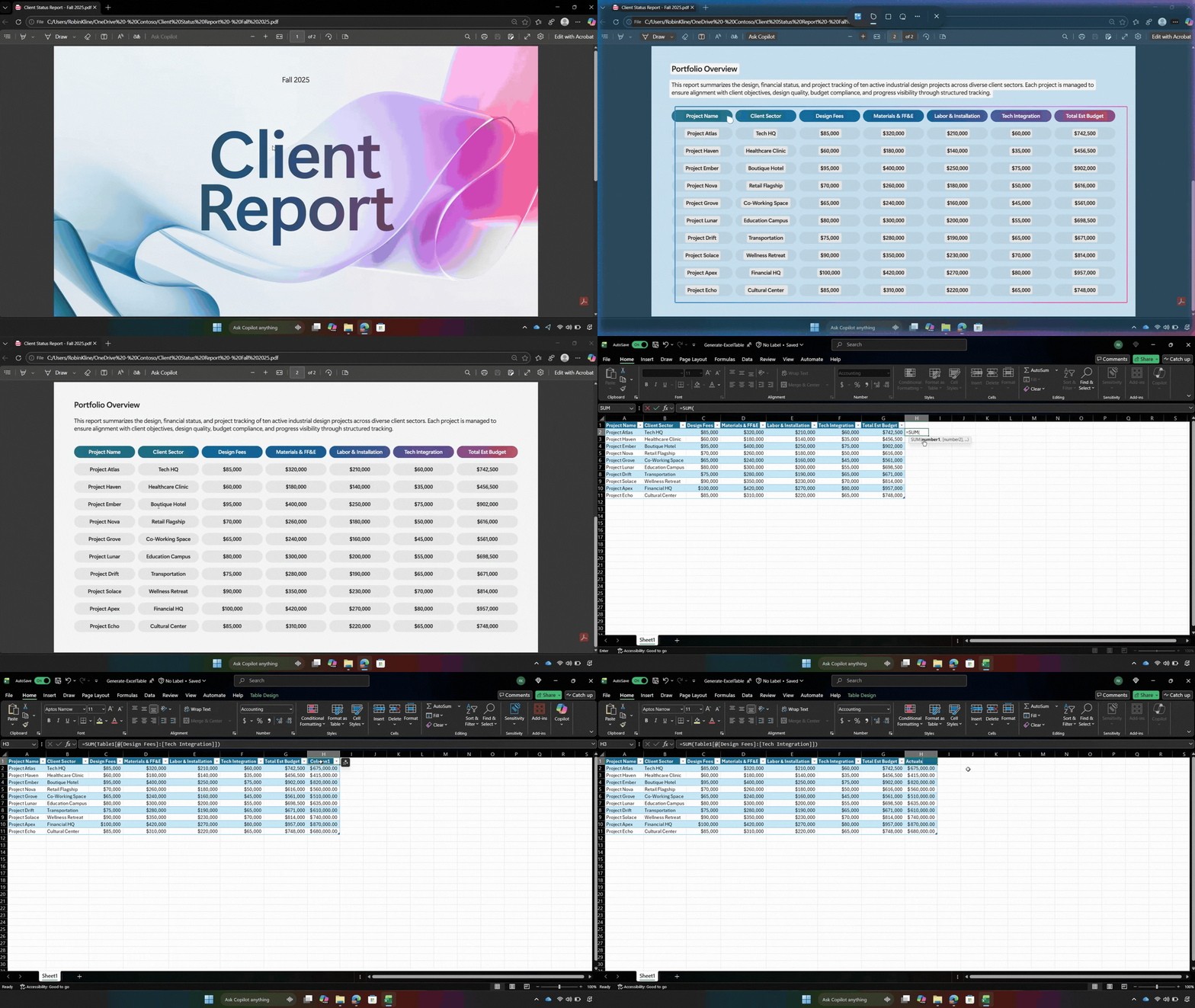
An operations specialist receives a supplier report that contains key metrics in a table embedded within an image. To prepare a cost estimate, the information needs to be analyzed in Excel. Manually recreating the table would take time and increase the likelihood of errors.
Instead, the specialist opens the report on a Copilot+ PC and activates Click to Do while viewing the image on screen. After selecting the table, Click to Do recognizes the tabular data and presents available actions, including Convert to table with Excel. The specialist selects the action, and the data is extracted into an editable Excel table.
With the information now available in Excel, the specialist can sort and filter data, apply formulas, compare supplier pricing, and build a cost estimate without manually reentering each value. By reducing the effort required to move information between tools, Click to Do helps the specialist focus on analysis and decision-making rather than administrative work.
Reflect
What repetitive tasks in your workday require you to manually re-enter, copy, or move information between applications?
How could reducing those steps help you focus more on higher-value work?
Key takeaway
Organizations can reduce unnecessary friction in everyday work by helping employees act on information more quickly, reducing manual steps, and moving from intent to execution with fewer interruptions.